





-
![]() Stop Code 0x00000124: Causes, Fixes, and How to Recover Files
Stop Code 0x00000124: Causes, Fixes, and How to Recover Files October 14,2026
 6 min read
 -
![]() BSOD After Installing SSD | Solved Without Losing DataOctober 14,20266 min read
BSOD After Installing SSD | Solved Without Losing DataOctober 14,20266 min read -
![]()
-
![]() Atomic Heart Save File Location on a PC [2026 Tips]October 14,20266 min read
Atomic Heart Save File Location on a PC [2026 Tips]October 14,20266 min read -
![]() What Is Easy Recovery and How to Download It? Full Guide HereOctober 14,20266 min read
What Is Easy Recovery and How to Download It? Full Guide HereOctober 14,20266 min read -
![]()
-
![]()
-
![]()
-
![]()
-
![]() Zoom Meeting Disappeared for No Reason? Fix It and Recover Zoom Meetings NowOctober 14,20266 min read
Zoom Meeting Disappeared for No Reason? Fix It and Recover Zoom Meetings NowOctober 14,20266 min read
Page Table of Contents
To delete an OS off a hard drive but keep the data, you must carefully remove system files while preserving personal folders like Documents, Pictures, and custom media libraries. When upgrading to a new Solid State Drive or reusing a secondary disk, operating system files such as the Windows directory, Program Files, and System Volume Information take up hundreds of gigabytes of unnecessary space.
PAGE CONTENT:
Upgrading your main system drive to a fast SSD is one of the best ways to speed up your computer. When you move your operating system to this new startup drive, your old hard drive or secondary disk usually stays connected to the motherboard as extra storage.
Standard drive formatting wipes the entire storage partition, destroying both the unwanted operating system and your valuable personal files. This guide details practical methods to remove an OS from a hard drive while keeping your data safe, ranging from administrative permission overrides to command-line techniques and bootloader cleanup.
Warning: Keep the Data Safe When Deleting the OS
Before you edit system folders or delete boot‑related system files on a second hard drive, follow important safety rules. Manually deleting operating system files may trigger unexpected permission blocks. You could accidentally erase personal user folders. Your computer might also fail to boot if it still reads startup files from the old drive.
Finish these key safety checks first. Make sure your main operating system is fully isolated before you delete any files.
- Verify the Active Boot Drive: Confirm your computer starts from your new main hard drive, not the older drive. Open Disk Management. Check that your current operating system uses the C drive letter and carries the System and Boot labels.
- Locate Hidden Personal Directories: Old Windows installations store downloads, desktop files, and documents inside hidden paths such as C:\Users\YourUsername. Move these personal folders to a clear backup folder on your new drive before working on any system directories.
- Disconnect Unrelated Storage Drives: Unplug external hard drives and temporary USB storage devices during this process. This prevents you from accidentally running delete commands on the wrong disk partition.
- Prepare Recovery Software: Accidental file deletion can take place while you clear large system folders. Install reliable data recovery software on your main drive. It gives you an immediate safety fallback if you make mistakes.
Solution 1. Recover Files via EaseUS Data Recovery Wizard
First, back up your data before deleting the Windows operating system from the HDD. This method is the safest way to protect your data from unintentional deletion. If you forget to back up data, EaseUS Data Recovery Wizard can help you restore lost files.
EaseUS Data Recovery Wizard is the industry-leading solution for retrieving lost documents, images, videos, and archives from secondary hard drives without formatting the drive. Its deep sector scanning engine bypasses broken file paths and permission locks, allowing users to extract lost personal data cleanly even if system directories have been corrupted or partially removed.
Step-by-Step Recovery Process Using EaseUS Data Recovery Wizard:
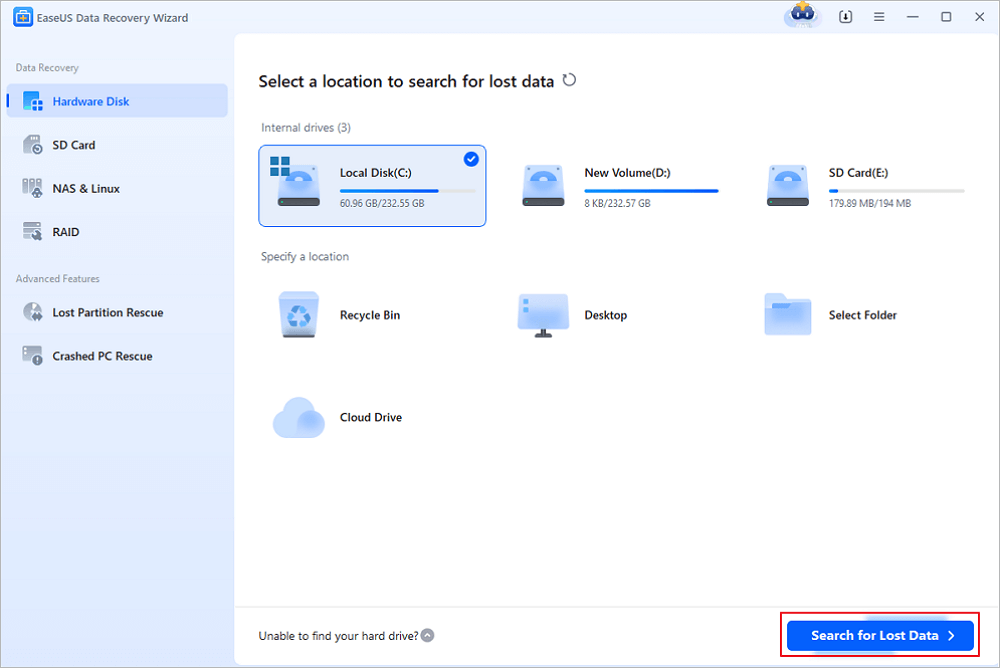
Step 1. Run EaseUS Data Recovery Wizard. Choose the drive where you lost files and start scanning by clicking "Search for Lost Data". This software allows you to recover lost data from all devices, including HDD, SSD, USB drive, SD card, pen drive, camera, etc.
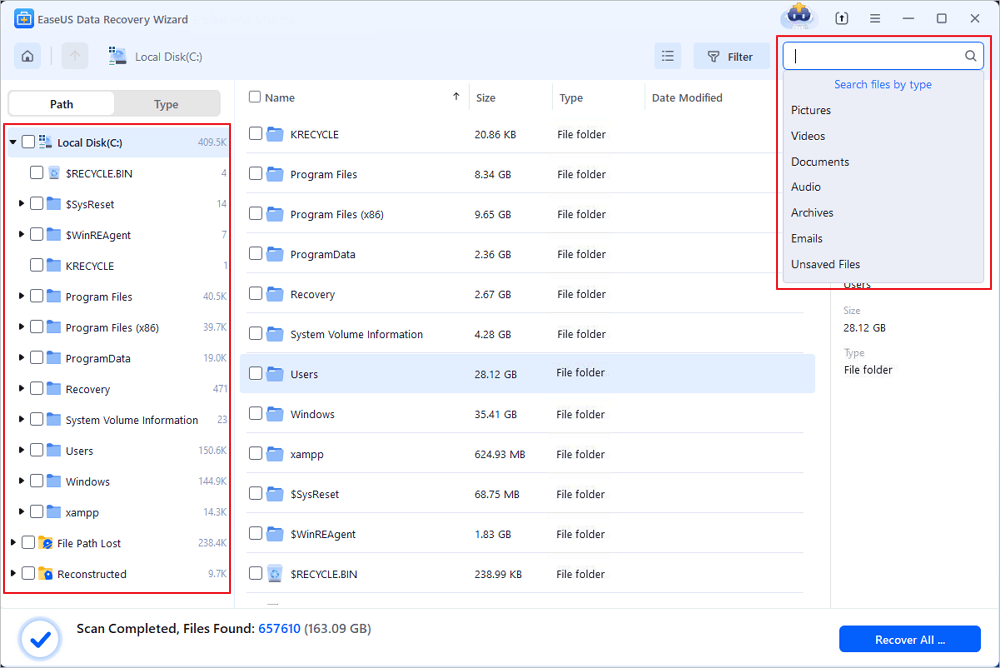
Step 2. Browse the full scan results. You can choose the file type you need by clicking on the file type filter. EaseUS data recovery software supports 1000+ file types like photos, videos, documents, emails, audio files, and many more.
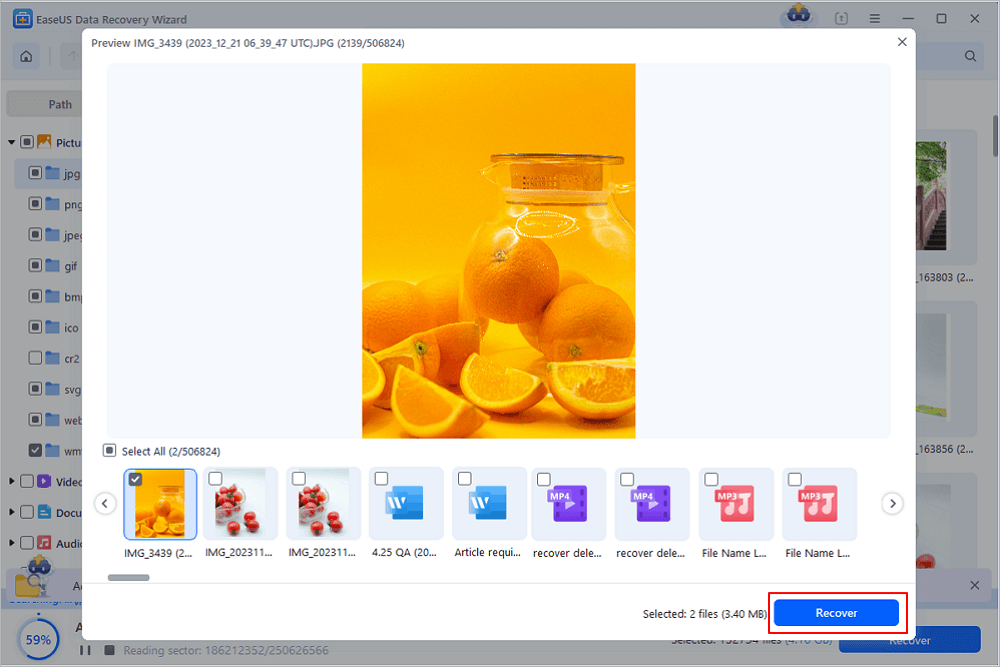
Step 3. Select the files you want to preview. Click "Recover" and set a storage location or Cloud drive to save the recovered data.
If you find this information helpful, share it with others on social media to help them overcome this common challenge.
Solution 2. Delete Old Windows Folder via File Explorer
If you prefer a manual approach in the standard graphical interface, you can take ownership of the old Windows directory and grant full control to your active administrator account.
Step 1. Open "File Explorer" and navigate to the secondary hard drive.
Step 2. Right-click the old Windows folder and select "Properties".
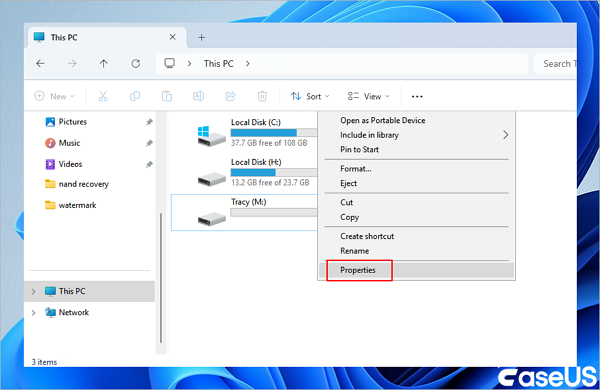
Step 3. Go to the "Security tab" and click "Advanced" at the bottom.
Step 4. Locate the "Owner" field at the top of the window and click the "Change" link next to it.
Step 5. Type Administrators or your current user account name into the object name field, click "Check Names" to validate, and click "OK".
Step 6. Check the box labeled Replace owner on subcontainers and objects to ensure all nested system subfolders inherit the new ownership.
Step 7. Click "Apply" and confirm any administrative prompt windows that appear.
Then, modify Folder Access Permissions.
- Return to the "Security tab in the folder properties window and click "Edit".
- Select your active user account or the local Administrators group from the list.
- Check the "Allow" box next to "Full Control" under "Permissions".
- Click "Apply" and "OK", then close the Properties window.
- Right-click the "Windows folder, choose "Delete", and allow "File Explorer" to move the system directory to the Recycle Bin or permanently purge it from the drive.
Conclusion
Freeing up storage space on a secondary hard drive doesn't require formatting the disk or sacrificing your personal archives. By understanding how to remove Windows OS from an old hard drive without formatting, taking ownership of protected folders, and running cleanup tools like Storage Sense or command-line utilities, you can safely strip away gigabytes of unwanted operating system files while keeping your photos, documents, and media libraries intact.
How to Delete an OS off Hard Drive but Keep Data FAQs
Managing secondary storage disks and clearing legacy operating system files often leads to technical queries about boot paths and data security. Below are answers to the most common questions users ask during this process.
1. Can I delete the Windows folder on my second drive without affecting my active operating system?
Yes, as long as your computer is currently booted from your primary active SSD and not relying on the secondary drive for boot files, deleting the old Windows folder on the secondary drive will not harm your active system. Always verify your current drive letter in Disk Management before deleting files.
2. What happens to my installed programs if I remove the old OS from a secondary drive?
Programs installed under the old operating system rely on registry keys, system dependencies, and app data configurations that were embedded in the old Windows installation. While portable apps may launch directly, most complex applications will not run simply by double-clicking their old executable files. You should reinstall those programs on your new active system.
3. How do I know if my PC relies on the old hard drive to boot?
To check whether your PC depends on the old drive to boot, turn off your computer, temporarily disconnect the secondary hard drive's power or SATA cable, then turn it back on. If Windows boots smoothly to your desktop, your new drive contains the primary EFI boot partition, so it's safe to clean the old drive.
Was this page helpful?

 Why Trust EaseUS
 Editor Reviews

20+
Years of experience

160+
Countries and regions

72 Million+
Downloads

4.9 +
Trustpilot Score





