






| Workable Solutions | Step-by-step Troubleshooting |
|---|---|
| Procedure 1. Create a Bootable Media with EaseUS Partition Master | You have created an EaseUS Partition Master WinPE bootable disk now...Full steps |
| Procedure 2. Recover Deleted Operating System in Windows | Step 1. Open EaseUS Partition Master and click "Partition Recovery" on the top menu...Full steps |
| Procedure 3. Add a Boot Option | Adding a boot option in BIOS or UEFI boot mode is not easy to do. You can search for the guide on the Internet...Full steps |
Accidentally Deleted Operating System in Windows 11/10
It's not easy to delete Windows operating system during our daily use and impossible to delete it if you are operating in Windows. However, the Windows operating system is not undeletable. Generally, there are several situations in which you may accidentally delete the operating system on your computer.
- Accidentally delete OS in Windows Preinstallation Environment
- Boot a computer via a bootable media and then delete the operating system by mistake
- The computer has dual operating systems and you delete one of them after booting into another
- You delete the operating system after system clone, OS reinstallation, system recovery, misoperation...
When the operating system is deleted, you can't boot your computer as expected and the files stored on your computer hard drive are inaccessible. To eliminate this annoying issue, you need to recover the deleted operating system and make your computer boot normally again.
- Important
- Microsoft has officially announced that Windows 10 support will end on October 14, 2025. After this date, the system will no longer receive security updates, bug fixes, or technical support.
How to Recover Accidentally Deleted Operating System in Windows 11/10
Generally, deleting an operating system means deleting the whole system partition. Thus, you need a partition tool - EaseUS Partition Master to recover the deleted system partition. With the help of this tool, you can recover your deleted operating system in Windows 11/10 and boot your PC normally again via three procedures:
- Create a bootable media with EaseUS Partition Master
- Boot your computer from the bootable media and recover the system partition.
- Afterward, you can add a boot option in BIOS/UEFI to boot Windows from your computer hard drive again. To get back your deleted OS:
Note: If you accidentally deleted a Windows 11/10 ISO file to the recycle bin, you can also bring the image file back. See also:

How to Recover Deleted Files from Recycle Bin?
Are you looking for a way to perform Recycle Bin recovery? Follow to learn how to recover deleted files from the Recycle Bin immediately.

Procedure 1. Create a Bootable Media with EaseUS Partition Master
You have created an EaseUS Partition Master WinPE bootable disk now. Connect the WinPE bootable disk you have made to the PC with the corrupted Windows system, restart the computer and go to BIOS/UEFI to change the boot sequence. Press "F2" (the BIOS key varies according to the computer manufacturer) when you start your PC. It will allow you to run EaseUS Partition Master and recover your system partition without Windows.
Before you start, there are things you need to identify.
If you see your original system partition shown as unallocated space in EaseUS Partition Master or RAW, you can recover the partition and the Windows operating system together with it following the steps below. If you see the system partition still exists but you cannot boot your computer. It's probably some Windows system files are deleted by mistake. In such a case, you can refer to the article about system boot issues (this article is related to other software but some of the solutions are universal) or create a bootable media with the hard drive recovery software - EaseUS Data Recovery Wizard, boot your computer from the device, recover your deleted Windows system files, and create a boot option in BIOS/UEFI to recover your operating system.
Procedure 2. Recover Deleted Operating System in Windows
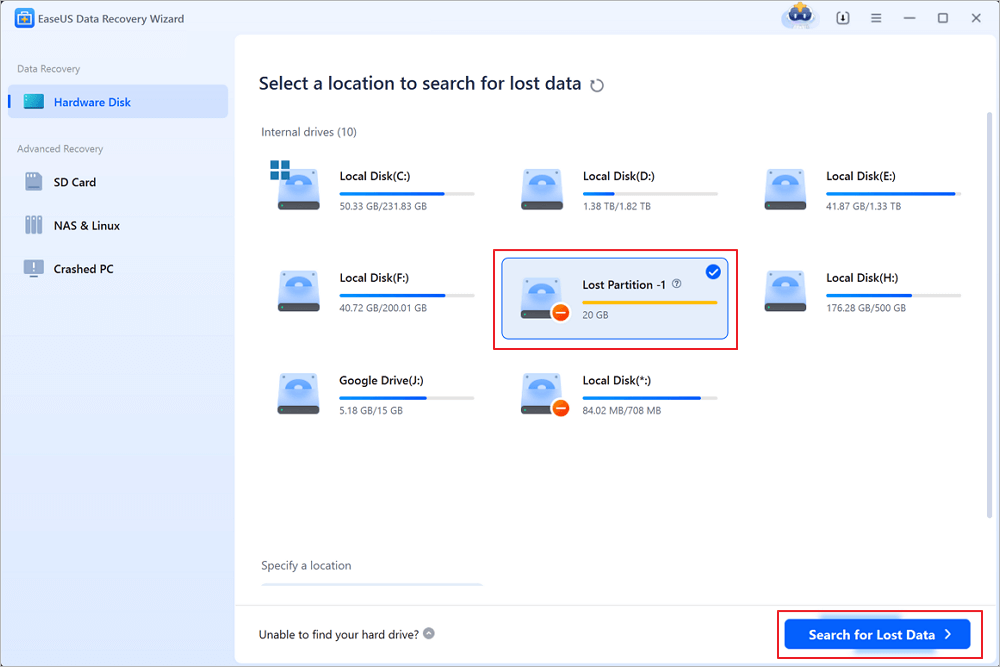
Step 1. Select and scan the lost partition
Launch EaseUS Data Recovery Wizard, select "Lost Partition" and click "Search for Lost Data" to search for all the lost data from your lost or deleted partition. If there are many lost partitions, you can identify them through its partition size.
Note: Since the Windows system doesn't support the Linux file system, the Ext2 or Ext3 partition will be recognized as lost partition with no drive letter in the software. If you want to recover data from Ext2/Ext3 partition, you can follow these steps.
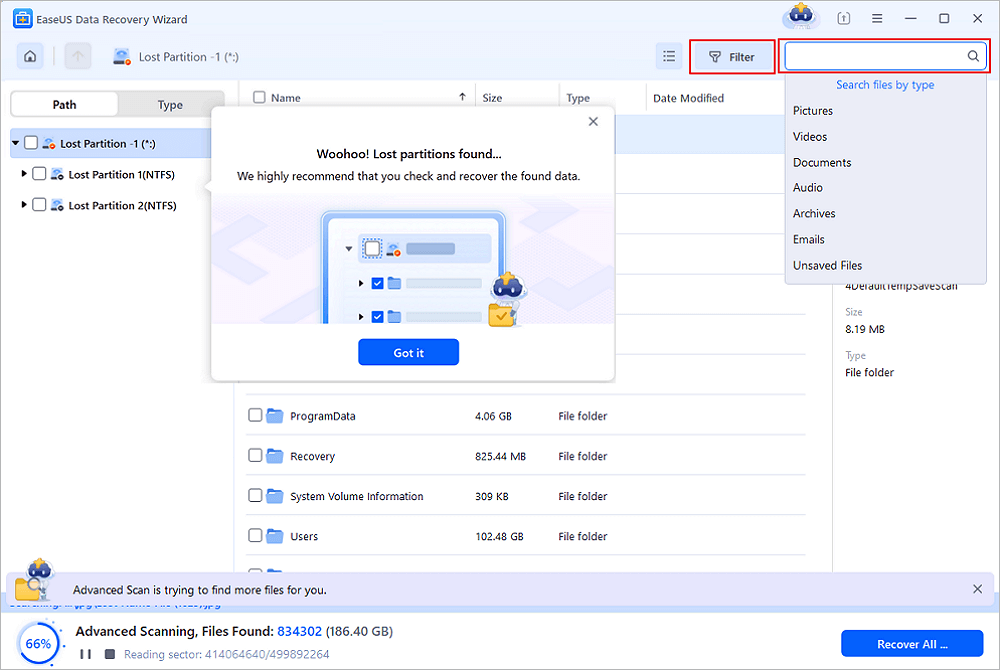
Step 2. Filter the scanned results
Because there will be a lot of scanned files, you can choose a file category for quick filtering, such as Pictures, Videos, Documents, Audio, and Others. Or if you remember the file name, you can just look it up in the search box in the upper right corner.
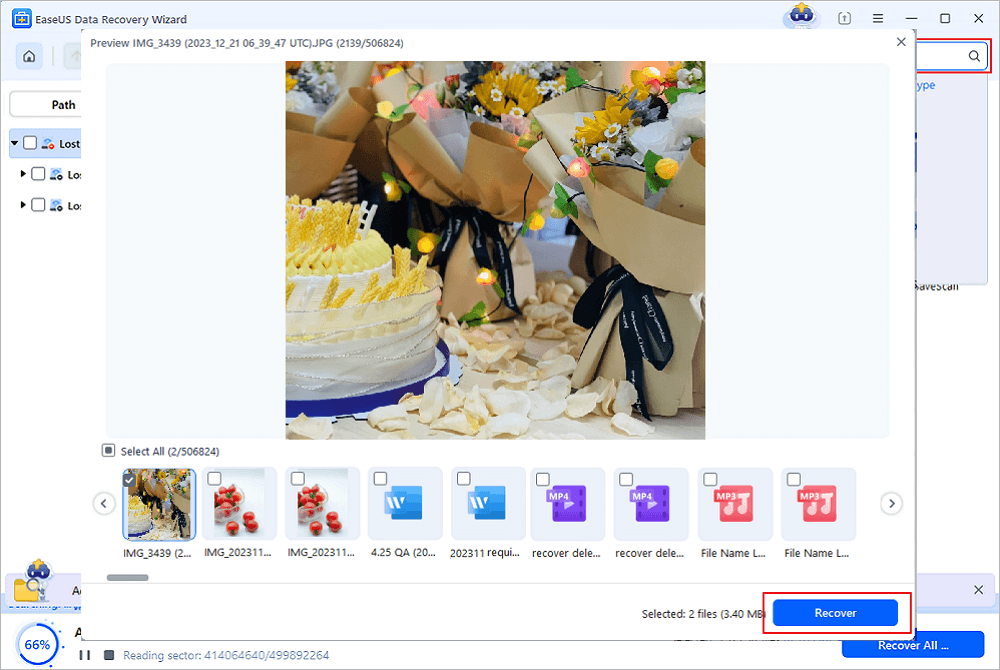
Step 3. Preview and recover data from the lost partition
Before recovery, you can preview the file to make sure it is the data you need. Choose all the files you need and click "Recover" to restore them. Choose a storage location (including cloud storage, such as OneDrive, Google Drive, etc.), and click "Save" to save your recovered files.
Procedure 3. Add a Boot Option
Adding a boot option in BIOS or UEFI boot mode is not easy to do. You can search for the guide on the Internet according to your boot mode and brand of your computer. Or you can directly contact our support team via live chat or telephone number provided below for remote assistance. In addition to creating the boot option, our support team can also help in other aspects like data recovery.
The Bottom Line
Accidentally deleting the operating system is quite rare but still exists. To reaccess the files on your computer and recover the deleted OS, you need to create a bootable media with partition recovery software, like EaseUS Partition Master, which is 100% secure, virus-free, and plug-in free. If you have any difficulty performing data recovery or adding a boot option, you are welcomed to ask help from our support team.
Was This Page Helpful?
Related Articles
-
4 Effective Ways to Fix Asus Recovery Partition Missing Problem
![author icon]() Cedric/2026-10-31
-
RAID Partition Recovery: RAID 5, 10, 6, 0 Recovery
![author icon]() Dany/2026-11-19
 Cedric/2026-10-31
 Dany/2026-11-19
-
Recover Lost Partition on Micro SD Card: 4 Ways to Recover
![author icon]() Dany/2026-11-18
-
[Fixed] Unable to Reset Your PC. A Required Drive Partition Is Missing
![author icon]() Jean/2026-11-20
 Jean/2026-11-20


