



How to Check Whether Your Micro SD Card Partition Is Lost or Damaged
A microSD card that shows as unallocated, turns RAW, reports the wrong capacity, or vanishes from File Explorer has usually lost its partition table or damaged its file system. The files are often still there.
Before recovering a lost Micro SD card partition, first determine whether the partition is missing or the file system is corrupted. Windows Disk Management can help you check the card's status and determine the appropriate recovery method.
Step 1. Check Whether the Micro SD Card Is Detected
Insert your Micro SD card into a card reader and connect it to your computer. Open File Explorer and check whether the card appears under This PC.
- If the card appears normally but cannot be opened, its file system may be corrupted.
- If the card is detected but has no drive letter, it may be a drive assignment issue.
- If the card does not appear at all, try another card reader or USB port.
Step 2. Check the Partition Status in Disk Management
Press Windows + X and select "Disk Management". Locate your microSD card by checking its storage capacity, then examine its partition status.
| Status | Possible Problem |
| Unallocated | The original partition may have been deleted or lost |
| RAW | The file system may be corrupted or unreadable |
| Healthy, without a drive letter | The partition exists but is not properly mounted |
| Not Initialized | Partition or disk information may be damaged |
Step 3. Identify Whether the File System Is Corrupted
In Disk Management, check the File System column for your microSD card.
If it shows FAT32 or exFAT, Windows can recognize the file system. If it displays RAW, the file system may be damaged, preventing Windows from accessing the stored files.\
💡Important: If the card shows as RAW or Unallocated, do not format it or create a new partition immediately. Recover data from the RAW SD card first to avoid overwriting potentially recoverable files.
How to Recover a Lost Partition on a Micro SD Card
When a partition is deleted, becomes inaccessible, or turns into unallocated space, recover the files before rebuilding anything. Recovery software scans the device directly and finds files that the file system no longer lists.
EaseUS Data Recovery Wizard recovers files from Micro SD cards, SD cards, USB drives, hard drives, and SSDs. It handles partition loss, accidental deletion, formatting, and RAW file systems. Five of its features matter here.
EaseUS partition recovery software searches for partitions that are no longer visible in the normal file system, identifies recoverable partitions on the device, and lists what it finds so you can inspect them and preview files inside a detected partition before recovering anything. It earns its keep when a card's partition disappears after accidental deletion, partition table corruption, or a storage error.
Whether the software can restore a lost partition on an SD card directly depends on the partition structure it detects and on the version you are running. Where it can't, you still get the files.
You can follow this guide to recover a lost partition and data on a microSD card with EaseUS partition recovery tool:
Step 1. Select and scan the lost partition
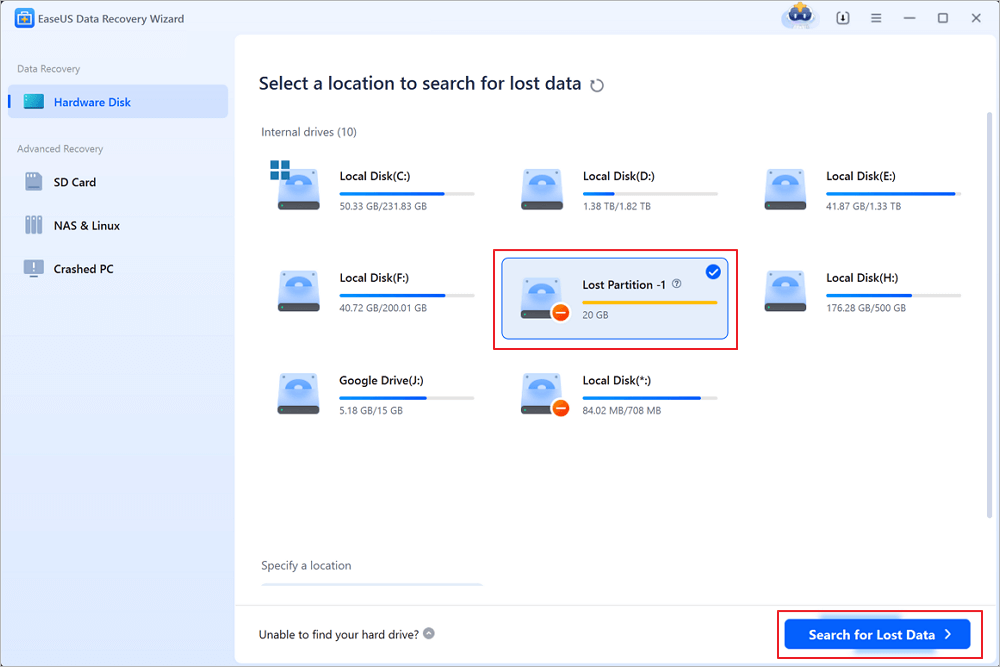
Launch EaseUS Data Recovery Wizard, select "Lost Partition" and click "Search for Lost Data" to search for all the lost data from your lost or deleted partition. If there are many lost partitions, you can identify them through its partition size.
Note: Since the Windows system doesn't support the Linux file system, the Ext2 or Ext3 partition will be recognized as lost partition with no drive letter in the software. If you want to recover data from Ext2/Ext3 partition, you can follow these steps.
Step 2. Filter the scanned results
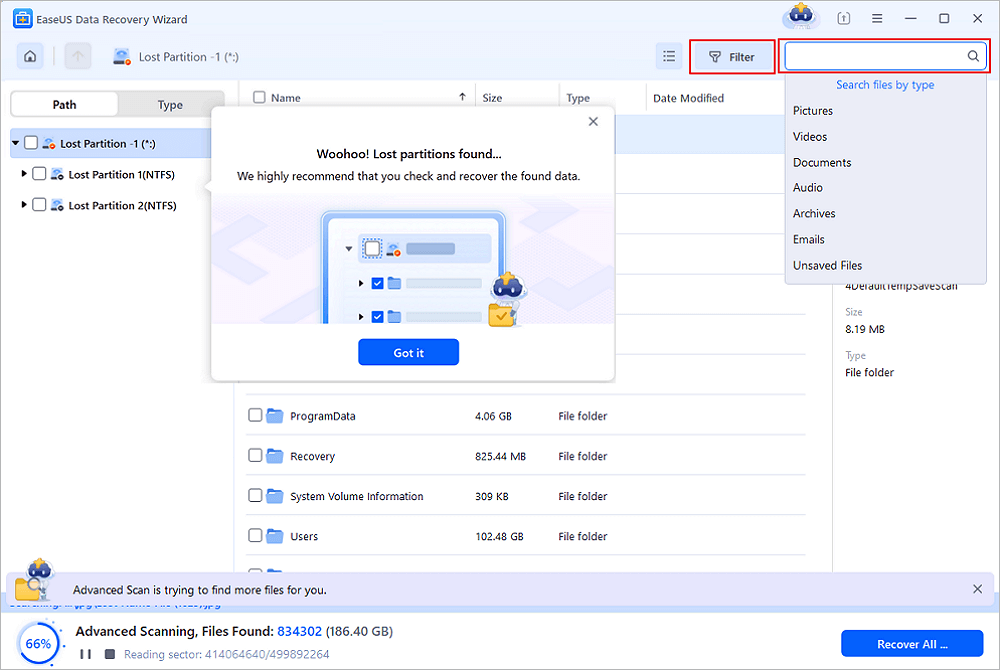
Because there will be a lot of scanned files, you can choose a file category for quick filtering, such as Pictures, Videos, Documents, Audio, and Others. Or if you remember the file name, you can just look it up in the search box in the upper right corner.
Step 3. Preview and recover data from the lost partition
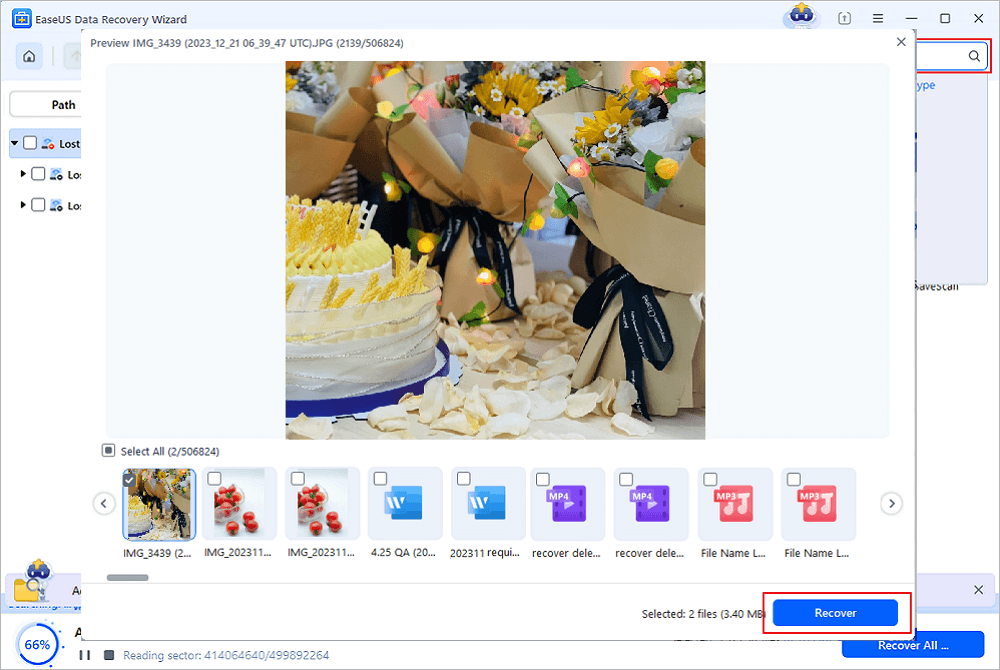
Before recovery, you can preview the file to make sure it is the data you need. Choose all the files you need and click "Recover" to restore them. Choose a storage location (including cloud storage, such as OneDrive, Google Drive, etc.), and click "Save" to save your recovered files.
One thing to keep straight: recovering files from a lost partition isn't the same as rebuilding the original partition table. If the partition structure can't be restored safely, recover the important files to another drive and leave the card alone. Don't save recovered files back to it.
You can share this microSD card partition recovery guide on social media to help more users!

Other Ways to Repair or Restore a Lost Micro SD Card Partition
Windows has built-in tools like Command Prompt; assigning a drive letter fixes a mounting problem. CHKDSK tries to repair certain file system errors. Creating a new partition is the last resort, for when you no longer need the old structure or have already recovered the data.
Fix 1. Assign a New Drive Letter to the Micro SD Card
Sometimes the partition is fine, and Windows simply hasn't given it a letter, so the card shows up in Disk Management but never in File Explorer.
Step 1. Press "Windows + X" and choose Disk Management.
Step 2. Find the card by its capacity and check that you have the right volume selected.
Step 3. Right-click the partition and choose "Change Drive Letter and Paths".
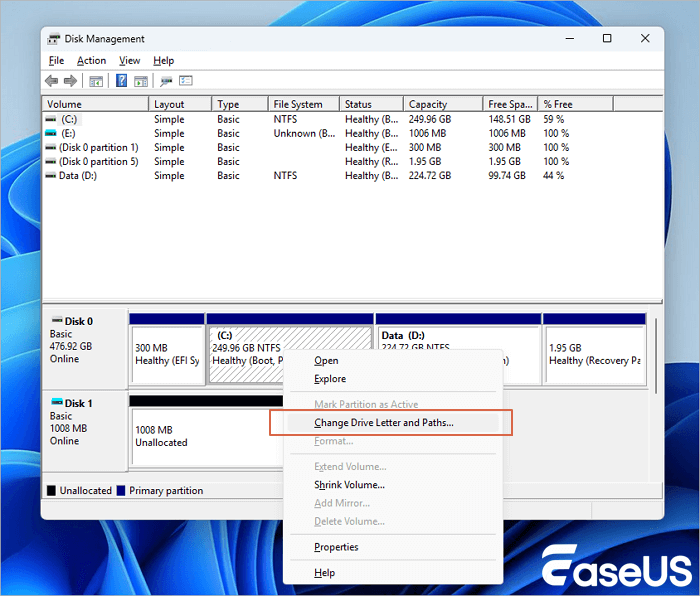
Step 4. Click Add if the partition has no letter, or "Change" to replace an existing one, then pick an available letter.
Step 5. Click "OK" to apply it. Look for the card under "This PC" in File Explorer.
If the only problem was the letter, the card now opens normally. If the volume is RAW or unallocated, a new letter changes nothing; the partition or file system still needs fixing.
Fix 2. Use CHKDSK to Repair a Corrupted Micro SD Card File System
CHKDSK won't rebuild a deleted partition table, and its repairs modify file system structures. If the card holds anything important, get the files off before you run it.
Step 1. Connect the card through a card reader. Confirm Windows sees the volume and has assigned a letter.
Step 2. Click the search icon, type cmd, right-click Command Prompt, and choose "Run as administrator".
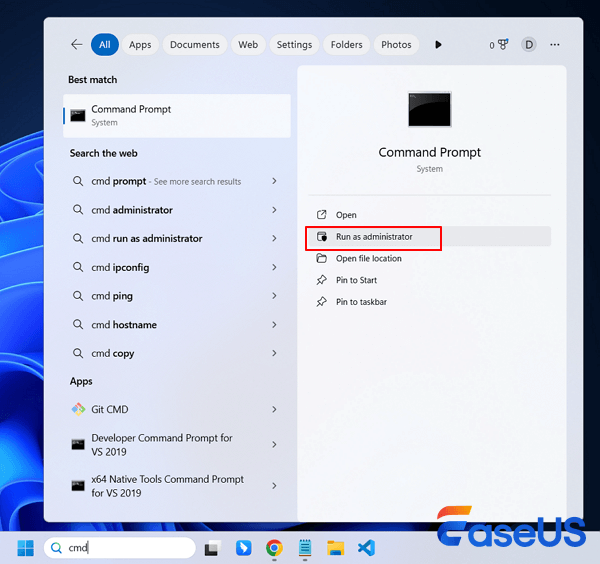
Step 3. Note the drive letter in File Explorer or Disk Management. Suppose it's E:. Run the command:
- cmd
- Copy
- chkdsk E: /f
Replace E: with your card's letter. /f tells Windows to fix the errors it finds. Let the scan finish, and don't unplug the card while it runs.
Check File Explorer again. If the card is still RAW or still won't open, the damage is beyond what CHKDSK can repair.
Fix 3. Create a New Partition on the Micro SD Card
If the old partition can't be restored and you've recovered or backed up everything you need, a new partition makes the card usable again. It doesn't bring back the old partition or its files, and formatting the new volume lays down a fresh file system over whatever is still on the card.
Step 1. Press Windows + X and open Disk Management.
Step 2. Find the card and confirm its space shows as "Unallocated". Check the capacity before you go further.

Step 3. Right-click the unallocated space and choose "New Simple Volume".
Step 4. Set the volume size, or keep the default maximum to use the whole card as one partition. Click "Next".
Step 5. Pick a drive letter and click "Next".
Step 6. Choose a file system. FAT32 has the widest compatibility with older devices, cameras, and portable gear. exFAT suits most modern cards and devices, particularly if you store large files. Add a volume label if it helps you identify the card.
Step 7. Set the formatting options, confirm, and click "Finish".
Check File Explorer for the card under its new letter.
Conclusion
A lost partition makes the photos, videos, and documents on a Micro SD card inaccessible, but missing partition information doesn't mean the data is gone. Work out whether Windows sees the card and what Disk Management says about it, then choose a method for that specific problem.
EaseUS Data Recovery Wizard can locate data from a lost partition and pull different file types off a card. Whatever you try, don't format the card or write new data to it before recovery. That one precaution gives you the best chance of getting your files back.
Micro SD Card Partition Recovery FAQs
1. Can I recover a lost partition on a Micro SD card?
Often, yes. Lost partition recovery software can find a lost partition if the partition information and data sectors are still intact and haven't been overwritten. Results depend on exactly that.
2. Why did my card's partition disappear?
Common causes include deleting the partition by accident, an interrupted format, file system corruption, pulling the card without ejecting it, a sudden power loss, malware, and storage errors. Physical damage or a failing controller on the card can also stop the partition from being recognized.
3. How do I get files off an unallocated card?
Stop using it and don't create a new volume. Open a recovery program such as EaseUS Data Recovery Wizard, check whether it sees the card or its lost partition, scan it, preview the results, and save the recovered files to a different drive.
Was This Page Helpful?
Related Articles
-
How to Recover Files from an SD Card with Bad Sectors
![author icon]() Brithny/2026-10-30
-
How to Recover Formatted Sony SD Card [A7III/A7Iv/A7RV]
![author icon]() Jaden/2026-10-30
 Brithny/2026-10-30
 Jaden/2026-10-30
-
PNY Recovery Tool: Adatok helyreállítása PNY SD-kártyáról/USB flash meghajtóról
![author icon]() Cedric/2026-10-30
-
SD-kártya helyreállítása Macen: SD-kártya helyreállítása 5 módon
![author icon]() Cedric/2026-10-30
 Cedric/2026-10-30


