





 About the Author
 Reviews and Awards
 Mac SD Card Recovery
What Is Shift Delete Mac?
On a Mac, pressing Shift + Delete doesn't do anything special. Unlike Windows, macOS doesn't use that shortcut to permanently delete files. In Windows, if you use the Shift+Delete shortcut, the selected files or folders will be permanently deleted, skipping the Recycle Bin.
Apple handles deleting files a little differently. Most times, Apple does not erase files right away. Instead, items vanish into the Trash after deletion - this pause lets users review choices before permanent removal. That way, you can double-check what you've deleted before it's gone for good. If you want to skip the Trash and delete files immediately, kind of like Shift + Delete on Windows, you'll need a different shortcut.
Here's what you use: Command + Option + Delete. That's the macOS way to wipe out files right away, without sending the deleted items to Mac Trash.
If you want to know the equivalent shortcuts for delete functions on your Mac, check the following shortcuts.
Mac Equivalent Shortcuts for Delete Functions
Understanding file deletion on a Mac starts with learning key shortcuts. One way to begin is by noticing which keys combine for each task.
✅Command + Delete
Pressing Command + Delete moves items to Trash instead of erasing them fully. That's the basic delete, your file isn't gone for good, just sitting in the Trash, easy to pull back if you change your mind.
✅Command + Option + Delete
If you're sure you want something gone forever and don't want it hanging around in the Trash, use Command + Option + Delete. This skips the Trash, just like Shift + Delete does on Windows machines. You should know that this shortcut will permanently delete things, and you'll need professional Mac Trash recovery software or recent backups to restore files.
✅Shift + Command + Delete
To clear everything in the Trash, press Shift + Command + Delete. That wipes out anything you haven't already restored.
✅Delete Text Quickly
Deleting text has its own tricks, too. Option + Delete erases one word at a time. If you want to clear an entire line, hit Command + Delete.
Mac splits the delete actions up so you've got more control and a little extra safety if you make a mistake. It's not just one shortcut for everything like you get on Windows.
How to Permanently Delete Files on Mac (Step-by-Step)
When you really want your files gone for good, not just tossed in the Trash, you've got to take a few extra steps. Here's how you can make sure those files don't hang around on your Mac.
Method 1. Use Command Option Delete Shortcut
This method is quick and easy to use. If you hate extra steps and just want something gone, this is the shortcut you want.
Step 1. Open Finder and find the file or folder you want to wipe out.
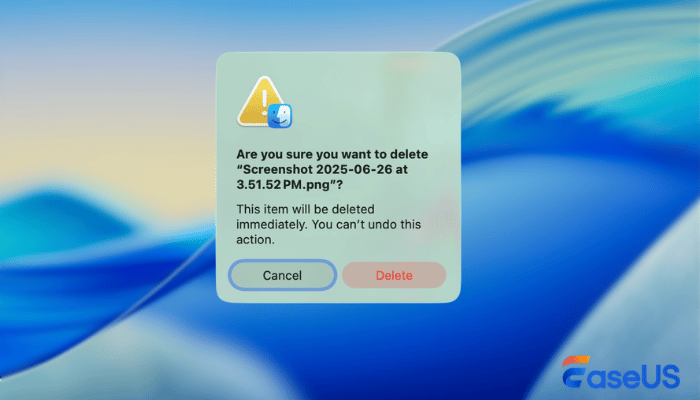
Step 2. Select the files or folders you want to delete, and press Command (⌘) + Option + Delete.
Step 3. If the pop-up window appears, click "Delete" to confirm the deletion.
Method 2. Permanently Delete Files in Trash
This is the standard way to delete Mac files permanently. If you've already dragged some files into the Trash, emptying the Trash is the way to go.
Step 1. Open the Trash folder from the Dock.
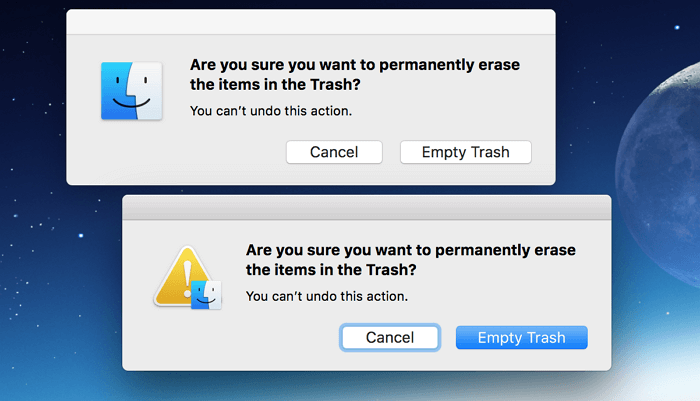
Step 2. Enter the Trash folder and click "Empty."
Step 3. Confirm by clicking "Empty Trash" in the pop-up.
What Happens When You Permanently Delete Files on Mac
When you delete files on a Mac, whether you use Shift + Command + Delete or just empty the Trash, the data doesn't vanish right away. All that really happens is the system removes the file's listing, making its space look empty and ready for something new.
But the actual data sticks around on your drive until something overwrites it. That's why, as long as nothing new takes its place, there's a good chance data recovery tools can still bring those files back.
How to Recover Permanently Deleted Files on Mac
These permanently deleted files on Mac can still be recovered if you have found reliable Mac data recovery software.
EaseUS Data Recovery Wizard for Mac is widely trusted Mac data recovery software. You can recover data from a Mac hard disk, a formatted storage device, and especially recover emptied Trash with this tool.
It supports recovery from APFS, HFS+, and other macOS file systems, making it highly effective even after permanent deletion. With this software, you can try to find photos, videos, documents, and other files you think are permanently deleted.
Follow the tutorial below to recover deleted files on Mac:
Step 1. Scan for deleted files
Select the hard drive, external drive, or SSD where your important data & files were deleted and click "Search for lost files".

Step 2. Filter the lost files
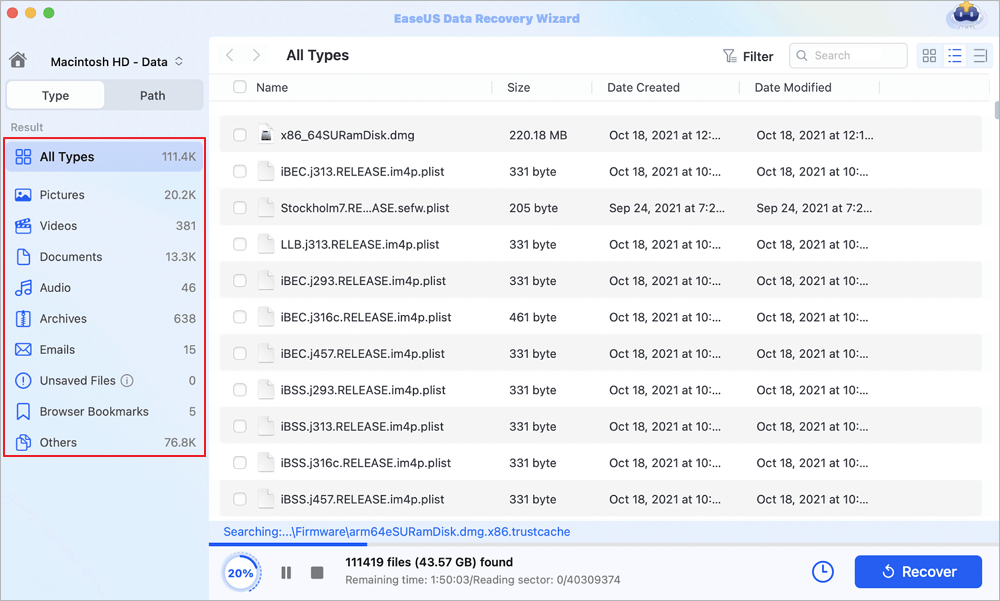
The software will run quick and deep scans and work hard to find as many deleted files as possible on the selected volume. Filter wanted files through the "Type" and "Path" options.
Step 3. Recover deleted files
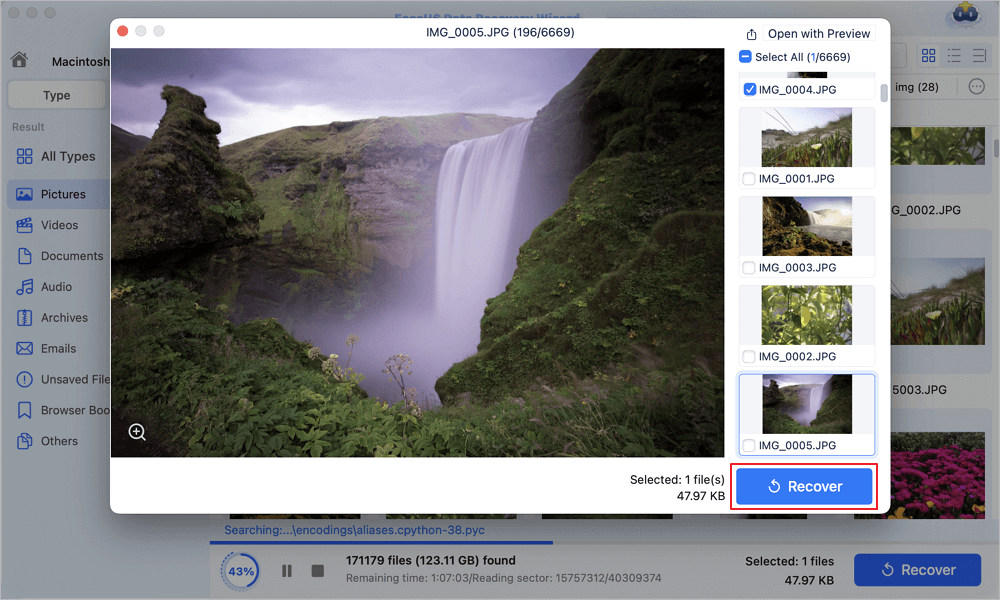
Double-click the deleted files to preview. Then, click the "Recover" button to get them back.
Share this reliable recovery tool on social media and help more users find Command Option Deleted files.

Conclusion
Mac doesn't have a Shift Delete like Windows, but you can still delete files right away with Command + Option + Delete.
Apple's way is a bit more cautious. Deleting stuff usually happens in steps, so you don't accidentally erase something you need. It gives you a little extra control.
Still, deleting files for good is risky. If you wipe something important, you can grab a tool like EaseUS Data Recovery Wizard for Mac to bring it back.
Once you know the shortcuts and how to recover files, managing your data on a Mac feels a lot less stressful.
Ctrl Shift Delete Mac FAQs
If you want to learn more about the shift delete shortcut on Mac, check the following frequently asked questions:
1. How can I shift delete on my Mac?
If you want to use the shift delete shortcut to delete files or folders on Mac without sending them to the Trash folder, Command + Option + Delete is suitable for you. This shortcut removes items without going through the trash.
2. Can I permanently delete files on a Mac?
Many ways to delete files permanently on a Mac:
- Use shortcut Command + Option + Delete
- Empty Trash in the Trash Folder
- Use the factory reset and erase all the data on the Mac
3. Can I recover files deleted permanently on Mac?
Yes, it's possible to recover files that were permanently deleted on a Mac. Stop using your Mac and use reliable data recovery software to scan your Mac's disk; you may find deleted files if you act quickly.
Was This Page Helpful?

Finley is interested in reading and writing articles about technical knowledge. Her articles mainly focus on file repair and data recovery.

Dany is an editor of EaseUS who lives and works in Chengdu, China. She focuses on writing articles about data recovery on Mac devices and PCs. She is devoted to improving her writing skills and enriching her professional knowledge. Dany also enjoys reading detective novels in her spare time.
-
EaseUS Data Recovery Wizard is a powerful system recovery software, designed to enable you to recover files you’ve deleted accidentally, potentially lost to malware or an entire hard drive partition.
Read More -
EaseUS Data Recovery Wizard is the best we have seen. It's far from perfect, partly because today's advanced disk technology makes data-recovery more difficult than it was with the simpler technology of the past.
Read More -
EaseUS Data Recovery Wizard Pro has a reputation as one of the best data recovery software programs on the market. It comes with a selection of advanced features, including partition recovery, formatted drive restoration, and corrupted file repair.
Read More
Related Articles
-
Recover Deleted Files on Mac Without Time Machine (2026 Full Guide)
![author icon]() Dany/Sep 28, 2026
Dany/Sep 28, 2026 -
How to Recover Deleted Files on macOS Golden Gate | NEW
![author icon]() Dany/Sep 20, 2026
Dany/Sep 20, 2026 -
How to Find Recently Deleted Messages on MacBook: Recovery Guide
![author icon]() Jaden/Sep 20, 2026
Jaden/Sep 20, 2026 -
How to Recover Deleted Files on Mac Without Software
![author icon]() Dany/Sep 29, 2026
Dany/Sep 29, 2026
 Jaden/Sep 20, 2026

