





 About the Author
 Reviews and Awards
 Mac SD Card Recovery
To recover recently deleted messages on a Mac running macOS Ventura or a newer operating system, follow these fast steps:
- 1️⃣Open the "Messages" app on your MacBook.
- 2️⃣Navigate to the top menu bar and select "View".
- 3️⃣Click on "Recently Deleted" from the drop-down menu.
- 4️⃣Select the specific conversation you need from the list.
- 5️⃣Click the "Recover" button in the bottom-right corner of the window.
Accidentally deleting an important text thread on your Mac is a stressful experience. The good news is that Apple has built robust recovery features into macOS to protect your files from accidental deletion, and even when those native features fail, advanced digital recovery techniques can save the day.
This comprehensive guide will walk you through every available method to locate and recover your deleted iMessages and SMS messages on a MacBook. We will cover native macOS features, external backup systems, and specialized database recovery software.
Method 1. Use the Built-in Recently Deleted Folder
If you are running a modern version of macOS, Apple provides a built-in safety net that acts exactly like the trash bin in your email or photo library. When you delete an individual message or an entire conversation thread, the system does not immediately erase the data from your physical drive. Instead, it moves the files into a temporary caching system.
This native folder stores deleted iMessages and standard carrier-based SMS messages for at least 30 days, and occasionally up to 40 days, depending on your system settings. To utilize this feature, follow these steps:
- Launch the "Messages" application on your MacBook.
- If the sidebar is visible, look for the folder list, click on the "View" menu at the very top of your screen.
- Select the option labeled "Recently Deleted" to open the secure storage vault.
- You will see a list of all conversations deleted within the last month. Next to each contact name, the system displays a countdown timer showing exactly how many days remain before that conversation is permanently destroyed.
- Click the checkbox next to the specific conversations you want to restore.
- Click the "Recover" button at the bottom of the interface. This will immediately place the messages back into your main active inbox with all formatting and media attachments intact.
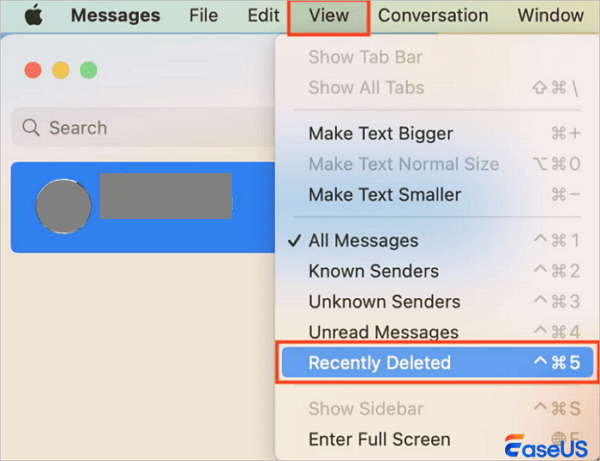
It is important to understand that this option will only appear if you have actually deleted messages within the last 30 days. If the folder is empty, the Recently Deleted menu option may be hidden from your view until a new deletion occurs.
Method 2. Recover Deleted Messages via EaseUS Data Recovery Wizard for Mac
When the 30-day grace period offered by Apple has passed, or if you are running an older macOS operating system that lacks the Recently Deleted folder, native system tools will not be able to find your files. At this stage, your messages are classified as permanently deleted.
To recover the message files, you need to understand how macOS manages message storage. All iMessages and SMS texts are written to a localized SQL database file named chat.db, which is hidden deep inside your user library folder. When a message is deleted, the macOS system does not immediately write over the actual sectors of the drive. It simply marks those specific storage coordinates as unallocated space, meaning new files can be written over them when the computer needs room.
By using EaseUS Data Recovery Wizard for Mac, you can scan the raw sectors of your MacBook's internal solid-state drive to locate, extract, and rebuild these unallocated database entries and their corresponding media attachments before they are overwritten by new system activity.
Why EaseUS is Recommended for MacBook Message Recovery
- It features a highly advanced raw scanning engine capable of parsing APFS and HFS+ file systems to locate missing SQL database fragments.
- The software can isolate and recover specific media attachment directories, allowing you to salvage high-resolution photos, documents, and voice notes that were sent via text.
- It operates in a strict read-only mode during the scanning process, ensuring the software never overwrites the fragile data you are trying to rescue.
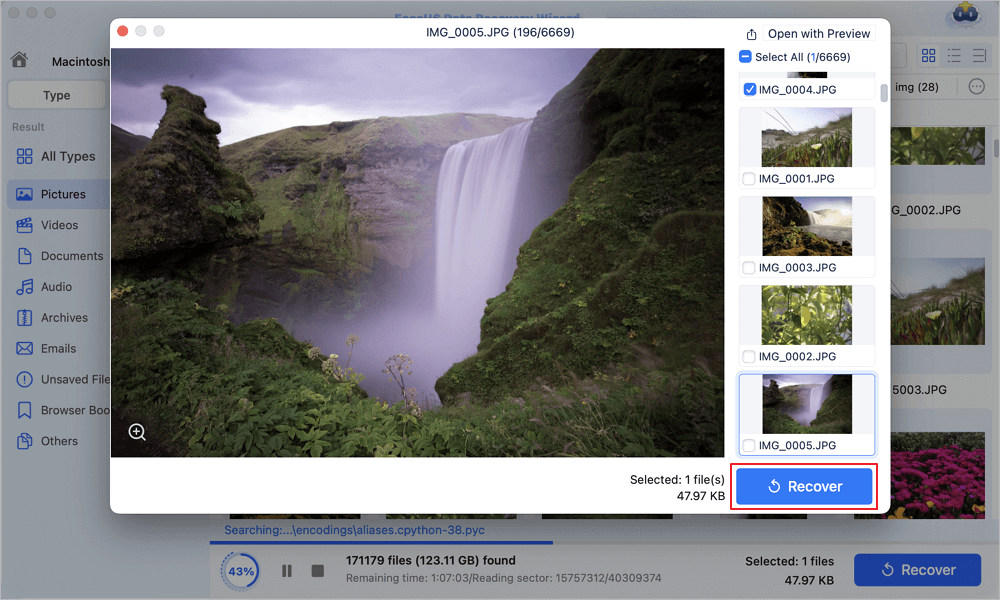
- A built-in preview system allows you to verify recovered images and text file headers before committing to a full recovery.
Steps to Retrieve Your Deleted Messages:
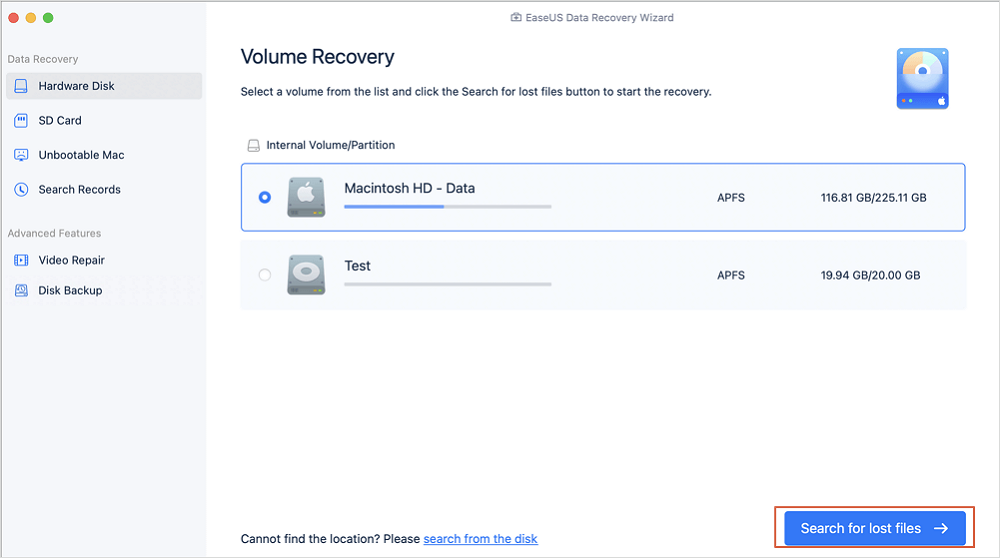
Step 1. Select the drive to be scanned
In the main EaseUS Data Recovery Wizard window, there will be a list of the drives connected to your Mac. Select the drive you need to recover lost/deleted files from, and click the "Search for lost files" button.
Step 2. Select your lost data/files
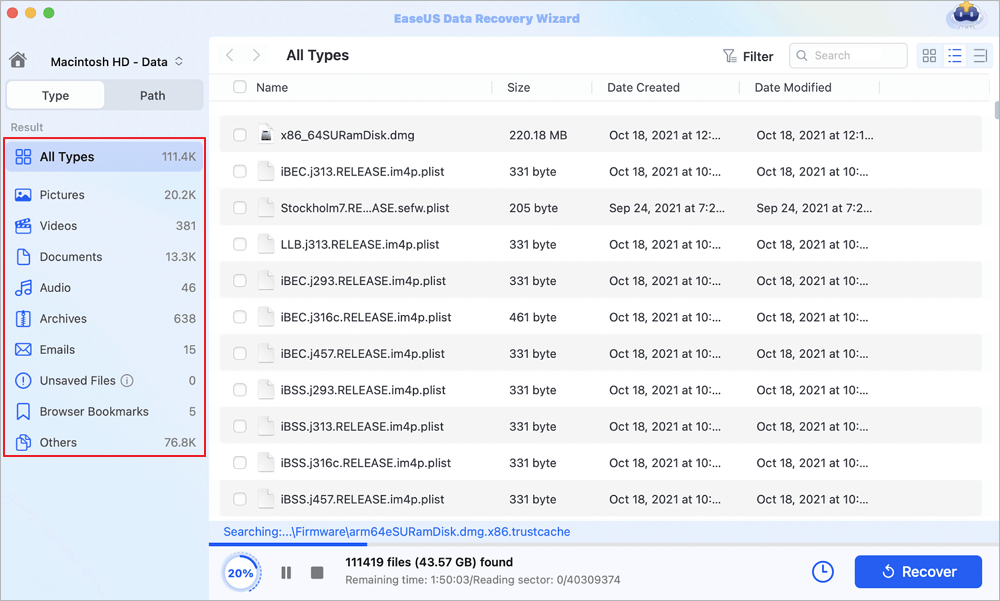
EaseUS Data Recovery Wizard for Mac will immediately scan your selected disk volume and display the scanning results on the left pane. You can sort the results to find the wanted files if you are looking for certain files.
Step 3. Recover lost/deleted data
Once you have found the desired files, preview the files and then click "Recover" to begin the recovery of your deleted/lost Mac files.
If you find this information helpful, please share it with others on social media to assist them in overcoming this common challenge.
Method 3. Check Other Apple Devices Like iPhone or iPad
If you do not have a Time Machine backup and the 30-day window on your Mac has closed, there is still a chance your messages are saved on another device. Apple uses a cloud-syncing system called Messages in iCloud, but the settings on your individual devices determine exactly how deletions are handled.
If you have Messages in iCloud turned off on your MacBook, the deletion you performed on your computer was strictly local. This means the message thread might still be sitting completely untouched in the inbox of your iPhone, iPad, or even an older Apple device that has been offline.
To check this, follow these steps:
- Pick up your iPhone or iPad and open the Messages application.
- Search for the missing conversation. If you find it, you can take screenshots of the critical information or copy the text to a note.
- If the message is missing on your mobile device, tap the "Edit" button in the top-left corner of the app screen.
- Select the option for "Show Recently Deleted".
- If the conversation was deleted on the phone within the last 30 days, you can highlight it and select "Recover" to restore it across your entire ecosystem.
Conclusion
Losing important messages on your MacBook does not have to be a permanent loss. By utilizing the built-in Recently Deleted folder, you can quickly reverse accidental keystrokes. When those native options fail, restoring older files from a Time Machine backup or deploying a professional utility like EaseUS Data Recovery Wizard for Mac ensures that your crucial business data, personal attachments, and legal records are retrieved safely. To avoid similar scares in the future, always ensure your automated backup systems are active and configured correctly.
Frequently Asked Questions
If you still have some questions about MacBook data recovery, check the quick answers below to help yourself out:
1. Where are deleted messages stored on a Mac?
When you delete a message on a MacBook, the text content itself is marked for deletion within an active SQL database file. This database file is stored locally in your hidden user folder at the path ~/Library/Messages/chat.db. The physical media attachments, such as images, audio files, and PDFs, are stored in a separate subfolder located at ~/Library/Messages/Attachments/.
2. Can I recover deleted Mac messages without software after 30 days?
If you do not have a backup of your Mac and the 30-day Recently Deleted window has passed, it is impossible to recover your messages using native macOS features. Your only viable option is to run specialized data recovery software, such as EaseUS Data Recovery Wizard for Mac, to scan the unallocated space on your solid-state drive and attempt to piece together the remnants of the deleted database file.
3. Why can I not see the Recently Deleted option in my Mac Messages app?
There are two reasons why you might not see the Recently Deleted folder. First, your MacBook must be running macOS Ventura or later, as older versions of macOS do not include this feature. Second, the folder automatically hides itself when there are zero deleted messages currently stored in the temporary 30-day cache.
Was This Page Helpful?

Jaden is one of the editors of EaseUS, who focuses on topics concerning PCs and Mac data recovery. Jaden is committed to enhancing professional IT knowledge and writing abilities. She is always keen on new and intelligent products.
-
EaseUS Data Recovery Wizard is a powerful system recovery software, designed to enable you to recover files you’ve deleted accidentally, potentially lost to malware or an entire hard drive partition.
Read More -
EaseUS Data Recovery Wizard is the best we have seen. It's far from perfect, partly because today's advanced disk technology makes data-recovery more difficult than it was with the simpler technology of the past.
Read More -
EaseUS Data Recovery Wizard Pro has a reputation as one of the best data recovery software programs on the market. It comes with a selection of advanced features, including partition recovery, formatted drive restoration, and corrupted file repair.
Read More
Related Articles
-
Recover Deleted Files on Mac Without Time Machine (2026 Full Guide)
![author icon]() Dany/Sep 20, 2026
Dany/Sep 20, 2026 -
How to Recover Deleted System Files Mac [New Updated]
![author icon]() Jaden/Sep 20, 2026
Jaden/Sep 20, 2026 -
How to Recover Deleted Files on macOS Golden Gate | NEW
![author icon]() Dany/Sep 20, 2026
Dany/Sep 20, 2026 -
8 módszer a törölt fájlok helyreállítására Macen 2026-ben
![author icon]() Cedric/Jul 23, 2026
Cedric/Jul 23, 2026
 Dany/Sep 20, 2026
  Cedric/Jul 23, 2026

