






 About the Author
 Reviews and Awards
 Mac SD Card Recovery
Why Does Your Mac Hard Drive Need Repair
Storage errors happen quietly in the background until something visible breaks. Even though modern Macs use Apple File System (APFS) and solid-state drives (SSDs) with built-in integrity checks, abrupt power losses, forced shutdowns, interrupted macOS updates, or abruptly unplugging external drives can leave directory records out of sync.
Here are some common reasons why your Mac hard drive may need repair:
- File system corruption: Errors in APFS, HFS+, or other file systems can prevent macOS from reading files correctly. You might encounter messages such as "The disk you attached was not readable by this computer."
- Improper ejection: A disk not ejecting properly on a Mac can interrupt ongoing read and write operations, potentially damaging the file system.
- Unexpected shutdown: A sudden power failure, system crash, or forced restart while the Mac is writing data may leave directory structures incomplete.
- Bad sectors or storage errors: Damaged areas on an HDD or problems with an SSD can make certain files inaccessible. Repeated disk errors may indicate that the drive is approaching failure.
- Incompatible file system: A drive formatted with a file system that macOS does not natively support for writing may appear read-only or inaccessible.
- Malware or software conflicts: Although less common on modern Macs, problematic software or malicious activity can interfere with normal file access.
- Physical damage: Dropping an external hard drive, exposing it to moisture, or using a damaged cable can lead to hardware-related problems.
Disk Utility can address some logical problems, particularly those involving disk formatting and directory structures. However, it cannot repair every type of storage problem. If the drive has physical damage or is failing, software-based repair may not be enough.
Recover Data from Corrupted Hard Drive
Before using Disk Utility to fix a corrupted hard drive on Mac, consider recovering important files first. This is particularly important if the drive contains irreplaceable photos, work documents, videos, or other personal data.
Although First Aid is designed to repair file system errors, it does not guarantee that all files will remain accessible during or after the repair. The Erase function is even more destructive because it removes existing data from the selected drive or volume.
If your Mac hard drive is corrupted but macOS still detects it, professional data recovery software such as EaseUS Data Recovery Wizard for Mac may help you retrieve lost files.
Check the following steps to recover data from a corrupted hard drive on a Mac with the EaseUS hard drive recovery tool:
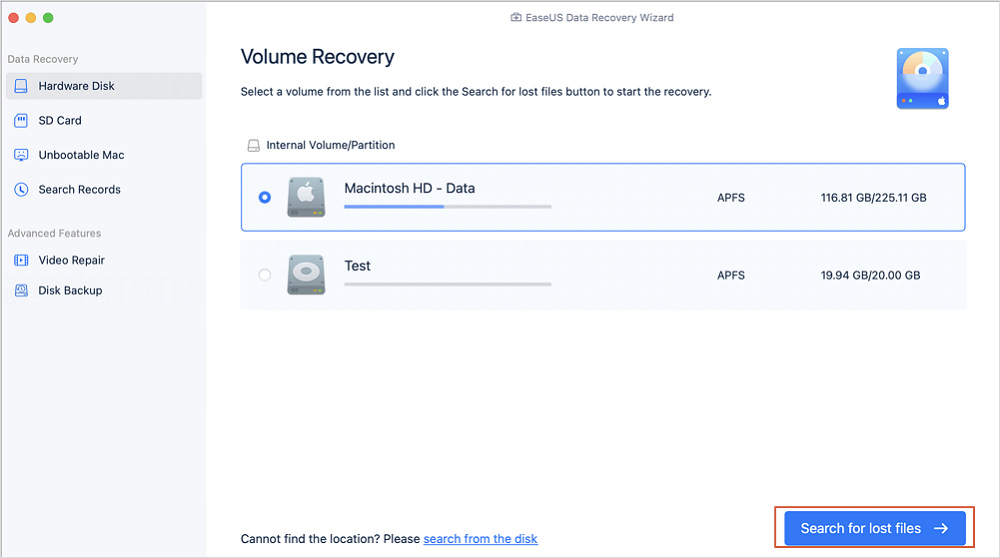
Step 1. Scan for lost data on the fusion drive
Select the Fusion Drive partition where you lost data and files. Click the "Search for lost files" button. If you don't know which partition is the fusion drive, click the "search from your disk" anchor text to check the partition name.
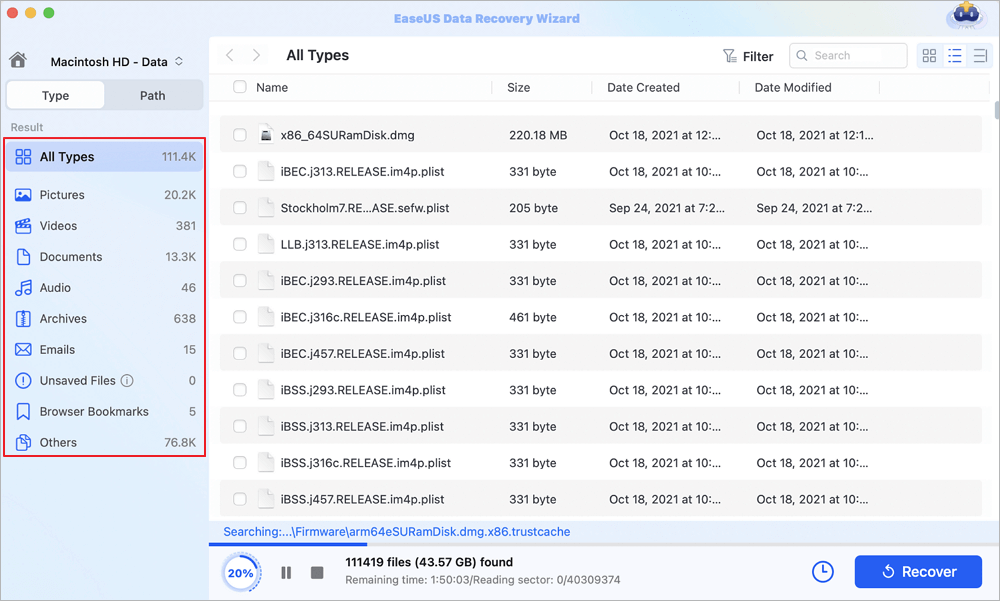
Step 2. Find lost files after the scan
EaseUS Data Recovery Wizard for Mac will immediately scan your Fusion disk partition and display the scanning results. You can filter the files through the file type and path.
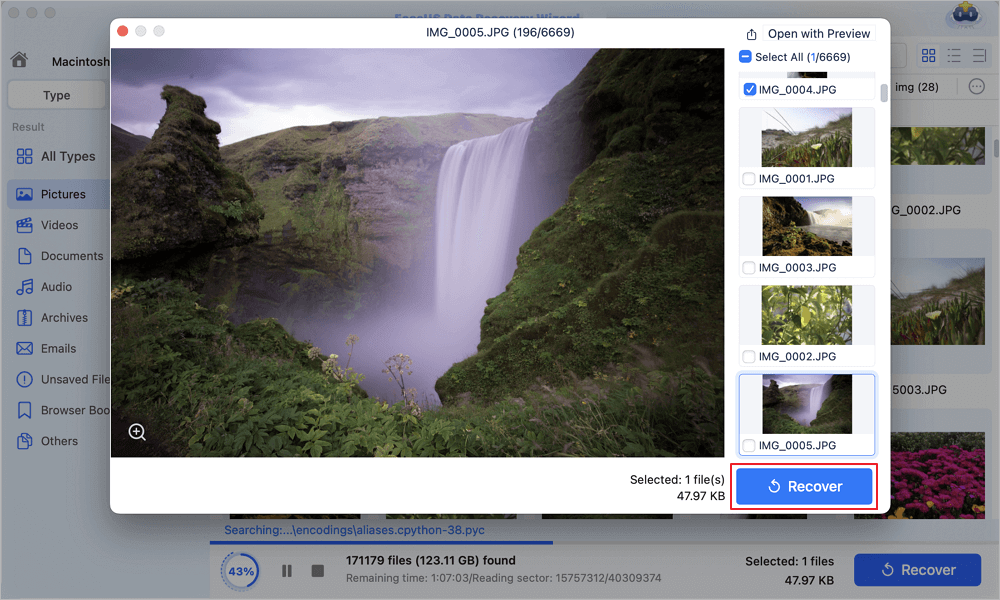
Step 3. Recover files on the fusion drive
In the scan results, select the file(s) to preview. Then, click the "Recover" button to get them back.
After recovering your important files, you can proceed with the Disk Utility repair methods below. Don't forget to share this guide on social media and help more users!

How to Repair Mac Hard Drive with Disk Utility
Disk Utility gives you two main paths depending on whether you are fixing logical file system errors or wiping a stubborn drive clean. If you are repairing your internal startup drive, or your Mac won't finish booting into macOS, running Disk Utility from macOS Recovery lets the tool check and unmount volumes cleanly without interference from a live system.
Method 1. Run First Aid to Fix Hard Drive File System
This method is suitable for logical disk errors, such as directory corruption, damaged file system structures, and certain problems that prevent a volume from mounting correctly.
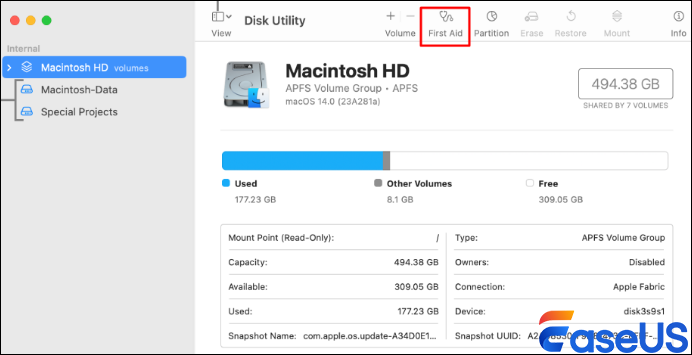
Step 1. Open Finder and navigate to Applications > Utilities > Disk Utility. Alternatively, press Command + Space to open Spotlight Search, type Disk Utility, and press Return.
Step 2. Click "View" in the Disk Utility menu bar. Select "Show All Devices". Expand the storage device in the sidebar if necessary.
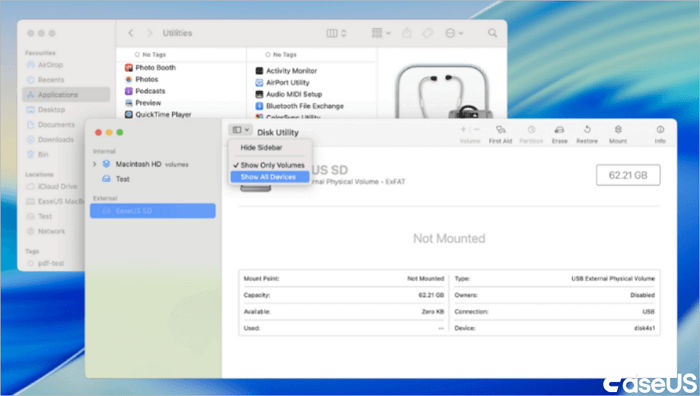
Step 3. In the left sidebar, locate the hard drive you want to check, then click "First Aid" to run the check. Wait for the process to finish. Do not disconnect the drive or shut down your Mac while Disk Utility is checking it.
Method 2. Erase Hard Drive to Fix Hard Drive Issues
If First Aid cannot repair your Mac hard drive, erasing and reformatting the drive may resolve certain persistent file system problems.
Step 1. Open Disk Utility and select the target drive.
Step 2. This time, click "Erase" instead of "First Aid".
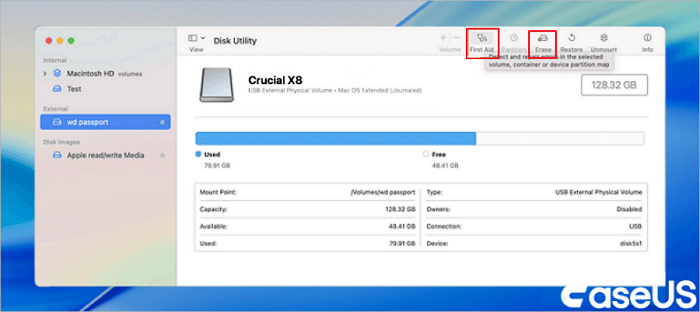
Step 3. Choose an appropriate file system format. The available file system options depend on the selected device and macOS version.
- APFS: Generally recommended for Mac internal SSDs and modern macOS installations. It supports features such as snapshots, encryption, and space sharing.
- Mac OS Extended (Journaled): An older Mac file system that may be appropriate for legacy Macs and certain compatibility requirements.
- exFAT: Useful for external drives that need to transfer files between macOS and Windows without the file-size limitations of FAT32.
- MS-DOS (FAT): An older format commonly used for compatibility with certain devices, but it has limitations, including a maximum individual file size of 4 GB.
Then follow the prompts to finish the hard drive format process. If you erased your Mac startup disk, you will need to reinstall macOS before using the computer again. Start from macOS Recovery and choose Reinstall macOS.
After using this Erase option, you'll lose everything on the hard drive; use EaseUS Data Recovery Wizard if you need to recover a formatted hard drive on your Mac.
The Bottom Line
Learning how to repair a Mac hard drive with Disk Utility comes down to matching the fix to the actual problem: start with First Aid from the bottom volume up to the physical disk to resolve file system inconsistencies safely, protect or recover your data before wiping anything, and use Erase only when structural corruption or a clean reset calls for it.
When symptoms point to failing hardware or an unrecognized drive, treating it as a hardware or recovery situation early saves you from compounding the damage.
Hard Disk Repair in Disk Utility FAQs
1. Does First Aid in Disk Utility delete data?
First Aid is designed to check and repair disk errors rather than erase files. However, disk repair operations are not risk-free, particularly when the storage device is already corrupted or failing. It is best to back up or recover important files before running First Aid.
2. What should I do if Disk Utility First Aid fails?
If First Aid cannot repair your Mac hard drive, you may see a message like "couldn't modify partition map". First, check whether the drive is physically damaged or experiencing connection problems. If the disk is still accessible, recover important files before erasing and reformatting it. If the drive isn't recognized or shows signs of hardware failure, seek professional help.
Was This Page Helpful?

Dany is an editor of EaseUS who lives and works in Chengdu, China. She focuses on writing articles about data recovery on Mac devices and PCs. She is devoted to improving her writing skills and enriching her professional knowledge. Dany also enjoys reading detective novels in her spare time.
-
EaseUS Data Recovery Wizard is a powerful system recovery software, designed to enable you to recover files you’ve deleted accidentally, potentially lost to malware or an entire hard drive partition.
Read More -
EaseUS Data Recovery Wizard is the best we have seen. It's far from perfect, partly because today's advanced disk technology makes data-recovery more difficult than it was with the simpler technology of the past.
Read More -
EaseUS Data Recovery Wizard Pro has a reputation as one of the best data recovery software programs on the market. It comes with a selection of advanced features, including partition recovery, formatted drive restoration, and corrupted file repair.
Read More
Related Articles
-
Hard Drive Is Making Noise? Stop Using It and Do These 4 Things Immediately
![Jerry]() Jerry/Aug 18, 2026
-
How to Repair CR2 on Mac with Image Repair Tool
![Jaden]() Jaden/Sep 29, 2026
-
How to Fix LaCie Hard Drive Not Mounting Mac | No Data Loss
![Dany]() Dany/Sep 29, 2026
-
Excel Scroll Not Working on Mac: Why and How to Fix It
![Brithny]() Brithny/Sep 29, 2026
 Jerry/Aug 18, 2026
 Jaden/Sep 29, 2026
 Brithny/Sep 29, 2026


