





 About the Author
 Reviews and Awards
 Mac SD Card Recovery
What Does a Corrupted Hard Drive Mean on Mac
When you talk about a "corrupted" hard drive on Mac, it usually means the file system or partition data is damaged. Your files might still physically exist, but macOS just can't read them the usual way.
Both internal and external drives can suffer corruption; this includes spinning hard drives (HDDs), SSDs, USB drives, and even some RAID setups. Sometimes it's a logical issue, sometimes physical. What caused the corruption will determine how you fix it.
Some common ways drives go bad include:
- Pulling out an external drive before ejecting it
- Power going out mid-transfer or mid-update
- Damaged file systems (APFS, HFS+, exFAT, etc.)
- Physical failure (bad sectors, dying hardware)
- Malware, rogue apps, or botched software updates
- Messed up partition tables
- Interrupted formatting or partitioning
How to Tell If Your Hard Drive Is Corrupted on Mac
What's going wrong will dictate what you do next. Some problems are actually caused by a bad cable, flaky power supply, or the enclosure, not the disk itself. But certain warning signs suggest the file system or drive structure is in trouble:
- Hard drive showing in Disk Utility but not Finder
- macOS says the disk is unreadable
- A recovery tool sees the drive as "RAW" or an unknown format
- Files and folders are gone, or you can't open them
- Disk Utility flags file system or partition errors
- The drive keeps disconnecting or disappearing
- You can't move, save, or create files/folders on the disk
- Your Mac won't boot (if it's the internal system disk)
If the drive shows up as "unmounted," the volume is missing, or there are already file system errors, there's a good chance you've got corruption.
How to Recover Data from a Corrupted Hard Drive on Mac
Before you try any repairs, save whatever important files you can. Repairs and reformatting can make things worse if you haven't rescued your stuff. The more you use a corrupted drive, the more likely you are to lose files for good.
EaseUS Data Recovery Wizard for Mac is one of the go-to tools here. It lets you scan dead or RAW drives and preview files before you commit to recovery. Its effectiveness depends on how badly the drive is damaged, but it's often worth a shot.
Here's how to proceed if you're trying to save your data:
1
If the software can't see your drive, or it's making odd noises, skipping, or overheating, stop. Repeated failed scans often make things worse. In those cases, consider professional data recovery services.
Share this guide on social media to help more users fix a damaged hard drive on a Mac.

How to Fix a Corrupted Hard Drive on Mac in 6 Ways
Once your important stuff is safe, you can focus on repairing the disk. What works depends on the problem; sometimes just unplugging and reconnecting the disk or rebooting your Mac solves it. Other times, you'll need to try First Aid in Disk Utility, jump into Terminal, or, if nothing else helps, format and set up the disk again.
Try the less risky things first. Here's the general order of attack.
Fix 1. Restart Your Mac and Reconnect the Hard Drive
Temporary macOS issues, faulty connections, and power interruptions can prevent an otherwise healthy hard drive from appearing correctly. Restarting your Mac and reconnecting an external drive is a sensible first step before attempting file system repairs.
Step 1. If the drive is accessible in Finder, eject it using the Eject icon before unplugging it. If it is completely unresponsive, do not repeatedly disconnect and reconnect it while it is actively attempting to read or write data.
Step 2. Click the Apple menu and select "Restart". Wait for macOS to shut down and start again.
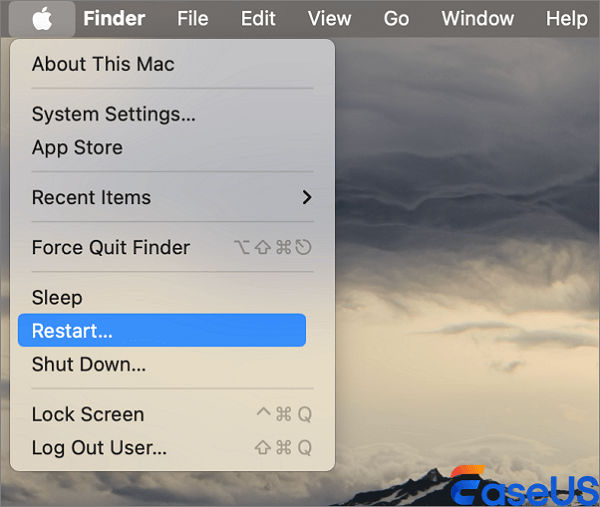
Step 3. After your Mac has restarted, reconnect the drive using a compatible cable and port. If the device requires an external power adapter, make sure it is connected properly.
Fix 2. Check the Drive in Disk Utility
Disk Utility comes with macOS and can help you tell the difference between a missing volume and a drive your Mac just can't see.
Step 1. Open Finder, head to Applications > Utilities, then open Disk Utility. Spotlight search works too if you want to find it quickly.
Step 2. In Disk Utility, click "View" at the top and select "Show All Devices." This way, you'll see the physical drive, its partitions, and all the volumes. It makes it a lot easier to spot where the trouble lies.
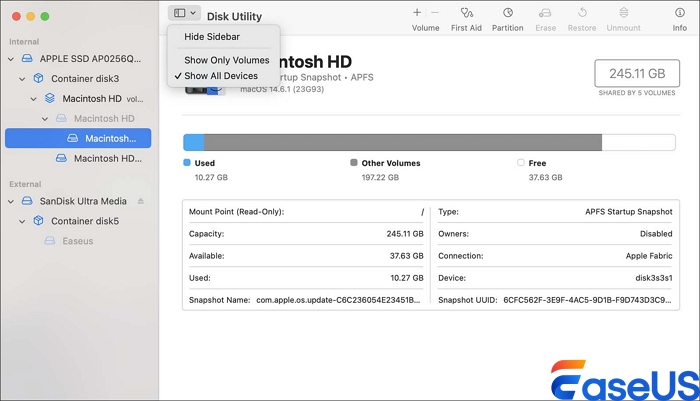
Step 3. Find and select your external or internal disk in the sidebar.
Step 4. Keep an eye out for things like an unmounted volume, a missing partition, or a file system your Mac doesn't recognize. If you see the volume is there but not mounted, select it and hit "Mount" if that option shows up.
Step 5. If your volume mounts, back up your files right away. If Disk Utility mentions file system errors, make sure to secure your data first, then consider running First Aid.
Fix 3. Run First Aid to Repair Disk Errors
First Aid is another Disk Utility feature. It checks your disk's formatting and directory structure for errors and tries to fix anything it can. This tool is especially useful if your Mac finds the drive but can't access the volume.
Step 1. Go to Applications > Utilities > Disk Utility and turn on "Show All Devices" under View.
Step 2. In the sidebar, pick the volume you think has file system problems. If there are a few volumes on the disk, double-check you've got the right one.
Step 3. Click the First Aid button in the toolbar, then choose "Run". Depending on the state of your disk, this part could take a few minutes.
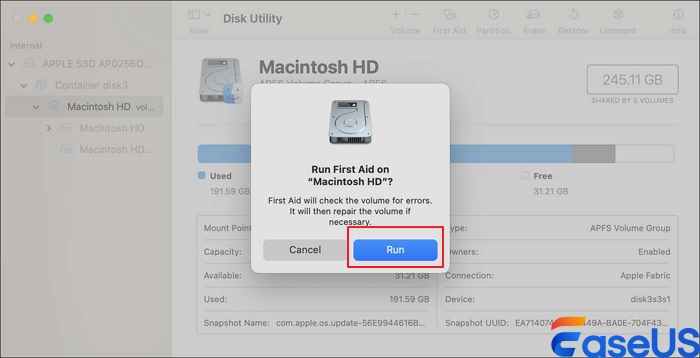
Step 4. For APFS containers, Apple recommends a certain repair order: run First Aid on each volume first, then the container itself, and finally the physical disk. Always work your way up the list, not down.
Step 5. Wait for First Aid to finish and check the message.
- If it says the operation was successful, try mounting the volume and see if your files show up.
- If it says the file system was repaired, try to access your drive and back up your data immediately.
- If First Aid reports it can't repair the disk, focus on recovering your data before you change anything else.
- If the drive keeps disappearing or you see hardware errors, stop messing with it and consider reaching out to a data recovery pro.
First Aid can solve some directory and file system errors, but it's not a cure-all. It won't help if your drive has serious corruption, physical damage, or is simply wearing out.
Fix 4. Repair the Startup Disk in macOS Recovery
If the corrupted hard drive is your Mac's internal startup disk and macOS will not boot normally, you can use macOS Recovery to access Disk Utility without starting the regular operating system.
How to open Disk Utility on Mac startup? The startup procedure differs between Apple Silicon Macs and Intel-based Macs, so follow the instructions appropriate for your computer.
Step 1. Start your Mac in macOS Recovery:
- Apple Silicon Mac: Shut down the Mac. Press and hold the power button until the startup options screen appears. Select Options, then click Continue.
- Intel-based Mac: Turn on or restart your Mac and immediately hold Command (⌘) + R until the Apple logo or another startup screen appears.
Step 2. When the macOS Recovery Utilities window appears, select Disk Utility and click "Continue".
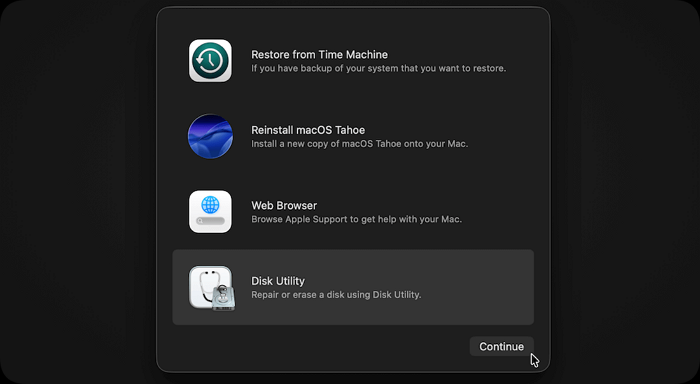
Step 3. Select View > Show All Devices. Locate the internal storage device and examine its volumes and containers.
Step 4. Select each relevant volume and click First Aid > Run. Follow the appropriate volume-to-container-to-device sequence for the disk structure.
If the startup disk uses APFS, make sure you identify the correct system and data volumes. Do not erase volumes as a troubleshooting shortcut.
Step 5. When the checks finish, quit Disk Utility and select Restart from the Apple menu or the available recovery options.
If macOS starts normally, back up your important files immediately. If the startup disk remains inaccessible, First Aid fails, or the physical disk does not appear, you may need further diagnosis or a macOS reinstall after securing your data.
Reinstalling macOS and erasing the startup disk are different operations. A reinstall may preserve user data in supported circumstances, but it is not a substitute for a backup and should not be treated as guaranteed data recovery.
Fix 5. Check and Repair the Disk Using Terminal
You can use Terminal to check your Mac's disk and fix some file system errors with built-in commands. Before you start, make sure you've recovered all your important files and know the exact disk identifier, mixing up drives can really mess things up.
Step 1. Head to Applications > Utilities > Terminal. If your Mac won't boot normally, launch Terminal from macOS Recovery if you can.
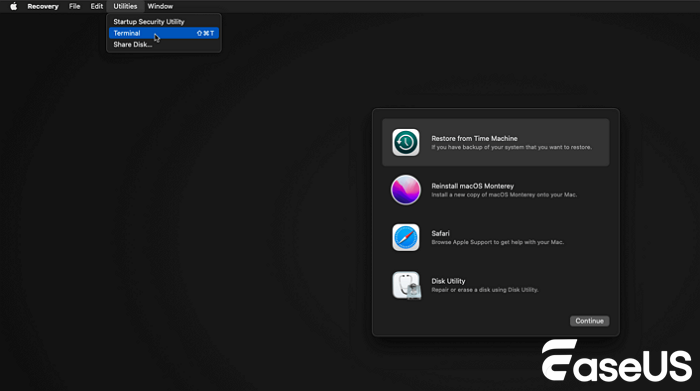
Step 2. Type: diskutil list
This lists all connected disks. Look for the problem drive and write down its disk identifier, like `disk4` or `disk4s1`.
Step 3. Replace `disk4s1` with your actual volume identifier and run:
- diskutil verify
- Volume /dev/disk4s1
This checks the disk for file system errors.
Step 4. If the volume's in the right condition, use:
- diskutil repair
- Volume /dev/disk4s1
Let it run and review the results. If repair doesn't work or you start seeing repeated I/O errors, don't push your luck; seek out professional recovery help.
Fix 6. Reformat the Corrupted Hard Drive Using Disk Utility
Sometimes, reformatting is the only way to bring a corrupted drive back to life. Just remember: this wipes all your file system info and makes recovery harder. Recover anything important before diving in.
Step 1. Go to Applications > Utilities > Disk Utility. Click View > Show All Devices.
Step 2. Find the right physical drive by checking its name and capacity; don't select the wrong drive and accidentally erase your stuff.
Step 3. Pick the disk or volume you want, hit "Erase", and double-check you've backed up what matters.
Step 4. Choose a format:
- APFS: Best for modern, Mac-only storage.
- Mac OS Extended (Journaled): Good for older Mac setups.
- exFAT: Handy if you need to swap files between Mac and Windows.
If you're formatting a physical disk, GUID Partition Map is usually the right scheme for newer Macs.

Step 5. Click "Erase", wait for it to finish, then see if the drive shows up in Finder. Copy a few test files to make sure everything works.
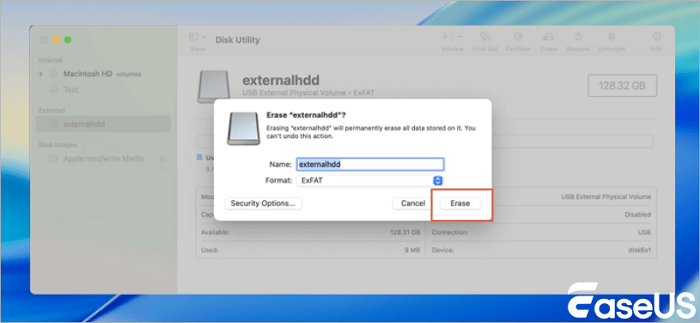
If you can't format the drive or it keeps disconnecting, chances are it's got a hardware problem and needs further diagnosis.
Conclusion
A corrupted hard drive on your Mac can happen for all kinds of reasons like file system glitches, yanking the drive without ejecting, power cuts during transfers, broken partitions, or even just worn-out hardware. How you tackle it really depends on what's actually wrong and, of course, whether you need to save what's on the drive.
First things first: check the connection. Sometimes it's just a loose cable. Open Disk Utility and see if the drive shows up. If you can still see the drive but some files are missing or refuse to open, your best move is to run data recovery software like EaseUS Data Recovery Wizard for Mac. Try to pull your files before fiddling with the drive any further; you don't want to make things worse by accident.
Repair Damaged Hard Drive Mac FAQs
1. Can I fix a corrupted hard drive on Mac without losing data?
Sometimes. If you're dealing with minor file system errors, Disk Utility's First Aid or a Terminal repair might get your files back without erasing anything. Still, no tool is perfect. If your files matter, recover them or back up the drive before trying repairs.
2. How do I recover files from a corrupted hard drive on Mac?
Use data recovery software like EaseUS Data Recovery Wizard for Mac. You scan the problem drive, check which files you can save, and then copy them over to a safe place. If the drive has physical damage or won't show up at all, you might need to hand it over to the pros.
3. Why is my hard drive not showing up on Mac?
It could be a bad cable, not enough power, a busted enclosure, an unmounted volume, file system issues, or hardware failure. Start by checking your cable and port. Then, use Disk Utility and choose View > Show All Devices. If the physical drive is there but the volume is gone, the problem probably lies with the volume or file system.
Was This Page Helpful?

Dany is an editor of EaseUS who lives and works in Chengdu, China. She focuses on writing articles about data recovery on Mac devices and PCs. She is devoted to improving her writing skills and enriching her professional knowledge. Dany also enjoys reading detective novels in her spare time.
-
EaseUS Data Recovery Wizard is a powerful system recovery software, designed to enable you to recover files you’ve deleted accidentally, potentially lost to malware or an entire hard drive partition.
Read More -
EaseUS Data Recovery Wizard is the best we have seen. It's far from perfect, partly because today's advanced disk technology makes data-recovery more difficult than it was with the simpler technology of the past.
Read More -
EaseUS Data Recovery Wizard Pro has a reputation as one of the best data recovery software programs on the market. It comes with a selection of advanced features, including partition recovery, formatted drive restoration, and corrupted file repair.
Read More
Related Articles
-
Repair SVG File: 3 Proven Methods to Fix Corrupted SVG Graphics
![author icon]() Dany/Sep 29, 2026
Dany/Sep 29, 2026 -
Hard Drive Is Making Noise? Stop Using It and Do These 4 Things Immediately
![author icon]() Jerry/Oct 20, 2026
Jerry/Oct 20, 2026 -
Repair TIFF File | Fix Corrupted TIFF Images on Windows
![author icon]() Dany/Jul 27, 2026
Dany/Jul 27, 2026 -
How to Repair Corrupted 7-Zip Files and Fix 7z Archive Errors
![author icon]() Dany/Sep 29, 2026
Dany/Sep 29, 2026
 Jerry/Oct 20, 2026

