





Table of Contents
 About the Author
 Related Posts
Sometimes a designer tries opening an SVG, only to find it broken - maybe the transfer glitched, the system froze, or the drive hiccupped. Common causes of SVG file corruption include:
- Interrupted file transfers
- Incomplete downloads
- System crashes while saving files
- Storage device errors
- Malware or virus attacks
- Incorrect manual editing of SVG code
- Software compatibility issues
When that happens, you can still have a chance to repair corrupted SVG files. This guide shows how to fix broken SVG files. You can apply professional photo repair software or try a different editing program. Or convert the file format entirely, which sometimes clears the errors. Each trick brings back images that seemed damaged. Keep reading to find out more information!
Method 1. Repair Corrupted SVG Files with Photo Repair Software
Fixing broken SVG pictures often works best with expert-level photo repair programs. Since they scan the image code inside, these apps rebuild parts that are missing or damaged with advanced AI technology. What happens next depends on how deep the damage runs - still, results tend to stay consistent across tries.
One choice people often pick? EaseUS Fixo Photo Repair handles broken image files such as SVG, JPG, PNG, and more. To fix seriously damaged SVG files, you can upload sample files to increase the repair success rate.
This professional SVG file repair software can help you open corrupted SVG files, make a 0kb SVG image back to normal, and you don't need professional photo repair skills. Just upload your SVG files, click "Repair", and get the repaired SVG files.
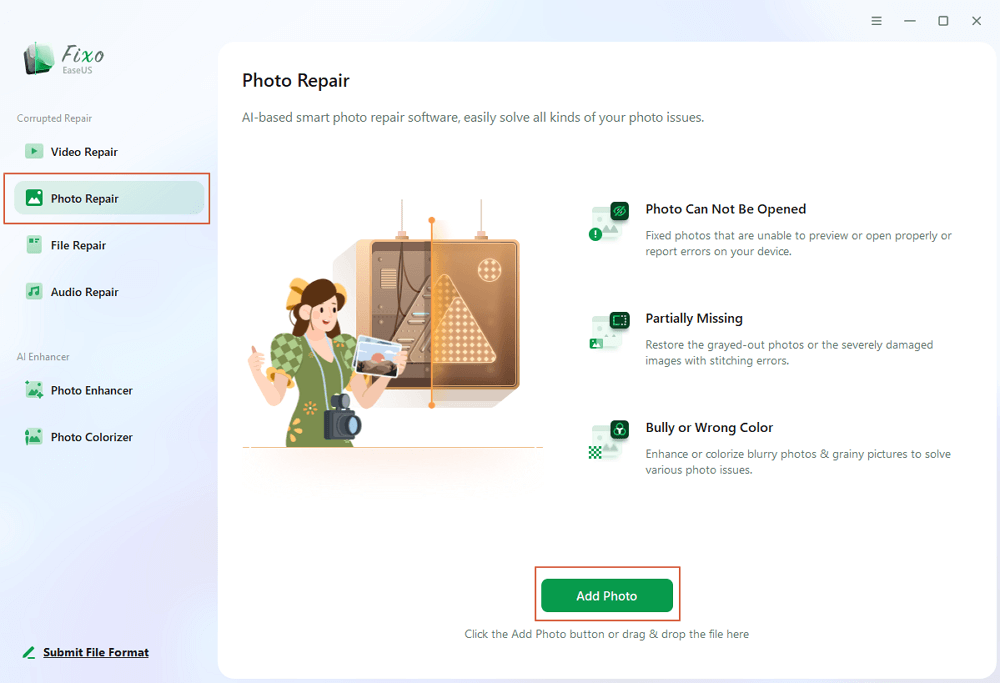
Step 1. Launch Fixo on your computer. You can choose "Photo Repair" to repair photos that cannot be opened, partially missing, etc. Click "Add Photos" to select corrupted photos.
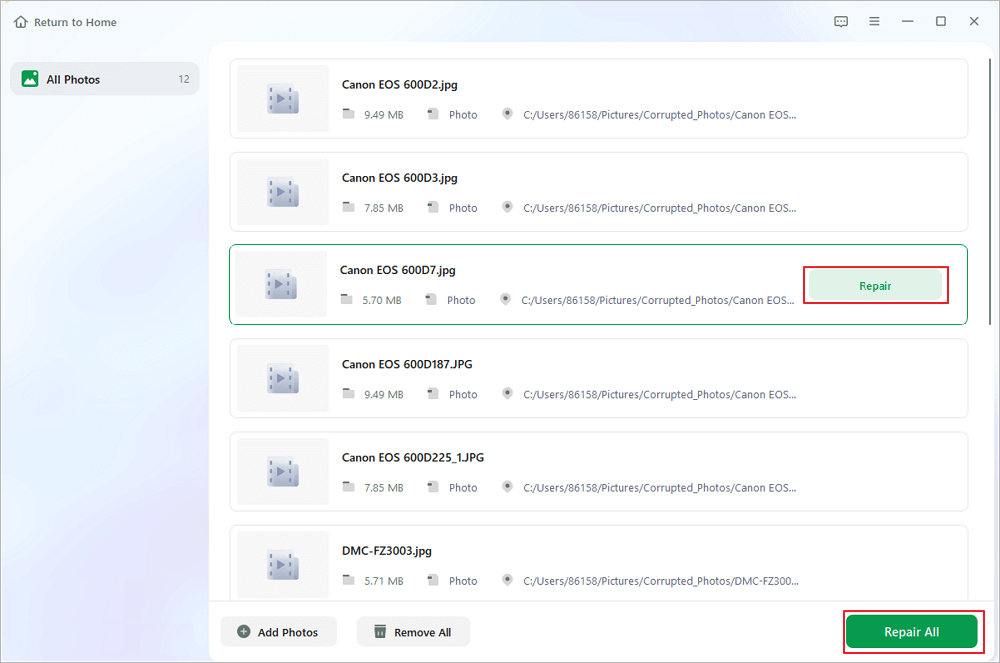
Step 2. You can repair multiple photos at once by clicking the "Repair All" button. If you want to repair one photo, move your pointer to the target photo and choose "Repair".
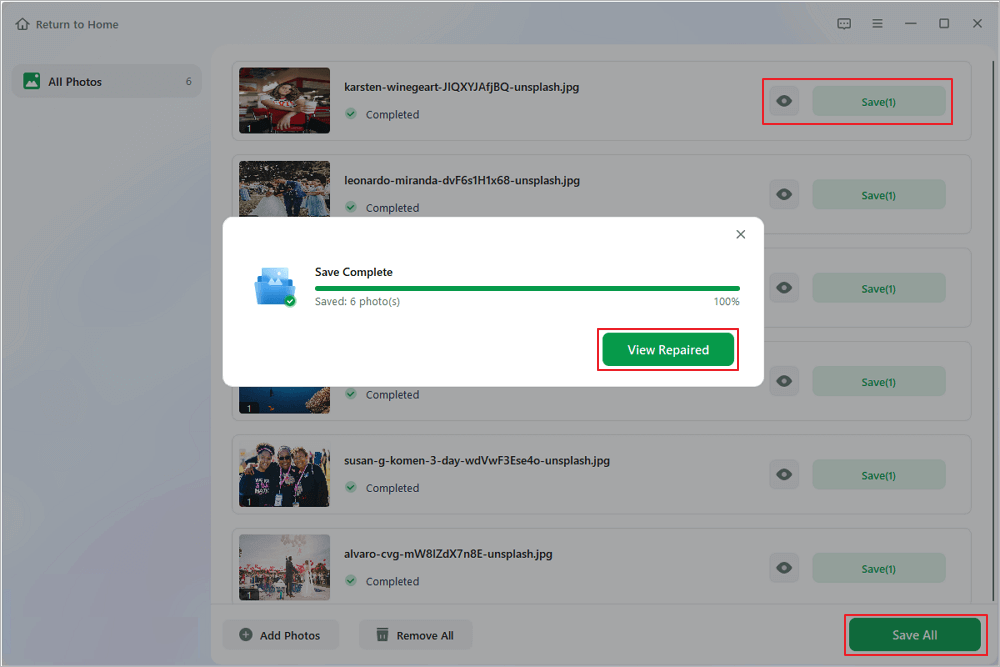
Step 3. You can click on the eye icon to preview the photos and click "Save" to save a selected photo. Choose "Save All" to save all the repaired images. Click "View Repaired" to locate the repaired folder.
Share this reliable software to help more users repair corrupted photos!

Method 2. Open SVG Logo File with Another Photo Editor
Users often open SVG files with a vector program, so a fresh option might mean testing the SVG in another vector program. One tool could handle small glitches better than others, letting it display when something else fails. Here are some recommended vector software programs that you can try:
- Adobe Illustrator
- Inkscape
- CorelDRAW
- Affinity Designer
- Vectornator
These programs interpret SVG code differently, so an SVG file that fails to open in one program may still open in another.
Method 3. Convert SVG Files to Another Format
When SVG images break, converting them might help fix the issue. Turning the file into something else, then bringing it back again, often strips out glitches hidden inside. How to do this?
Step 1. Download an image converter from the internet.
Step 2. Use a graphic editing tool or online converter.
Step 3. Import the Converted File. Open the converted file in a vector editing program.
Step 4. Save or export the file as a new SVG graphic. Open the new SVG file in a browser to confirm that the graphic displays correctly.
How to Avoid SVG File Corruption
Fixing broken files takes more effort than stopping damage before it happens. If you don't want to encounter this SVG damage issue in the future, here are some available tips:
- Back Up SVG File Frequently. When saving your work, make copies just in case something goes wrong later. No matter whether your SVG files are corrupted or deleted, a complete copy can save your life.
- Save SVF Files on a Stable Device. When saving SVG files, pick reliable hard drives or online storage.
- Avoid Interrupting File Transfers. When copying, downloading, or transferring SVG files, make sure you are connected to a stable network and have enough battery power.
- Update SVG Editor. Outdated software can have some bugs that cause file corruption or unexpected data loss.
Simple habits protect your work more than you'd think. You can share these tips on social media to help more users who need SVG repair.
Conclusion
Using photo repair software is often the easiest and most reliable method because it automatically fixes damaged file structures. If that approach doesn't work, you can try opening the file in another vector editor or converting the SVG to a different format and exporting it again.
In many cases, these methods can successfully repair corrupted SVG files and restore damaged vector graphics, allowing you to continue using them in web design, branding, or UI projects.
SVG File Repair FAQs
1. Can I fix an SVG file online?
Yes, sometimes you can repair an SVG file online using file repair or conversion tools. These services attempt to rebuild the image structure or convert the SVG into another format. It's better to choose a reliable website or professional repair software if your SVG file is important.
2. Why can the SVG file not be opened?
An SVG file may fail to open when its XML structure is damaged. This can happen after incomplete downloads, transfer interruptions, or editing errors. In some cases, the software you use simply doesn't support certain SVG elements.
3. Is SVG better than PNG?
It depends on the use case. SVG is a vector format, so it scales perfectly without losing quality and works great for logos or icons. PNG is raster-based and better suited for detailed images or photos with complex colors.
Was This Page Helpful?
About the Author

Dany is an editor of EaseUS who lives and works in Chengdu, China. She focuses on writing articles about data recovery on Mac devices and PCs. She is devoted to improving her writing skills and enriching her professional knowledge. Dany also enjoys reading detective novels in her spare time.


