





Table of Contents
 About the Author
 Related Posts
Can Corrupted TIFF Files Be Repaired
TIFF, or Tagged Image File Format, is a go-to choice for anyone who needs clean, lossless images. Photographers, designers, publishers, and pretty much anyone who cares about image quality tend to rely on TIFF. The format handles high-res files, multiple layers, and detailed metadata, so it's perfect for editing and long-term storage. JPEG just doesn't compare for these uses.
If your TIFF file won't open or looks strange with glitches, don't panic! It's probably not a lost cause. Most of the time, the actual picture is fine, and it's just the file's structure that got a little messed up. That means you've got a good shot at fixing it, especially if the problem's in the header, metadata, or directory info.
Common Signs of a Corrupted TIFF File
Spotting a damaged TIFF isn't always straightforward, but here are some red flags to watch for:
- TIFF file won't open when you try to open the file in an image viewer.
- Photoshop throws errors like "Unsupported TIFF format" or "Could not complete your request."
- The image pops up black or blank, or you only see parts of it.
- Weirdly colored blocks, lines, or odd visual glitches mess up the picture.
- The file size looks strangely small, or it doesn't match what it should be.
- Windows or macOS fails to show a thumbnail preview for the file.
- Sometimes the image loads, but you get warnings about missing or invalid metadata.
How to Repair Damaged TIFF Files
If your file's been corrupted by failed transfers, hardware glitches, a software crash, or a corrupted header, you need something a whole lot more powerful.
This is where dedicated photo repair software steps in. Professional repair software is built for jobs like this. These tools scan your file, find what's damaged, and actually rebuild the corrupted parts. The goal is to save as much image quality as they can, not just slap a band-aid on the problem.
EaseUS Fixo Photo Repair handles TIFF and TIF formats, and works with plenty of other popular image types too. So whether you're a photographer, a designer, or anyone who relies on crisp, high-res images, you'll get something out of it.
Whether your TIFF won't open at all, only shows part of the picture, appears pitch-black, or the TIFF image is not available, EaseUS Fixo Photo Repair helps you get your TIFF file back.
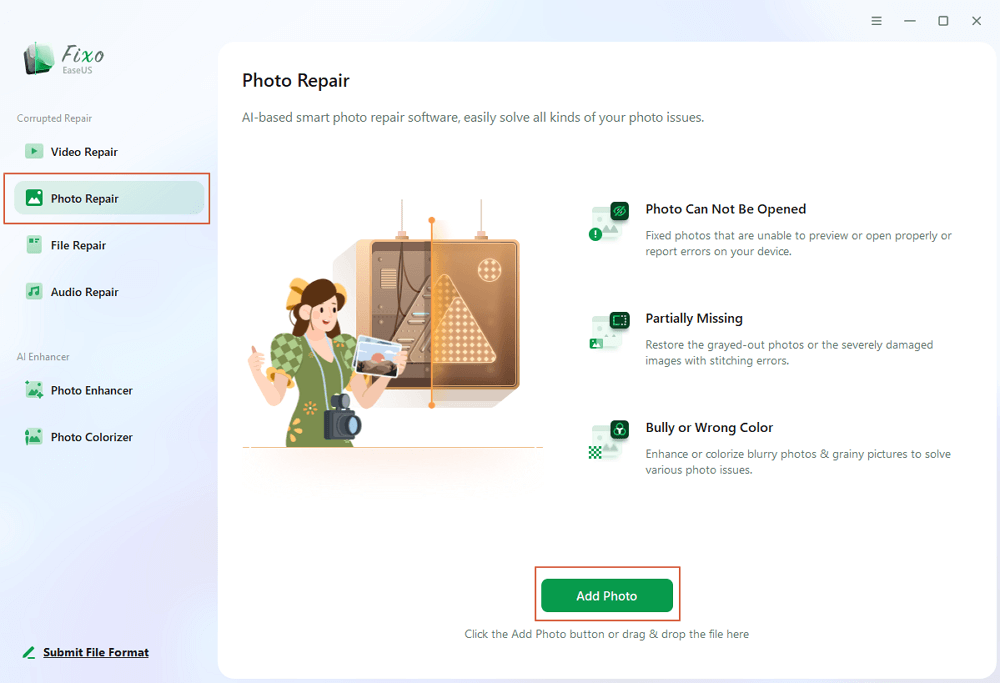
Step 1. Launch Fixo on your computer. You can choose "Photo Repair" to repair photos that cannot be opened, partially missing, etc. Click "Add Photos" to select corrupted photos.
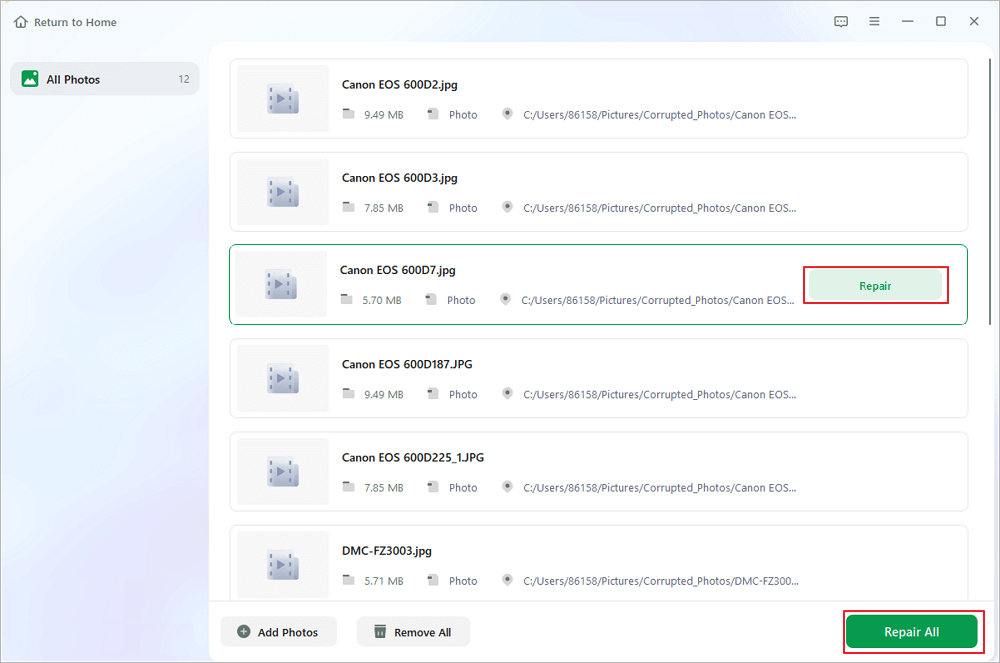
Step 2. You can repair multiple photos at once by clicking the "Repair All" button. If you want to repair one photo, move your pointer to the target photo and choose "Repair".
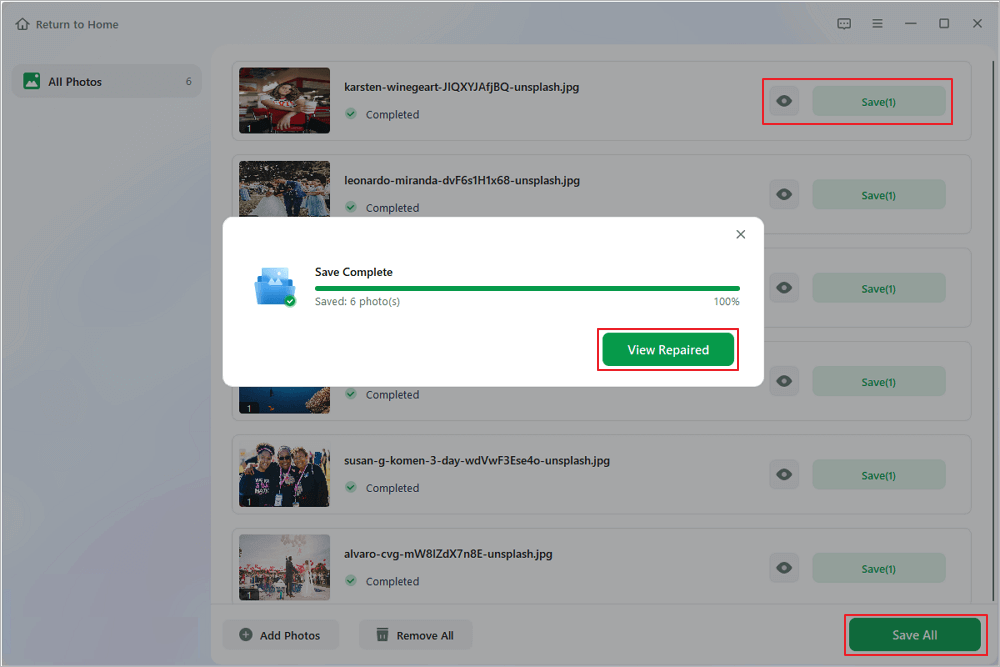
Step 3. You can click on the eye icon to preview the photos and click "Save" to save a selected photo. Choose "Save All" to save all the repaired images. Click "View Repaired" to locate the repaired folder.
If you want to help more users, share this TIFF repair guide on social media!

How to Prevent TIFF File Corruption
TIFF files matter a lot, especially if you're working in photography, design, or archiving. When these files get corrupted, fixing them is a pain, and you risk losing work you really can't replace. So, protecting them is just common sense:
- Backup your TIFF files. Don't just keep one copy of your TIFF file on your laptop or a single drive. Spread backups across different hard drives or use the cloud.
- Be careful when transferring files. Don't disconnect your SD card or unplug your USB stick while your files are still copying. Avoid editing TIFFs directly on the original drive. Copy them to your computer before you start making changes.
- Check the health of your storage devices. Run a scan for errors or bad sectors, and if a drive starts acting up, swap it out before it fails completely.
- Update your apps and OS frequently. Make sure your photo apps, operating system, and device drivers are all current. Updated software usually means better compatibility and fewer surprises with your files.
Stick to these tips, and you'll keep your TIFF files safe and don't need to recover corrupted images.
Summary
It doesn't matter if you're a photographer working with RAW files, a designer juggling big projects, or you're just running a business with a ton of scanned documents; TIFF files can hold a lot of important stuff. So, protect them, and if something does go wrong, knowing your way around repair tools can often save the day. That way, you don't end up losing something irreplaceable.
TIFF Repair FAQs
1. Why won't my TIFF file open?
A TIFF file may fail to open because of several reasons, including:
- Corrupted file headers.
- Damaged metadata.
- Interrupted file transfers.
- Unsupported TIFF compression.
- Storage device errors.
- Software crashes during saving.
- Malware-related damage.
2. Can Photoshop repair corrupted TIFF files?
Photoshop can sometimes open TIFF files with minor issues, but it is not designed as a dedicated file repair tool. If the TIFF structure, header, or metadata is seriously damaged, Photoshop may not be able to recover the image.
For severely corrupted TIFF files, using specialized repair software is usually a better option.
3. Can I repair TIFF files online for free?
Some online tools claim to repair damaged TIFF files, but they often have limitations, including:
- File size restrictions.
- Limited repair capabilities.
- Privacy concerns when uploading professional images.
- Lower success rates for severely corrupted files.
Was This Page Helpful?
About the Author

Dany is an editor of EaseUS who lives and works in Chengdu, China. She focuses on writing articles about data recovery on Mac devices and PCs. She is devoted to improving her writing skills and enriching her professional knowledge. Dany also enjoys reading detective novels in her spare time.


