





Table of Contents
 About the Author
 Related Posts
When DNG files suffer from header corruption, unexpected end-of-file errors, or unsupported file format alerts, it does not mean the photograph is permanently lost. Because DNG containers encapsulate raw image pixels along with Exif metadata and preview thumbnails, advanced photo repair tools can rebuild broken container headers and salvage the visual data.
- What Is DNG File and DNG File Corruption
- Method 1. Update Editing Software and RAW Codecs
- Method 2. Repair DNG Files with Professional DNG Repair Tools
- Method 3. Check Memory Cards and Storage Drives for System Errors
The Digital Negative DNG format serves as a universal raw image standard in digital photography. Encountering an error message such as unexpected end of file or unsupported file format when attempting to open an important photo can be extremely stressful. However, file damage does not mean your photography work is lost forever.
Understanding how to fix corrupted dng files involves analyzing file structure vulnerabilities, applying targeted software updates, running disk checks, and using specialized image repair tools to restore full visual access.
What Is DNG File and DNG File Corruption
Created by Adobe to eliminate proprietary raw file compatibility headaches, the DNG container encapsulates raw sensor data, extensive Exif metadata, color profiles, and embedded preview thumbnails into a standardized structure.
Identifying the precise error message displayed by your photo editor helps pinpoint whether the problem stems from outdated software codecs, storage drive failure, or true structural container corruption.
Frequent DNG File Error Messages:
- Unexpected End of File: This severe error indicates that the file payload was cut off prematurely during writing or transferring, leaving missing byte blocks at the end of the container structure.
- Unsupported File Format: Image editing applications display this alert when the DNG file header is unreadable, preventing the software from identifying the file type correctly.
- Corrupted or Damaged File Content: Photo viewing software opens the file but displays heavy pixelation, distorted color bands, grey blocks, or missing image sections.
- Unable to Read Preview: The photo gallery displays blank thumbnails or generic icons instead of rendered image previews.

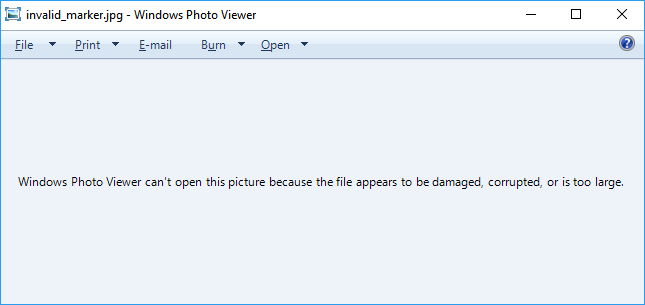
Fix 'Photos Cannot Preview or Open' Error
Relax if you can't preview or open photos on Windows. Reliable methods with EaseUS Fixo Photo Repair are available here to help you resolve the 'photos cannot open or preview' error with ease.
Method 1. Update Editing Software and RAW Codecs
Before assuming that a DNG file is physically destroyed, verify that your operating system and photo editing applications possess the modern decoding tools required to read the container. Outdated software builds often throw false format errors when attempting to render newer DNG specifications.
1. Update Adobe Camera Raw and Lightroom
Adobe frequently updates the Digital Negative specification to support new camera sensors, color profiles, and compression algorithms. If your version of Adobe Camera Raw or Lightroom is out of date, opening newly generated DNG files can result in an unsupported file format notification.
Step 1. Launch the Adobe Creative Cloud desktop application on your computer.
Step 2. Navigate to the Updates section on the main navigation panel.
Step 3. Check for available updates for Adobe Photoshop, Lightroom Classic, and Adobe Camera Raw.
Step 4. Install all pending updates and restart your computer before attempting to open the DNG files again.
2. Install Operating System RAW Image Extensions
Both Microsoft Windows and Apple macOS rely on system-level codecs to display file thumbnails and raw image previews inside native file explorers. Missing system extensions can prevent photo viewers from opening healthy files.
- For Windows users, open the Microsoft Store, search for RAW Image Extension, and click Get to install official decoding support.
- For Mac users, ensure your macOS operating system is updated to the latest release, as Apple bundles raw camera support directly into system updates.
Method 2. Repair DNG Files with Professional DNG Repair Tools
It is not difficult to repair DNG files. If the DNG photos are not opening on your computer, you can try to fix this by opening the DNG files with other photo viewers or editors. If you are sure the DNG photos are not opening because of file corruption, it's better to repair them with professional photo repair software.
We highly recommend EaseUS Fixo Photo Repair; it can help you solve photo corruption or other image issues with simple steps. Click the following button to download it now.
This software allows you to repair corrupted photos, including DNG, PNG, JPG, JPEG, GIF, and other images. Check the following guide to fix corrupt DNG files now:
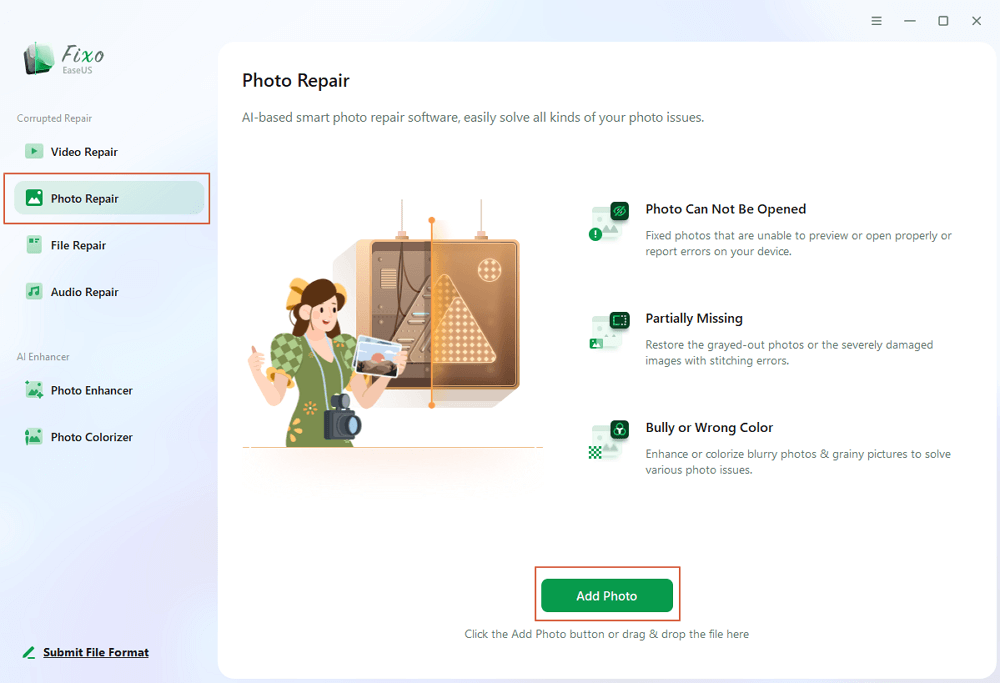
Step 1. Launch Fixo on your computer. You can choose "Photo Repair" to repair photos that cannot be opened, partially missing, etc. Click "Add Photos" to select corrupted photos.
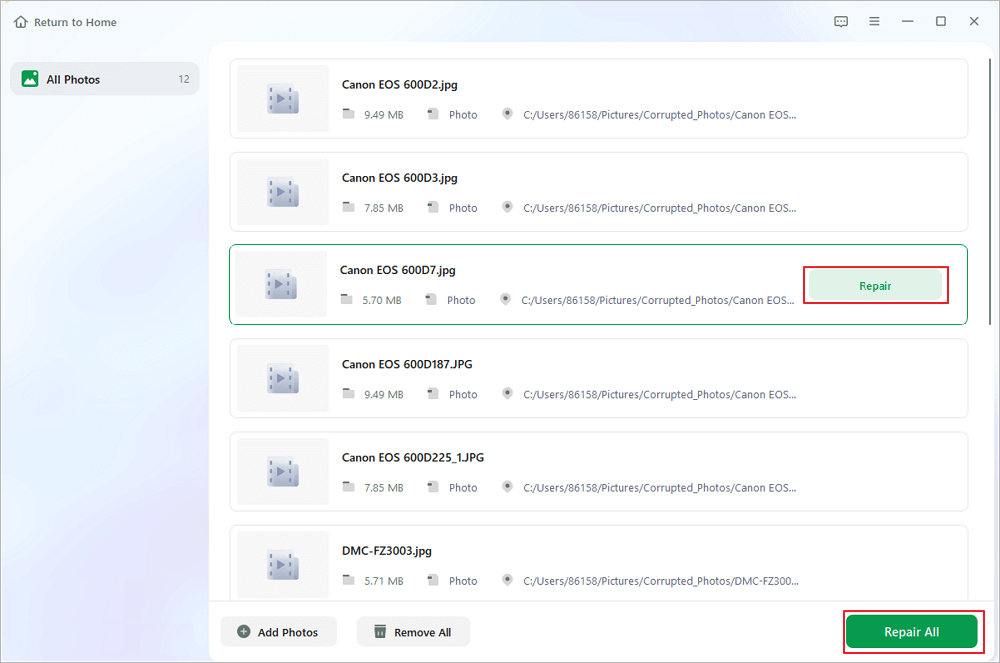
Step 2. You can repair multiple photos at once by clicking the "Repair All" button. If you want to repair one photo, move your pointer to the target photo and choose "Repair".
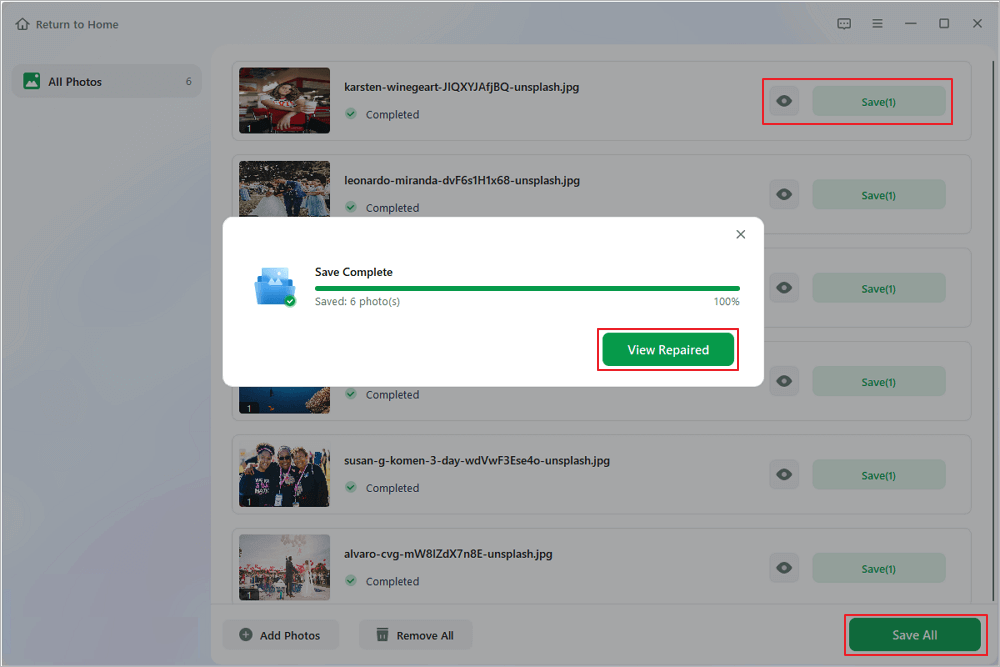
Step 3. You can click on the eye icon to preview the photos and click "Save" to save a selected photo. Choose "Save All" to save all the repaired images. Click "View Repaired" to locate the repaired folder.
If you find this information helpful, please share it with others on social media to assist them in overcoming this common challenge.
Method 3. Check Memory Cards and Storage Drives for System Errors
If your DNG files fail to open after being transferred from an SD card, external hard drive, or camera storage, bad storage sectors or file system corruption on the storage device may be corrupting file read operations. Running native system diagnostic tools can fix underlying storage paths and restore access to missing data.
Windows includes a command-line disk checking tool capable of finding and repairing bad sectors and logical file system errors on connected SD cards and external drives.
Step 1. Connect the SD card or external drive containing the corrupted DNG files to your Windows PC.
Step 2. Type cmd in the Windows search bar, right-click Command Prompt, and select Run as administrator.
Step 3. Type the following command, replacing the letter X with the actual drive letter assigned to your memory card: chkdsk X: /f /r /x
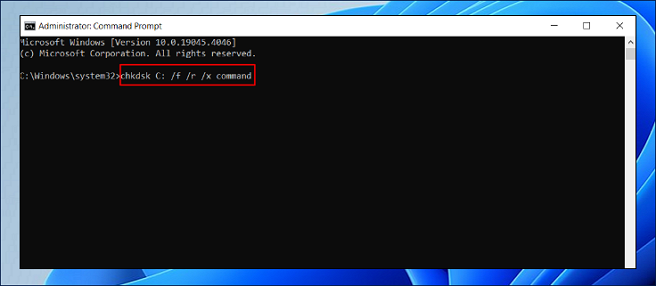
Step 4. Press Enter and allow the utility to scan for bad sectors, locate lost file fragments, and repair file allocation table errors.
Step 5. Once the check completes, attempt to copy the DNG files off the drive to a new folder on your computer.
How to Repair DNG Files FAQs
Navigating raw file recovery frequently raises technical questions regarding image specifications, error codes, and software performance. The following answers address common queries regarding dng repair techniques.
1. What does the unexpected end of file error mean for DNG files?
The unexpected end of file error means that the image decoder reached the end of the file data stream earlier than expected based on the header metadata. This usually occurs when a file transfer is interrupted midway or when a camera shuts down before fully writing the raw data block to the memory card.
2. Can I perform a DNG header repair without technical knowledge?
Yes, using automated desktop repair software like EaseUS Fixo allows you to repair dng header structures without manual hex editing. The software automatically scans the corrupted container, identifies missing structural markers, and rebuilds the header using intelligent algorithms.
3. Is a DNG file repair tool free online safe to use for private photos?
While some free online repair tools work for minor fixes, uploading personal or client photographs to web servers carries potential privacy risks. Additionally, online utilities often impose strict file size limits that cannot accommodate large raw DNG files. Using an offline desktop utility like EaseUS Fixo keeps your data completely secure on your local computer.
Conclusion
Encountering corrupted DNG files can bring a photography project to a sudden halt, but file errors like unexpected end of file or unsupported format do not mean your raw photographs are permanently lost. While updating system codecs and running disk diagnostics resolve basic software glitches, professional desktop applications like EaseUS Fixo Photo Repair offer the most comprehensive, reliable solution to repair damaged DNG files and safeguard your visual work.
Was This Page Helpful?
About the Author

Jaden is one of the editors of EaseUS, who focuses on topics concerning PCs and Mac data recovery. Jaden is committed to enhancing professional IT knowledge and writing abilities. She is always keen on new and intelligent products.


