





Table of Contents
 About the Author
 Related Posts
Hasselblad medium‑format cameras save uncompressed photos with a wide dynamic range in the special 3FR raw file type. If a 3FR file gets damaged, common photo tools cannot read the original camera sensor data. You may see grey preview screens, broken image pieces, or invalid file type warnings. You can repair corrupted 3FR files with special photo repair software such as EaseUS Fixo Photo Repair. Other options include converting 3FR files to Adobe DNG format or pulling built‑in high‑quality JPEG previews straight from the damaged raw file headers.
Many professional fashion, building, and fine‑art photographers choose Hasselblad medium‑format cameras. These cameras produce photos with rich color and wide dynamic range. When you shoot RAW on a Hasselblad camera, it stores sensor data in special 3FR RAW files. These large files keep all original camera sensor information. This lets editors freely tweak brightness and color tones inside editing programs including Hasselblad Phocus, Adobe Lightroom, and Capture One.
What is Hasselblad 3FR File and Causes of 3FR File Corruption
Hasselblad 3FR files are special raw photo files. They hold uncompressed 16‑bit color data captured by large medium‑format camera sensors. Regular files such as TIFF or JPEG work differently. Each 3FR file stores extra information, including color settings, preview image data, and all original pixel data from your shot.
Primary technical causes of 3FR file corruption include:
- Interrupted Storage Transfers: If you disconnect a card reader or USB‑C cable while Phocus or Lightroom copies 3FR files, the core file header will get damaged.
- Unexpected Power Failure: If your camera battery runs out while you take photos or save image data, the 3FR file cannot finish writing its internal structure.
- Memory Card Degradation: Damaged data blocks on CFexpress, XQD, or SDXC memory cards can break the data stored inside 3FR files.
- Storage Controller Bugs: Conflicts between your card reader firmware and computer system may mess up data while you copy 3FR photo files.
- Secondary File System Errors: Problems happen when you format a memory card on a computer instead of your Hasselblad camera. This mismatch creates errors inside 3FR files.
Repair Corrupted 3FR Files with EaseUS Fixo Photo Repair
Standard photo editing tools cannot open your important Hasselblad raw files if the file header, key metadata, or image data blocks get broken. In these cases, dedicated photo repair software gives you the best chance to restore your work.
EaseUS Fixo Photo Repair is a top‑ranked repair tool for broken photos that will not open. It supports special raw file types including Hasselblad 3FR, Canon CR3, Nikon NEF, and Sony ARW. This tool reads damaged raw file data block by block. It rebuilds missing file headers and fixes broken color data. It keeps your original camera color settings fully unchanged and outputs full‑size photos.
- Advanced Raw Container Repair: Rebuilds broken 3FR file headers and metadata tables, and keeps all original camera sensor data safe.
- Batch Repair Workflow: Lets studio editors fix many damaged 3FR files all at one time.
- Embedded Preview Extraction: Pulls high‑quality built‑in JPEG previews when the main raw sensor data suffers serious damage.
- Intuitive Interface: Simple point‑and‑click graphic screen. You do not need to use command lines or edit complex code.
Step-by-Step Guide to Repair Corrupted 3FR Files via EaseUS Fixo Photo Repair:
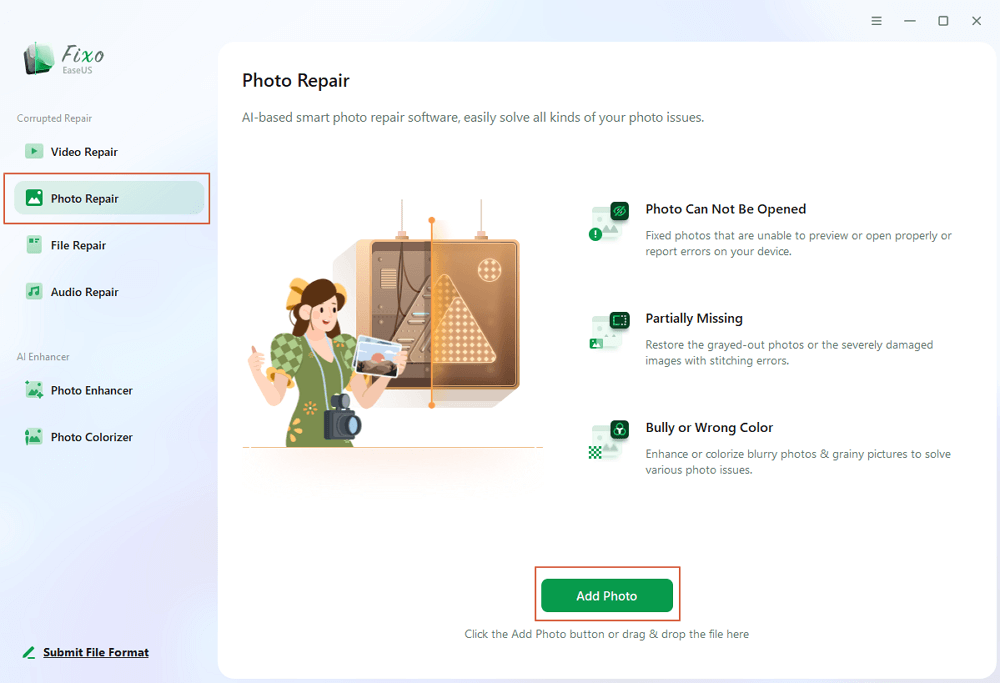
Step 1. Launch Fixo on your computer. You can choose "Photo Repair" to repair photos that cannot be opened, partially missing, etc. Click "Add Photos" to select corrupted photos.
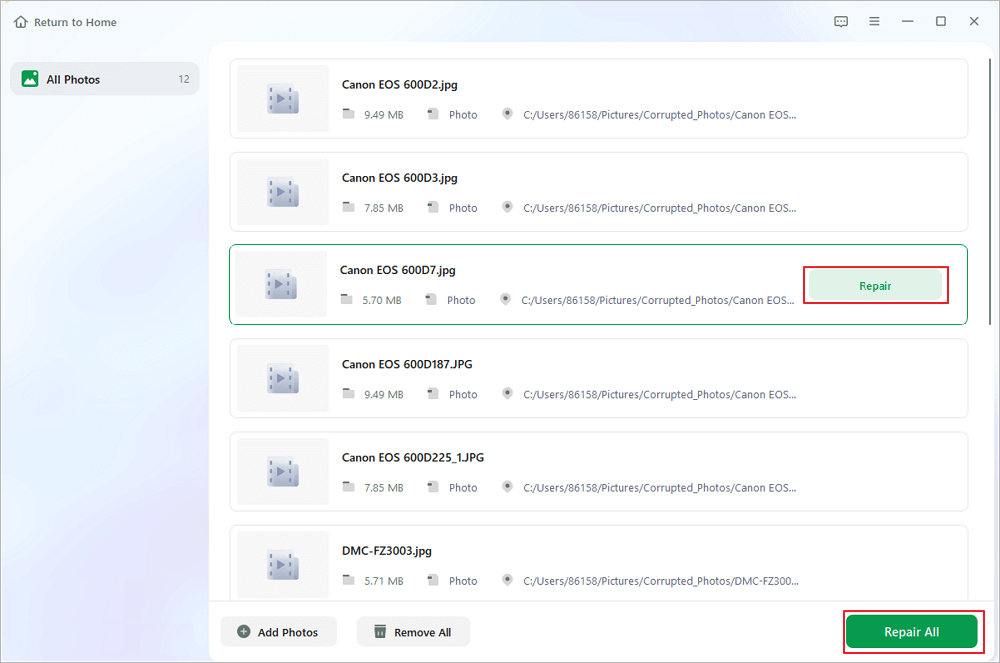
Step 2. You can repair multiple photos at once by clicking the "Repair All" button. If you want to repair one photo, move your pointer to the target photo and choose "Repair".
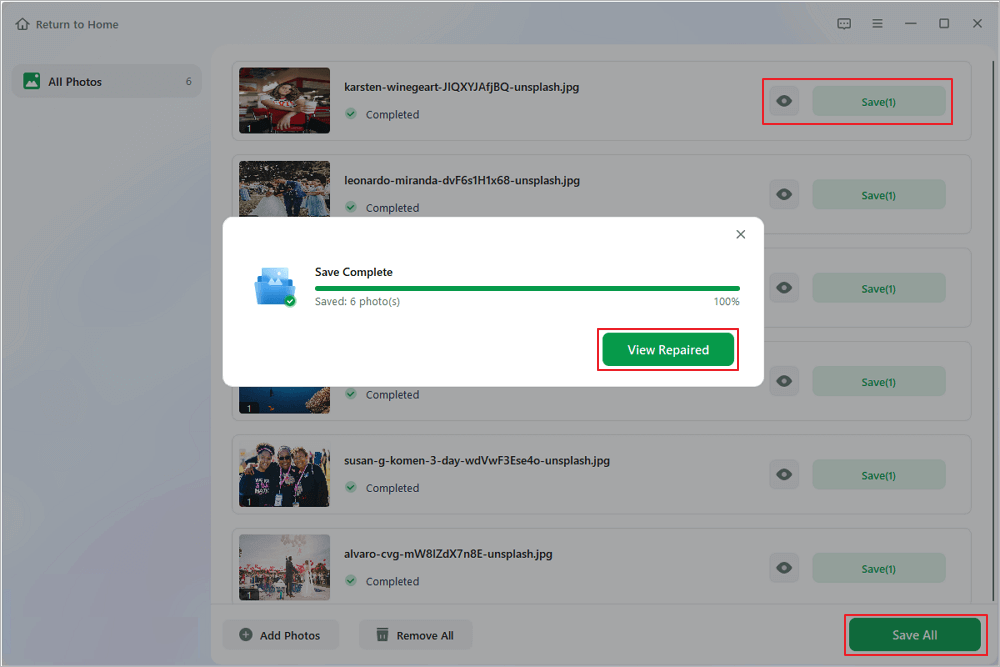
Step 3. You can click on the eye icon to preview the photos and click "Save" to save a selected photo. Choose "Save All" to save all the repaired images. Click "View Repaired" to locate the repaired folder.
Alternative Methods to Fix Corrupted 3FR Files
If you want to try free manual options before you use dedicated photo repair software, these alternative conversion methods may help you open your photos.
Method 1. Convert 3FR Files to Adobe DNG Format
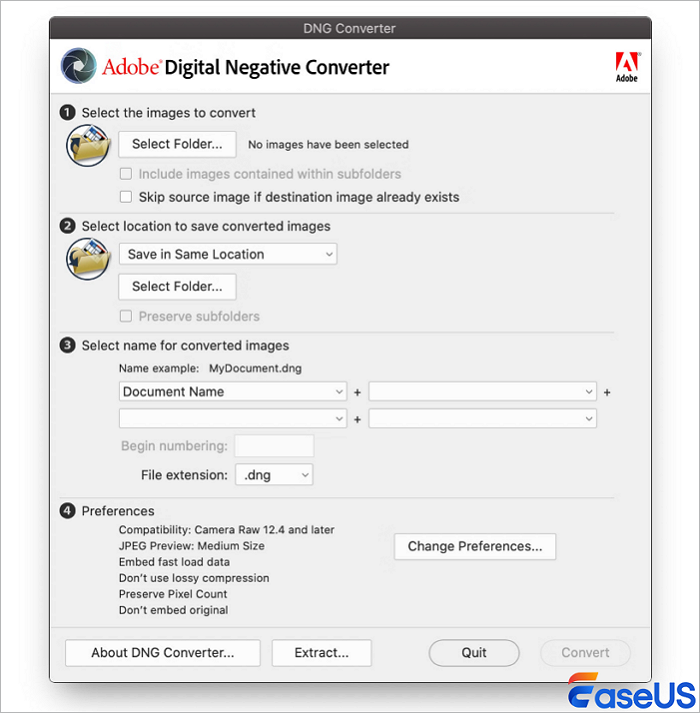
When you turn damaged 3FR files into Adobe DNG format, Adobe DNG Converter can work around small header errors. It builds a standard raw file wrapper to hold your original pixel photo data.
- Download and install the free Adobe DNG Converter tool from Adobe's official website.
- Launch Adobe DNG Converter on your computer.
- Click "Select Folder", then choose the folder containing your unopenable 3FR files.
- Select a target folder to hold your newly converted DNG files.
- Click "Convert". If your original photo sensor data is still good, you will get clean DNG files you can open in Adobe Lightroom or Camera Raw.
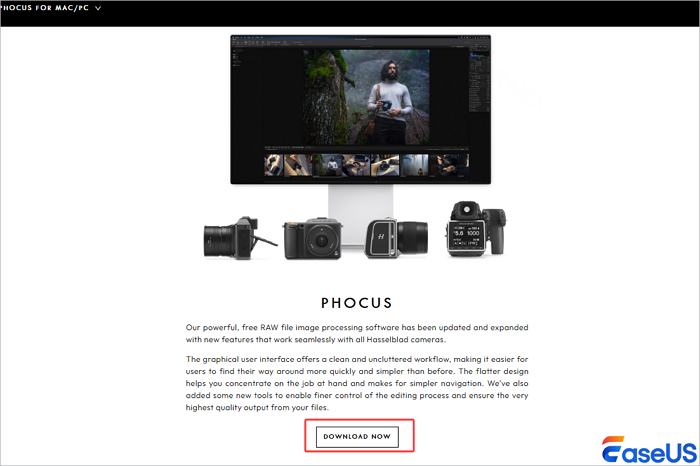
Method 2. Process 3FR Files Through Hasselblad Phocus
Tools such as Adobe Lightroom or Capture One sometimes cannot read modified 3FR metadata. The official Hasselblad Phocus program uses special code built just for different versions of 3FR files.
- Download and install the newest version of Hasselblad Phocus software on your computer.
- Open Phocus and import your broken 3FR files into a brand‑new project library.
- If Phocus can read the file correctly, select that 3FR file and click Export. Save it as a 16‑bit TIFF or FFF file. The FFF format is Hasselblad’s processed raw type. It can skip past many 3FR header‑related errors.
Method 3. Extract Embedded JPEGs Using ExifTool
You may not be able to fully fix a 3FR file when its core sensor data suffers heavy physical damage. Still, every 3FR file keeps a high‑quality JPEG preview saved in its header. You can pull this preview image out with command‑line tools.
- Download and install the free open‑source ExifTool program to your computer.
- Open Terminal for Mac or Command Prompt for Windows.
- Execute this command string to extract embedded JPEGs from your corrupted 3FR folder: exiftool -b -JpgFromRaw -w _preview.jpg -ext 3FR .
- Open your output folder. You will find the exported high‑quality JPEG previews you can use for urgent client work.
Comparison of 3FR File Repair Techniques
Use the table below to compare how well each 3FR repair method works, how fast it runs, and how much technical skill each method requires.
| Repair Approach | Efficacy Level | Technical Complexity | Primary Requirement | Ideal Scenario |
|---|---|---|---|---|
| 1️⃣EaseUS Fixo Photo Repair | Highest Success Rate | Low (GUI Interface) | Dedicated Repair Software | Fix serious 3FR header damage, color shifts, and files that refuse to open. |
| 2️⃣Adobe DNG Converter | Moderate Success Rate | Low | Adobe DNG Converter App | Work around small metadata errors by creating a standard DNG raw file wrapper. |
| 3️⃣Hasselblad Phocus Native Export | Moderate Success Rate | Low to Moderate | Hasselblad Phocus Suite | Fix metadata-reading failures in third-party photo editors. |
| 4️⃣ExifTool Preview Extraction | High Preview Recovery | High (Command Line) | ExifTool Utility Script | Quickly pull embedded JPEG previews when original raw sensor data is lost. |
Repair Corrupted 3FR Files FAQs
When you fix damaged medium‑format raw photos, people often ask questions about image quality, lost metadata, and color settings. Below are simple answers for these common questions.
1. Will repairing a corrupted 3FR file reduce its original resolution or dynamic range?
No. Tools such as EaseUS Fixo Photo Repair rebuild broken file headers and leave all original 16‑bit sensor data unchanged. Your fixed 3FR or exported TIFF file keeps its full image size and full light‑range performance.
2. What is the difference between a Hasselblad 3FR file and an FFF file?
Your Hasselblad camera writes 3FR files straight to your memory card when you take a shot. FFF files are modified raw files created after you import 3FR photos into Hasselblad Phocus. FFF files hold extra data, including custom color edits and lens correction settings you add during editing.
3. Why does Adobe Lightroom say my 3FR file is damaged or unsupported?
Lightroom shows damaged or unsupported warnings in two cases. Either the 3FR file header is broken, or your Lightroom version lacks the latest camera profiles for newer Hasselblad cameras. You can fix this problem by updating Lightroom or repairing the file inside EaseUS Fixo Photo Repair.
4. Can I recover a corrupted 3FR file if the memory card was formatted?
If you formatted your memory card with damaged 3FR files on it, stop using this card right away. New saved data will overwrite your old photos. First, use data recovery software to get back your deleted RAW files. Next, run those recovered 3FR files through EaseUS Fixo Photo Repair to fix broken headers.
Conclusion
Finding broken Hasselblad 3FR files after a long photo shoot can feel worrying. However, your valuable photos are not always gone for good. Photographers can fix damaged file headers and save their work by learning raw file structures, converting files to DNG, using Hasselblad Phocus, or using dedicated software such as EaseUS Fixo Photo Repair. These methods help you rescue images and protect your professional photo collections.
Was This Page Helpful?
About the Author

Jaden is one of the editors of EaseUS, who focuses on topics concerning PCs and Mac data recovery. Jaden is committed to enhancing professional IT knowledge and writing abilities. She is always keen on new and intelligent products.


