





 About the Author
 Reviews and Awards
 Mac SD Card Recovery
Why Are Files Missing After macOS Golden Gate
So, you've just upgraded to macOS Golden Gate, and now some files have vanished. Frustrating, right? Don't panic just yet; your files aren't gone forever. They might simply be in a different spot, hidden, synced to iCloud, tucked away under another user account, or just temporarily missing while your system wraps up its update.
Of course, sometimes files really do get lost: maybe the update was interrupted, you accidentally deleted something, or there's a problem with the file system. Still, you've got several ways to hunt down or recover missing data on macOS 27.
First, figure out if your files are really deleted or just hiding. Major updates like this shift things around; they can change how files appear, sync, or are accessed, without actually wiping them.
Files can seem missing for several reasons:
1. Files Are Moved or Relocated
Upgrades sometimes shuffle files, so start by checking the usual places - Desktop, Documents folder, Downloads folder - before you jump to conclusions.
2. iCloud Drive Changed File Locations
If you use iCloud for Desktop and Documents, those folders aren't just living on your Mac anymore; they're up in iCloud Drive.
3. Different User Account
Did you sign in with a different account after updating? Your stuff could be under another user's folder.
4. Finder Isn't Showing What You Expect
Sometimes Finder simply hides locations like Desktop, Documents, or iCloud Drive from its sidebar.
5. Files Really Were Deleted
If you've searched all over and still can't find something, not in Finder, iCloud, Trash, or a backup, maybe the files got deleted during the upgrade.
How to Find Missing Files After macOS Golden Gate
Try these built-in tricks before you reach for professional Mac data recovery software:
- Search for the File in Finder: Open Finder and type in the search box, enter the exact file name, a part of it, or even just the extension (like .docx for Word, .jpg or .png for photos, .mp4 or .mov for videos). The more specific, the better.
- Check your Home folder: Go to Finder > Go > Home and look through Desktop, Documents, Downloads, Pictures, Movies, and Music. If you find your files, copy them to a safe spot right away.
- Check Other User Folders: If you are using more than one account on your Mac, go to Macintosh HD > Users and check inside your old accounts' Desktop or Documents folders.
Fix 1. Recover Missing Files on macOS 27 with Data Recovery Software
macOS 27 update delete everything? Nothing in Finder, iCloud, Trash, or your backups? Now's the time for stronger methods. Tools like EaseUS Data Recovery Wizard for Mac can scan your storage for files that disappeared or were deleted, even if you emptied the Trash or after a system upgrade.
Before trying this Mac data recovery software, stop using your Mac to avoid overwriting data. Don't save anything on the drive where your files disappeared. Every change risks overwriting the files you want to recover. Then, follow the steps below to recover deleted files on macOS Golden Gate:
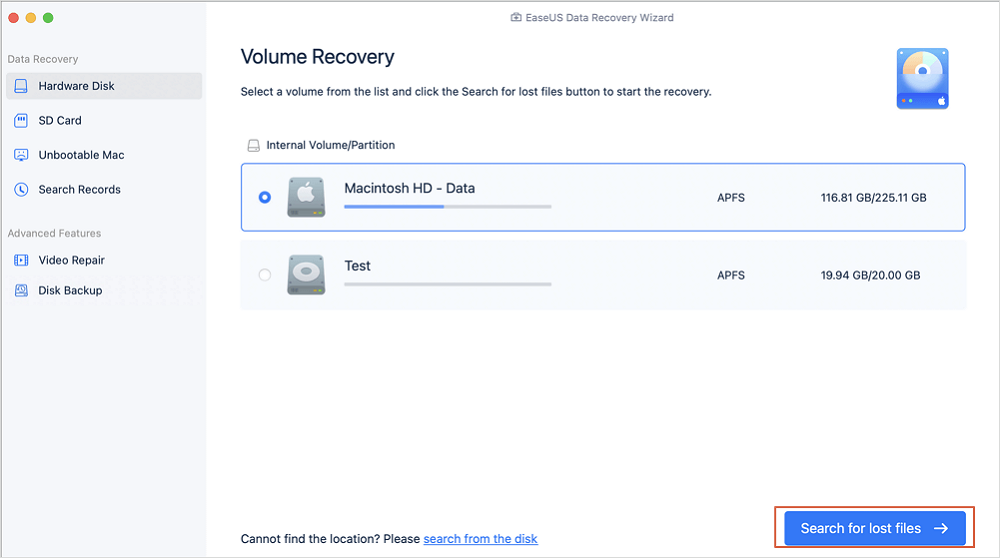
Step 1. Select the location
Select the disk where you lost data after updating to macOS Sonoma/Ventura/Monterey/Big Sur. Then, click "Search for lost files".
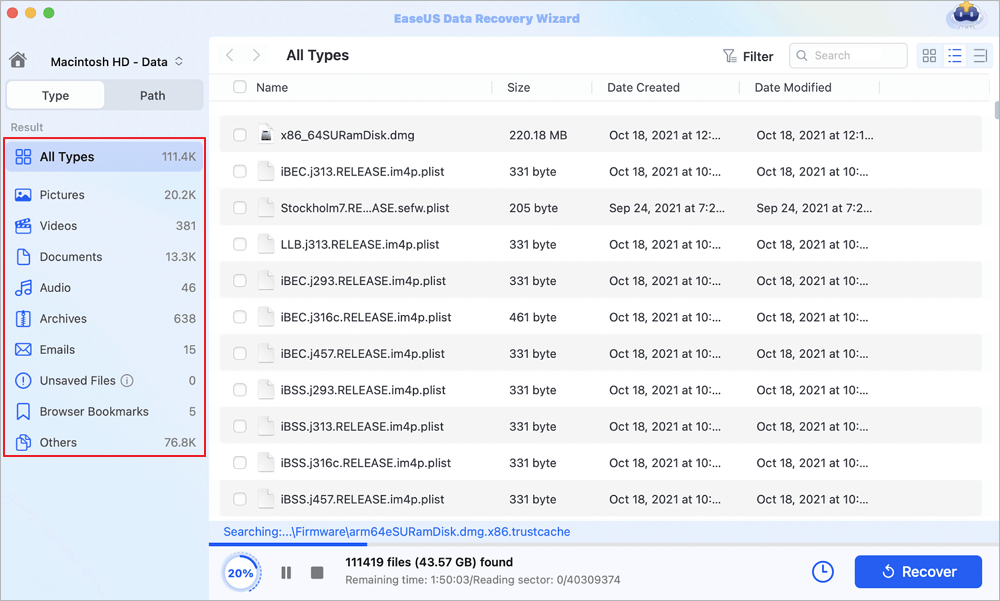
Step 2. Find lost data after the scan
EaseUS Data Recovery Wizard for Mac will immediately scan your selected disk volume and display the scanning results on the left pane. Use the file type and file path to find wanted data on Mac.
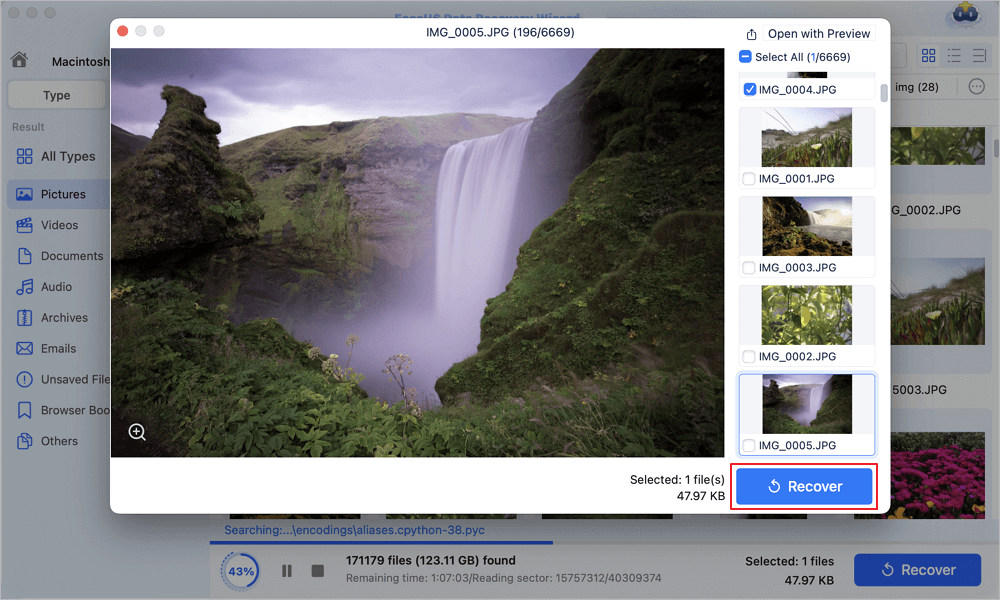
Step 3. Recover data after macOS update
Select the target files that were unknowingly lost during or after the update and click the "Recover" button to get them all back.
Share this macOS 27 data recovery guide on social media and help more Mac users!

Fix 2. Search for Missing Files After macOS Golden Gate Update
Sometimes, the files are just in a weird spot after the update. Use Finder and Spotlight to search all over; try file names, extensions, or even different user folders.
And don't forget to check the Finder sidebar; enable all standard locations to be sure you aren't missing a folder by accident.
Step 1. Open Finder by clicking the Finder icon in the Dock.
Step 2. Enter the complete or partial file name into the search box.
If you do not remember the exact name, search for a unique word that was included in the filename.
Step 3. If you cannot find files in Finder, try Spotlight. Press the Command and Space keys to bring up Spotlight. You can also search for file names and file extensions.

Fix 3. Check Trash and Recently Deleted on macOS Golden Gate
If you accidentally deleted a file shortly before or after upgrading macOS, it may still be recoverable through Trash or a Recently Deleted location.
Files deleted from iCloud Drive may also remain in Recently Deleted for a limited period. Apple states that deleted iCloud Drive files can generally be found in Recently Deleted for 30 days.
Step 1. Click the Trash icon in the Dock.
Step 2. Browse the files or use the search function if necessary. Look for:
- Original filename
- File extension
- Folder name
- Recently deleted documents
- Photos and videos
If you find the file, right-click it and select "Put Back".
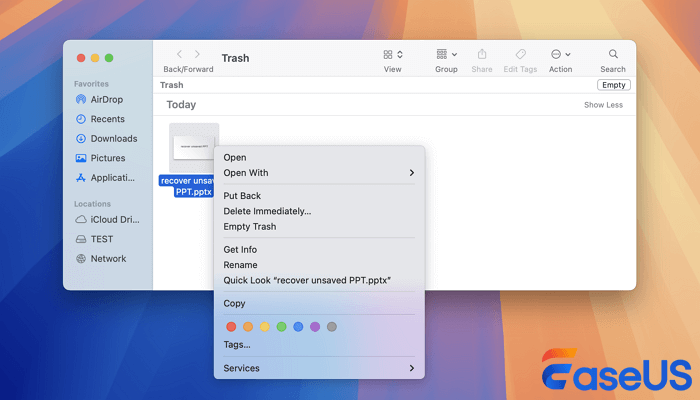
Step 3. If the missing file was stored in iCloud Drive, sign in to iCloud.com and check the Recently Deleted area. You can also check the relevant Recently Deleted section from supported Apple apps and devices.
Fix 4. Check iCloud Drive and Desktop & Documents
If you rely on iCloud Desktop & Documents and desktop files disappeared on Mac after the macOS 27 update, your files might be there. In System Settings, check your iCloud settings, see if "Sync this Mac" is turned on, and browse directly to iCloud Drive > Desktop or iCloud Drive > Documents. You can also log into iCloud.com from a web browser and look there.

If you turned off iCloud Desktop & Documents, macOS can stash copies of those files in "iCloud Drive (Archive)." Check Finder > Home > iCloud Drive (Archive) and move anything important to a safe location.
Conclusion
Missing files after upgrading to macOS Golden Gate doesn't instantly mean disaster. Usually, it just takes a bit of searching in Finder, user folders, Trash, iCloud Drive, or Archive folders to unearth them. If you've got a Time Machine backup, restoring stuff is quick. If the files truly are gone, try EaseUS Data Recovery Wizard for Mac, but do it before you write anything new to your drive.
Desktop Files Missing After macOS 27 FAQs
1. Why are my Desktop files missing after macOS 27?
They're probably in iCloud Drive, hidden after a settings tweak, on another user account, or actually lost. Check local Desktop, iCloud Drive, all user folders, and iCloud.com.
2. How do I find missing files after macOS Golden Gate?
Start by searching Finder for the filename or type. Look through Desktop, Documents, Downloads, iCloud Drive, Trash, other user folders, and "iCloud Drive (Archive)" if it exists. If files are deleted, you'll need professional Mac data recovery software.
3. Can I recover permanently deleted files after macOS Golden Gate?
Maybe. Data recovery tools like EaseUS can find many deleted files, but once data is overwritten, recovery isn't guaranteed.
Was This Page Helpful?

Dany is an editor of EaseUS who lives and works in Chengdu, China. She focuses on writing articles about data recovery on Mac devices and PCs. She is devoted to improving her writing skills and enriching her professional knowledge. Dany also enjoys reading detective novels in her spare time.
-
EaseUS Data Recovery Wizard is a powerful system recovery software, designed to enable you to recover files you’ve deleted accidentally, potentially lost to malware or an entire hard drive partition.
Read More -
EaseUS Data Recovery Wizard is the best we have seen. It's far from perfect, partly because today's advanced disk technology makes data-recovery more difficult than it was with the simpler technology of the past.
Read More -
EaseUS Data Recovery Wizard Pro has a reputation as one of the best data recovery software programs on the market. It comes with a selection of advanced features, including partition recovery, formatted drive restoration, and corrupted file repair.
Read More
Related Articles
-
iCloud Files Disappeared? 4 Ways to Recover Lost iCloud Files
![author icon]() Brithny/Sep 20, 2026
Brithny/Sep 20, 2026 -
Recover Lost Data After Upgrading macOS Tahoe
![author icon]() Brithny/Sep 20, 2026
Brithny/Sep 20, 2026 -
Mac Runs Slowly After Update? 7 Fixes Here (macOS Tahoe 26 Included)
![author icon]() Brithny/Sep 20, 2026
Brithny/Sep 20, 2026 -
Create macOS Tahoe Bootable Installer and Get macOS 26 Beta
![author icon]() Dany/Sep 20, 2026
Dany/Sep 20, 2026
 Brithny/Sep 20, 2026

