





 About the Author
 Reviews and Awards
 Mac SD Card Recovery
What Is macOS 27 Golden Gate
macOS 27 Golden Gate is Apple's latest operating system for Mac computers. Announced at WWDC 2026, it represents Apple's most ambitious effort yet to integrate artificial intelligence into everyday Mac workflows.
Unlike previous releases that primarily focused on visual redesigns or performance improvements, macOS 27 centers around helping users accomplish tasks faster through intelligent assistance. The update expands Apple Intelligence across the system, introduces a conversational Siri experience, and brings new capabilities to apps such as Safari, Photos, Messages, Mail, and Notes.
The operating system is optimized for Apple Silicon Macs, allowing machine learning models to run efficiently on-device while maintaining Apple's commitment to privacy and security.
What's New in macOS 27
macOS 27 comes loaded with upgrades meant to make your Mac smarter, more productive, and more personal than ever. Sure, Apple Intelligence and the new Siri AI steal the spotlight, but Apple didn't stop there. Safari gets a boost, Photos are revamped, security is tighter, and the system runs smoother.
Here's a quick look at the biggest changes you'll notice when you upgrade to macOS 27 beta.
Apple Intelligence and Siri AI Are the Biggest Changes
Apple Intelligence and Siri AI are the big draws in macOS 27, and Siri's getting its biggest upgrade. It's not just a voice assistant anymore, Siri now feels more like an AI companion. It picks up on context, helps across apps, and gets things done much faster.
- Siri now supports natural, context-aware conversations without needing to repeat yourself.
- Apple Intelligence lets you use everyday language to find documents, emails, notes, photos, or calendar events.
- It assists with rewriting, summarizing, tone adjustment, and drafting across Mail, Notes, and Pages.
- Shortcuts enable easy AI-powered workflow creation, even for users without automation experience.
- Most AI features run on‑device with Apple Silicon, ensuring powerful functionality without compromising privacy.
Visual Intelligence, Safari, and Productivity Upgrades
Beyond Siri, macOS 27 introduces several productivity-focused enhancements that help users work more efficiently throughout the day.
- Visual Intelligence analyzes on-screen content to help users interact meaningfully with images, documents, screenshots, and webpages.
- Safari gains AI-powered browsing features that improve content discovery, tab management, and browsing efficiency.
- Spotlight delivers faster, more relevant search results from apps, files, messages, and documents.
- Apps like Mail, Calendar, and Notes offer smarter suggestions and improved organization to streamline daily workflows.
Photos, Design, and User Experience Improvements
macOS 27 also introduces several upgrades aimed at creativity and usability.
- New editing features make it easier to fix photos, remove distractions, and refine images.
- Image Playground now offers more creative options for generating and tweaking images.
- The evolving Liquid Glass design provides a clearer, more readable, and consistent interface across all apps.
- More accessibility features and customization options make macOS comfortable for everyone.
Performance, Security, and Family Features
macOS 27 isn't just about AI on the surface; the improvements behind the scenes matter too.
- Continuous tuning for Apple Silicon delivers snappier performance, better multitasking, and lower energy use.
- AirDrop and networking run smoother, with upgraded file management workflows.
- Extra safeguards better protect personal information and strengthen overall system security.
- Improved parental controls and communication safety give parents more tools to manage children's digital activities.
macOS 27 Golden Gate vs macOS 26 Tahoe
If you're currently using macOS 26 Tahoe, you may be wondering whether upgrading is worth it. While Tahoe introduced the early foundation of Apple Intelligence, macOS 27 expands those capabilities significantly and integrates AI much deeper into the operating system.
| Feature | macOS 26 Tahoe | macOS 27 Golden Gate |
| Siri | Traditional Siri | AI-powered Siri |
| Apple Intelligence | Limited integration | Expanded system-wide integration |
| Visual Intelligence | Basic functionality | Advanced screen awareness |
| Safari | Standard enhancements | AI-powered browsing tools |
| Photos | Basic AI editing | Enhanced AI creative tools |
| Shortcuts | Manual workflows | AI-assisted automation |
| Performance | Improved | Further optimized |
| Family Features | Standard controls | Enhanced safety features |
Extra Tip: Download macOS 27 Beta
Curious about what's coming next? Apple lets you test-drive the macOS 27 beta if you're eligible. Just remember, beta software isn't always stable; you might run into app glitches or even lose some files you care about.
How to download macOS 27 beta:
Step 1. Open "System Settings" on your Mac.
Step 2. Go to "General", then Software Update.
Step 3. Turn on Beta Updates.
Step 4. Pick the macOS 27 Developer Beta or Public Beta that shows up.
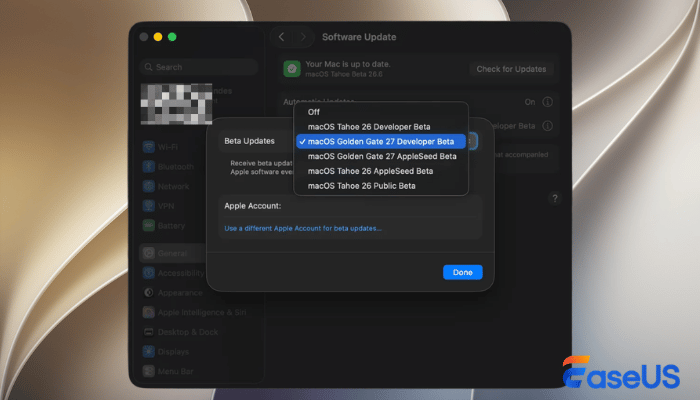
Just follow the steps onscreen to install. If you want to create a macOS 27 Golden Gate bootable installer, you should try EaseUS Data Recovery Wizard for Mac.
With this free tool, you can install the latest macOS version on multiple Mac computers. If you encounter data loss because of macOS 27's failed upgrade, or lost data while experiencing macOS Golden Gate.
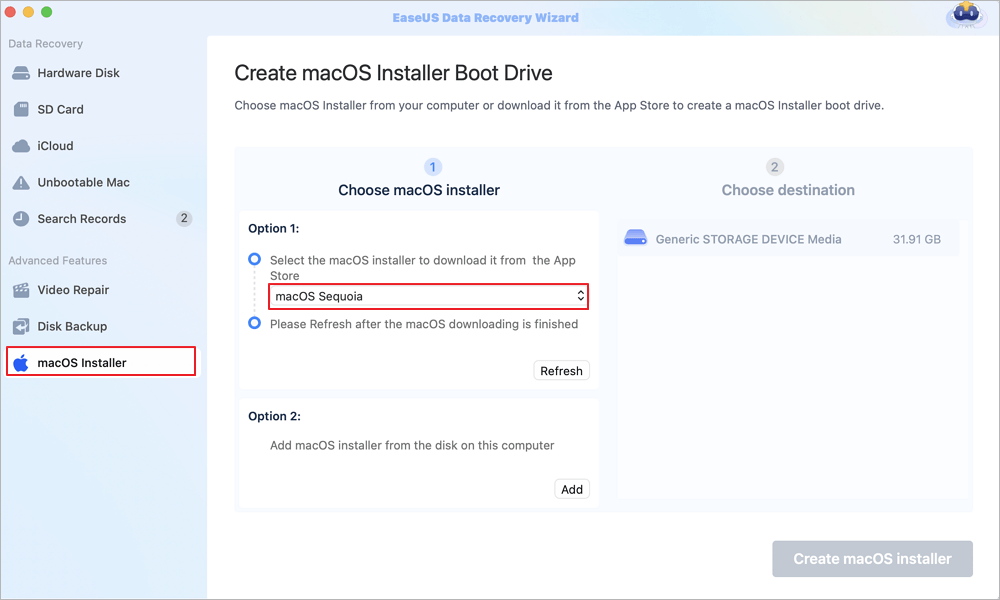
Step 1. Select a macOS version
Select a macOS version from the list, or click the "Refresh" option to get the downloaded macOS version. Or you can add a macOS installer from your disk by clicking the "Add" button. Insert a USB flash drive larger than 16 GB to save the macOS installer.
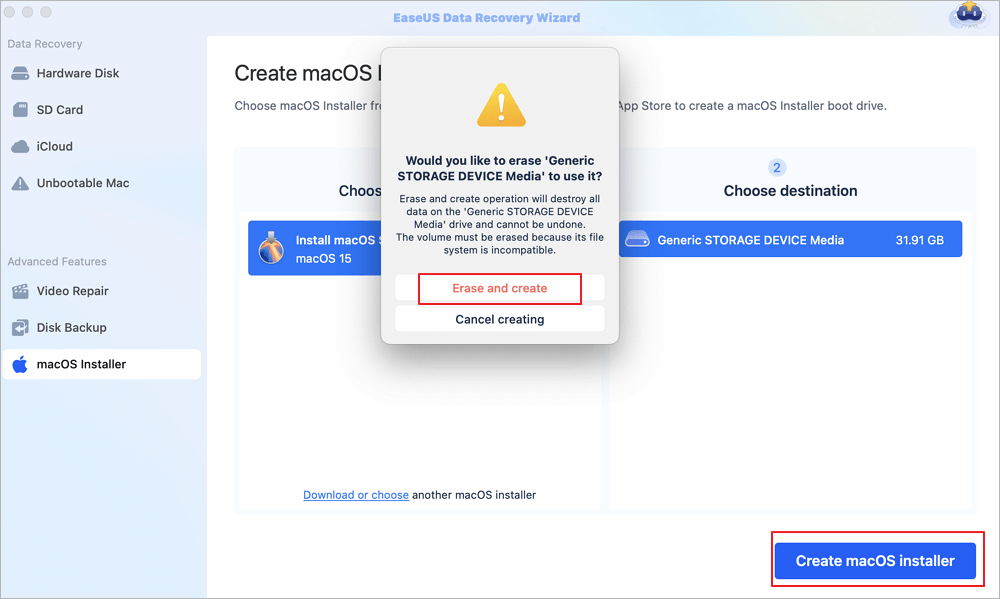
Step 2. Erase the USB flash drive
After choosing the USB flash drive, click the "Erase and create" option in the pop-up window to format your USB flash drive quickly, and then click the "Create macOS installer" button to continue.
- Note: This operation will delete all data on your USB flash drive, please back up important data in advance, or use EaseUS data recovery software to recover your data.
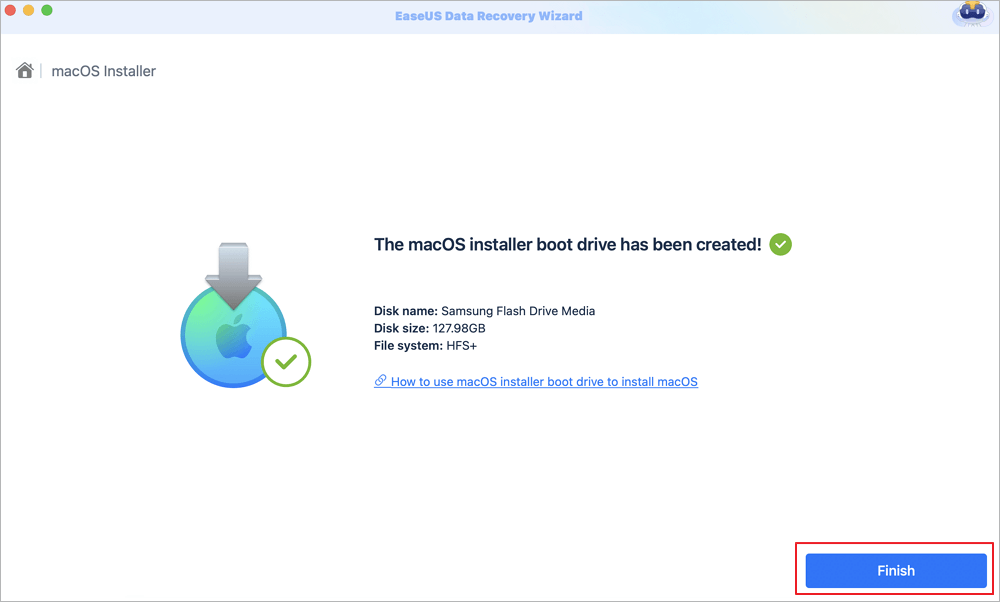
Step 3. Create the macOS installer boot drive
Wait for the process to complete, and click the "Finish" button. Your macOS installer boot drive has been successfully created!
Conclusion
macOS 27 Golden Gate is one of Apple's most ambitious updates in a while. This version brings a much smarter Siri, builds in more Apple Intelligence, and packs in a bunch of productivity upgrades that actually make day-to-day work easier.
Yeah, the new AI features steal the spotlight, but Apple didn't stop there. Safari, Photos, security, performance, and family tools all got solid improvements, making the update feel well-rounded. If you've got an Apple Silicon Mac, there are plenty of reasons to upgrade and see how Apple's pushing the future of intelligent computing.
macOS 27 FAQs
1. What Macs will get macOS 27?
The following Macs support the latest macOS 27:
- MacBook Neo (2026)
- MacBook Air with Apple silicon (2020 and later)
- MacBook Pro with Apple silicon (2020 and later)
- iMac with Apple silicon (2021 and later)
- Mac mini with Apple silicon (2020 and later)
- Mac Studio (2022 and later)
- Mac Pro with Apple silicon (2023)
2. How can I update macOS 27 beta?
Make sure you have backed up your Mac data with Time Machine and that your Apple Account is on the developer plan. Then, go to System Settings > General > Software Update, to download and install macOS 27 beta.
3. What's new in macOS 27?
Apple's macOS 27 Golden Gate introduces an overhauled, AI-powered Siri AI, upgraded Apple Intelligence tools, and visual refinements to the Liquid Glass desktop aesthetic. It also drops support for Intel-based Macs, making it a silicon-exclusive release.
Was This Page Helpful?

Dany is an editor of EaseUS who lives and works in Chengdu, China. She focuses on writing articles about data recovery on Mac devices and PCs. She is devoted to improving her writing skills and enriching her professional knowledge. Dany also enjoys reading detective novels in her spare time.
-
EaseUS Data Recovery Wizard is a powerful system recovery software, designed to enable you to recover files you’ve deleted accidentally, potentially lost to malware or an entire hard drive partition.
Read More -
EaseUS Data Recovery Wizard is the best we have seen. It's far from perfect, partly because today's advanced disk technology makes data-recovery more difficult than it was with the simpler technology of the past.
Read More -
EaseUS Data Recovery Wizard Pro has a reputation as one of the best data recovery software programs on the market. It comes with a selection of advanced features, including partition recovery, formatted drive restoration, and corrupted file repair.
Read More
Related Articles
-
Recuva Mac-re ingyenes letöltés - Törölt fájlok helyreállítása ingyen!
![author icon]() Cedric/Sep 20, 2026
Cedric/Sep 20, 2026 -
R-Studio for Mac: Ultimate Guide to R-Studio on macOS
![author icon]() Brithny/Aug 02, 2026
Brithny/Aug 02, 2026 -
How to Check SSD Health on Mac | 3 Free Ways
![author icon]() Sherly/Jun 30, 2026
Sherly/Jun 30, 2026 -
Where Are Notes Stored on Mac | Verify or Recover
![author icon]() Dany/Sep 20, 2026
Dany/Sep 20, 2026
 Cedric/Sep 20, 2026
  Brithny/Aug 02, 2026
  Sherly/Jun 30, 2026

