





 About the Author
 Reviews and Awards
 Mac SD Card Recovery
Does macOS 27 Update Delete Everything
Updating your Mac to macOS 27 usually goes smoothly, but it's easy to freak out when you realize your Desktop is suddenly empty, your Documents folder vanished, or your photos seem to have disappeared right after the upgrade. It makes you wonder: did the update just wipe out everything?
When you upgrade to macOS 27, the system swaps out its own files but leaves your stuff alone. That means your documents, desktop files, photos, videos, apps, downloads, preferences, bookmarks, and messages, all of that should stay right where you left them.
Apple builds macOS upgrades to keep your files safe. Unless you go out of your way to erase your disk or do a clean install, your personal data doesn't get touched.
Still, things happen. Sometimes people lose access to their files even when the update is supposed to be safe. That can come from issues like:
| Situation | Will Files Be Deleted? |
| Normal macOS 27 upgrade | No |
| Clean installation | Yes |
| Erasing Macintosh HD before installation | Yes |
| Interrupted update | Files may become inaccessible |
| APFS corruption | Files may disappear temporarily |
| Wrong user account | Files appear to be missing |
| iCloud sync problems | Files may not display locally |
How to Recover Lost Data After macOS 27 Update
If you think you've lost important files during or after the upgrade, stop using your Mac right away. The more you use it, the more likely you'll overwrite the data you're trying to recover.
Your best bet for getting those files back is with a tool like EaseUS Data Recovery Wizard for Mac. This software works with APFS drives, internal SSDs, both Apple Silicon and Intel Macs; it's got you covered. It can handle deleted files, formatted disks, lost partitions, and even lets you preview files before you recover them. To get started, just download and install the software.
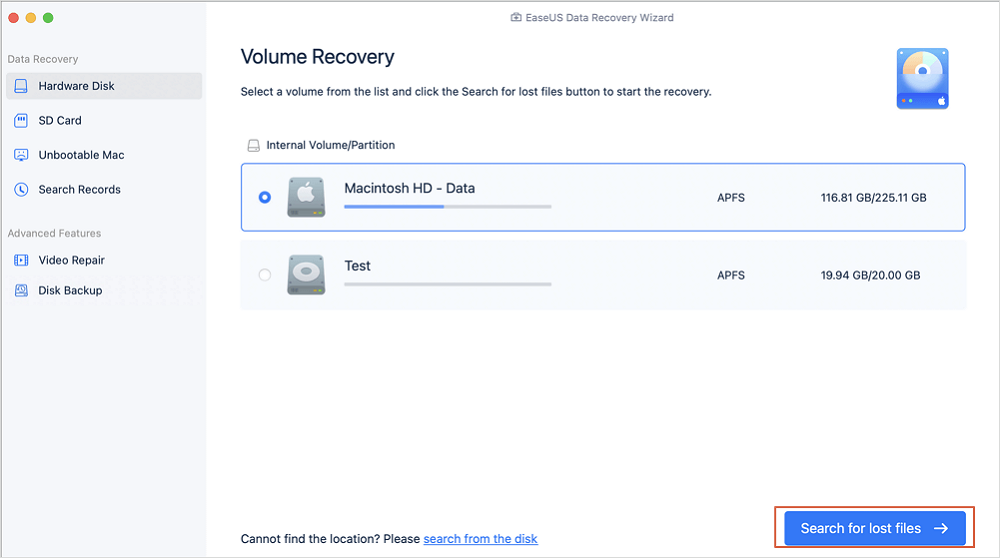
Step 1. Select the location
Select the disk where you lost data after updating to macOS Sonoma/Ventura/Monterey/Big Sur. Then, click "Search for lost files".
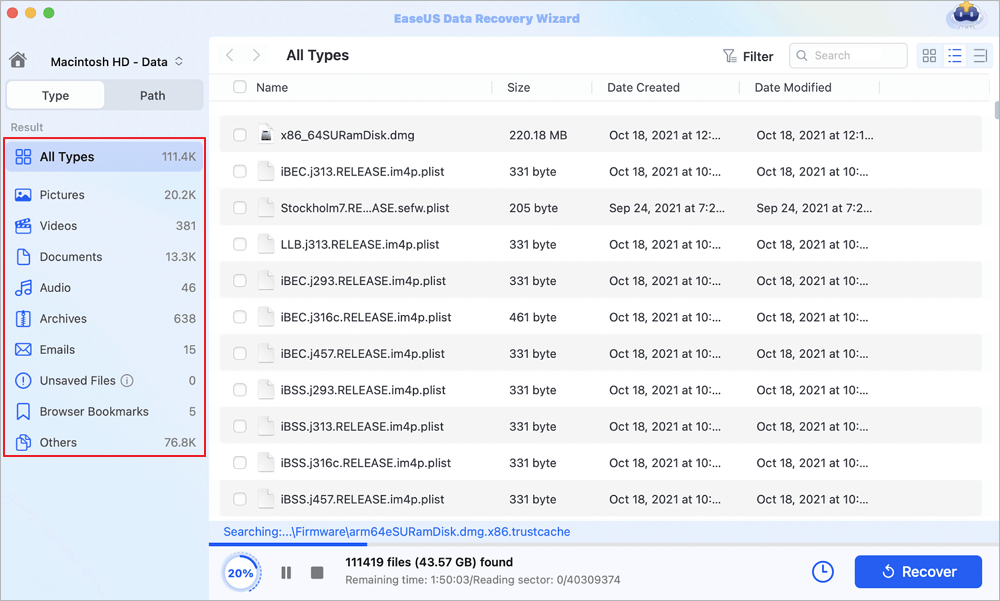
Step 2. Find lost data after the scan
EaseUS Data Recovery Wizard for Mac will immediately scan your selected disk volume and display the scanning results on the left pane. Use the file type and file path to find wanted data on Mac.
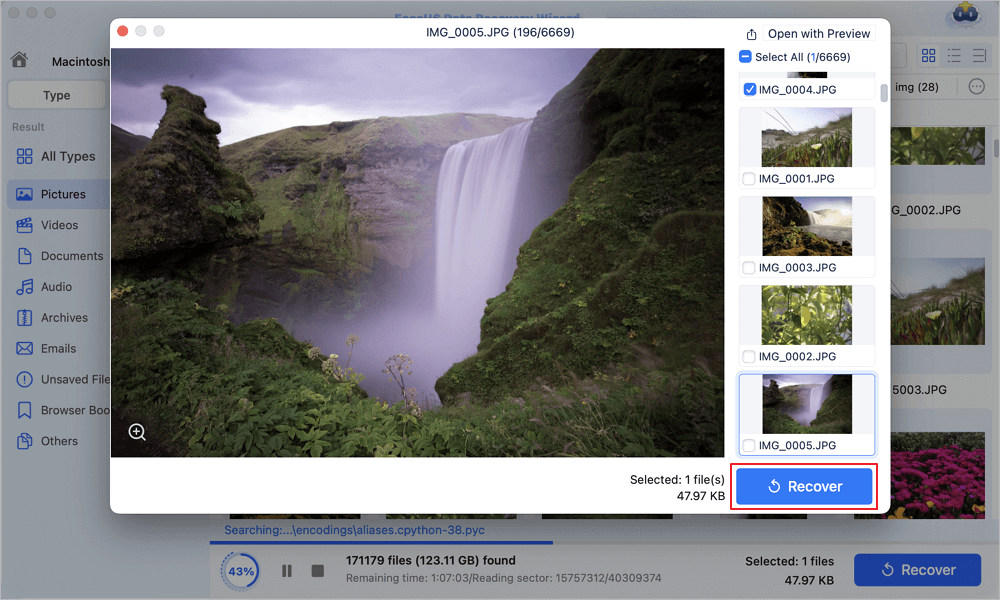
Step 3. Recover data after macOS update
Select the target files that were unknowingly lost during or after the update and click the "Recover" button to get them all back.
You can share this guide on social media to help Mac users recover missing files on macOS 27.

How to Fix macOS 27 Update Deleting Everything
Before you panic about losing your files after downloading macOS 27, take a breath; sometimes they're just hidden or shuffled somewhere else after a macOS update. Give these steps a shot before you assume the data is gone for good.
Method 1. Search with Spotlight
Let's start by searching with Spotlight, since it usually keeps track of almost every file on your Mac.
First, hit Command + Space to bring up Spotlight Search. Then, type part of the file name, whatever you remember. If you're blanking on the name, try searching by the kind of file: just type .pdf, .jpg, .mov, or .docx and see what comes up. If Spotlight finds your file, just open it from there.
There's a good chance the file's still on your drive; it's just landed in a different folder after the update.

Method 2. Check Finder Locations
After a system update, Finder can sometimes show different folders than you're used to.
Here's what to do:
Step 1. Open Finder.
Step 2. Take a close look at these spots:
- Desktop
- Documents
- Downloads
- Recents
- iCloud Drive
- Trash
Step 3. If you're not finding what you need, use Finder's search bar. This lets you search your whole Mac, not just the folder you're in.
Step 4. Mac Finder not showing files? Want to see hidden files? Just press Command + Shift + period. Any hidden files will show up right away.
Method 3. Switch User Accounts
Sometimes, after a macOS update, you end up in a different user profile without realizing it.
Here's what you can do:
Step 1. Open System Settings.
Step 2. Go to Users & Groups.

Step 3. Check which account you're logged into.
Step 4. If you see your old account or another administrator, switch back to it.
Step 5. Open your Home folder and see if your Desktop, Downloads, and Documents are still there.
A lot of people worry their files disappeared, but most of the time, they're just logged into the wrong account. Your stuff is usually right where you left it.
Method 4. Restore from Time Machine
If you've got Time Machine turned on, getting back missing files is pretty simple.
Step 1. First, plug in your Time Machine backup drive.
Step 2. Then, open the folder where those files used to be.
Step 3. Now, start Time Machine.
Step 4. Use the timeline on the side to look through your older backups.
Step 5. Once you spot the files you're after, select them and hit "Restore".
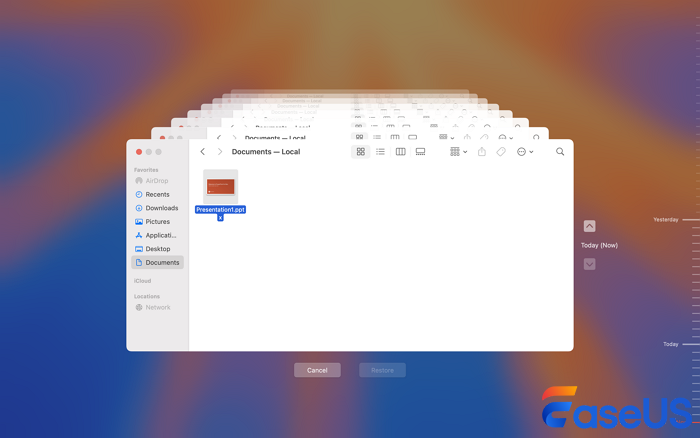
Time Machine will put them right back where they belong and won't mess with any newer stuff you've saved.
How to Prevent Data Loss Before Updating to macOS 27
Most of the time, updating macOS goes smoothly, but taking a few minutes to prep your Mac goes a long way toward keeping your data safe.
You can follow these tips to prevent data loss before updating to macOS Golden Gate:
- Create Time Machine Backup. Most of the time, updating macOS goes smoothly, but taking a few minutes to back up your Mac with Time Machine goes a long way toward keeping your data safe.
- Copy Important Files Elsewhere. Don't put all your eggs in one basket. Drag your most important stuff, including documents, photos, and videos, to an external SSD or hard drive.
- Check Your Storage. Double-check that your startup disk has enough free space. Running out mid-update can spell trouble, like botched installs or half-finished upgrades.
- Run Disk Utility. Open Disk Utility and hit "First Aid." Fixing minor file system hiccups now helps prevent bigger headaches later.
- Check iCloud Sync. If you sync Desktop & Documents to iCloud, make sure everything's uploaded. It's easy to overlook files that haven't finished syncing.
Take these steps, and you'll upgrade to the next macOS update with your files safe and your mind at ease.
The Bottom Line
If you can't find your files with Spotlight, Finder, another user account, or a Time Machine backup, pause right there. Don't save anything new to your Mac.
Instead, run a recovery scan with something like EaseUS Data Recovery Wizard for Mac.
Use Time Machine, cloud storage, and an external drive together for real peace of mind against random data loss.
macOS 27 Missing Files After Updating FAQs
1. Why does my MacBook erase everything after updating to macOS 27?
Standard macOS updates don't erase data. If your Mac was wiped, you likely used "Erase All Content and Settings" or encountered a beta file system corruption bug.
2. Does Time Machine recover files after a macOS 27 update?
Yes, if you have a backup. Connect your drive, enter Time Machine, navigate to a date before the update, select your files, and click "Restore".
3. Can I recover permanently deleted files after a macOS 27 update?
Possibly, but it's difficult. Immediately stop using your Mac to prevent overwriting data, then try recovery software like EaseUS Data Recovery Wizard for Mac or check iCloud's "Recently Deleted".
Was This Page Helpful?

Dany is an editor of EaseUS who lives and works in Chengdu, China. She focuses on writing articles about data recovery on Mac devices and PCs. She is devoted to improving her writing skills and enriching her professional knowledge. Dany also enjoys reading detective novels in her spare time.
-
EaseUS Data Recovery Wizard is a powerful system recovery software, designed to enable you to recover files you’ve deleted accidentally, potentially lost to malware or an entire hard drive partition.
Read More -
EaseUS Data Recovery Wizard is the best we have seen. It's far from perfect, partly because today's advanced disk technology makes data-recovery more difficult than it was with the simpler technology of the past.
Read More -
EaseUS Data Recovery Wizard Pro has a reputation as one of the best data recovery software programs on the market. It comes with a selection of advanced features, including partition recovery, formatted drive restoration, and corrupted file repair.
Read More
Related Articles
-
Does Emptying Trash Permanently Delete? Still Can Recover!
![Jaden]() Jaden/Oct 29, 2026
Jaden/Oct 29, 2026 -
8 módszer a törölt fájlok helyreállítására Macen 2026-ben
![Cedric]() Cedric/Oct 29, 2026
Cedric/Oct 29, 2026 -
How to Recover Deleted System Files Mac [New Updated]
![Jaden]() Jaden/Oct 29, 2026
Jaden/Oct 29, 2026 -
Missing Files After macOS Golden Gate? Find and Recover Lost Data on Mac
![Dany]() Dany/Oct 29, 2026
Dany/Oct 29, 2026
 Jaden/Oct 29, 2026
  Cedric/Oct 29, 2026

