





 About the Author
 Reviews and Awards
 Mac SD Card Recovery
Apple hosted its annual WWDC 2026 keynote, where it officially unveiled macOS 27 Golden Gate. This latest major macOS update brings brand new system features, optimized performance, and redesigned built-in applications that draw attention from Mac users around the world. Many enthusiasts and professional developers cannot wait to experience the new system ahead of the official public release.
If you plan to download the macOS 27 Golden Gate beta and explore its new features, you need to follow the official guidelines and complete the necessary preparations in advance.
Prerequisites for Downloading macOS 27 Golden Gate
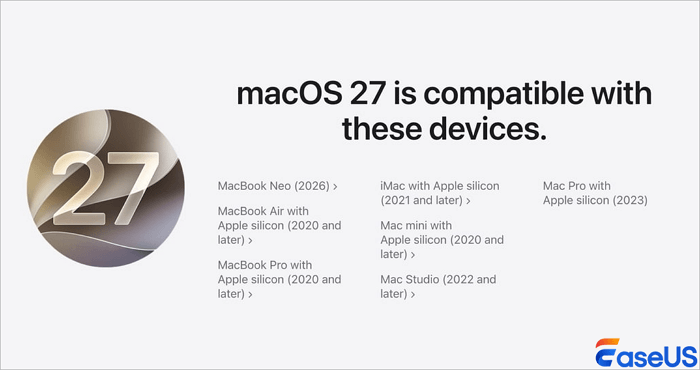
This new operating system has introduced major changes in hardware compatibility compared with previous macOS versions. Apple Silicon Only is the core rule for macOS 27 Golden Gate. macOS 27 drops all support for Intel-based Macs. You should have a Mac with an M1 chip or newer to run this system normally.
The supported chip series includes M1, M2, M3, M4, and M5. Any Mac device powered by Intel processors will fail to detect, download, and install the new beta system. Check your Mac's chip model first to avoid unnecessary failures during operation.
Download macOS 27 Golden Gate [Step-by-Step Guide]
To download and install the macOS 27 Golden Gate Developer Beta, you need to enroll your Apple Account into the developer program and enable beta downloads inside your Mac's system settings.
You will not find direct standalone installation files on public websites. All beta packages are pushed through official system update channels. Every user must complete account verification and system configuration before receiving the update prompt on their Mac devices.
Step 1. Back Up Your Mac with Time Machine First
Installing a developer beta always carries potential risks. Creating a complete system backup is the most essential step before any operation. Time Machine is the official backup tool built into all Mac devices. It can save all your system files, personal documents, photos, applications, and settings to external storage.
- Connect an external storage drive with a capacity at least equal to or greater than your Mac's internal storage drive.
- Open your Mac's "System Settings".
- Navigate to "General", then click on "Time Machine".
- Click "Add Backup Disk", select your newly connected external drive from the list, and initiate the backup sequence.
- Wait for the process to complete. This captures a snapshot of all files, applications, settings, and system data, which can take anywhere from 30 minutes to several hours, depending on your storage volume.
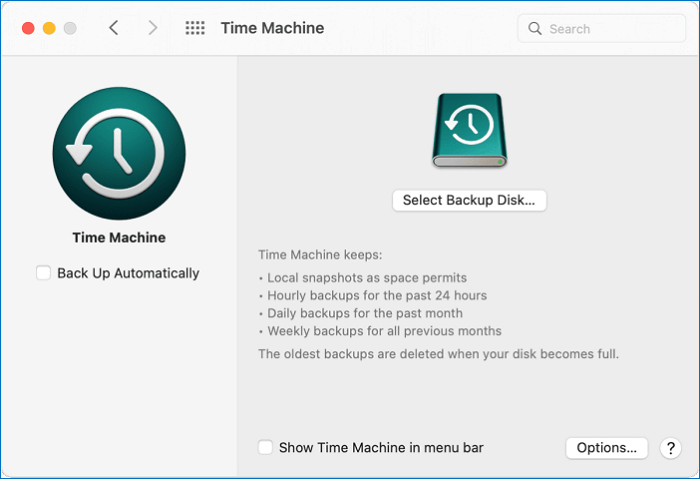
A complete Time Machine backup lets you restore your entire system to a normal state if the beta version causes errors. Never skip this preparation work.
Step 2. Enroll Your Apple ID in the Free Developer Program
Apple restricts access to developer betas to users who join the official developer program. Regular Apple account users cannot receive beta update prompts by default. You can join the free developer program to get access to macOS 27 Golden Gate Developer Beta.
Ensure your internal drive has at least 50 GB of free storage space available to store and unpack the massive installer.
- Open the official developer.apple.com website on your Mac browser.
- Sign in with your regular Apple ID and password.
- Follow the page guidance to complete free developer enrollment.
- Agree to the beta testing terms and service rules displayed on the screen.
- Wait for the system to synchronize your account permissions, which usually takes several minutes.
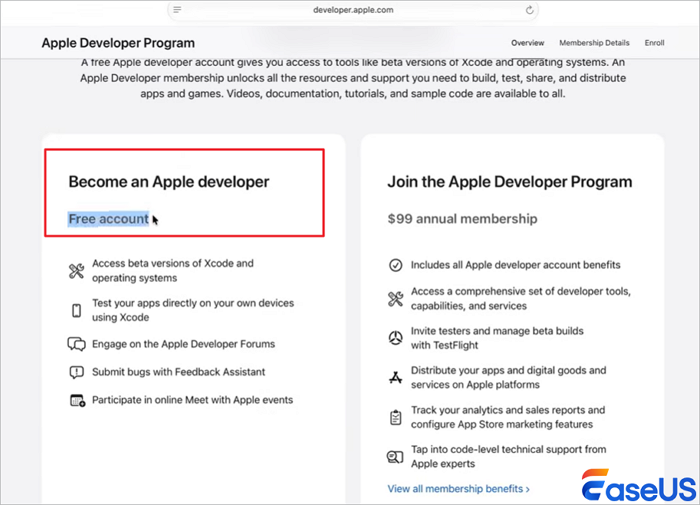
After successful enrollment, your Apple ID will be marked as a developer account. The system will begin pushing beta update resources to your eligible Mac devices.
Step 3. Download and Install macOS 27 Golden Gate Beta
Once your account is ready and your Mac meets hardware requirements, you can turn on beta update switches and start downloading the new system.
Step 1. Click the Apple menu, open "System Settings", select "General" from the sidebar, and click on "Software Update".
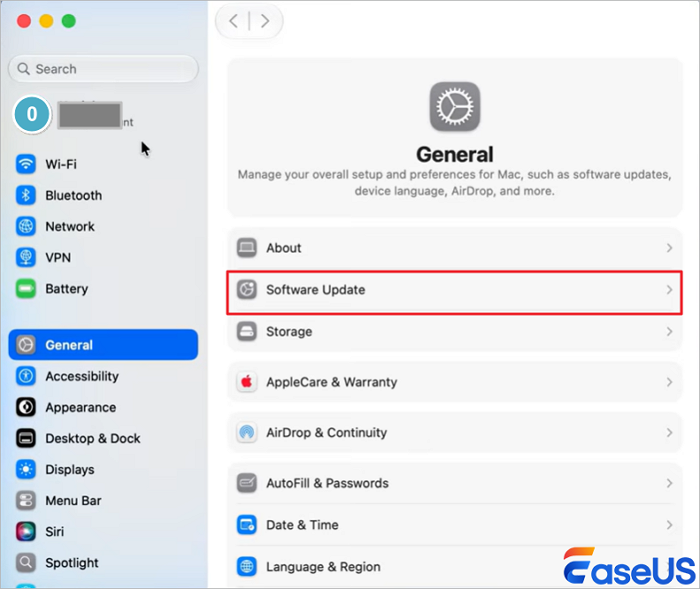
Step 2. Locate the "Beta Updates" section and click the Info icon (represented by a lowercase "i") right next to it.
Step 3. From the dropdown list of available beta streams, click and select "macOS Golden Gate 27 Developer Beta".
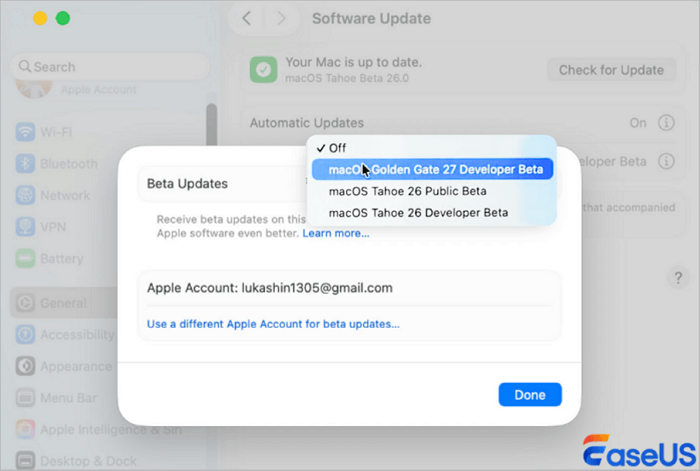
Step 4. The system will immediately refresh and detect the update. Click download. Because the installation package is several gigabytes in size, allow it time to download completely without closing your laptop or losing internet connectivity.
Step 5. When the download finishes, a system prompt will appear requesting a restart. Click to confirm. Your Mac will reboot.
Step 6. The Mac will flash the classic Apple logo and display a progress bar. Do not interrupt this process or unplug the power. The computer will automatically restart a couple of times. Once finished, the login screen will appear, indicating that you are successfully running macOS 27 Golden Gate.
The installation will restart your Mac multiple times. Do not manually shut down or force-reboot the device during the whole process.
If you are interested in resolving the Mac update issue, share it on Facebook, Twitter, LinkedIn, and other social media platforms!
Advanced Notes: Recover Data After Running Beta
Beta systems are unfinished test versions. They are not designed for daily use on primary work devices. Common problems include frequent app crashes, system freezes, abnormal restarts, and incompatibility with third-party software. The most serious issue is unexpected data loss caused by system errors.
Once important files, work documents, family photos, or local data disappear due to beta system failures, a reliable data recovery solution becomes necessary. EaseUS Data Recovery Wizard for Mac is a professional tool fully compatible with all Apple Silicon Mac devices. It can scan your storage drive deeply and recover lost files effectively, even after system errors or accidental deletion. It supports recovery for documents, images, videos, and various types of user data.
The simple operation makes it suitable for all ordinary Mac users.
Step 1. Select the location to scan
Launch EaseUS Data Recovery Wizard for Mac and choose the hard drive, SSD, SD card, USB flash drive, or TF card where you lost data. Click "Search for lost files" to start scanning.

Step 2. Filter lost Mac data
The software will automatically scan for lost data on MacBook/iMac. When the scan completes, filter wanted data through the "Type" and "Path" buttons.
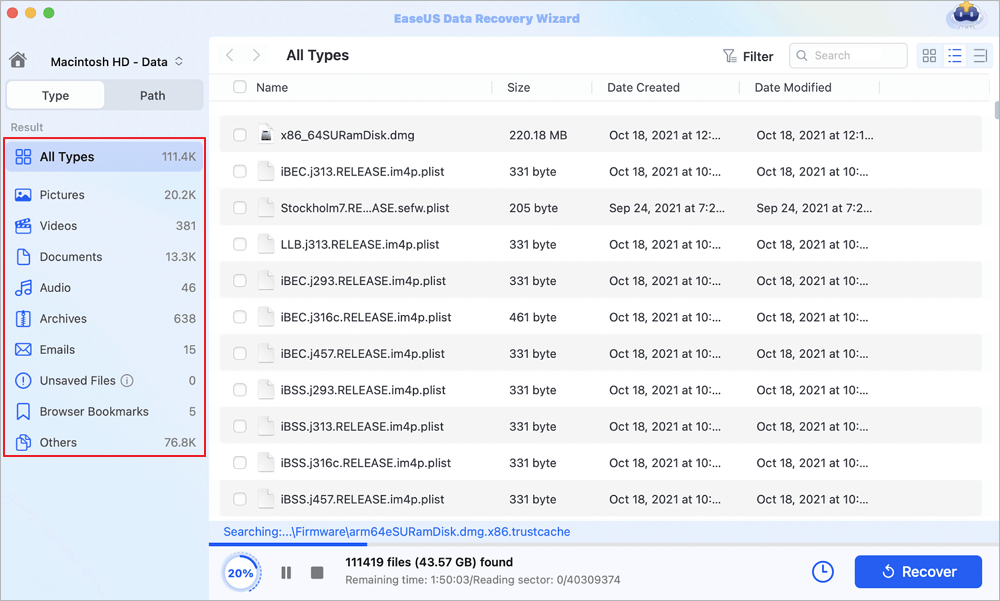
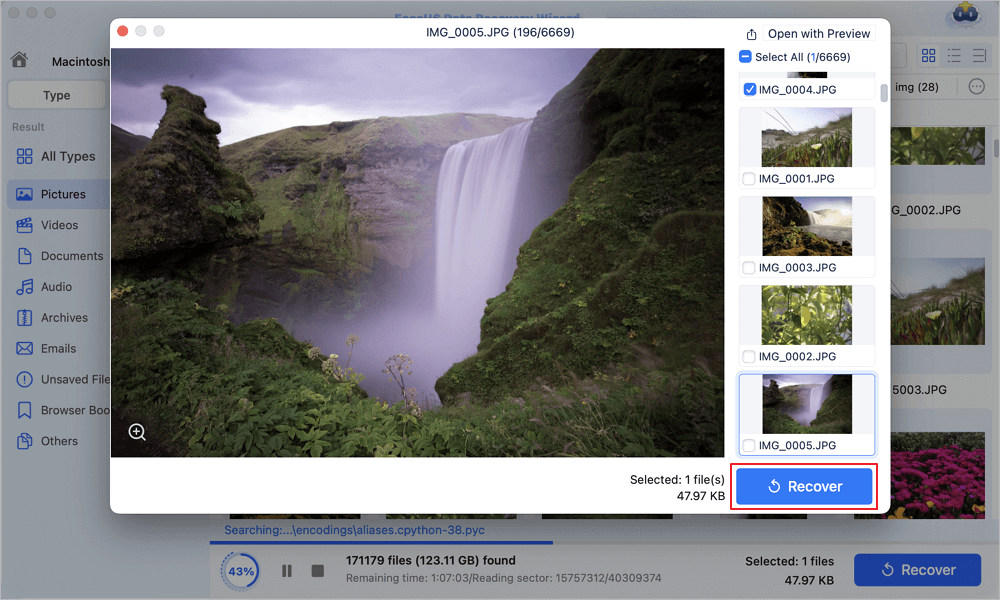
Step 3. Recover lost data or files
Double-click a file to preview it. Then, click the "Recover" button to restore the lost data to another place.
How to Download macOS 27 Beta FAQs
If you still have some questions about MacBook data recovery, check the quick answers below to help yourself out:
1. Can Intel-based Macs download and run macOS 27 Golden Gate?
No. macOS 27 Golden Gate completely drops support for all Intel-based Mac computers. Only Mac devices equipped with Apple Silicon M1, M2, M3, M4, or M5 chips can download and install this new system.
2. What should I do if I lose data after updating to macOS 27 Golden Gate?
Stop operating your Mac immediately to prevent data overwriting. Use EaseUS Data Recovery to scan your drive and retrieve lost files. This professional tool runs reliably on Apple Silicon Macs and efficiently recovers most types of lost data.
3. How long does it take to download macOS 27 Golden Gate Beta?
The download time depends on your network speed. The full installation package is large. A stable high-speed network can complete the download within 1 to 2 hours, while slow connections will take much longer.
Was This Page Helpful?

Jaden is one of the editors of EaseUS, who focuses on topics concerning PCs and Mac data recovery. Jaden is committed to enhancing professional IT knowledge and writing abilities. She is always keen on new and intelligent products.
-
EaseUS Data Recovery Wizard is a powerful system recovery software, designed to enable you to recover files you’ve deleted accidentally, potentially lost to malware or an entire hard drive partition.
Read More -
EaseUS Data Recovery Wizard is the best we have seen. It's far from perfect, partly because today's advanced disk technology makes data-recovery more difficult than it was with the simpler technology of the past.
Read More -
EaseUS Data Recovery Wizard Pro has a reputation as one of the best data recovery software programs on the market. It comes with a selection of advanced features, including partition recovery, formatted drive restoration, and corrupted file repair.
Read More
Related Articles
-
R-Studio for Mac: Ultimate Guide to R-Studio on macOS
![author icon]() Brithny/Aug 02, 2026
Brithny/Aug 02, 2026 -
Recuva Free Download Full Version | 2026
![author icon]() Jean/Jul 23, 2026
Jean/Jul 23, 2026 -
Download EaseUS Data Recovery Wizard Mac Crack Now!
![author icon]() Dany/Sep 20, 2026
Dany/Sep 20, 2026 -
How to Recover Data After macOS Beta Crashes | Ultimate Guide
![author icon]() Jaden/Jul 07, 2026
Jaden/Jul 07, 2026
 Brithny/Aug 02, 2026
  Jean/Jul 23, 2026
  Dany/Sep 20, 2026

