-
![]()
-
![]() EaseUS Data Recovery Wizard 20.1 Review: Major Updates
EaseUS Data Recovery Wizard 20.1 Review: Major Updates July 23,2026
 6 min read
 -
![]() PhotoRec for Mac - File Recovery Software Review [Free Download]July 23,20266 min read
PhotoRec for Mac - File Recovery Software Review [Free Download]July 23,20266 min read -
![]() Recuva Review: Features, Pros & Cons, and Real Recovery ResultsJuly 23,20266 min read
Recuva Review: Features, Pros & Cons, and Real Recovery ResultsJuly 23,20266 min read -
![]() SD Card Data Disappeared? User Recovered Critical Tax Files with EaseUSAugust 14,20266 min read
SD Card Data Disappeared? User Recovered Critical Tax Files with EaseUSAugust 14,20266 min read -
![]()
-
![]() Top 5 Best Open Source Data Recovery for Windows/Mac/Linux/AndroidAugust 23,20266 min read
Top 5 Best Open Source Data Recovery for Windows/Mac/Linux/AndroidAugust 23,20266 min read -
![]()
-
![]() How to Use PhotoRec to Recover Files [Detailed Guide]August 23,20266 min read
How to Use PhotoRec to Recover Files [Detailed Guide]August 23,20266 min read -
![]() EaseUS Data Recovery Wizard 20.1 vs 20.0: Savior for Old DevicesJuly 23,20266 min read
EaseUS Data Recovery Wizard 20.1 vs 20.0: Savior for Old DevicesJuly 23,20266 min read
Page Table of Contents
You lost important files: maybe an entire folder of client work, a semester's worth of study notes, or precious family photos. And now you're searching for a way to get them back without spending money.
EaseUS has been in the data recovery field for over a decade. We've seen bad software make things worse, and we've seen good software save careers. EaseUS Data Recovery Wizard Free sits somewhere in the middle. It is widely used, but what you've heard about "unlimited free recovery" needs some unpacking. Here's what the EaseUS Data Recovery Wizard free version actually delivers, where it falls short, and how to use it like a pro.
EaseUS Data Recovery Wizard Free Version: What's Actually Free
As of early 2026, EaseUS offers two ways to test its software: the Trial version and the Free version. Many users confuse them, leading to frustration.
| Feature | Free Version | Trial Version |
| Free recovery capacity | 500 MB default Up to 2 GB after social share |
❌No |
| Preview files before recovery | ✅Yes | ✅Yes |
| Support for internal/external drives | ✅Yes | ✅Yes |
| SD card recovery (Mac) | ❌No | ❌No |
| Activation Key | Don't need a license code | Don't need a license code |
The key distinction:
- The Free version allows you to recover up to 2GB of data.
- The Trial version shows you what can be recovered, but won't actually let you save any files.
How to Download EaseUS Data Recovery Wizard Free Version
Is EaseUS Data Recovery safe? How to safely download the EaseUS free data recovery software? EaseUS products are 100% secure and reliable as long as you download and purchase them from the official EaseUS website. Click the download button below to install EaseUS Data Recovery Wizard Free:
EaseUS Data Recovery Wizard Free offers up to 2 GB of free data recovery, including 500 MB available by default and an extra 1.5 GB unlocked after sharing on Facebook and X.
To get the full 2GB free recovery, after installing the Free version, you'll need to share on Facebook, Reddit, X, etc. The software mentions it in its interface - it takes about ten seconds.

What Kind of Data Loss Can EaseUS Data Recovery Free Handle
We've tested EaseUS across dozens of real-world scenarios. Here's where it performs best and where you'll likely hit its limits:
Scenarios Where EaseUS Free Data Recovery Works Well
🗑️Accidental deletion
This is the bread and butter of EaseUS Data Recovery Wizard Free. If you deleted files and emptied the Recycle Bin, or used Shift + Delete to delete files permanently, EaseUS typically recovers Shift-deleted files and recovers the emptied Recycle Bin folder quickly.
Why can EaseUS software recover permanently deleted files? It scans the file system for marks indicating "deleted but not yet overwritten". Most of the time, if you act fast and haven't written new data to that drive, recovery is straightforward.
💾Formatted memory cards and USB drives
EaseUS Data Recovery Wizard handles standard FAT32, exFAT, and NTFS SD card format recovery well. If you accidentally formatted your camera after a shoot, EaseUS can often recover the entire contents of the SD card. The software supports the most popular file systems, including NTFS, FAT16, FAT32, exFAT, EXT2/EXT3, etc.
💻Crashed PC or unbootable system
This one's actually impressive. Even if Windows won't boot, you can use EaseUS Data Recovery Wizard to create a bootable USB (Pro version only) or connect your hard drive to another computer. The software supports getting files off a hard drive that won't boot, including OS crashes, system failures, the Blue Screen of Death, and boot problems, in both free and paid versions.
Photo and document recovery from SSDs
Here's a technical nuance most people overlook. With modern SSDs, when you delete a file, the TRIM command marks that space as invalid. However, the physical erasure isn't immediate - the data remains intact until garbage collection runs. EaseUS Data Recovery Wizard can often recover data from SSDs in this window. But once garbage collection completes (when TRIM has run), recovery becomes impossible for any software.
Download and install this powerful free EaseUS Data Recovery Wizard if you meet one of the above four scenarios!
Scenarios Where You Need to Upgrade to a Pro Version
Recovering more than 2GB
Obvious, but worth stating. The 2GB cap is the single biggest limitation. For context, 2GB might recover:
- About 400 high-quality JPEG photos (5MB each)
- Approximately 40 minutes of 1080p video
- A few hundred PDF documents or Word files
But if you lost your entire Documents folder containing 50GB of work files? The free version won't cut it. You'll either need to cherry-pick files or upgrade to the Pro version.
Complex partition issues or RAID recovery
When a drive has multiple partitions, overlapping partition boundaries, or severe file system corruption, EaseUS's partition-based scanning approach can miss data that spans partitions. Advanced features like RAID recovery are only available in paid versions.
Physical drive damage
EaseUS is a software tool for logical recovery (deleted files, formatting, corruption). If your drive is clicking, not spinning, or showing signs of physical failure, stop immediately and consult a professional data recovery service. Running software on a physically damaged drive can cause permanent data loss.
In this case, you can contact local data recovery services for help.
How to Use EaseUS Data Recovery Wizard Free Version
Most data recovery failures happen because users rush or write new data to the affected drive. Follow these steps carefully.
Stop writing new files to the drive where data loss occurred. Every new file written risks overwriting your deleted data. If possible, shut down the computer and connect the affected drive to a different computer as an external drive. This prevents any background processes from writing to the drive.
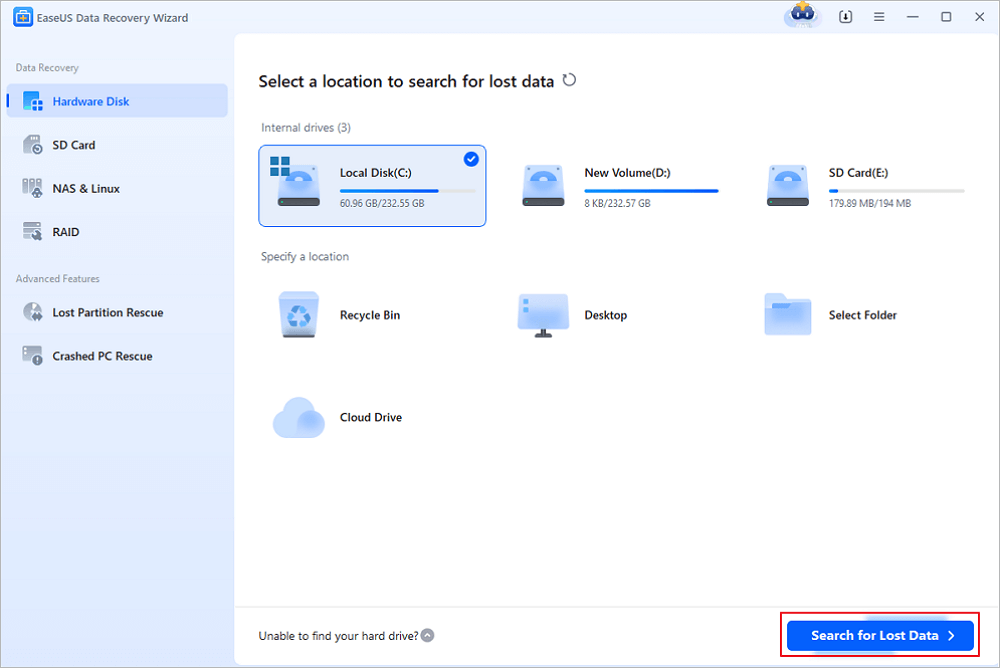
Step 1. Select a drive and start scanning
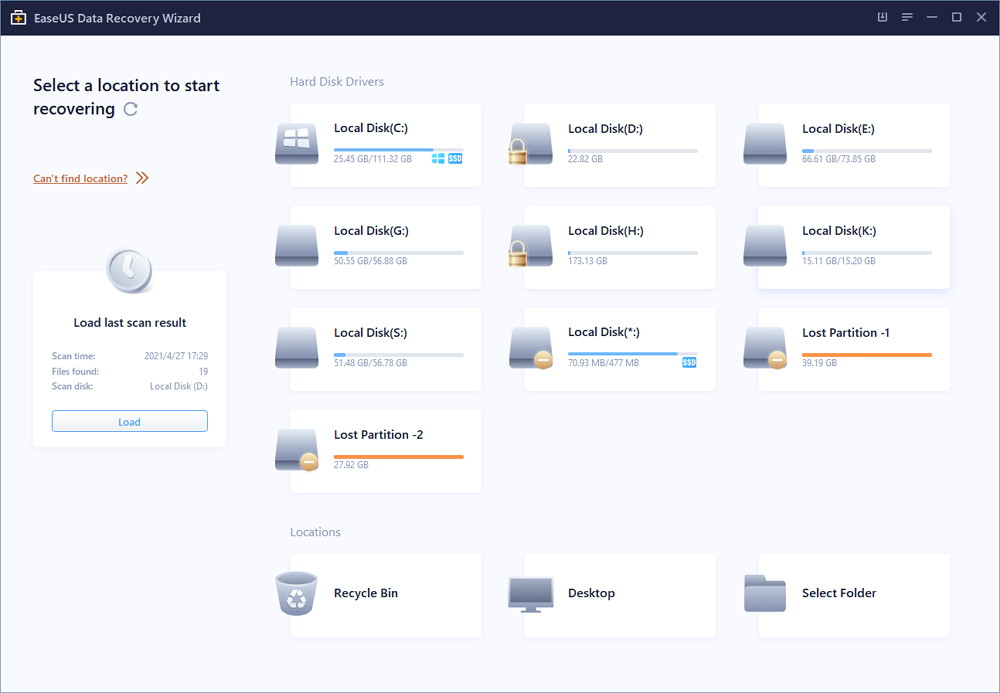
Launch EaseUS Data Recovery Wizard and hover over the partition where you lost data. This could be an internal hard disk, external disk, USB, or SD card. Then, click "Search for Lost Data".
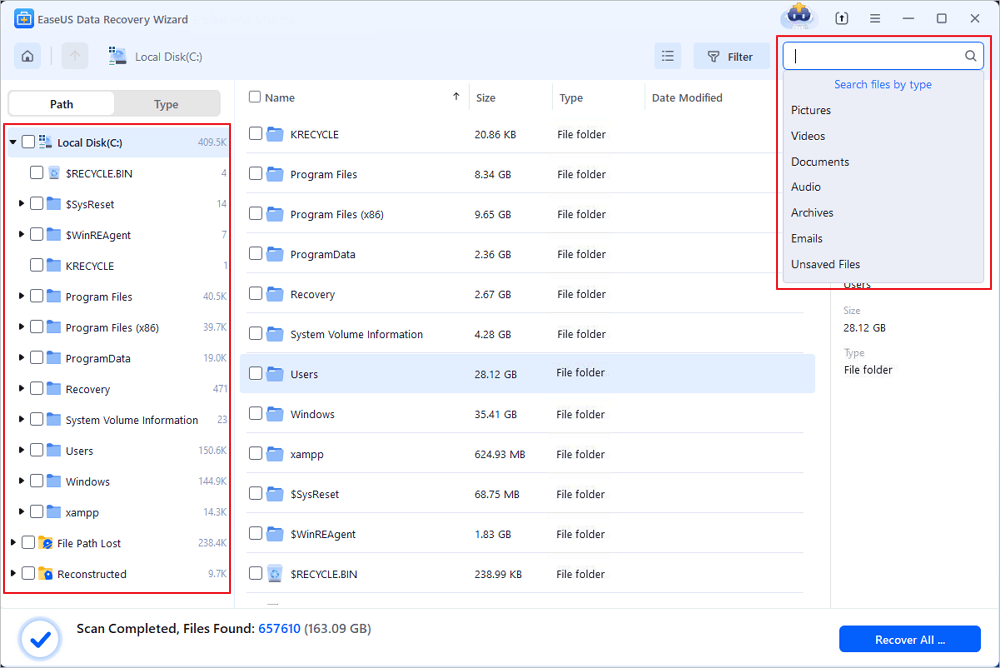
Step 2. Check and preview scanned files
Use the file format filter on the left or upper right corner to narrow the scan results until you find the files you need. Then, you can click the "Preview" button or double-click a file to preview its content, if you'd like.
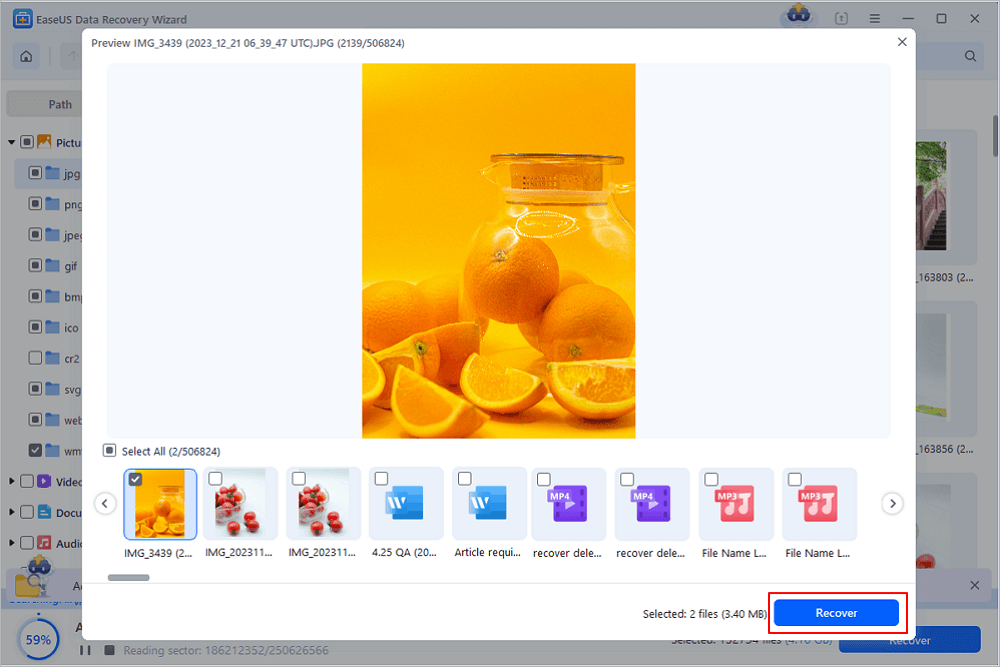
Step 3. Recover lost data to a secure location
Click the checkbox next to the file and click "Recover" to restore the lost data to your local storage or Cloud drive. We recommend that you do not store the recovered data on the disk where you lost it earlier.
Our Verdict
EaseUS Data Recovery Wizard free version is a capable tool for its intended use case: recovering modest amounts of data (under 2GB) in common loss scenarios like accidental deletion, simple formatting, or OS crashes.
It's not the silver bullet that marketing materials claim, but no single recovery tool is. The interface is genuinely intuitive - non-technical users can get through recovery without panic. And the 2GB free limit (with social share) is generous enough to handle many real-life data recovery needs.
You should use EaseUS Data Recovery Wizard free version if:
- You need to recover less than 2GB of files
- Your data loss is from deletion, simple formatting, or system crash
- You want an easy-to-use interface without technical complexity
- You just need to preview whether recovery is possible before considering paid options
You should look elsewhere or upgrade to EaseUS Data Recovery Wizard Pro if:
- You need to recover more than 2GB of data
- You have RAID arrays, complex partitions, or severe corruption
- Your drive shows signs of physical damage (clicking, not spinning)
Bottom Line
At the end of the day, data recovery software is just a tool. It succeeds based on drive conditions, how quickly you act, and realistic expectations. EaseUS won't work miracles on a drive that's been overwritten for months. But for the scenario you're probably in right now - recent accidental deletion, hoping to get your files back without spending money - it's a solid first step.
Download the Free version (not Trial). Get your 2GB via social share. Preview everything before recovery. Save to a different drive. And if it works, take the win - then set up backups so you never need it again.
EaseUS Data Recovery Wizard Free Version FAQ
1. What is the maximum amount of data I can recover with the free version?
The free version allows you to recover up to 2 GB of data. For larger recovery needs, you would need to upgrade to a paid plan.
2. Does the free version have any time limit or expiration?
No, the free version does not expire. You can use it indefinitely, but the 2 GB recovery limit always applies.
3. Can I recover files from an external hard drive or USB flash drive using the free version?
Yes, the free version supports data recovery from various storage devices, including external hard drives, USB drives, SSDs, memory cards, and internal hard drives, as long as the total recovered data does not exceed 2 GB.
4. Do I need to pay for technical support when using the free version?
Free version users have access to basic email and online support. Priority 24/7 live chat and phone support are reserved for paid users.
Was this page helpful?



 Why Trust EaseUS
 Editor Reviews

20+
Years of experience

160+
Countries and regions

72 Million+
Downloads

4.9 +
Trustpilot Score