





 About the Author
 Reviews and Awards
 Mac SD Card Recovery
macOS Golden Gate download stuck? Here are several solutions to help you get the beta up and running. Before you start, back up your Mac! Beta software can be unstable, so a full Time Machine backup or a clone of your current drive is essential to protect your data.
Fix 1. Fix macOS Golden Gate Download Stuck via a Professional Tool
Creating a bootable installer on a USB drive is a reliable workaround for many installation issues, including beta ones. It bypasses many potential problems with the in-place Software Update process. EaseUS Data Recovery Wizard for Mac includes a free feature that lets you easily create a macOS installer boot drive.
It allows you to install the latest macOS on multiple Mac computers and, more importantly, helps you recover lost data on Mac if your macOS Golden Gate upgrade encounters issues.
✨Step 1. Connect USB Flash Drive and Choose a macOS Version
Launch EaseUS recovery software, and choose "macOS Installer" from the Advanced Features. Insert a USB that has more than 16GB of free storage space.
- Option 1: Choose a macOS version you want to install, and a new windows will ask you to download macOS installer from App Store. After downloading the installer, click "Refresh".
- Option 2: If you have already downloaded macOS installer, choose "Add" and select the installer you have downloaded.
Finally, you can choose "Create macOS Installer" to start creating the bootable installer. You can select various macOS versions like macOS Tahoe, macOS Sequoia, Sonoma, Ventura, Monterey, Big Sur, and older versions.
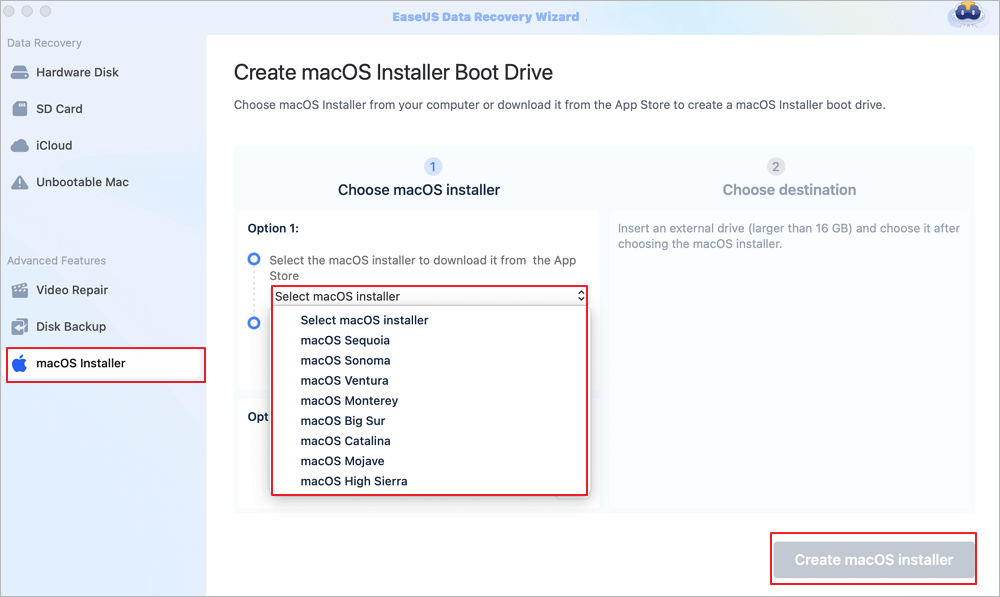
✨Step 2. Erase the USB and Create a macOS Installer
A notice window will appear to warn you this operation will remove everything on this USB. Make sure you have backed up data and nothing important is left on this USB, click the "Erase and create".
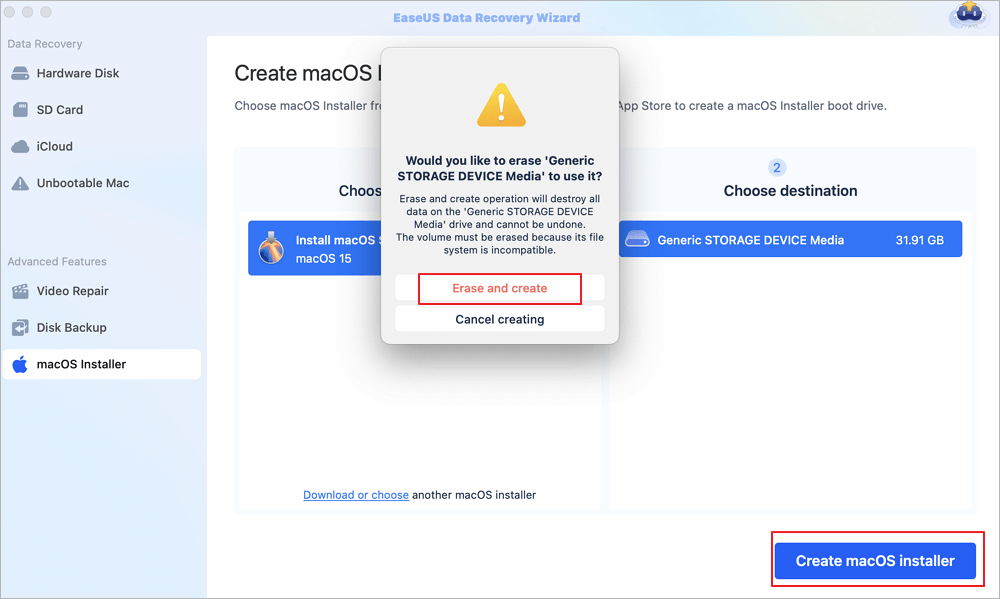
✨Step 3. Wait and Check How to Use macOS Installer
The software will automatically format the USB and download macOS installer files. After creating the bootable macOS installer, click the blue link on the interface to learn how to use the macOS Installer boot device to install macOS. Finally, click "Finish" to complete the whole process.
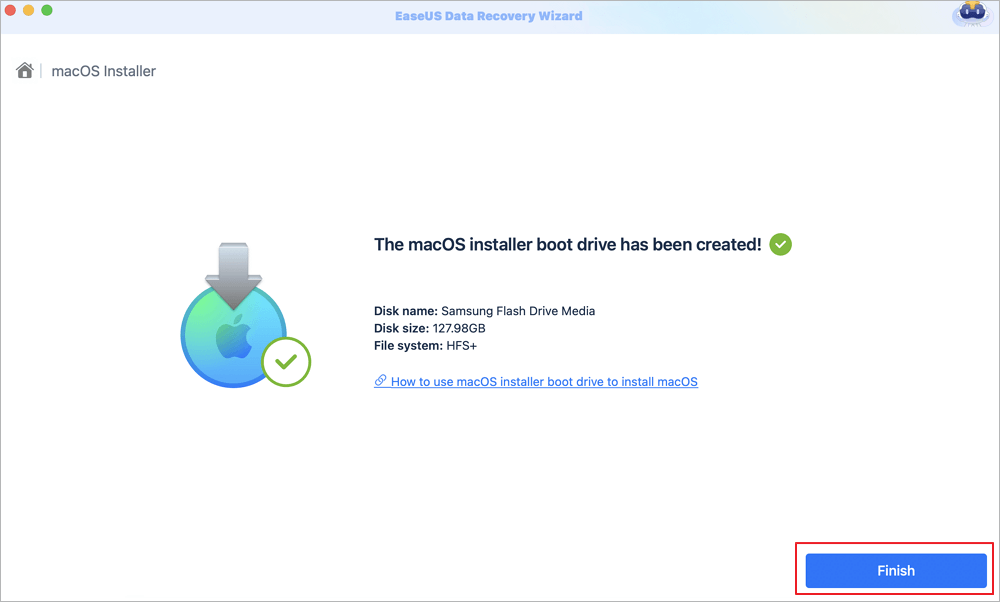
Share this post with users who are facing the same problem:

Fix 2. Verify Mac's Compatibility to Fix macOS Golden Gate Download Stuck
As emphasized, this beta is only for Apple Silicon. Here's the list of compatible models:
- MacBook (2020 and later with M1 chip)
- MacBook Air (2020 and later)
- MacBook Pro (2020 and later)
- Mac mini (2020 and later)
- iMac (2021 and later)
- iMac Pro (2023 and later)
- Mac Studio (2022 and later)
- Mac Pro (2023 and later)
To check your Mac model, click the Apple logo in the top-left corner and select "About This Mac." If you don't see "Chip" (e.g., M2 Pro) listed, your Mac is Intel-based and unfortunately cannot run this beta.
Fix 3. Free Up Space to Fix macOS Golden Gate Download Stuck
Lack of free space is a leading cause of installation failures. For a beta, you need to be extra generous.
Step 1. Go to the Apple menu and select "System Settings".
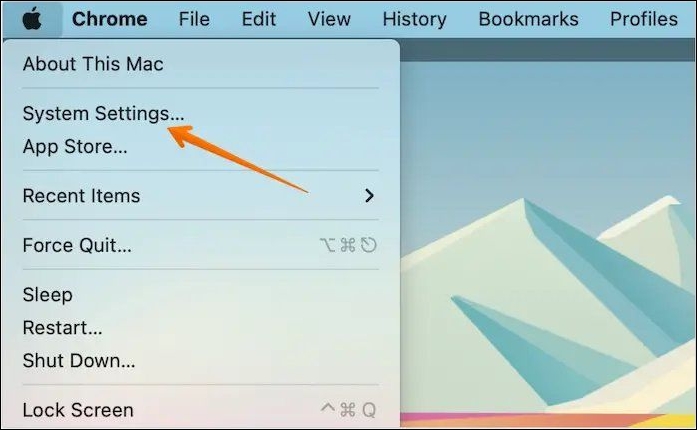
Step 2. Click "General" in the sidebar, then select Storage on the right.
Step 3. You'll see a bar at the top showing your available space. Aim for at least 30-40 GB free. If you're low, delete large, unnecessary files, empty the Trash, clear old iOS backups, and consider moving large media files to an external drive to free up space.
Fix 4. Scan and Repair Your Drive in Recovery Mode to Fix macOS Golden Gate Download Stuck
Repairing disk errors can resolve installation issues that are rooted in your current system files.
Step 1. Restart your Mac and press and hold the Power button (for Apple Silicon Macs) until you see startup options. For Intel Macs, hold down Command + R.
Step 2. Select "Disk Utility" and click "Continue".
Step 3. Choose your startup drive (usually "Macintosh HD").
Step 4. Click "First Aid" and then "Run".
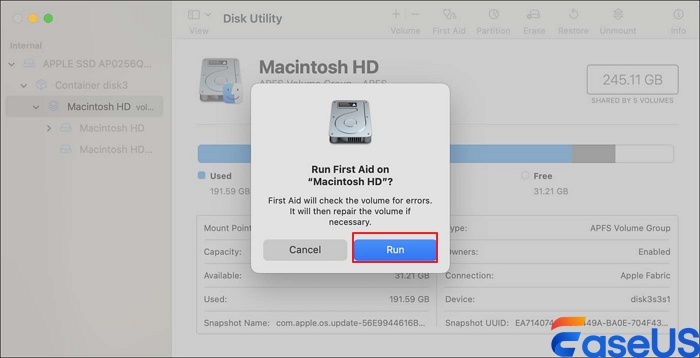
Step 5. Wait for the process to complete and then restart your Mac. This will fix any logical errors on your drive that might be blocking the installation.
What If Nothing Works? Downgrade to a Stable Version
If you're still stuck and your Mac is acting up, it's best to cut your losses. You may need to downgrade back to macOS 26 or your previous stable version. Here's how to restore from a Time Machine backup:
- Connect your Time Machine drive to your Mac.
- Restart your Mac and enter Recovery Mode (hold the Power button for Apple Silicon, or Command + R for Intel).
- From the macOS Utilities window, select "Restore from Time Machine Backup".
- Choose your backup drive and follow the on-screen instructions. This will revert your entire system to the state it was in before you started the beta installation.
Final Thoughts
Frustrated that the macOS Golden Gate beta won't install on your Mac? It's often due to compatibility issues (Intel Macs are a hard stop), insufficient storage, network problems, or beta-specific software conflicts. By following the steps outlined above—verifying compatibility, using a bootable installer, freeing up space, running First Aid, and disabling conflicting software—you can resolve most issues.
However, if you need to perform a clean install or, unfortunately, encounter data loss during the process, EaseUS Data Recovery Wizard for Mac is your reliable safety net. Download it today to ensure your valuable files are always recoverable during your beta testing adventures.
FAQs on macOS Golden Gate Beta Installation
Here are some frequently asked questions you may be curious about:
1. Why can't I install the macOS Golden Gate Beta on my Mac?
The most common reasons are hardware incompatibility (your Mac must have an Apple Silicon chip), insufficient free storage space (aim for over 30 GB), a corrupted beta installer, network interruptions, or conflicts with third-party system extensions.
2. How do I get the macOS Golden Gate Beta to update?
Go to the Apple menu > System Settings > General > Software Update. If you are enrolled in the Apple Beta Software Program, the update should appear. Click Upgrade Now. If it fails, try downloading the full installer from the Apple Developer website or using a bootable installer.
3. Can I downgrade from the Golden Gate Beta to a previous version?
Yes, you can downgrade using a Time Machine backup you made before installing the beta. Alternatively, you can create a bootable installer of macOS 26 or your previous version and perform a clean install. Be aware that downgrading requires erasing your startup drive.
4. Is 20 GB of free space enough for the macOS Golden Gate Beta?
While the final version might need around 20 GB, it is strongly recommended to have 30-40 GB or more free space for a beta installation. This provides room for the large download, temporary files, and the extraction process, preventing frustrating "out of space" errors.
Was This Page Helpful?

Finley is interested in reading and writing articles about technical knowledge. Her articles mainly focus on file repair and data recovery.
-
EaseUS Data Recovery Wizard is a powerful system recovery software, designed to enable you to recover files you’ve deleted accidentally, potentially lost to malware or an entire hard drive partition.
Read More -
EaseUS Data Recovery Wizard is the best we have seen. It's far from perfect, partly because today's advanced disk technology makes data-recovery more difficult than it was with the simpler technology of the past.
Read More -
EaseUS Data Recovery Wizard Pro has a reputation as one of the best data recovery software programs on the market. It comes with a selection of advanced features, including partition recovery, formatted drive restoration, and corrupted file repair.
Read More
Related Articles
-
Snow Leopard Recovery Mode | How to Recover Data from Mac OS X
![Daisy]() Daisy/Oct 29, 2026
Daisy/Oct 29, 2026 -
How to Fix Mac Video Not Working [5 Tried Solutions]
![Dany]() Dany/Oct 29, 2026
Dany/Oct 29, 2026 -
How to Recover Deleted Files on macOS Tahoe | macOS 26
![Jaden]() Jaden/Oct 29, 2026
Jaden/Oct 29, 2026 -
Fix Mac Won't Shut Down Problem in 3 Minutes
![Jean]() Jean/Oct 29, 2026
Jean/Oct 29, 2026
 Daisy/Oct 29, 2026
  Dany/Oct 29, 2026
  Jaden/Oct 29, 2026
  Jean/Oct 29, 2026

