





 About the Author
 Reviews and Awards
 Mac SD Card Recovery
When data loss strikes, many Mac users turn to DDrescue for its powerful disk-cloning capabilities, but its command-line interface and the extra step of extracting files from a raw disk image make it impractical for most. That's exactly why finding a dedicated DDrescue Mac alternative is essential, one that offers a graphical interface, native support for APFS and HFS+, and a streamlined process to recover your files directly.
Data loss is a universal nightmare. When faced with a failing drive on your Mac, tech-savvy users often turn to GNU DDrescue – a powerful command-line tool that creates sector-by-sector copies of damaged disks, intelligently skipping bad areas to salvage raw data.
However, DDrescue presents significant challenges for Mac users. Its command-line interface and steep learning curve can be intimidating, and it's not a complete recovery solution. Even after successfully creating a disk image, you still need to extract actual files from it – a complex two-step process requiring substantial technical expertise.
The Best DDrescue Alternatives for Mac
1. EaseUS Data Recovery Wizard for Mac (Recommended)
For the vast majority of Mac users, EaseUS Data Recovery Wizard for Mac stands as the definitive DDrescue alternative. Here's why:
Unmatched Ease of Use:
Instead of memorizing complex terminal commands, you're guided through a clear three-step wizard: Select Location → Scan → Preview & Recover. This straightforward approach is invaluable when you're already stressed about lost data.
Superior Recovery Capabilities:
This data recovery tool for Mac from EaseUS recovers over 200 file types from virtually any storage device – HDDs, SSDs, USB drives, SD cards, and more. Its advanced scanning algorithms can handle:
-
Formatted or corrupted drives
-
Lost partitions
-
Unmountable disks
-
Even system crashes where your Mac won't boot
Generous Free Version:
You can recover up to 2GB of data for free, allowing thorough testing before purchase.
Beyond Basic Recovery:
-
Preview files before recovery to verify integrity
-
Advanced photo and video repair (Pro version)
-
Crashed PC recovery via bootable USB
-
Recovery from encrypted drives
How to Use EaseUS Data Recovery Wizard for Mac to recover deleted files on Mac:
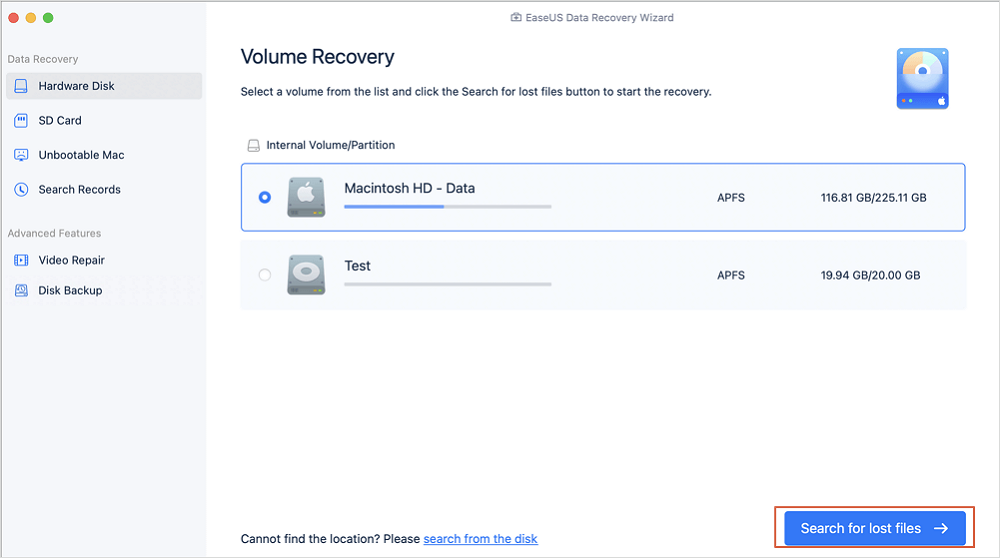
Step 1. Search for lost files
Select the disk location to search for lost files (it can be an internal HDD/SSD or a removable storage device) on macOS Sierra, High Sierra, Mojave, Catalina, Big Sur, Monterey, Ventura, and the latest Sonoma. Click the "Search for lost files" button.
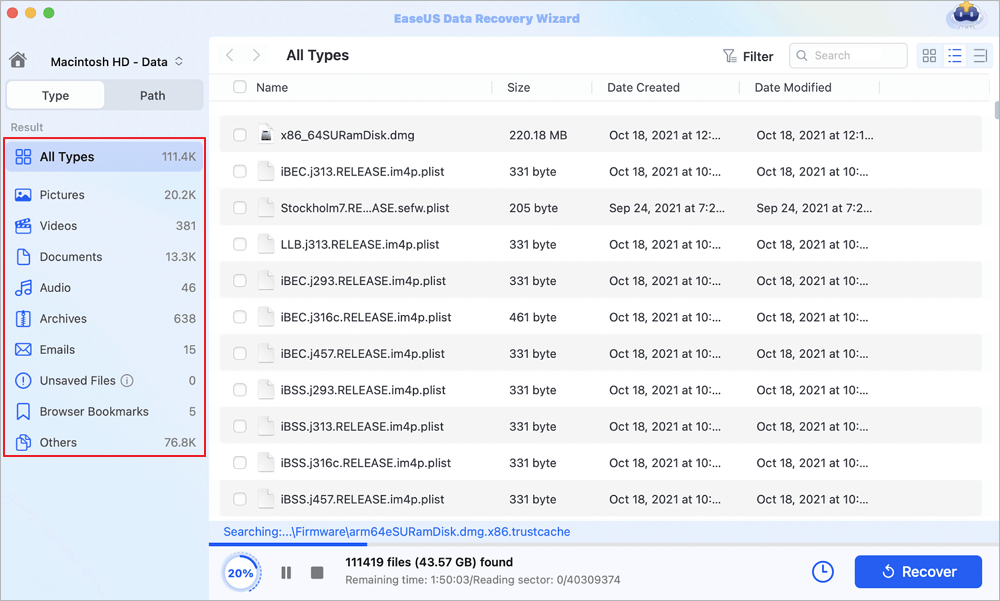
Step 2. Go through the scanning results
EaseUS Data Recovery Wizard for Mac will immediately scan your selected disk volume and display the scanning results.
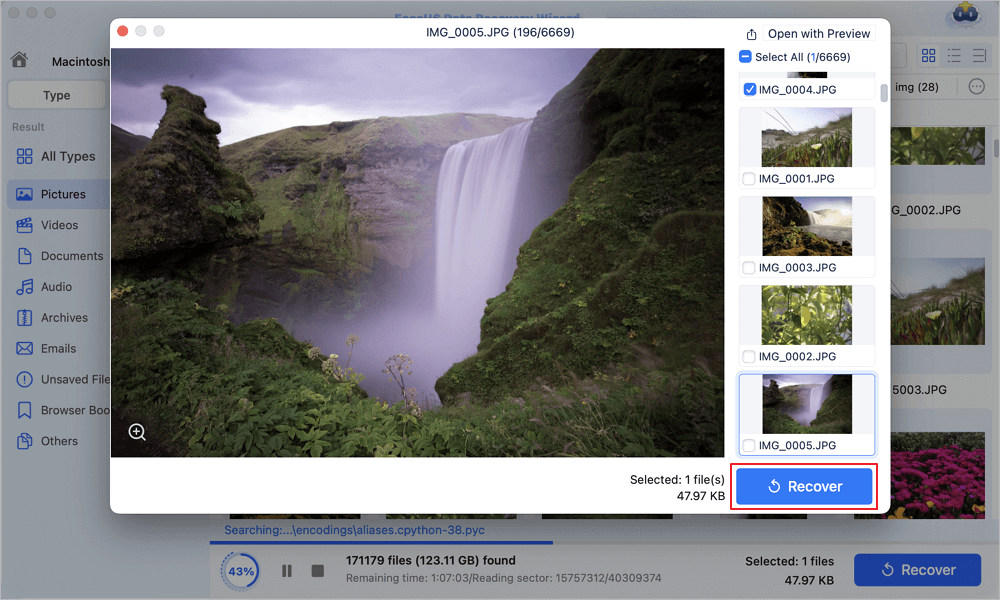
Step 3. Select the file(s) and recover
In the scan results, select the file(s) to preview and click the "Recover" button to have them back.
Advanced Recovery for Unbootable Macs
If your Mac won't start, EaseUS offers two powerful solutions:
Option 1: macOS Recovery Mode
-
Boot into macOS Recovery Mode (hold Command+R on Intel Macs, or press and hold power button on Apple Silicon)
-
Open Terminal from the Utilities menu
-
Enter the command:
sh <(curl https://d3.easeus.com/mac/boot.sh) -
The software will launch automatically, allowing you to scan and recover data
Option 2: Bootable USB Drive
-
Use another Mac to create a bootable USB with EaseUS
-
Boot your crashed Mac from this USB
-
Run recovery as normal
2. DDRescue-GUI: A Graphical Frontend
For users who prefer a graphical interface but want to maintain DDrescue's core functionality, DDRescue-GUI is an excellent choice.
Key Features:
-
Visual interface for configuring recovery jobs
-
Supports macOS alongside Linux
-
Free and open-source
-
Manage log files to resume interrupted recoveries
-
Pause and resume operations easily
This tool uses the same underlying DDrescue engine but eliminates the need to memorize commands, making it a practical bridge solution.
3. TestDisk & PhotoRec
For budget-conscious users, TestDisk (with its companion PhotoRec) offers free, open-source recovery capabilities.
Best for:
-
Recovering lost partitions
-
Repairing damaged partition tables
-
File carving (PhotoRec) for photos and documents
However, these are command-line tools like DDrescue and may not suit less technical users.
4. Disk Drill for Mac
Disk Drill offers another user-friendly alternative with useful features:
Notable Features:
-
Byte-to-byte backup functionality (creates exact DMG copies of drives)
-
Simple scanning interface
-
Wide file system support (APFS, HFS+, FAT, NTFS, exFAT)
Limitation: Requires enabling system extensions on newer macOS versions for full functionality.
5. R-Studio for Mac
For advanced users needing professional-level data recovery, R-Studio provides comprehensive file system support and powerful recovery algorithms.
Best for:
-
Complex recovery scenarios
-
RAID reconstruction
-
Professional data recovery services
Choosing the Right Alternative for Your Needs
- For most Mac users: Choose EaseUS Data Recovery Wizard for Mac – it combines professional-grade recovery with an intuitive interface, eliminating the complexity of DDrescue entirely.
- If you want DDrescue with a GUI: Select DDRescue-GUI – maintains the power of DDrescue with visual simplicity.
- On a budget: Consider TestDisk/PhotoRec – free but command-line based.
- For professional use: R-Studio offers the most comprehensive features, albeit at a higher price point.
Important Tips for Mac Data Recovery
-
Stop using the drive immediately – any write operation can overwrite recoverable data
-
Never save recovered files back to the same drive – use external storage
-
For physically damaged drives, consider using DDrescue first to create an image, then use EaseUS to extract files from that image
-
Be patient – scanning large drives can take hours or even days
Conclusion
While DDrescue remains a powerful tool for physically failing drives, most Mac users need a simpler, more complete solution. EaseUS Data Recovery Wizard for Mac transforms a complex multi-step process into an accessible, guided experience – making it the definitive alternative for everyday Mac users facing data loss.
Whether you're a photographer, student, or business professional, these alternatives provide the tools you need to rescue your precious data without the steep learning curve of the command line.
Was This Page Helpful?

Finley is interested in reading and writing articles about technical knowledge. Her articles mainly focus on file repair and data recovery.
-
EaseUS Data Recovery Wizard is a powerful system recovery software, designed to enable you to recover files you’ve deleted accidentally, potentially lost to malware or an entire hard drive partition.
Read More -
EaseUS Data Recovery Wizard is the best we have seen. It's far from perfect, partly because today's advanced disk technology makes data-recovery more difficult than it was with the simpler technology of the past.
Read More -
EaseUS Data Recovery Wizard Pro has a reputation as one of the best data recovery software programs on the market. It comes with a selection of advanced features, including partition recovery, formatted drive restoration, and corrupted file repair.
Read More
Related Articles
-
Fix Mac Finder Not Showing Files, Folders [How to Fix]
![author icon]() Dany/Sep 20, 2026
Dany/Sep 20, 2026 -
Repair Corrupted Excel File Mac [Straightforward Tips for Mac]
![author icon]() Dany/Jan 19, 2026
Dany/Jan 19, 2026 -
How to Recover Data from Mac That Won't Turn On?
![author icon]() Dany/Sep 20, 2026
Dany/Sep 20, 2026 -
How to Remove Write Protection from SD Card on Mac (2026 Updated)
![author icon]() Dany/Sep 20, 2026
Dany/Sep 20, 2026
 Dany/Sep 20, 2026

