Page Table of Contents

Running out of space on your SD card is a common problem, especially if you use it for cameras, Raspberry Pi, handheld consoles, or Android devices. When upgrading to a larger SD card, the safest and fastest way to move everything over is to clone the SD card. Cloning copies the entire SD card bit by bit, including the operating system, boot files, apps, and hidden partitions. In this guide, we will show you how to clone SD card to larger SD card without starting from scratch.
Why Clone SD Card to a Larger Card
SD cards are commonly used portable storage devices in phones and cameras. Cloning an SD card means creating an exact copy of the original card, including not only duplicating files but also backing up the entire data structure. This process is suitable for upgrading devices or transferring data. Cloning is often better than manually copying files, especially for system or bootable SD cards.
Cloning an SD card serves several common purposes:
- Data Backup: A complete backup simplifies recovery from data loss issues such as corruption, accidental formatting, or file deletion.
- Device Upgrade: Due to the limited read/write lifespan of SD cards, periodic replacement helps ensure data security.
- Data Migration: Cloning provides a faster, more convenient way to transfer large amounts of data than manual copy-paste.
- Creating Bootable Drive: A full-sector clone preserves bootability, making it useful for duplicating system cards, such as those used in Raspberry Pi.
If your SD card contains only photos or videos, copying and pasting may work, but you'll need to wait for the process to complete. For system or bootable SD cards, cloning is the only safe option.
Share this article on social media to help others find an easy way to clone an SD card!

Preparations Before Cloning SD Card
A successful SD card clone starts with proper preparation. Before you start cloning your micro SD card, make sure the following are ready:
Choose the Right Target SD Card
- Purchase from reputable brands (SanDisk, Samsung, Kingston) and retailers to avoid counterfeit cards.
- Ensure the new card's capacity is larger than the used space on your current card. A good rule is to have at least 20% free space after cloning.
Check SD Card Health
Use a tool like chkdsk (Windows) or First Aid in Disk Utility (Mac) to scan and repair any errors on your original SD card before cloning. Also, check the health of your target SD card, as even a new card may have bad sectors that can block cloning.
Backup Your Data
While cloning is safe, always create a separate backup of important files on your computer or in the cloud before cloning. Most importantly, if your target SD contains data, you must back it up before cloning, as cloning will wipe all data on the destination disk.
Get Necessary Tools
- A reliable SD card reader. A USB 3.0+ reader is highly recommended for faster transfer speeds.
- Your computer (Windows PC or Mac).
- Download SD card cloning software.
How to Copy SD Card to Another SD Card on Windows
Here, we will introduce 2 most effective and reliable ways to transfer data from one SD card to another on your Windows computer.
Way 1. Using EaseUS Disk Copy
Since Windows lacks cloning solutions, you must use professional disk cloning software to clone an SD card. EaseUS Disk Copy is a dedicated disk cloning tool designed for beginners and advanced users alike. EaseUS Disk Copy is a user-friendly, powerful tool designed for SD cards, microSD cards, USB drives, HDDs, and SSDs.
EaseUS cloning software can help you create a byte-for-byte copy of your SD card and clone SD card different size. As one of the best OS cloning software, it can help you migrate the OS to another disk. Even if your source card has bad sectors, you can still retrieve data by skipping them during cloning.
Download this SD card cloner to your PC and start SD card cloning!
 Free Download
Windows 11/10/8/7
Here is how to clone SD card using EaseUS Disk Copy:
Note: Before cloning, connect the source and target SD cards to your computer via USB ports using SD card readers.
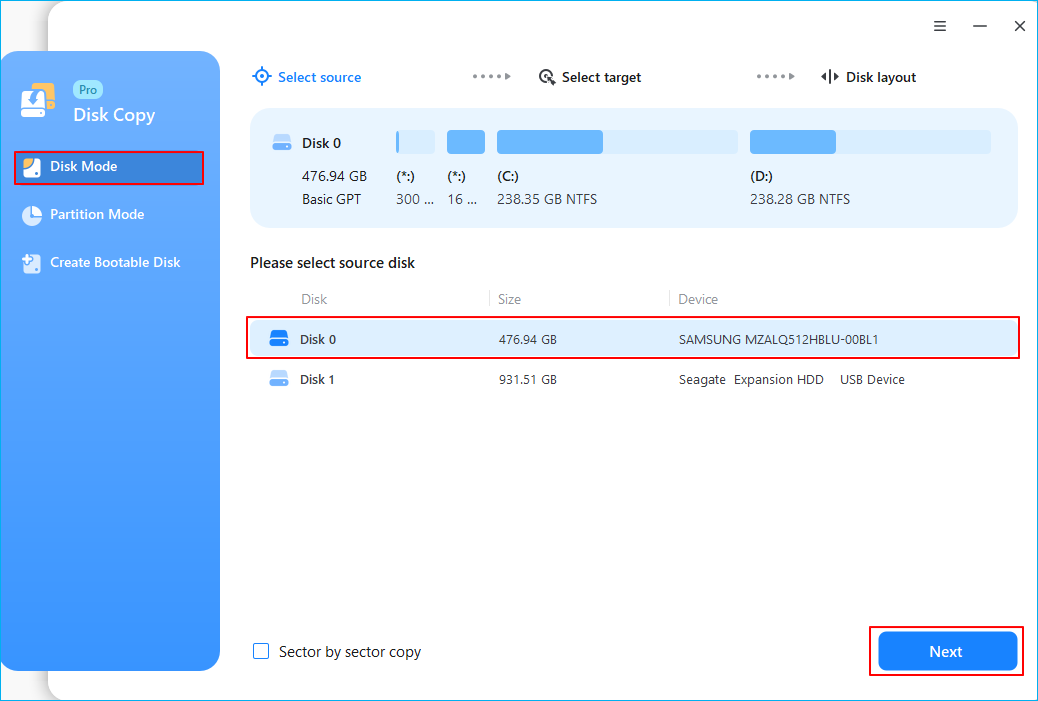
Step 1. Download, install and run EaseUS Disk Copy on your PC.
Click "Disk Mode" and select the hard drive that you want to copy or clone. Click "Next" to continue.
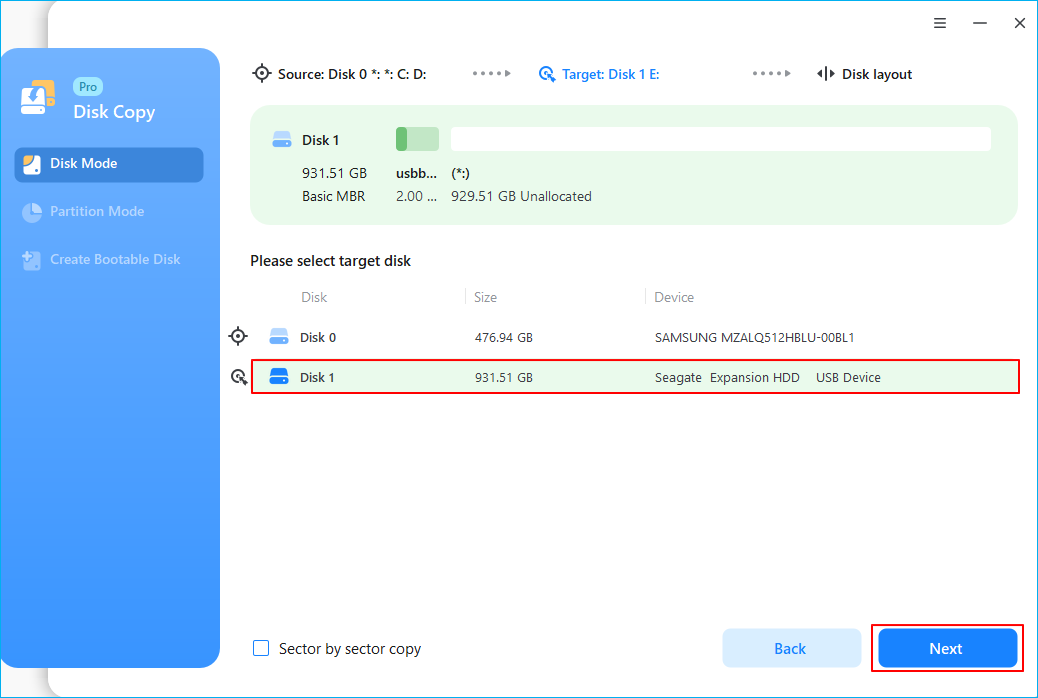
Step 2. Select the destination disk.
Note: The destination disk should be at least the same big or even larger than the source disk if you want to copy or clone the source hard disk.
Step 3. Check and edit the disk layout.
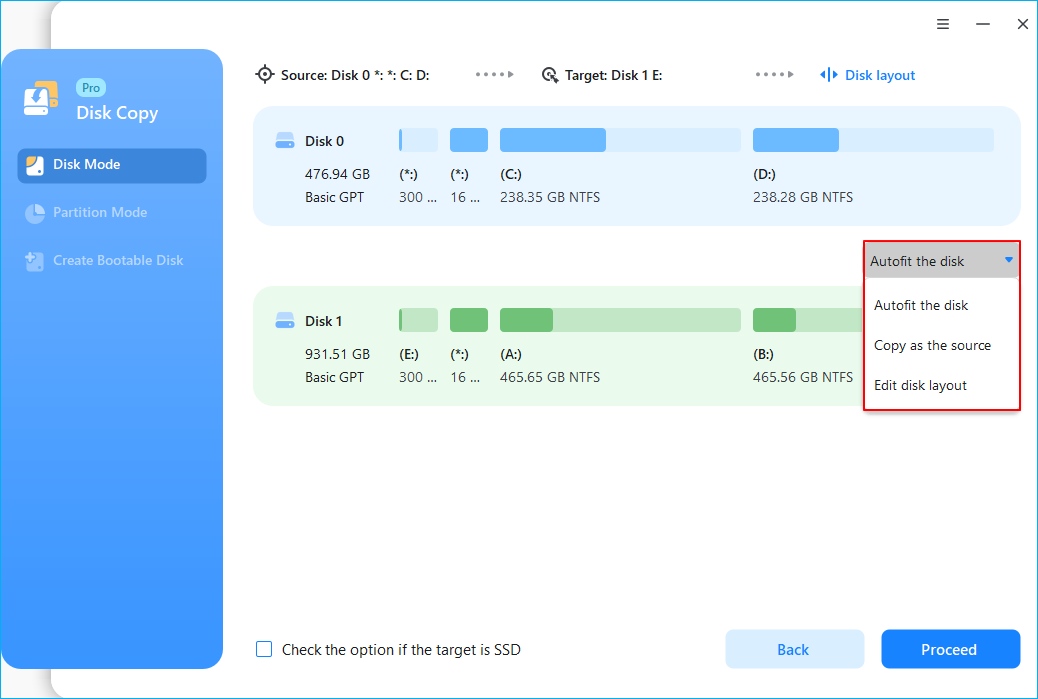
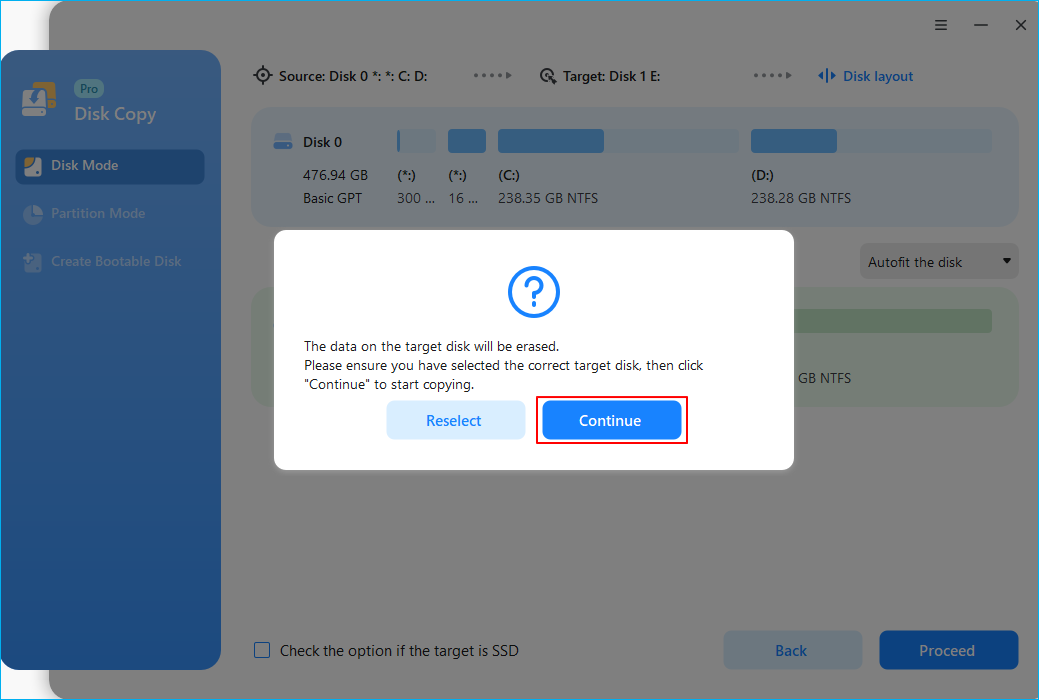
Step 4. Click "OK" to confirm if the program asks to erase data on the destination disk.
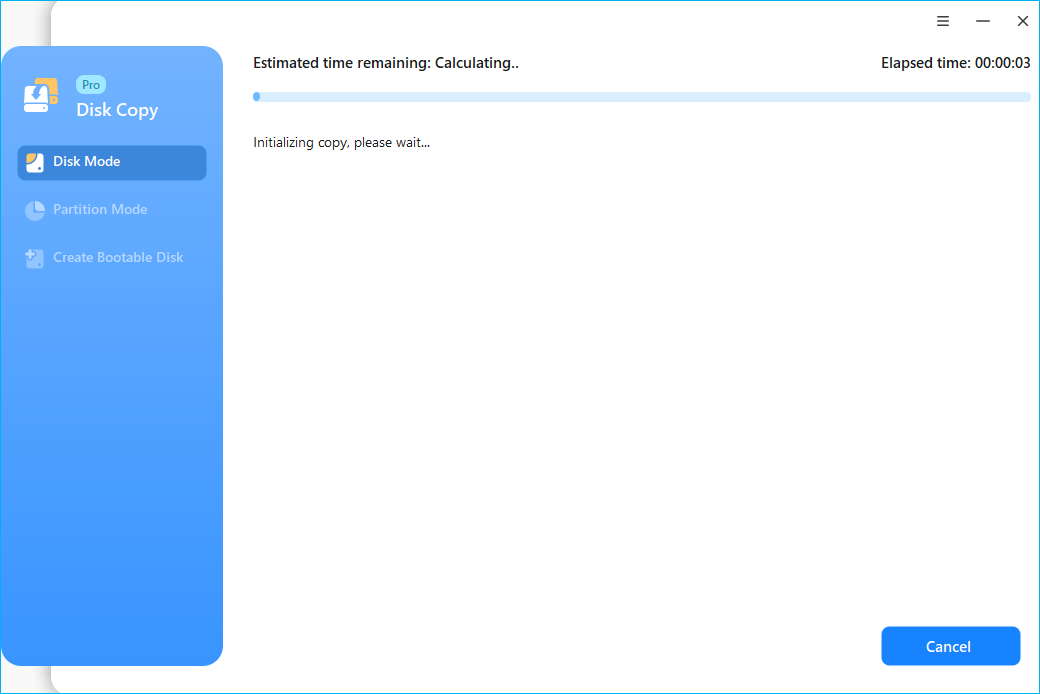
Step 5. Click "Proceed" to start the hard drive cloning process.
Share this article on social media to help others find an easy way to clone an SD card!
Way 2. Using Win32 Disk Imager
Win32 Disk Imager is a Windows utility for writing raw disk images to removable storage devices, such as USB drives, SD cards, CDs, and DVDs. It supports an SD card clone by first creating an image file from the source card, then writing that image to a target SD card, creating an exact duplicate.
Here is how to copy SD card to larger SD card using Win32 Disk Imager:
Part 1: Create an Image File of the Original SD Card
Step 1. Insert the original SD card into your PC using a card reader.
Step 2. Open Win32 Disk Imager. You can download the software from the Win32 Disk Imager website.
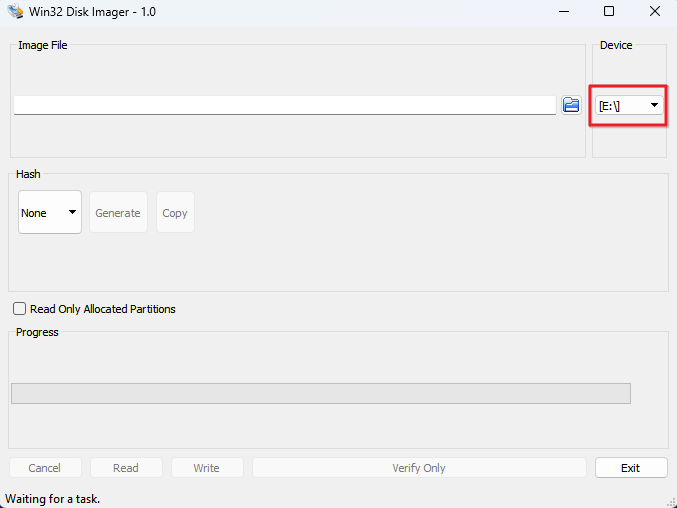
Step 3. In the "Device" section, select the drive letter corresponding to your source SD card.
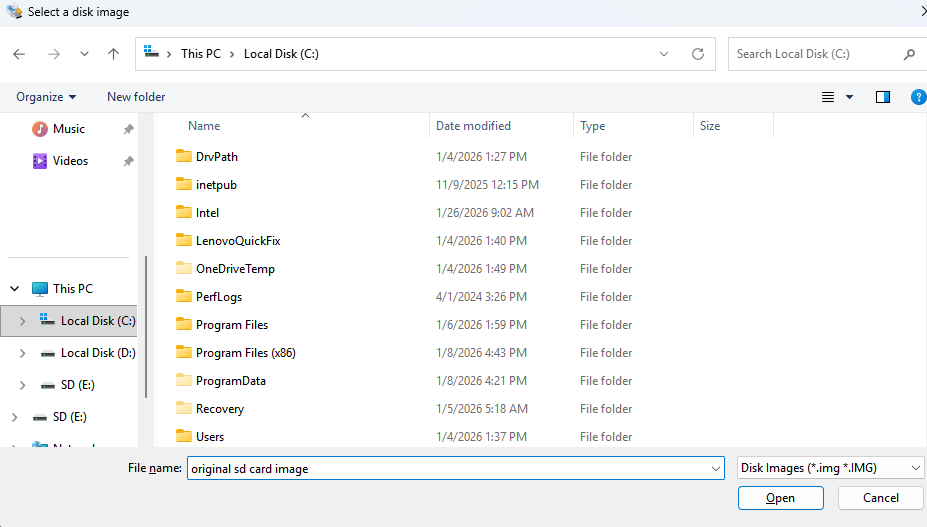
Step 4. In the "Image File" field, click the folder icon to select a location on your computer to save the image. Type a file name followed by a .img extension.
Step 5. Click the "Read" button to start creating the image file. This process makes a bit-by-bit copy of the entire SD card (even unused space) and can take a while.
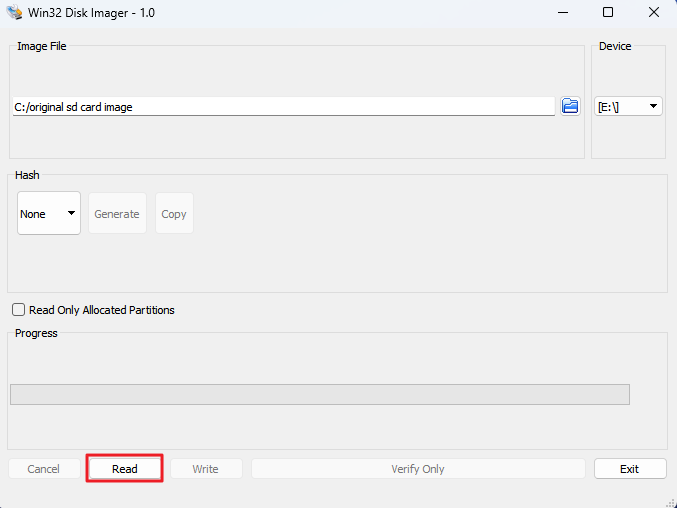
Once the "Read successful" message appears, safely eject the original SD card from your computer.
Part 2: Write the Image File to the Larger SD Card
Step 1. Insert the new, larger SD card into your PC.
Step 2. In Win32 Disk Imager, ensure the same image file you just created is selected in the "Image File" field.
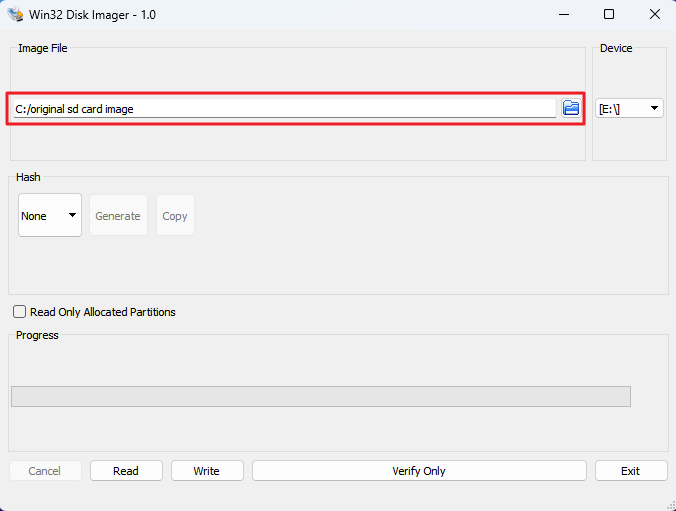
Step 3. In the "Device" section, select the drive letter for the new, larger SD card. Be very careful when selecting the correct drive, as writing an image will overwrite all data on that drive.
Step 4. Click the "Write" button. A warning prompt will appear; confirm to continue.
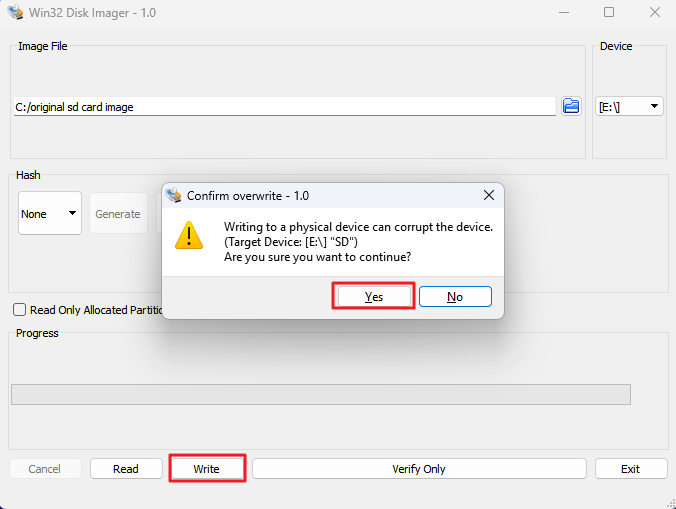
Wait for the process to complete and the "Write successful" message to appear.
To Wrap Things Up
SD card cloning is a perfect solution for storage upgrades and data protection, with EaseUS Disk Copy delivering professional-grade performance. This powerful disk cloning software not only handles SD card cloning efficiently but also excels at HDD to SSD migration, and Windows OS transfer. Win32 Disk Imager delivers reliable disk imaging capabilities for SD card backup and restoration.
Whether you're upgrading your camera storage, expanding Raspberry Pi capacity, or creating bootable backups, these tools ensure secure and complete data transfer. Discover their full potential for all your disk cloning and data protection needs.
Free Download
Windows 11/10/8/7
FAQs on How to Clone SD Card to Another SD Card
1. Can I clone a damaged or corrupted SD card?
Yes, you can clone a damaged or corrupted SD card to rescue data before it fails completely. Using specialized disk cloning or imaging tools, you can create a sector-by-sector copy, even if the file system is unreadable, and then attempt data recovery from the clone to avoid further damage to the original card.
2. Why is my new, larger SD card not showing the full capacity after cloning?
This is normal for methods that do not auto-resize. The cloning process copies the partition structure exactly. You must expand the partition using Disk Management (Windows) or Disk Utility (Mac) as outlined in the guides above. With EaseUS Disk Copy, you may not need to worry about this issue, as it can automatically resize partitions during cloning an SD card or hard drive.
3. Can I clone microSD cards?
Yes. microSD cards work the same way when used with an SD card adapter. Use professional cloning software like EaseUS Disk Copy or Clonezilla to clone a microSD card or clone SD card to SD card. They can help you easily clone an SD card to a larger or smaller card.
4. How can I copy SD card to larger SD card on Mac?
To copy an SD card to a larger one on a Mac, use BalenaEtcher for an easy clone, or use the Disk Utility to create an image file and restore it to the new card. Ensure the new card is at least as large as the old one, and expand the partition afterward to use the extra space.
-
Updated by
![]()
Jerry
"I hope my articles can help solve your technical problems. If you are interested in other articles, you can check the articles at the bottom of this page, and you can also check my Facebook to get additional help."…Read full bio