Page Table of Contents

PAGE CONTENT:
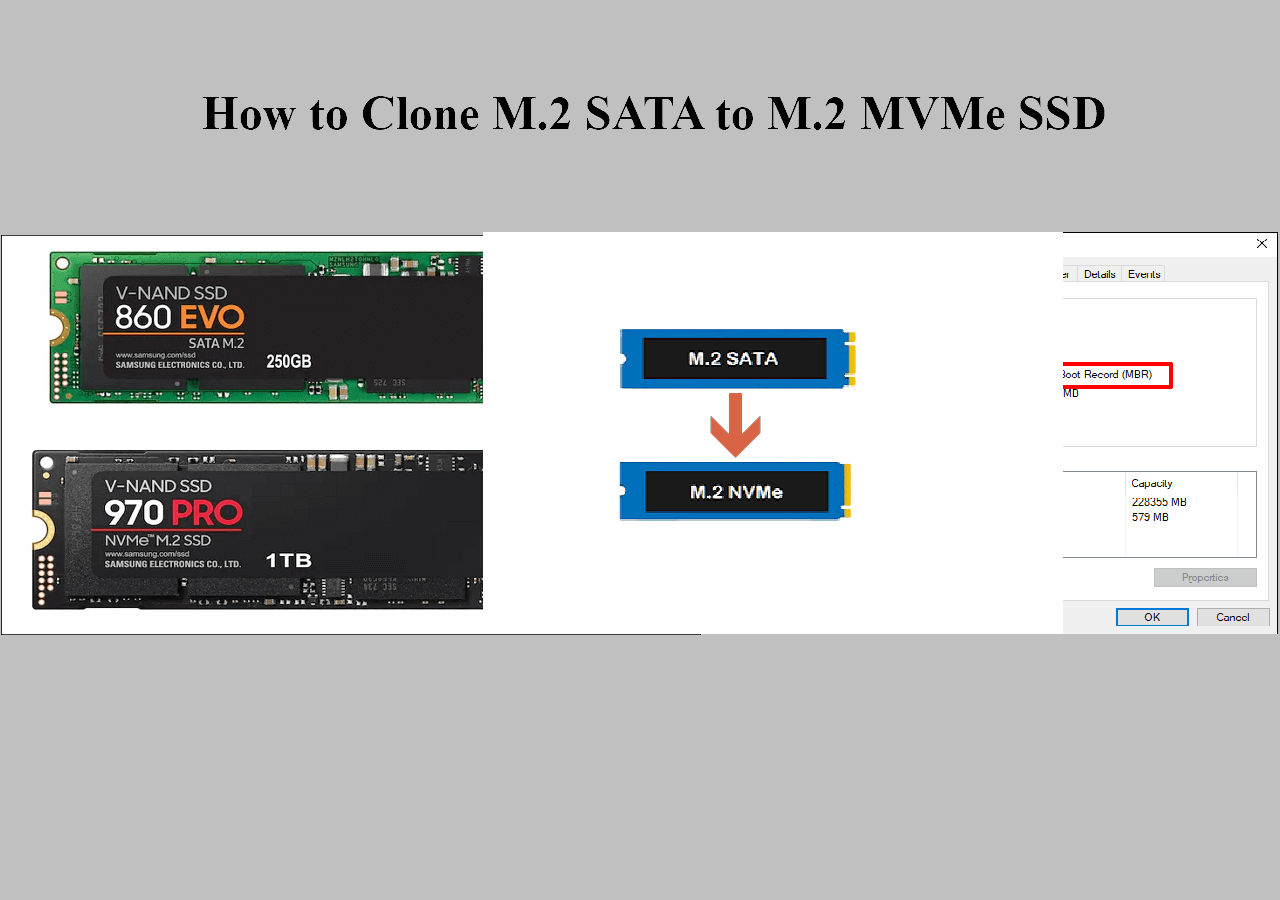
NVMe, an SSD interface type, is designed specifically for SSDs and provides superior storage, superior speed, and superior compatibility. When your NVMe SSD is full, cloning it to a larger one will be a great idea, but what if you don't have a USB enclosure? Don't worry; this article from EaseUS will explain how to clone NVMe to NVMe without USB enclosure using a powerful disk cloning program!
Do I Need an Enclosure to Clone NVMe SSD to Another
You want to upgrade your NVMe SSD for more storage space or better PC performance, but you are unsure whether you need an enclosure to clone an NVMe SSD to another. At this time, you may wonder, can I clone an NVMe SSD without an M.2 NVMe enclosure?
The answer is definitely Yes. You can clone NVMe to NVMe without an enclosure. If you use a desktop or laptop with more 2 slots, you can use both slots to install the NVMe SSD into your computer. If your desktop or laptop has only one slot, a USB adapter is sufficient because disk cloning software doesn't care about how hard drives are connected as long as it can detect them.
A USB enclosure is functionally the same as a USB adapter, but it is better for long-term use since it protects the hard drive by enclosing it in a protective case. Therefore, you can clone an NVMe SSD to another via the NVMe to USB adapter if your laptop has only one slot.
Download the Best NVMe SSD Cloning Software
You can clone NVMe to NVMe SSD using a USB adapter without the enclosure, but you need to find a reliable NVMe SSD cloning software because Windows lacks such cloning settings. Free disk cloning software like Clonezilla or Rescuezilla can help you clone one hard drive to another, but they leave much to be desired because open-source cloning software is often complex to operate. Which is the best SSD cloning software for this purpose?
If you want an easy-to-use cloning tool to clone your HDD or SSD, EaseUS Disk Copy is a name that should never skip your mind. It is dedicated and professional cloning software that helps you clone HDDs or SSDs from different manufacturers.
 Free Download
Windows 11/10/8/7
EaseUS Disk Copy has an extremely streamlined UI design that lets you clone a hard drive to another with only 3 steps. It can help you clone NVMe SSD with only one slot and clone hard drives with different sizes. You can clone SSD to a smaller or larger SSD with ease. It lets you bit for bit copy a hard drive if your NVMe SSD has bad sectors because it can help you ignore them when cloning.
If you are looking for a simple yet powerful cloning utility, EaseUS Disk Copy can suit you well. You just need to connect the new NVMe SSD to your computer and start cloning MVNe to NVMe without losing data or reinstalling Windows. Download it on your computer and enjoy a seamless NVMe SSD data transfer!
How to Clone NVMe SSD to Another Without Enclosure
After downloading the Disk Copy, you can use it to clone NVMe to another without an enclosure if your computer has only one slot:
- Tips
- Connect the new NVMe SSD to your PC via the USB to NVMe adapter.
- Create a backup of your old NVMe disk to avoid potential data loss during cloning.
- No need to initialize a disk before cloning, as cloning will have an exact copy of the source disk.
Before cloning:
- If your computer has only one slot, connect the target disk to your machine via a USB-to-SATA/NVMe adapter.
- If your computer has an extra slot, install the target disk into the empty slot properly, and make sure it is compatible.
Step 1. Launch EaseUS Disk Copy and choose Disk Mode.
Install EaseUS Disk Copy cloning software on your Windows computer, then launch it and select Disk Mode from the left panel.

Step 2. Select the source drive.
Select the drive you want to copy, then click Select.
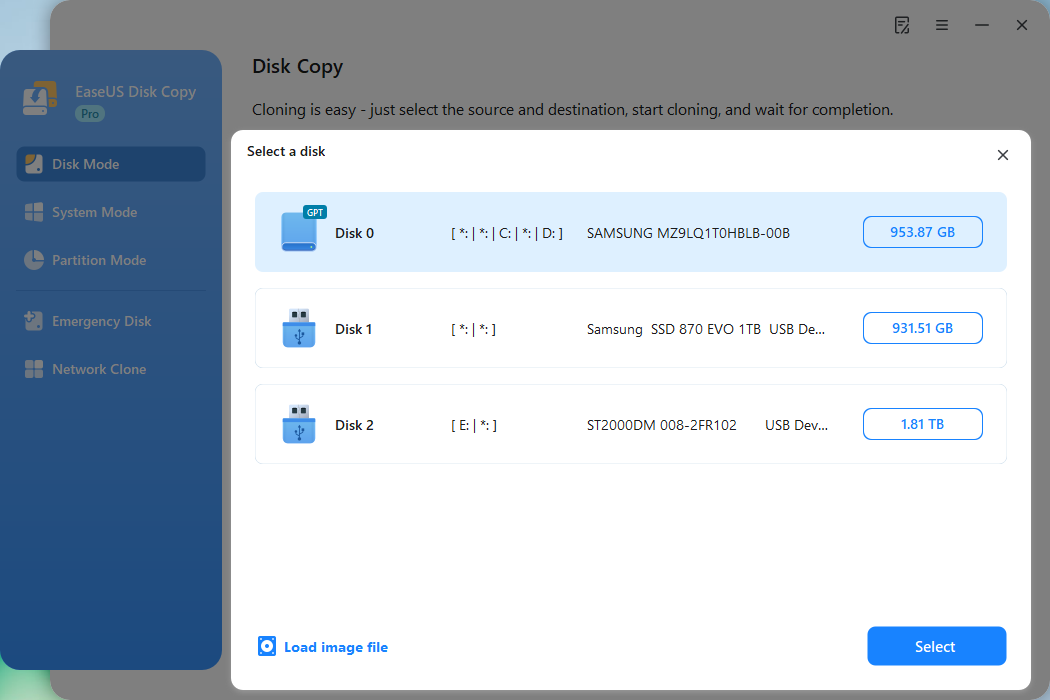
Step 3. Choose the target disk.
Choose the disk that you want to clone data to, and click Select. Note that the used space of the source disk should be less than the target disk capacity.
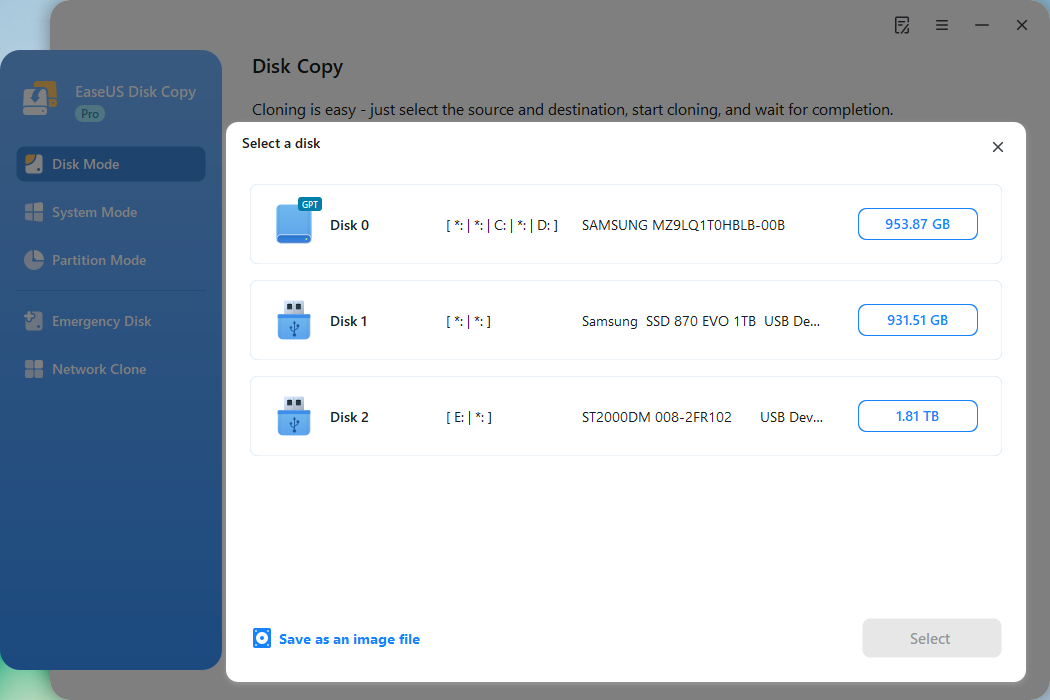
*At this step, you can also click the option "Save as an image file" to store your disk as a compressed image file, which can be restored without any data loss.
Step 4. Adjust disk layout.
Specify the target disk layout as your preference. You can choose among:
- Autofit the disk: makes some changes by default on the destination disk layout so that it can work at its best.
- Copy as the source: create a 1-to-1 copy of your source disk; the layout is the same as the source disk.
- Edit disk layout: allows you to manually resize/move the partition layout on this destination disk.
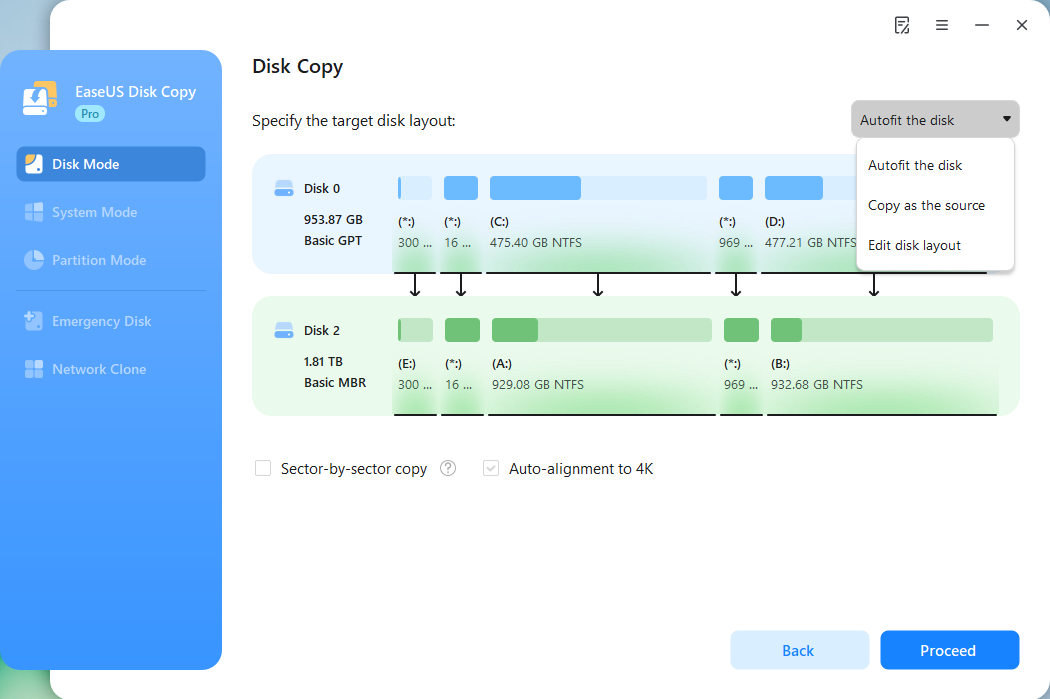
*If the target disk is an SSD, the option "Auto-alignment to 4K" will be checked automatically to optimize the performance of your SSD.
Step 5. Start cloning.
Click Proceed, and a message will appear, warning you that data will be lost. Confirm the message by clicking Continue.
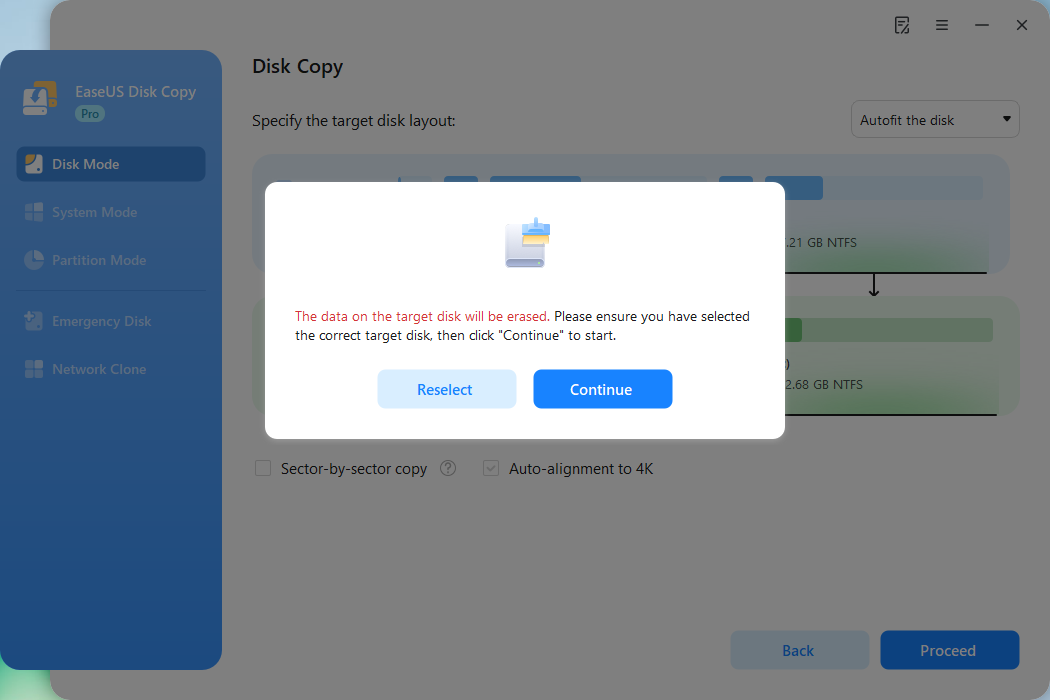
Now, it will start executing the cloning task.
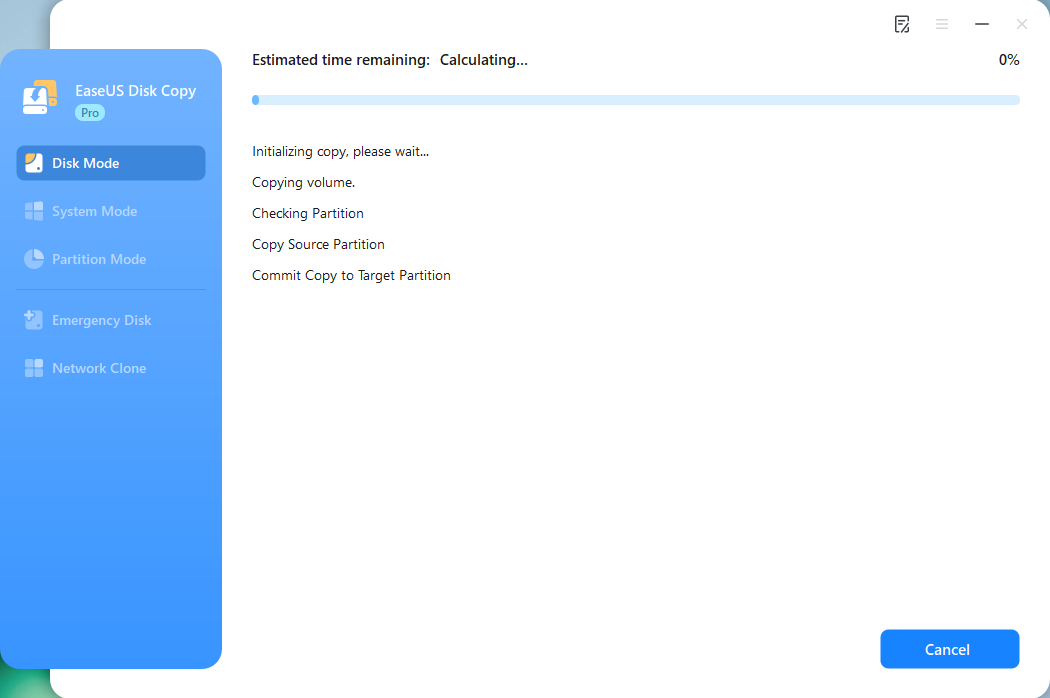
*The time it takes to clone a hard drive depends on how much data is on the source disk, and it will also be affected by the disk types, USB connection, etc.
Share this article on social media to help others clone NVMe to NVMe SSD without using a USB enclosure!
To Wrap Things Up
This article elaborates on how to clone NVMe to NVMe without USB enclosure. In short, you can clone an NVMe SSD to another without using a USB enclosure. If your computer has only one slot, you can connect your NVMe SSD to your computer via the USB to NVMe adapter and run SSD cloning software like EaseUS Disk Copy. If your computer has 2 slots, things are quite easy because you can install the new NVMe SSD in another slot. EaseUS cloning software can help you clone SSD drives easily and quickly. Just download and try it!
Free Download
Windows 11/10/8/7
FAQs on Cloning NVMe Without USB Enclosure
1. Is NVMe and M.2 the same SSD?
NVMe is a storage and transfer protocol designed for high-performance and non-volatile storage media. M.2 is an SSD form factor that allows for high-performance storage.
2. Is a NVME enclosure required for cloning?
No. If your computer has 2 slots, you can install it on your computer, and if your computer has only one slot, you can use a USB to NVMe adapter to connect it to your computer and then run disk cloning software to transfer data and Windows.
3. Do I need to format an NVMe SSD before cloning to it?
No. If you perform disk cloning, there is no need to initialize the disk because most cloning tools can clone to a disk even if you do not initialize it.
-
Updated by
![]()
Jerry
"I hope my articles can help solve your technical problems. If you are interested in other articles, you can check the articles at the bottom of this page, and you can also check my Facebook to get additional help."…Read full bio