
-
![]()
-
![]()
-
![]()
-
![]()
-
![]()
-
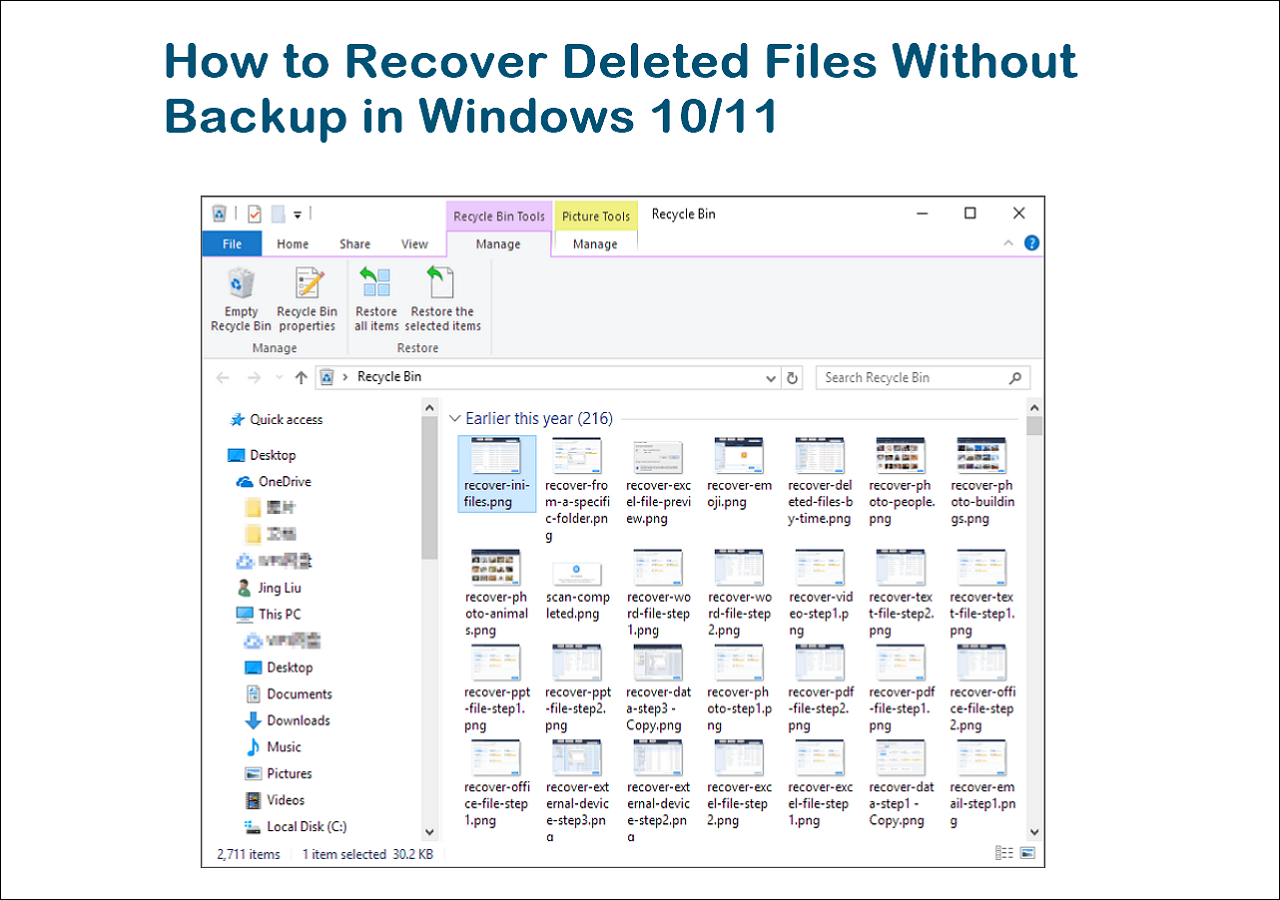
![]() How to Recover Deleted Files Without Backup in Windows 10/11
How to Recover Deleted Files Without Backup in Windows 10/11 October 29,2026
 6 min read
 -
![]()
-
![]()
-
![]() 3 Ways | How to Recover Deleted Photos from Laptop Windows 11/10October 29,20266 min read
3 Ways | How to Recover Deleted Photos from Laptop Windows 11/10October 29,20266 min read -
![]()
Page Table of Contents
If your lost files total less than 2GB (such as a few photos, videos, or Word/PDF documents), you don't need to purchase the paid version.
You can use the free version of EaseUS Data Recovery Wizard to recover and export up to 2GB of data at no cost.
PAGE CONTENT:
When you need to send various files and folders to someone else, you may need to compress these files and folders into Zip format. Zip files can help you reduce the file size easily, and it helps a lot when you need to transfer or safe data.
We'll provide multiple guides in this passage to help you recover deleted Zip files, no matter if you have lost them by accidental deletion or other sudden issues.
We have put the best solution in the next part. Keep reading to start with the most recommended Zip file recovery method.
Method 1. Recover Deleted Zip Files with Zip Recovery Software
What can you do after deleting the Zip files on the PC and emptying the Recycle Bin? Actually, you can find a way out when you have backed up these deleted .zip files before.
What should you do when you don't have any backups of these essential Zip archives? EaseUS Data Recovery Wizard comes to rescue you. Download this free trial, and you'll have a good experience with its outstanding scanning technology.
You Can Trust EaseUS Data Recovery Software
EaseUS Data Recovery Wizard has acquired an extensive technical base in data recovery and trusted by billions of users since 2005. Check out reviews on G2.
How does Zip file recovery work on the PC with professional recovery software? After deleting them from the PC, the Zip files just become invisible; the data still remains. You can rely on professional Zip recovery software to help you scan the whole disk and make these files visible.
You need to know one more thing: do not keep writing new data on the disk before recovering deleted files with a recovery program.
Start Zip file recovery now with the EaseUS recovery tool. It can perform Recycle Bin recovery to save the deleted Zip files without effort.
Step 1. Select a location and start scanning
Launch EaseUS Data Recovery Wizard, hover on the partition/drive where the deleted files were stored. Click "Search for Lost Data" to find lost files.
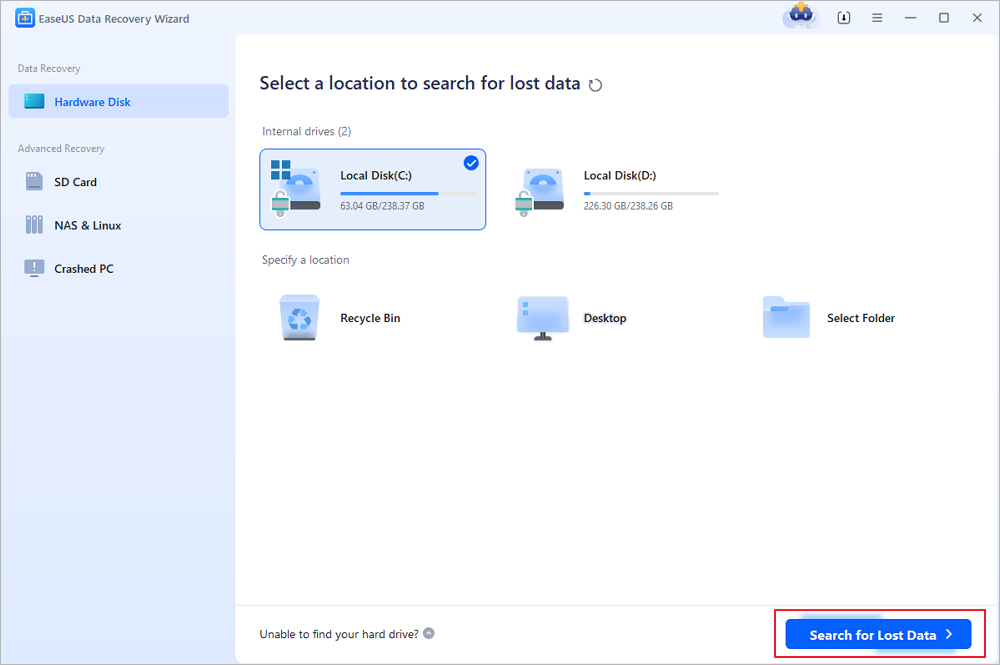
Step 2. Select the files you want to recover
When the scanning has finished, select the deleted files you want to recover. You can click on the filter to display only the file types you want. If you remember the file name, you can also search in the search box, which is the fastest way to find the target file.
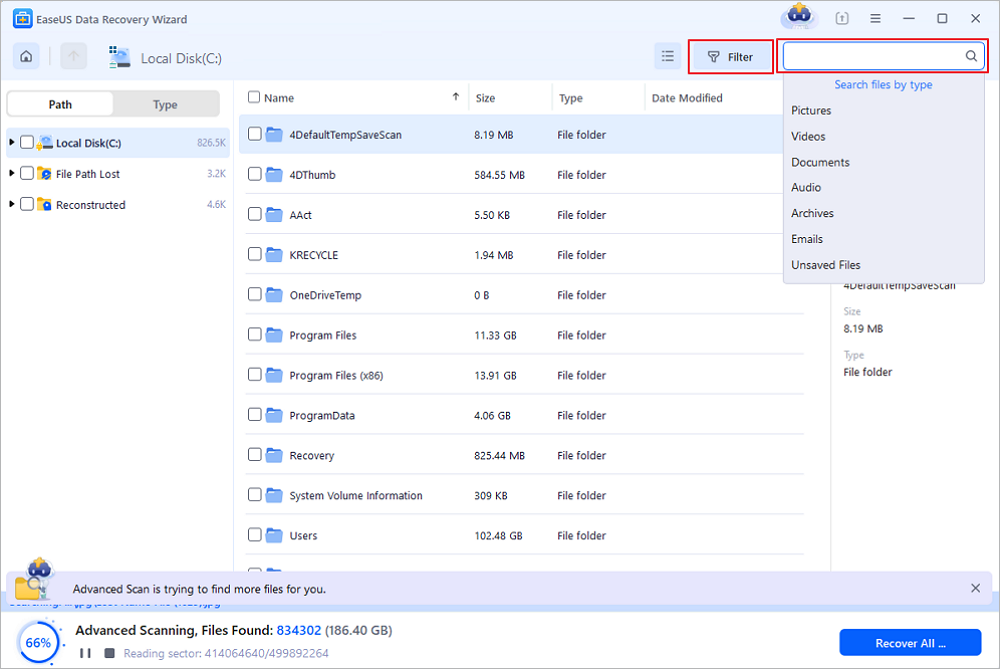
Step 3. Preview and recover deleted files
Preview the recoverable files. Then, select files you want to restore and click "Recover" to store the files at a new storage locations instead of the disk where the data was previously lost. You can choose a cloud storage, such as OneDrive, Google Drive, etc., and click "Save" to save your recovered files.
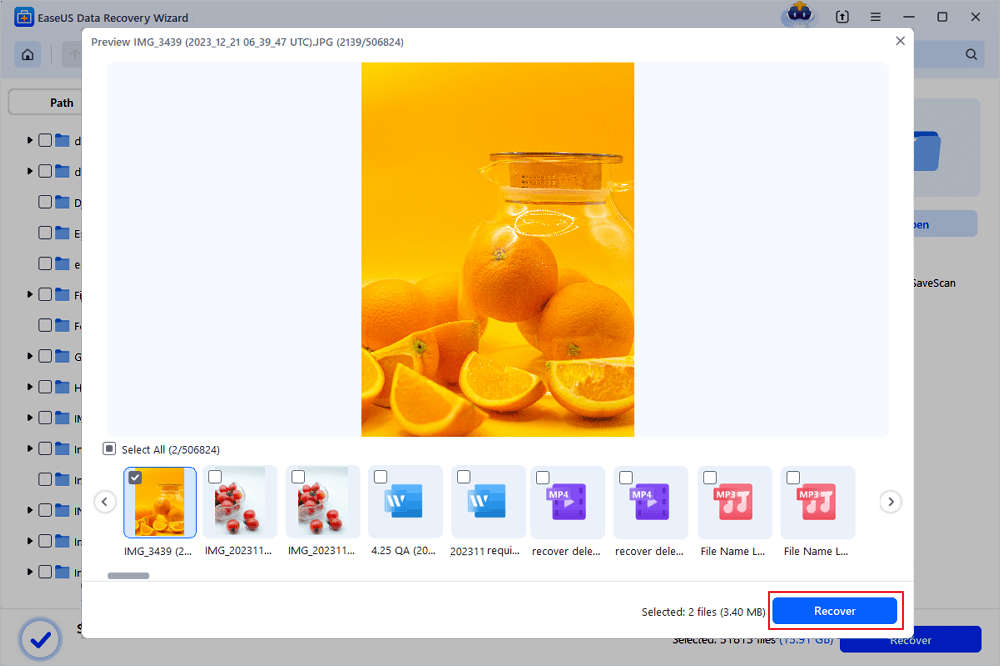
You have learned the Zip file recovery solution in Windows now. If you want to recover deleted Zip files on Mac, download the Mac version instead.
You can also recommend this functional Zip restoration program on social media to help more readers!
Method 2. Restore Deleted Zip Files from the Recycle Bin
If you use the delete shortcut or the delete button to remove a Zip file, you will properly find it in the Windows Recycle Bin. You can easily find the deleted Zip files and other removed items from this folder. We'll give a detailed tutorial on how to retrieve the lost Zip files from the Recycle Bin.
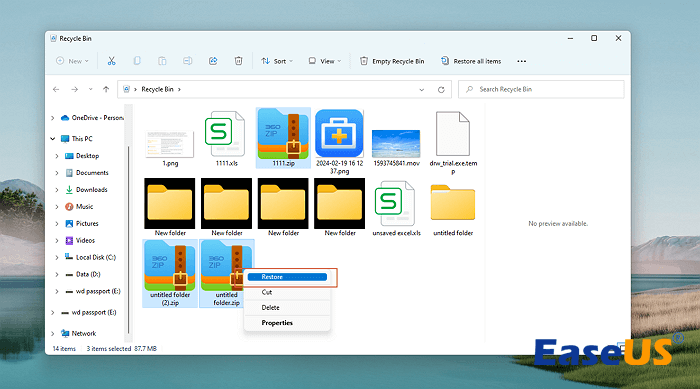
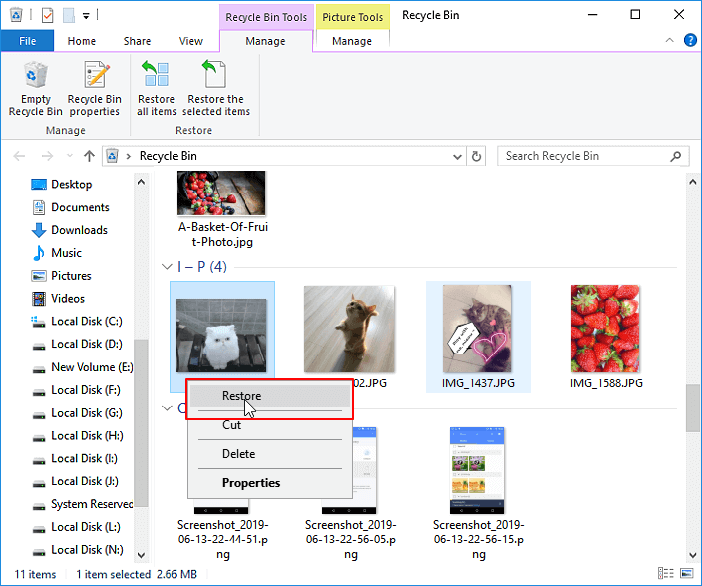
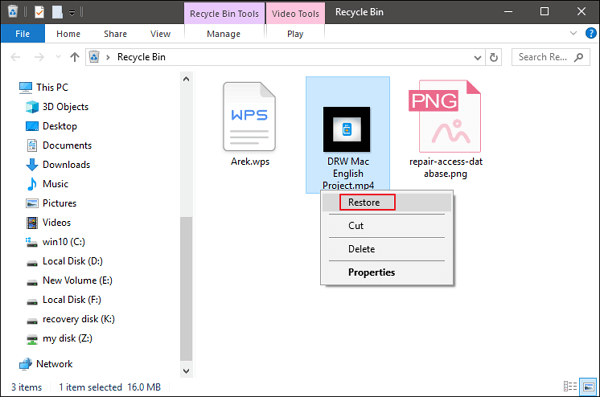
Step 1. Find the trash icon on the Windows desktop. You can right-click or double-click it to open the Recycle Bin folder.
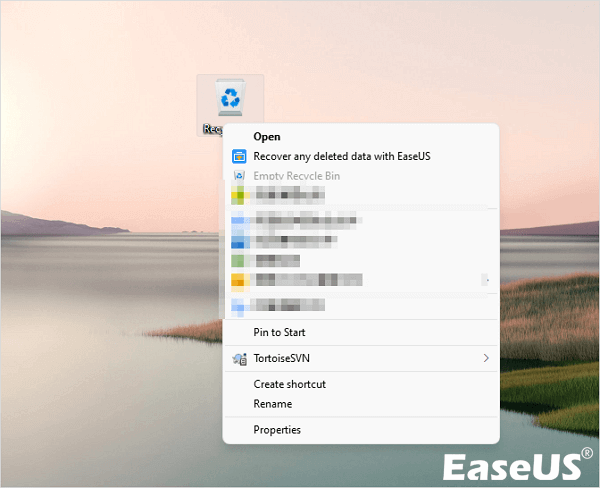
Step 2. In the Recycle Bin folder, you can see all the recently deleted items. The removed items will be kept in the folder for 30 days. Find deleted Zip files, select and right-click them, and choose "Restore".
| 💡Note: Go back to the first method and recover the deleted Zip with EaseUS Data Recovery Wizard if you find the Recycle Bin is empty. |
Method 3. Perform Zip File Recovery with File History
Windows File History works to back up personal files automatically on the PC. You'll need an external hard drive to activate File History backup. When you forget to back up the Zip files manually, you can rely on File History.
Now, check how to access File History in Windows 11:
Step 1. The quickest way to find File History in Windows 11 is by applying the search box. You can type in file history in the search tab and open the app easily.
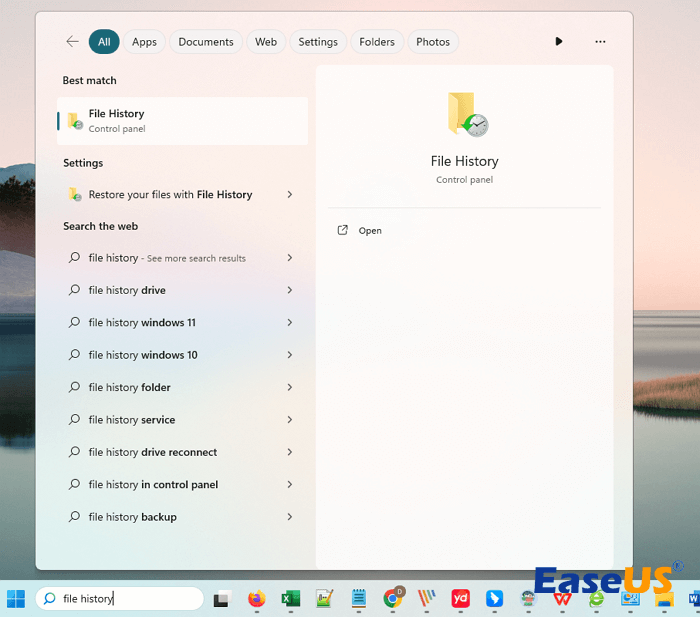
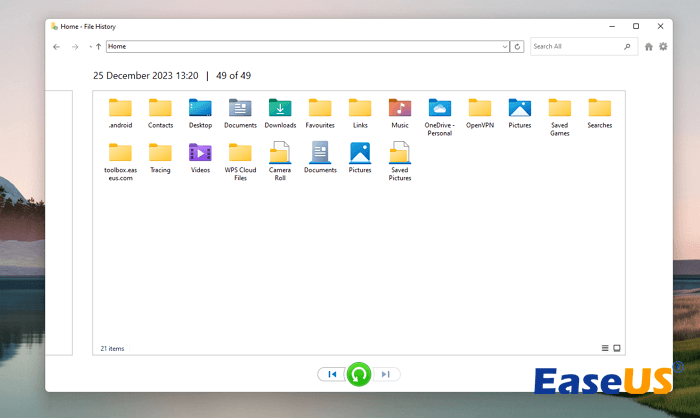
Step 2. Click "Restore personal files" to open File History backups. You'll see various backup versions, choose the right date, and locate the lost Zip files in the folders that appeared. Finally, click the green restore button to recover the Zip archives. (If the File History is turned off, you should go back to the first method and recover deleted Zip files with software.)
Step 3. You can also locate the folder in which you have deleted the Zip files, right-click the folder > choose "Show more options"> click "Restore previous versions" to access the old folder versions.
We hope the three methods we have mentioned can resolve your Zip deletion problem. If not, go to the final method and ask for professional help.
Method 4. Retrieve Deleted Zip Archives with Data Recovery Services
Have you lost very important Zip archives on a local PC or external hard disk? No worries! You still have a chance to find them when the software method fails, and no backups can be relied on. EaseUS data recovery services can help you recover deleted Zip files online. Our professional data recovery engineers can solve most data loss issues and also fix multiple sudden disk errors. Click the following link and start a conversation with Zip data recovery experts.
Consult with EaseUS data recovery experts for one-on-one manual recovery service. We could offer the following services after a FREE diagnosis
- Repair corrupted RAID structure, unbootable Windows OS, and corrupted virtual disk files
- Recover/repair lost partitions and re-partitioned drives
- Unformat hard drives and repair RAW drives(BitLocker encrypted drives)
- Fix disks that become GPT-protected partitions
Summary
In most cases, you can retrieve compressed files and folders from the Recycle Bin. If there's no data in the trash folder, you should try EaseUS Data Recovery Wizard immediately before your Zip data has been overwritten.
If you think this Zip recovery article is helpful enough, please share it on social media today!
Zip Recovery FAQs
Want to learn more about Zip recovery? Check the following frequently asked questions:
1. How can you recover deleted Zip files in Windows?
You can recover deleted Zip files in Windows with the following methods:
- Apply EaseUS Data Recovery Wizard
- Restore from the Recycle Bin folder
- Retrieve the Zip files with File History
- Contact EaseUS data recovery services
2. Can I recover deleted Zip files from the Windows 11 Recycle Bin?
Yes, you can find deleted Zip files from the Windows 11 Recycle Bin. Just open the Recycle Bin folder on the desktop, locate the deleted Zip files, right-click them, and choose "Restore". Then, the Zip files will be restored to the original location.
3. How do I recover corrupted Zip files?
You can repair Zip files with another powerful EaseUS tool – EaseUS Fixo File Repair. You need to select the corrupted Zip archives in the software, and this repair tool will fix the corruption issues automatically.
Was this page helpful?
-
Dany is an editor of EaseUS who lives and works in Chengdu, China. She focuses on writing articles about data recovery on Mac devices and PCs. She is devoted to improving her writing skills and enriching her professional knowledge. Dany also enjoys reading detective novels in her spare time. …


 Why Trust EaseUS
 Editor Reviews

20+
Years of experience

160+
Countries and regions

72 Million+
Downloads

4.9 +
Trustpilot Score