-
![]()
-
![]()
-
![]()
-
![]()
-
![]()
-
![]()
-
![]()
-
![]()
-
![]()
-
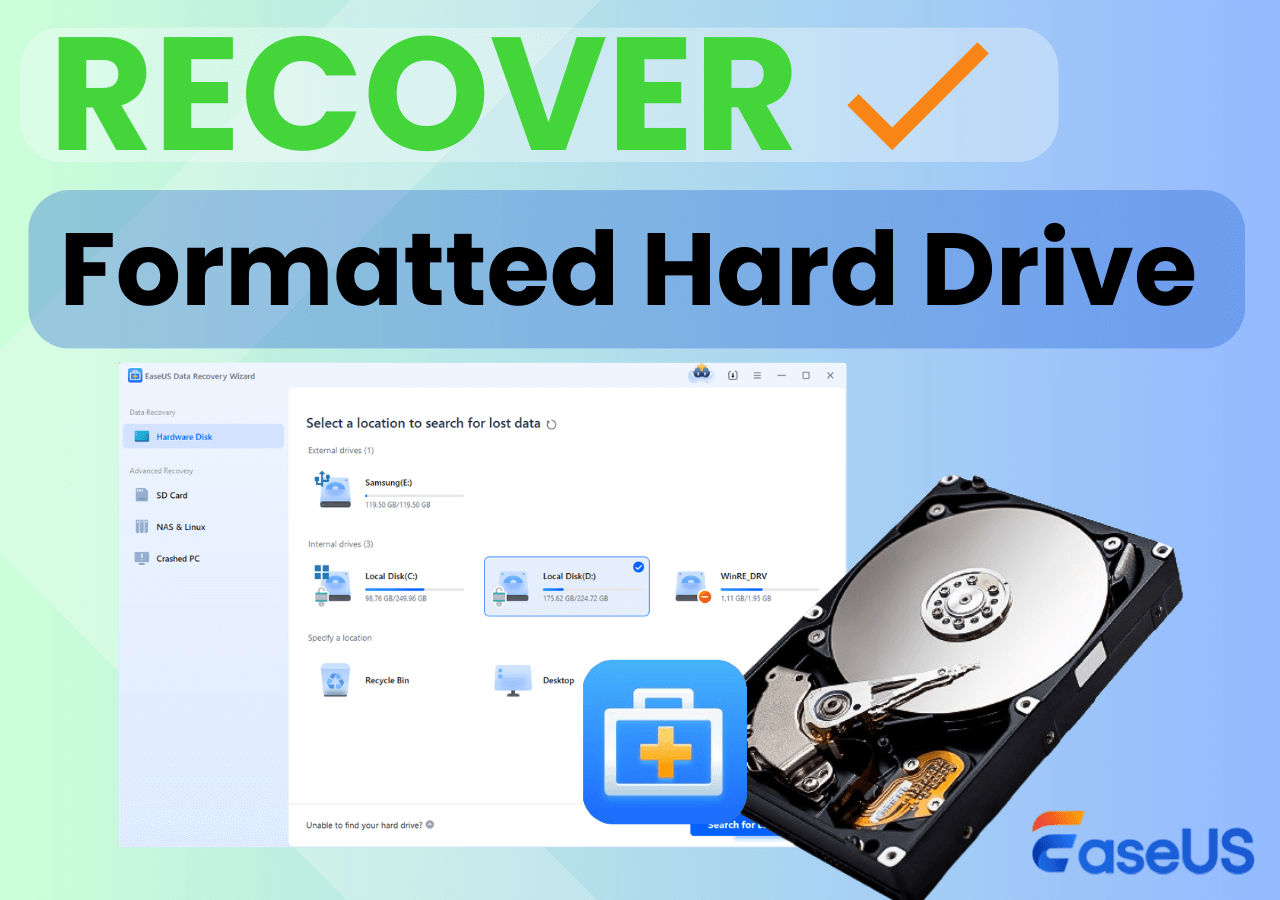
![]() Recover Formatted Hard Drive: How to Recover Data After Accidental Formatting
Recover Formatted Hard Drive: How to Recover Data After Accidental Formatting September 22,2026
 6 min read
Page Table of Contents
PAGE CONTENT:
USB tethering not working? USB tethering is one of those features that should just work. Plug in your phone, flip a toggle, and your computer is online. But when it fails—the option is greyed out, the connection shows "No Internet," or the whole thing drops every few minutes—it becomes genuinely frustrating, especially when you're relying on it as a backup.
The good news is that most USB tethering problems on Windows come down to a handful of well-known causes. A charge-only cable, a corrupted RNDIS driver, a misconfigured APN, or a power management setting quietly putting your adapter to sleep. This guide walks through each one, from quick checks to more involved repairs.
Common Causes of USB Tethering Not Working
Before diving into fixes, it helps to understand what usually breaks. USB tethering failures generally fall into two categories. Physical link problems and software or configuration problems.
On the physical side, the most common culprit is a charge-only USB cable. These cables look identical to data cables and will charge your phone without complaint, but they lack the data pins required for tethering. A damaged USB port or worn cable can produce the same result.
On the software side, the usual suspects are:
- Tethering disabled on the phone
- Outdated or corrupted USB/RNDIS drivers
- No cellular data available
- Incorrect APN settings
- Wi-Fi interference
- USB power management putting the adapter to sleep
How to Fix USB Tethering Not Working on Windows
Fix 1. Disable Wi-Fi on Both Devices
The entire point of USB tethering is to avoid weak Wi-Fi. If Wi-Fi is still active on your phone, Android may route tethering traffic through the Wi-Fi connection instead of mobile data—or fail to establish the USB network interface at all.
Turn off Wi-Fi on your phone under Settings > Network & Internet > Wi-Fi. On Windows 11, go to Settings > Network & internet > Advanced network settings and toggle Wi-Fi off. On Windows 10, click the Wi-Fi icon in the taskbar and disable it.
Remember to share this post with users who are facing the same USB error:

Fix 2. Restart Your Computer
A restart clears background conflicts, resets connected devices, and often resolves tethering issues that appear out of nowhere. Use the Start menu > Power > Restart, then reconnect your phone and re-enable tethering.
Fix 3. Check Device APN Settings
APN (Access Point Name) is the gateway between your carrier and the internet. If the APN type is wrong, tethering may connect but show "No Internet."
On your phone:
Step 1. Go to "Settings" > "Mobile Networks" > "Access Point Names".
Step 2. Select the "SIM" you use for data.
Step 3. Under APN Type, enter default,dun or just dun.
Step 4. Tap OK and reconnect.
Fix 4. Try a Different USB Port
Faulty or underpowered USB ports are a frequent cause of tethering failures. Move the cable to a different port—preferably a rear port on a desktop—or test the same phone and cable on another PC. If it works elsewhere, the problem is your port or machine.
Fix 5. Update USB Drivers
Outdated USB drivers can prevent the tethered connection from establishing. Open Device Manager, expand Universal Serial Bus Controllers, right-click each entry, and select Update driver > Search automatically for drivers.
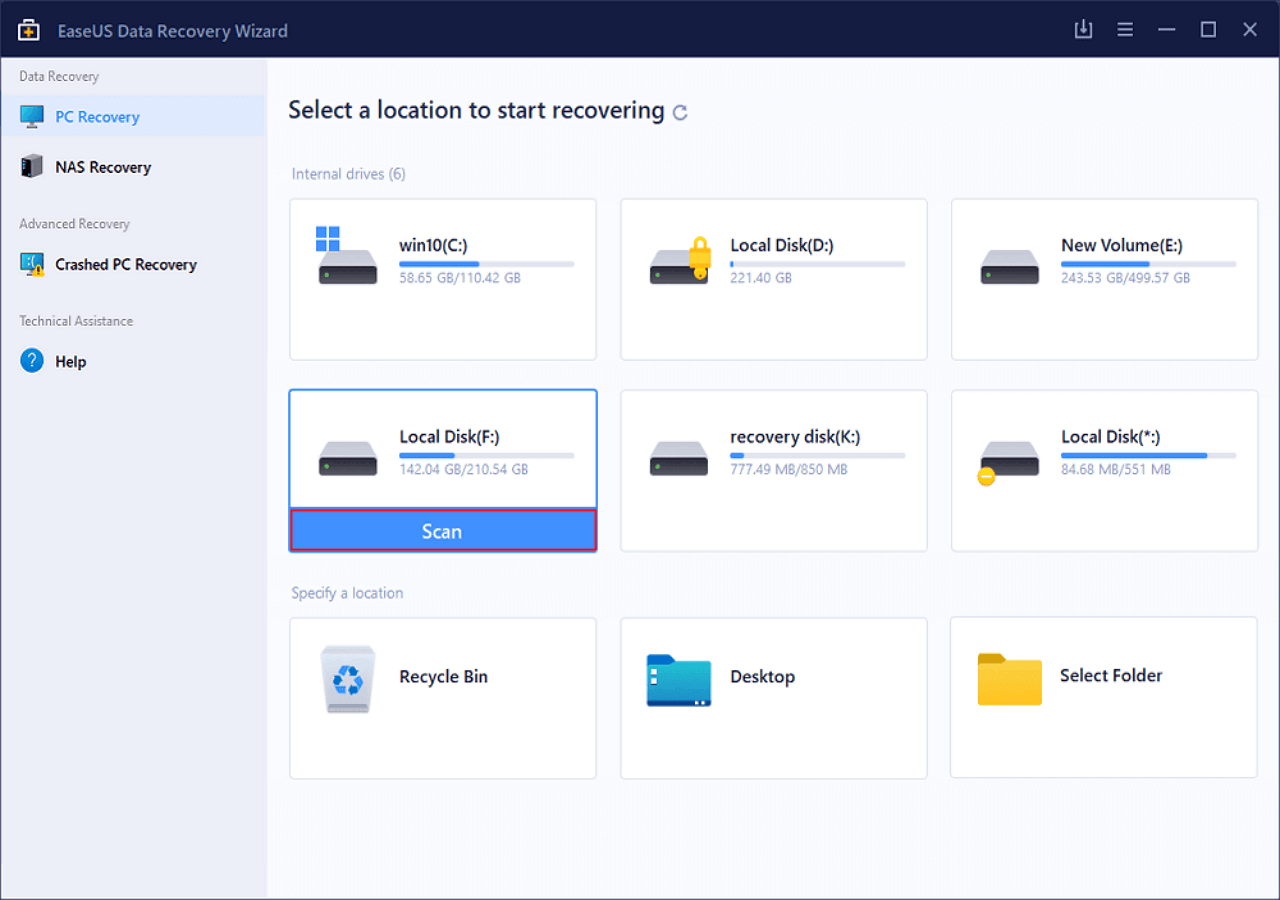
If your RNDIS or network adapter driver has vanished from Device Manager after a failed Windows Update or system crash, you may need to recover the original system driver files. EaseUS Data Recovery Wizard can deep-scan your C:\Windows\System32\drivers folder to retrieve lost or accidentally deleted driver components, letting you re-establish the tethering handshake without a full OS reinstall. The tool supports recovery from system drives, external drives, USB drives, and SD cards, and offers a free scan-and-preview mode before you commit to a purchase.
Conclusion
USB tethering failures are usually easy to solve once you identify the layer that's broken. Start by disabling Wi-Fi, then swap the cable, check APN settings, and update or force the RNDIS driver. If the connection keeps dropping, disable USB power management and watch for thermal throttling on 5G.
If a troubleshooting session leads to lost files—especially driver files or data on a connected USB drive—EaseUS Data Recovery Wizard offers a practical way to scan, preview, and recover them without a full reinstall.
FAQs About USB Tethering Not Working
Here are some frequently askes questions you may be interested in:
1. How do I get USB tethering to work?
Connect with a data-sync cable, enable USB tethering on your phone, disable Wi-Fi on both devices, and ensure the RNDIS driver is installed correctly.
2. Why is my USB tethering option greyed out?
Usually because the cable is charge-only, the phone hasn't negotiated a data connection, or USB tethering is disabled in settings.
3. Why does USB tethering connect but show no internet?
Most often an APN mismatch. Set APN Type to default,dun on your phone's mobile network settings.
4. Why does USB tethering keep disconnecting?
USB power management or 5G thermal throttling. Disable USB selective suspend in Windows and keep the phone cool.
5. Do I need to turn on hotspot for USB tethering?
No. USB tethering and Wi-Fi hotspot are separate options. You only need the USB tethering toggle.
Was this page helpful?


 Why Trust EaseUS
 Editor Reviews