





-
![]() How to Fix Corrupted Video on Windows 10/Android/SD Card - 3 Ways
How to Fix Corrupted Video on Windows 10/Android/SD Card - 3 Ways October 25,2026
 6 min read
 -
![]() Call of Duty Mobile Account & Data Recovery [2026 Troubleshooting]October 23,20266 min read
Call of Duty Mobile Account & Data Recovery [2026 Troubleshooting]October 23,20266 min read -
![]()
-
![]()
-
![]()
-
![]()
-
![]()
-
![]()
-
![]()
-
![]() 2026 Tips: How to Stop Windows 11 from Automatically Deleting FilesOctober 23,20266 min read
2026 Tips: How to Stop Windows 11 from Automatically Deleting FilesOctober 23,20266 min read
Page Table of Contents
PAGE CONTENT:
Merging partitions is a common way to combine free space, but if the operation is interrupted, the partition manager fails, or you merge the wrong volumes, you can end up with a missing partition and an entire drive that appears unallocated or inaccessible. Fortunately, in many situations the partition itself and the files stored on it are still physically intact because Windows simply can no longer locate them because the partition metadata was removed or corrupted during the merge. Read the following to learn how to recover partition after merge partition:
What Happens to a Partition During a Merge
⭐A partition table is a small but critical data structure stored at the beginning of a storage device. It records the location, size, type, and boot information of every partition on the disk, allowing Windows to identify and access each partition correctly.
When you merge partitions, the operation typically deletes one volume's entry from the partition table and extends the adjacent volume into the freed space. The files inside the deleted volume are not "moved" into the surviving partition—the merge only combines storage space, not file contents. If the operation is interrupted before it completes, the partition table can be left in an inconsistent state, and Windows may no longer recognize the affected partition at all.
Without a valid partition table entry, Windows cannot determine where the partition begins and ends, so the drive may appear empty or inaccessible even though your files may still exist on the disk.
| Partition Style | Best For | Maximum Capacity | Compatibility |
|---|---|---|---|
| MBR (Master Boot Record) | Legacy BIOS computers | 2 TB | Windows XP/7/8/10 |
| GPT (GUID Partition Table) | Modern UEFI computers | 9.4 ZB | Windows 11/10/8 |
When a partition is lost after a merge, Windows may display one or more of the following symptoms:
- Disk shows as Unallocated
- Disk not Initialized
- RAW partition
- Missing drive letter
- Partition disappears from Disk Management
- The merged volume shows the wrong size or is inaccessible
Why Does a Merge Operation Cause Partition Loss
Understanding what caused the damage helps you choose the safest recovery method.
| Cause | Description | Recovery Possibility |
|---|---|---|
| Interrupted Merge Operation | Power loss or a crash during the merge leaves the partition table inconsistent. | ★★★★☆ High |
| Partition Software Failure | A bug or unexpected interruption while extending or deleting volumes corrupts metadata. | ★★★★☆ High |
| Merging the Wrong Partition | The wrong volume is deleted, removing its partition entry while the data still exists. | ★★★★★ Very High |
| Power Failure | Unexpected shutdown during partitioning corrupts partition metadata. | ★★★★☆ High |
| Virus or Malware | Boot sectors or partition information is modified or destroyed. | ★★★★☆ High |
| Bad Sectors | Physical damage affects the beginning sectors containing partition information. | ★★★☆☆ Medium |
| Incorrect Disk Conversion | MBR to GPT (or GPT to MBR) conversion fails midway during a related operation. | ★★★★☆ High |
How to Recover a Partition After a Merge in 4 Ways
Before attempting any recovery operation, follow these best practices to maximize the recovery success rate.
- Stop using the affected disk immediately.
- Do not format the drive.
- Do not initialize the disk yet.
- Avoid creating new partitions.
- Do not save recovered files back to the same drive.
- If possible, connect the drive directly through SATA instead of an unstable USB hub.
- After following these tips, you can start to learn how to recover a partition after a merge in Windows.
Remember to share this post with users who are faing the same partition data loss error:

Method 1. Recover a Partition from an Unallocated Disk
If Disk Management shows the entire drive as "Unallocated" after the merge, the partition itself may have disappeared from the partition table while all data still exists on the disk. The safest solution is to use professional partition recovery software before creating a new partition or formatting the drive.
EaseUS Data Recovery Wizard can scan deleted or lost partitions, rebuild partition information, and recover documents, photos, videos, archives, and other files without overwriting existing data.
Here is how you can recover a partition from the unallocated disk with this partition recovery tool from EaseUS:
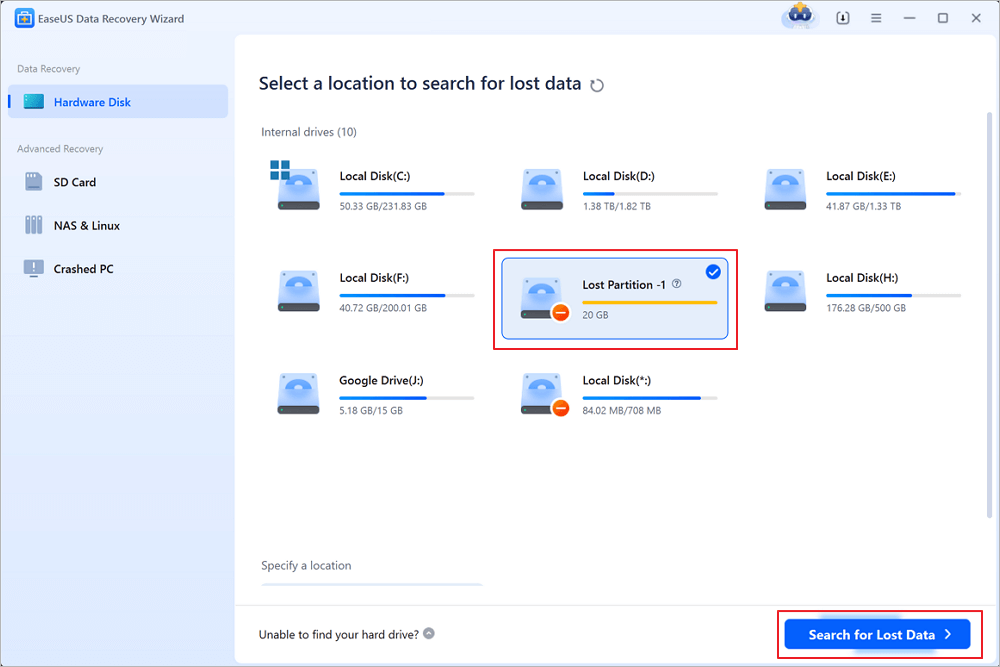
Step 1. Select and scan the lost partition
Launch EaseUS Data Recovery Wizard, select "Lost Partition" and click "Search for Lost Data" to search for all the lost data from your lost or deleted partition. If there are many lost partitions, you can identify them through its partition size.
Note: Since the Windows system doesn't support the Linux file system, the Ext2 or Ext3 partition will be recognized as lost partition with no drive letter in the software. If you want to recover data from Ext2/Ext3 partition, you can follow these steps.
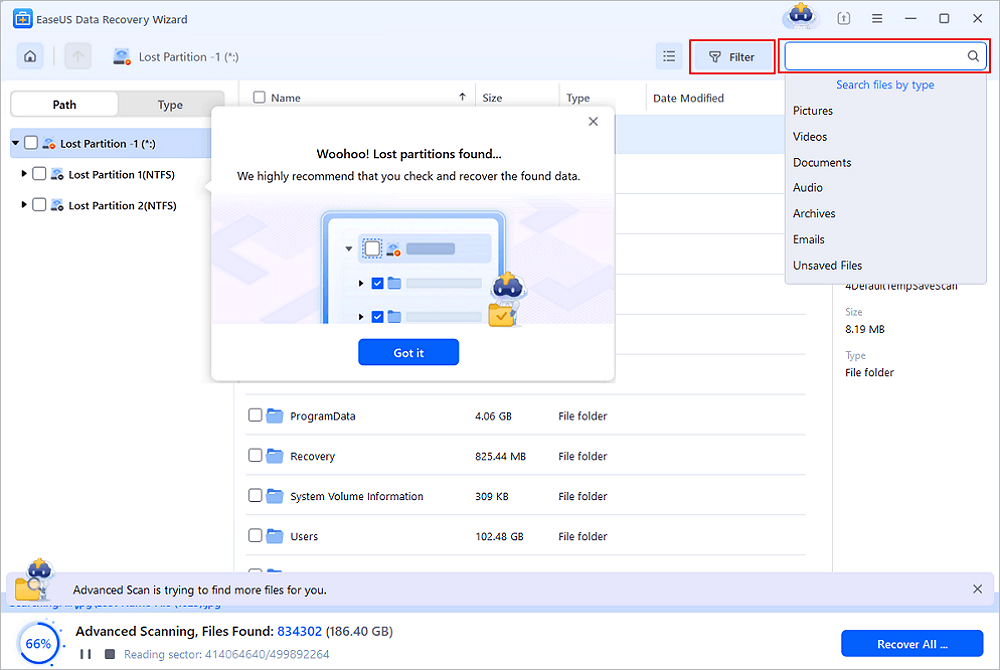
Step 2. Filter the scanned results
Because there will be a lot of scanned files, you can choose a file category for quick filtering, such as Pictures, Videos, Documents, Audio, and Others. Or if you remember the file name, you can just look it up in the search box in the upper right corner.
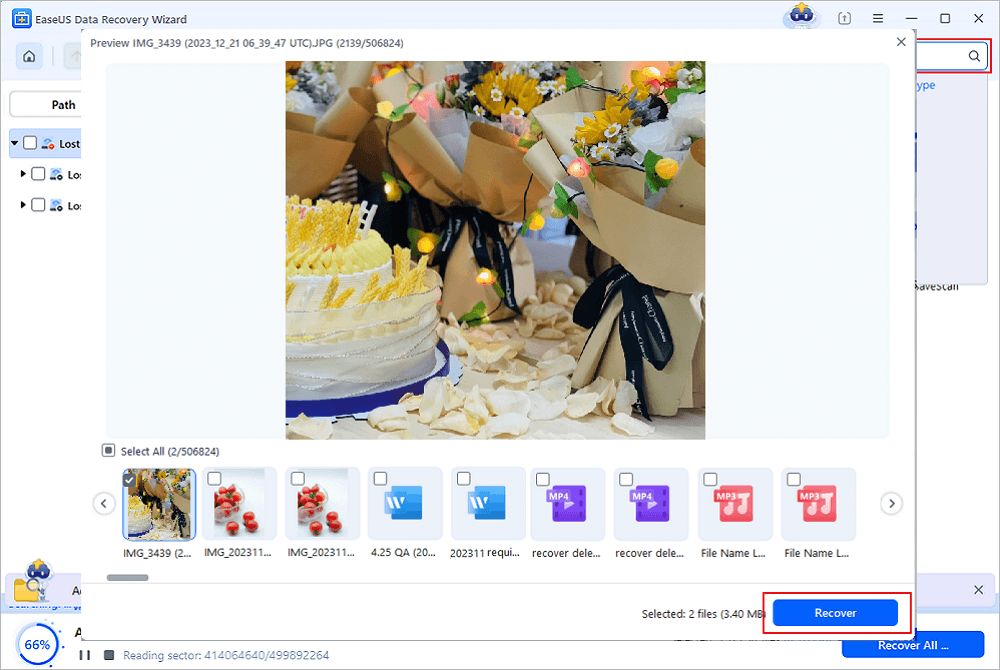
Step 3. Preview and recover data from the lost partition
Before recovery, you can preview the file to make sure it is the data you need. Choose all the files you need and click "Recover" to restore them. Choose a storage location (including cloud storage, such as OneDrive, Google Drive, etc.), and click "Save" to save your recovered files.
Method 2. Recover Data from a Not Initialized Disk
If Disk Management displays your drive as Unknown or Not Initialized after the merge, Windows cannot recognize the partition structure. Initializing the disk too early may make recovery more difficult, so recover important files first whenever possible.
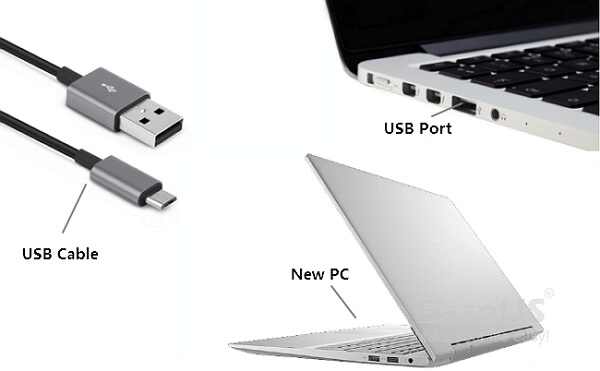
Step 1. Check Hardware Connections
Before assuming the partition table is damaged, verify the hardware connection:
-
Reconnect the USB cable.
-
Try another USB or SATA port.
-
Use another computer.
-
Replace damaged cables.
-
Listen for unusual clicking sounds indicating hardware failure.
Step 2. Recover Important Files
Launch EaseUS Data Recovery Wizard and recover data from an uninitialized disk. Recover all important data to another storage device.
Step 3. Initialize the Disk
Once your files are safely recovered:
-
Press Windows + X.
-
Open Disk Management.
-
Right-click the Not Initialized disk.
-
Select "Initialize Disk".
-
Choose GPT or MBR.
-
Click "OK".
Step 4. Create a New Partition
Right-click the unallocated space, choose "New Simple Volume", assign a drive letter, select NTFS (or exFAT), and complete the wizard.
Method 3. Repair the Partition Structure When Windows Won't Boot
If the partition lost during the merge was the system drive, Windows may fail to start and display errors such as "Operating System Not Found", "Invalid Partition Table", or a black screen during startup. In many cases, repairing the boot records can restore the system without reinstalling Windows.
This method repairs the boot-related partition information using the Windows Recovery Environment.
Step 1. Insert a Windows installation USB or DVD and boot your computer from it.
Step 2. Select your language and keyboard settings, then click Repair your computer instead of Install now.
Step 3. Navigate to "Troubleshoot" > "Advanced Options" > "Command Prompt".
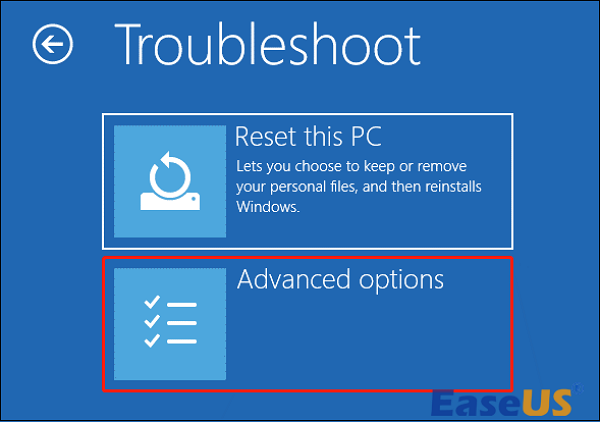
Step 4. Execute the following commands one by one:
-
bootrec /fixmbr
-
bootrec /fixboot
-
bootrec /scanos
-
bootrec /rebuildbcd
Each command repairs a different part of the boot structure:
| Command | Function |
|---|---|
| bootrec /fixmbr | Rewrites the Master Boot Record without affecting partitions. |
| bootrec /fixboot | Creates a new boot sector. |
| bootrec /scanos | Searches for installed Windows systems. |
| bootrec /rebuildbcd | Rebuilds the Boot Configuration Data. |
Step 5. Exit Command Prompt and reboot your PC. If the partition table damage only affected boot information, Windows should start normally.
How to Prevent Partition Loss During Merge Operations
Although partition loss after a merge is often recoverable, prevention is always the safest approach.
- Back Up Important Data Regularly. Maintain multiple copies of important files using external drives or cloud storage before merging any partitions.
- Avoid Interrupting Partition Operations. Never shut down your computer while merging, resizing, cloning, or formatting partitions.
- Use a Reliable Partition Manager. Choose well-tested software and confirm you have selected the correct volumes before starting a merge.
- Safely Remove External Drives. Always eject USB drives and external hard disks before disconnecting them.
- Monitor Disk Health. Use SMART monitoring tools to detect potential disk failures before they become critical.
- Keep Windows and Security Software Updated. Updated firmware, storage drivers, and antivirus software reduce the risk of partition damage caused by software bugs or malware.
Conclusion
A failed merge doesn't always mean your files are permanently lost. In most cases, the partition entries become inaccessible while the actual data remains on the disk. Acting quickly is the key to maximizing your recovery success.
If your drive appears as unallocated or uninitialized or contains a RAW partition after a merge, avoid formatting or repartitioning it immediately. Instead, use EaseUS Data Recovery Wizard to scan the disk, recover important files, and verify that the lost partition is still recoverable.
After your data is safely backed up, you can repair or recreate the partition table using Windows Disk Management, Bootrec commands, or other partition management tools. Combining safe recovery practices with regular backups is the best way to protect your data and avoid future partition loss issues.
FAQs on Recover a Partition After Merge Partition
Here are some frequently asked questions you may be curious about:
1. Can I recover a partition after a merge without losing data?
Yes. In many situations, the partition metadata is damaged while the actual files remain intact. Recover your files first using professional data recovery software before repairing or recreating the partition table.
2. Does initializing a disk erase data?
Initializing a disk only writes a new partition style (MBR or GPT). However, creating new partitions and formatting afterward may overwrite recoverable data. Always recover important files before initializing the disk.
3. Can CHKDSK repair a partition lost during a merge?
No. CHKDSK repairs logical file system errors inside an existing partition but cannot recover deleted or corrupted partition tables.
4. Is TestDisk safe for rebuilding a partition after a merge?
Yes, TestDisk is a trusted open-source recovery utility. However, because it requires manual operations, beginners may accidentally overwrite partition information if incorrect options are selected.
Was this page helpful?



 Why Trust EaseUS
 Editor Reviews








