





Page Table of Contents


PAGE CONTENT:
Error Code 53003 is an Azure Active Directory sign-in failure that appears when your login attempt violates the Conditional Access Policies set by your organization's administrator. You'll usually see a message like "Sign-in was blocked due to Conditional Access policies" or "You cannot access this right now—your sign-in was successful but does not meet the criteria to access this resource." This article covers all fixes for this error. Additionally, if a sign-in interruption or repeated troubleshooting causes you to lose or misplace important files, try EaseUS data recovery software to retrieve them.
Fix 1. Update Your Apps and Operating System to Fix Error Code 53003
An out-of-date Microsoft app or Windows build may not meet modern authentication and device-compliance requirements.
Step 1. Press Windows + I to open Settings.
Step 2. On the left pane, click Windows Update, then click Check for updates.
Step 3. Download and install any available updates, then restart the computer.
Step 4. Open the Microsoft Store or your Office account page and update Teams, Outlook, and Office to the latest versions.
Fix 2. Clear the App Cache and Reset the App to Fix Error Code 53003
Corrupted cached sign-in tokens can keep triggering the policy failure even after the policy itself is satisfied.
Step 1. Press Windows + I to open Settings.
Step 2. Click Apps, then Installed apps.
Step 3. Click the ellipses next to the app that triggers the error and select Advanced options.
Step 4. Scroll down and click the Reset button.
Step 5. Restart the computer and try signing in again.
You can also confirm your connection is stable and temporarily disable your firewall or antivirus software to rule it out. If you use a VPN, disconnect it—if your organization restricts sign-ins to specific locations or IP addresses, a VPN can make it appear you're signing in from an unapproved location.
Fix 3. Verify Your Sign-in Location and Device to Fix Error Code 53003
Administrators often restrict access by geographic region, IP range, or device state.
Step 1. Confirm with your IT administrator which locations and IP addresses are approved for your account.
Step 2. If you're traveling or on a new network, ask whether access from that location is permitted.
Step 3. If your device shows as "Unregistered" or non-compliant, ask your admin to enroll or approve it.
Step 4. Avoid public or unapproved networks, then retry signing in.
How to Recover Files Lost from Error Interruption
Users may wonder if important documents or work files became inaccessible or were accidentally deleted while troubleshooting sign-in problems or resetting apps. Then, how to recover them? You can use EaseUS Data Recovery Wizard.
It can help you recover lost files from a hard disk, memory card, USB flash drive, SD card, pen drive, etc. What's more, it can do the following things for you:
- Recover deleted, formatted, and inaccessible data in various data-loss situations.
- Recover lost photos, audio, music, and emails from any storage, safely and completely.
- Recover data from the recycle bin, hard drive, memory card, flash drive, digital camera, and camcorder.
Here is how you can
Note: To guarantee a high data recovery chance, install EaseUS data recovery software on another disk instead of the original disk where you lost files.
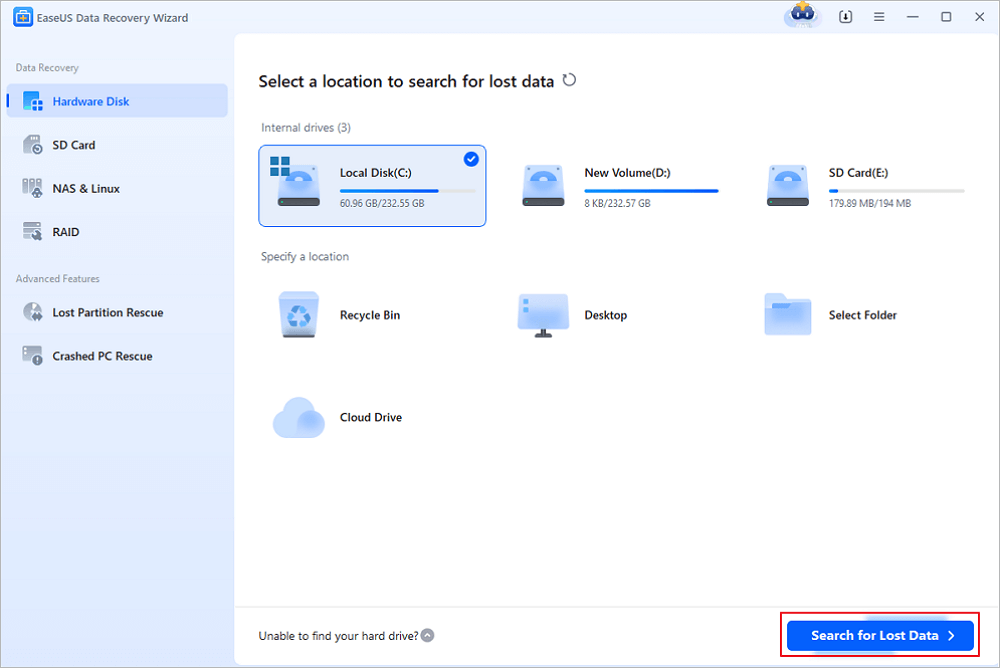
Step 1. Launch EaseUS Data Recovery Wizard on your Windows 11, Windows 10, Windows 8, or Windows 7 computer. Select the disk partition or storage location where you lost data and click "Search for Lost Data".
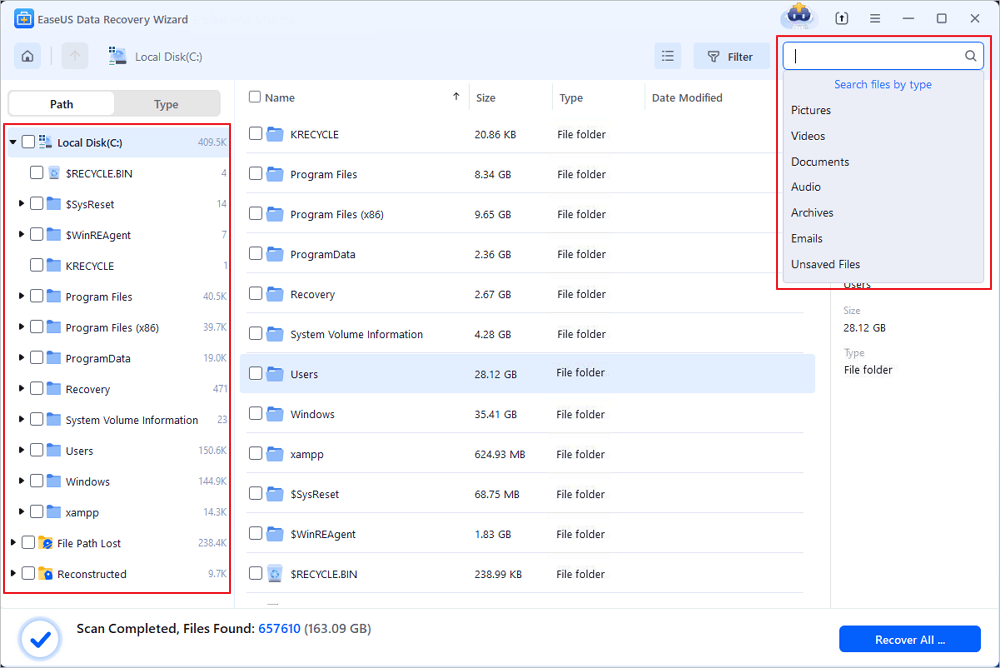
Step 2. This recovery software will start scanning the disk to find all lost and deleted files. When the scan process completes, click "Filter" > "Type" to specify lost file types. If you remember the file name, you can also search in the search box, which is the fastest way to find the target file.
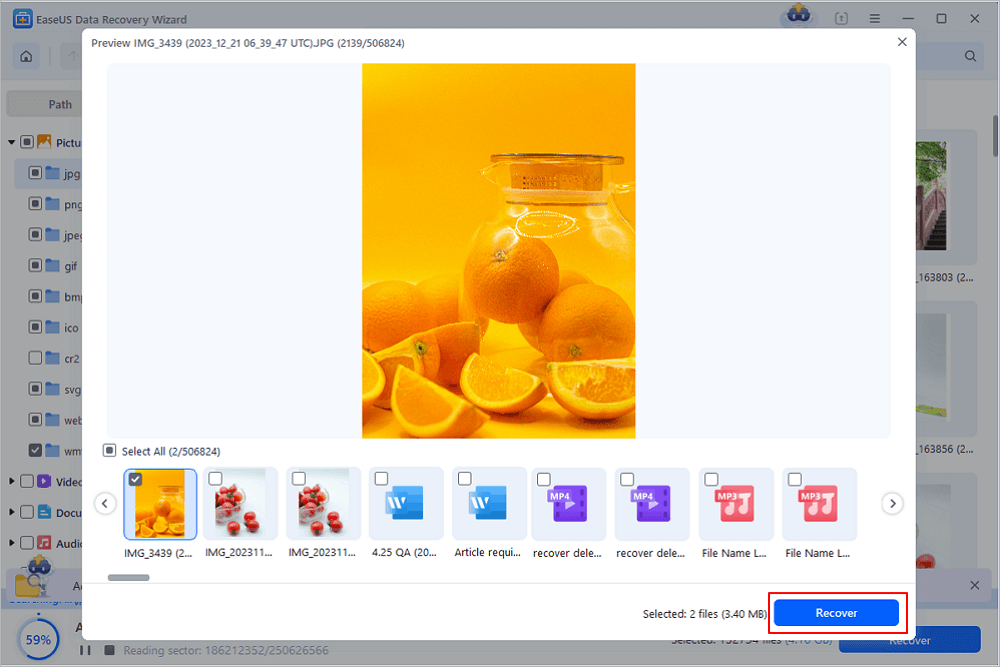
Step 3. Preview and restore lost Windows files. You can double-click to preview the scanned files. Then, select the target data and click the "Recover" button to save them to another safe spot in the PC or Cloud drive.
You can share this post with users who encountered the same error code:

Why You Encounter Error Code 53003
It is evident from this error message that your sign-in succeeded but was blocked by a policy, not by a wrong password. The 53003 issue might happen for some reasons:
- Azure Conditional Access Policies restricting access by location, device, or app
- Device compliance requirements your device doesn't meet
- Out-of-date Microsoft apps
- Out-of-date operating system
- Unsupported sign-in location or IP address
- Use of a VPN that masks your real location
- Temporary issues with Microsoft's servers
Conclusion
You may fix the Azure sign-in error code 53003 using the methods above. Many cases resolve once your IT administrator reviews the Conditional Access Policies, or after you update Windows and your Microsoft apps. You can experiment with each solution until you find the one that works best for you. You can also use EaseUS Data Recovery Wizard if you lose your data.
FAQs on Error Code 53003
Read the following
1. Can I fix Error Code 53003 without admin access?
Some fixes like updating your OS, clearing app cache, and checking your internet connection can be done without admin access. However, changes to Conditional Access Policies require administrator privileges.
2. Is Error Code 53003 permanent?
No, this error is not permanent. It can be resolved by meeting the Conditional Access Policy requirements or having your administrator adjust the policies for your account.
3. Does this error affect all Microsoft apps?
The error typically affects the specific app or service that has Conditional Access Policies applied. Other Microsoft apps may work normally if they have different policy requirements.
4. Why did this error suddenly appear when I could sign in before?
Your administrator may have recently updated Conditional Access Policies, or your device/location may no longer meet the updated security requirements.
Was this page helpful?
 October 23,2026



 Why Trust EaseUS
 Editor Reviews








