





Table of Contents
 About the Author
 Related Posts
Why Does Insta360 Say 'Failed to Load the File Since It's Corrupted'
Getting this "Failed to load file since it's corrupted." when trying to open a file. All the other videos on this SD card are all right and playable but not this one, which I needed the most. I've got the latest version of your Studio. Never had such a problem before. What should I do, Insta360? - from Reddit
This is a common error when you are trying to open your Insta360 video clips in the Insta360 Studio app on your Windows or Mac computer.
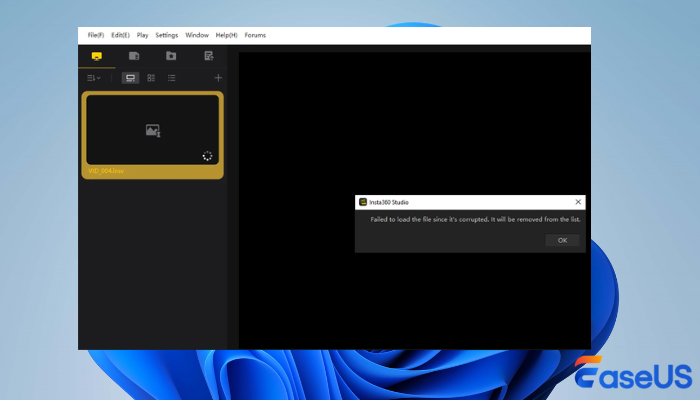
What causes this file to be unable to open on your Insta360? Check the following reasons:
- Insta360 video recording interruption. When an Insta360 camera shuts down without warning during recording, maybe because the power died or heat built up too much, files might stay incomplete. Running out of space on the memory card causes similar issues. Because of this, the software won't open those clips properly.
- Low-speed or low-quality memory card. Heavy usage without regular cleanups can cause corrupted sections on the card, and using low-quality memory cards might quietly ruin your Insta360 footage over time.
- Unsupported or outdated software. Older versions of Insta360 Studio might show this message. The issue appears sometimes when the video is actually fine. Compatibility gaps often cause confusion like this.
- Storage or file system issues. Insta360 video clips might fail to load if saved on a drive that has glitches or uses an unsupported file system.
Let's start with some basic check tips to quickly resolve the Insta360 photo or video won't load problem.
Basic Checks to Fix Failed to Load the File Since It's Corrupted Insta360
Start with the basics before trying complex fixes. Often, videos from an Insta360 camera won't open due to minor errors during transfer or playback. Fixing how you bring the file into your device might solve the problem right away.
1️⃣Bring Video Back into Insta360 Studio
It might not be the file itself - just how it got into the program. Start fresh by deleting the clip in Insta360 Studio and closing everything.
2️⃣Copy Photos & Videos to Local Drive Before Use
Starting from an SD card might lead to glitches when reading data. Moving every Insta360 photo and video onto local storage is the first thing.
3️⃣Use a Different Media Player or Editor
Try opening the clip in something different - VLC, maybe, or an editing suite. Also, make sure the Insta360 Studio is updated to the latest version.
If none of these quick fixes work, keep reading to check how to repair corrupted videos and fix damaged photos.
Repair Insta360 Corrupted Videos with Video Repair Software
An issue occurs when Insta360 reports that the file is corrupted and cannot be loaded. When other quick fixes failed, trying a specialized tool might make sense - EaseUS Fixo Video Repair handles video repairs and photo repair well. It can deal with various video & photo corruption issues.
When Insta360 cameras shut down mid-recording, footage sometimes gets corrupted. You'll have to repair corrupted video/photo with a professional Insta360 repair tool.
This reliable repair tool works on reconstructing headers and rebuilding data maps; it restores access. Files that won't open suddenly become viewable once more.
From X3 to GO models, INSV files, or common MP4 clips, you can ask for an advanced repair if you have sample videos (Insta360 clip taken with the same device) to upload.
Fixing broken files works like this: drop one in, run the fix, then check how it looks before storing:
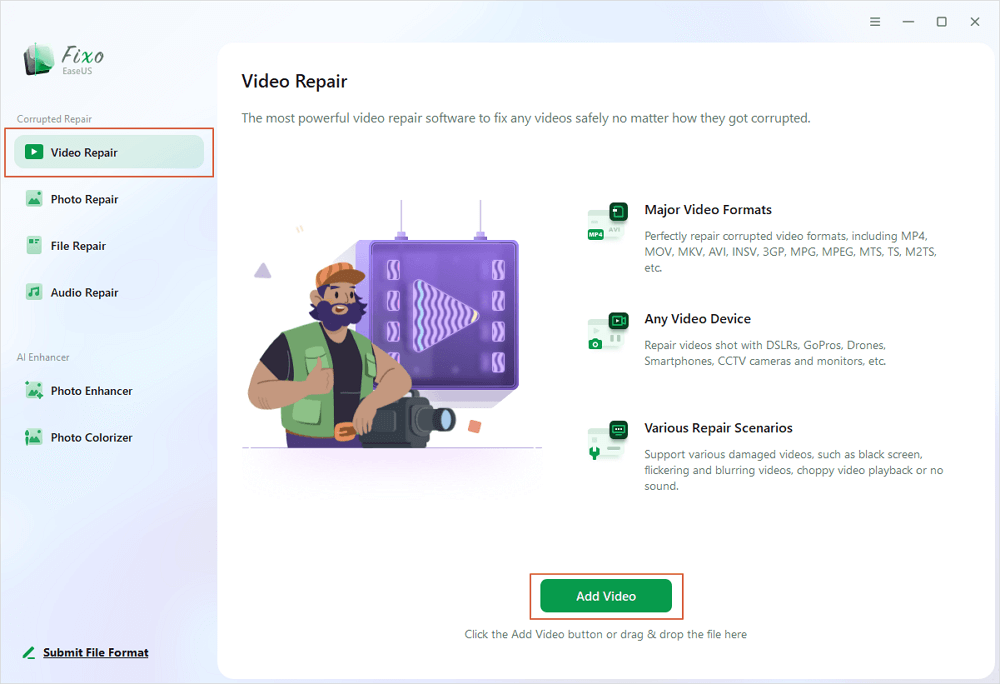
Step 1. Open Fixo on your local PC. Click "Video Repair" and add the corrupted MP4/MOV/AVI/MKV/3GP/FLV/MKV/WMV video files by clicking "Add Videos".
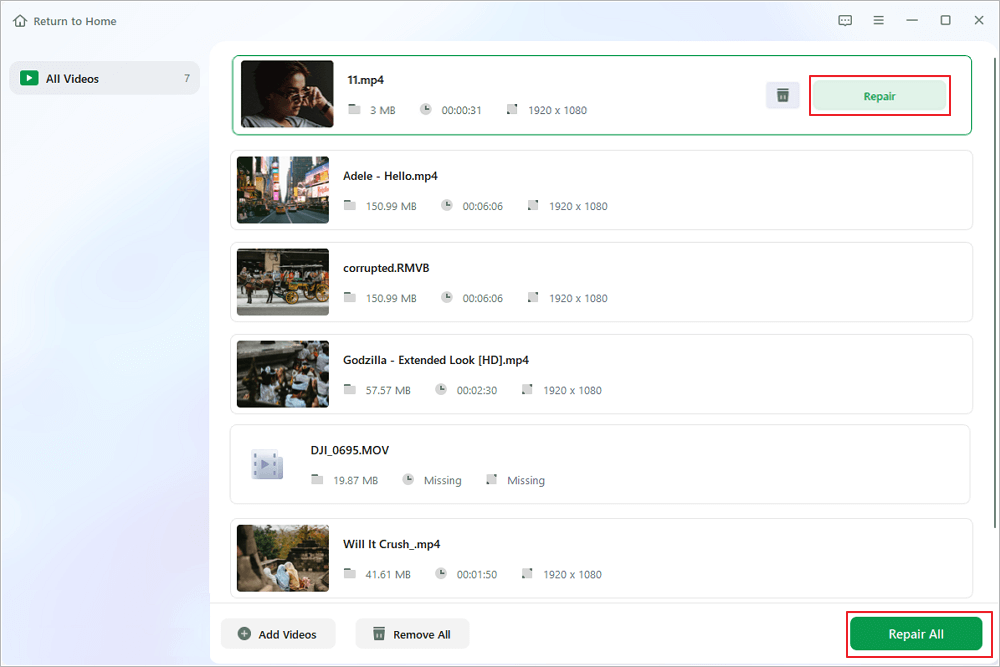
Step 2. Move the pointer to a video and click the "Repair" button to start the single video repairing process. If you want to repair all the videos, click "Repair All".
Step 3. Wait a few minutes, and the corrupted videos will be repaired. Click the play icon to preview the videos. You can save a single video by clicking the "Save" button next to the play icon. If you want to save all the repaired videos, choose "Save All".
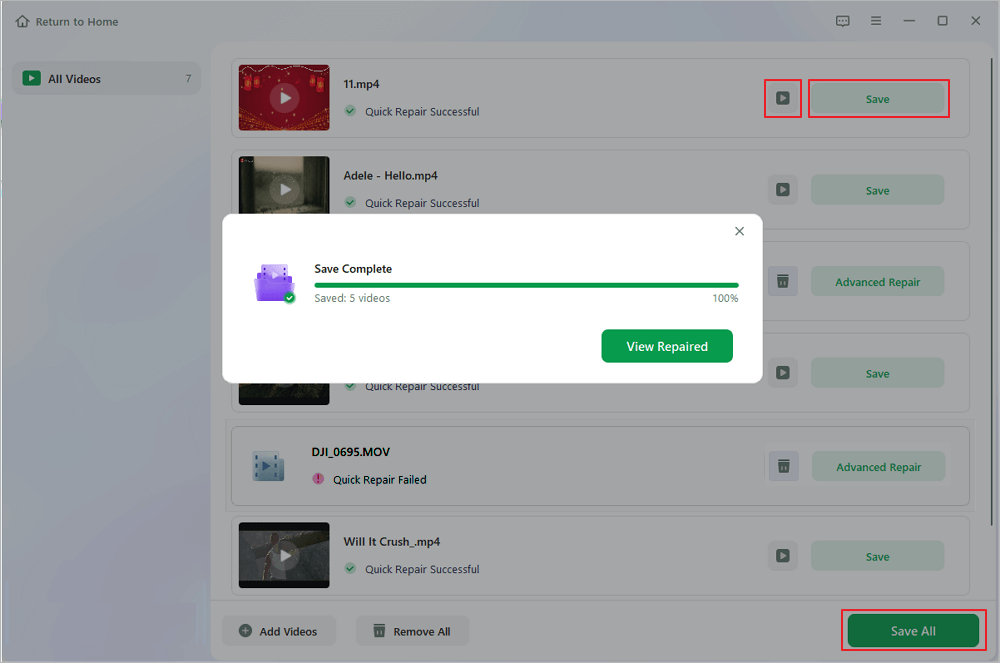
Step 4. If the quick repair fails, you should utilize the advanced repair mode. Click "Advanced Repair" and add a sample video. Choose "Confirm" to ensure.
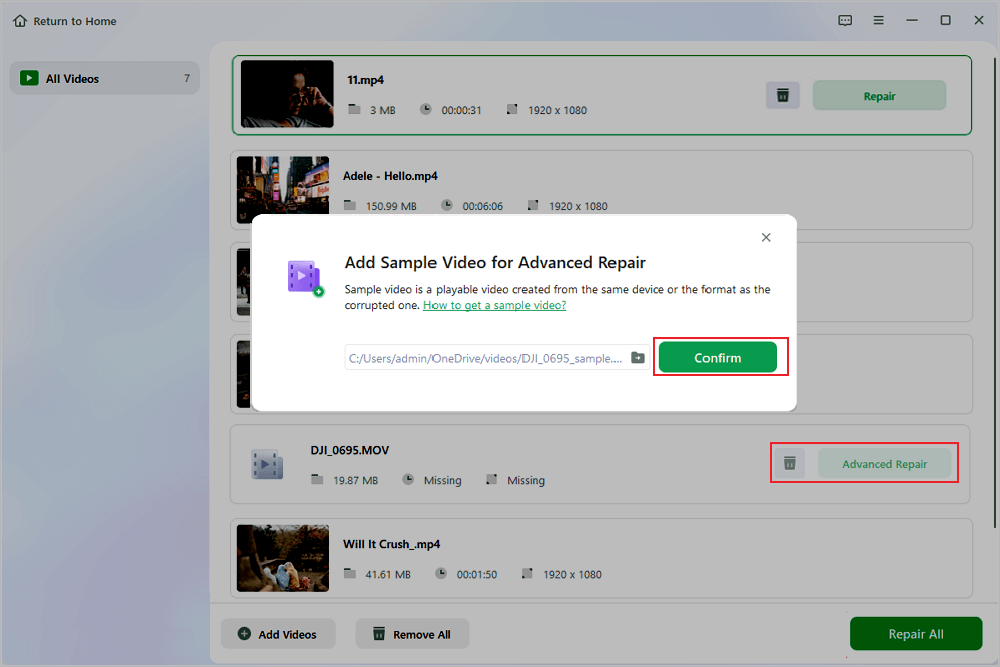
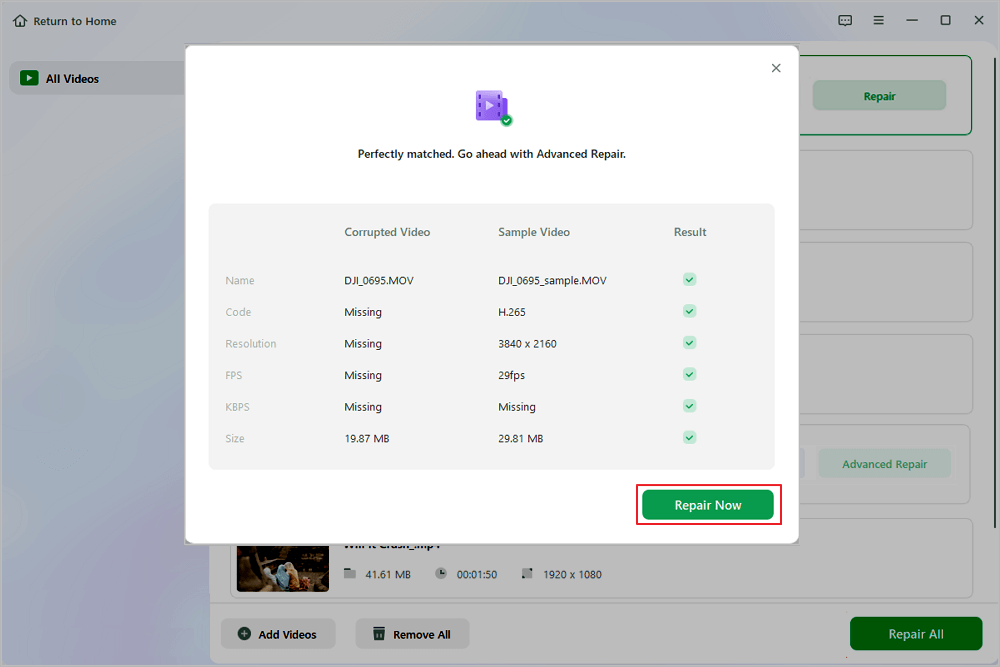
Step 5. A list of detailed information on corrupted and sample videos will show up. Click "Repair Now" to start the advanced video repair process. When the repair is complete, you can view the videos and click the "Save" button to save the repaired video files to an appropriate destination.
When usual ways fall short, some Insta360 owners turn to EaseUS Fixo Video Repair to get back damaged pictures and clips. Share this tool with more Insta360 owners!

How to Prevent Insta360 Videos from Fail to Load in the Future
Most broken Insta360 videos happen because of preventable mistakes during recording or saving. Here are some tips that can prevent Insta360 video/image corruption in the future:
- Use a qualified microSD card for your Insta360. You can use a high-quality memory card to avoid video corruption. A small change now might save time down the road when playback fails unexpectedly.
- Format the SD card on the Insta360 device. Every now and then, clean the memory card using your camera. That way, it stays ready for new shots.
- Don't restart Insta360 during recording. Power down only after the device has finished saving data. Finish every recording the right way.
- Maintain sufficient battery power. A shaky start can ruin hours of footage - plug in first if you plan to record nonstop.
Fixing tiny habits might just keep your Insta360 photos and videos safe from breaking.
FAQs About Insta360 Corrupted Videos
c
Was This Page Helpful?
About the Author

Dany is an editor of EaseUS who lives and works in Chengdu, China. She focuses on writing articles about data recovery on Mac devices and PCs. She is devoted to improving her writing skills and enriching her professional knowledge. Dany also enjoys reading detective novels in her spare time.


