


-
![]() Drive Is Not Accessible: Fix It Without Losing Data
 October 23,2026
 6 min read
-
![]() SSD File Recovery | How to Recover Data from SATA SSDOctober 23,20266 min read
-
![]() 10 Ways to Fix Non System Disk or Disk Error on Laptops/PCOctober 23,20266 min read
-
![]() How to Fix BitLocker Drive Not Showing Up [Best Ways]September 22,20266 min read
-
![]() How ro Fix Glyph External Hard Drive Not Showing UpSeptember 22,20266 min read
-
![]()
-
![]()
-
![]() Nintendo Switch Data Recovery: How to Recover Your Game DataOctober 23,20266 min read
-
![]() Recover Deleted Files in Network Shared Folder | 3 MethodsOctober 23,20266 min read
-
![]() How to Recover Deleted or Formatted exFAT Files EasilyOctober 23,20266 min read
Page Table of Contents
When a Western Digital My Book external hard drive fails to appear in Windows 11 File Explorer, the issue usually stems from a loose power adapter, a faulty USB cable, an unassigned drive letter, outdated USB controller drivers, or a corrupted file system. Users can quickly restore drive visibility by checking physical wall outlet connections, assigning a fresh drive letter in Disk Management, updating Western Digital SES drivers in Device Manager, or initializing the disk.
PAGE CONTENT:
Western Digital My Book desktop external hard drives are popular storage solutions for backing up large photo collections, home videos, and important work documents. Because these high-capacity drives rely on external wall power and USB data connections, encountering a sudden detection problem on a Windows 11 computer can be alarming. You might hear the drive spinning inside its enclosure and see the front LED light blinking, yet the drive icon refuses to appear inside File Explorer.
If you're seeing the WD My Book not showing up in Windows 11 error, your stored files are rarely lost forever. In most situations, Windows 11 simply fails to mount the partition or encounters a minor driver communication glitch.
Why Is My WD My Book Not Showing Up on Windows 11
Identifying why your desktop hard drive is invisible helps you apply the right solution without risking data loss. Unlike portable USB flash drives that draw power directly from your computer, WD My Book units have specific hardware and software requirements.
- Insufficient Power Supply: WD My Book desktop drives use a 3.5-inch internal hard disk that requires a dedicated 12V AC power adapter. A loose power plug or faulty surge protector prevents the drive platters from spinning up properly.
- Damaged USB Cables or Ports: A worn USB 3.0 Micro B cable or a malfunctioning motherboard USB port disrupts data transfer signals between the enclosure and Windows 11.
- Missing Drive Letter Assignment: Windows 11 may recognize the physical Western Digital hardware in the background but fail to assign a drive letter, keeping it hidden from File Explorer.
- Outdated or Corrupted USB Drivers: Missing WD SES Device drivers or corrupted Universal Serial Bus controllers prevent Windows 11 from reading the external storage bridge.
Recover Data from an Unreadable WD My Book First
If your WD My Book shows up in Windows Disk Management as RAW, unallocated, or prompts you to format it before use, stop immediately. Formatting the drive or running aggressive disk repair commands can wipe your directory structure and make personal files much harder to retrieve.
EaseUS Data Recovery Wizard provides a safe, beginner-friendly way to extract all your important files from a malfunctioning Western Digital external hard drive before you perform any destructive repairs. Its deep scanning engine reads raw disk sectors directly, bypassing corrupted file systems and missing drive letters to rescue your data cleanly.
How to Recover Files from WD My Book Using EaseUS Data Recovery Wizard:
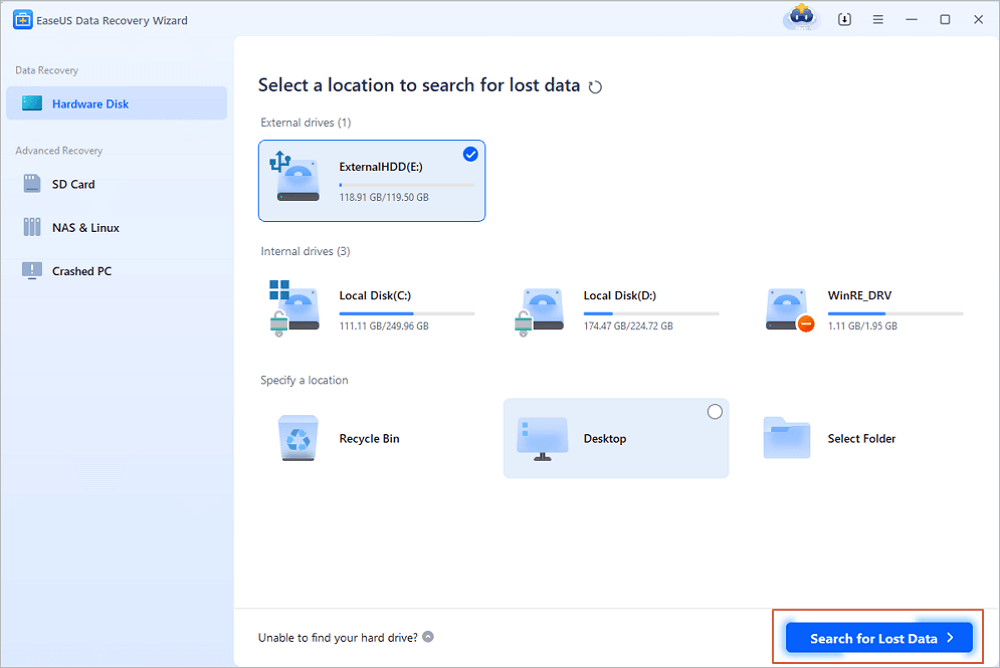
Step 1. Choose and scan the external hard drive
- Download and install EaseUS Data Recovery on your PC or laptop.
- Connect the external hard drive to your computer.
- Run EaseUS Data Recovery Wizard and choose the external drive from External drives list. Then, click "Search for Lost Data".
Step 2. Check the scan results
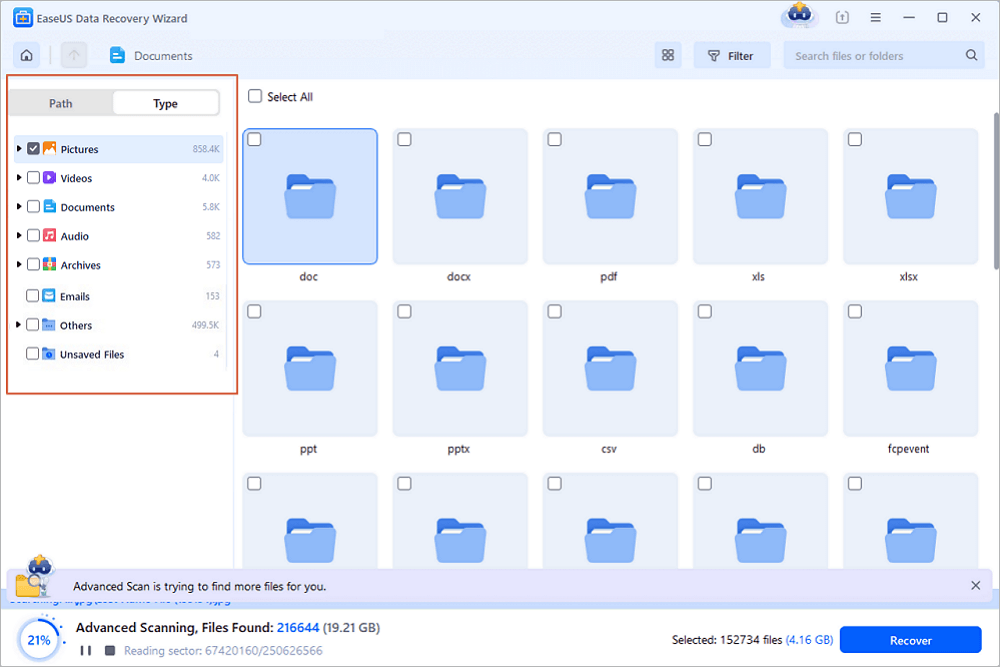
- EaseUS data recovery software will immediately scan the selected drive for all data, including deleted, corrupted, and existing data.
- You can use the Filter feature to quickly locate the files of one kind, such as Pictures, Word, Excel, PDF, videos, emails, etc.
Step 3. Preview and recover data
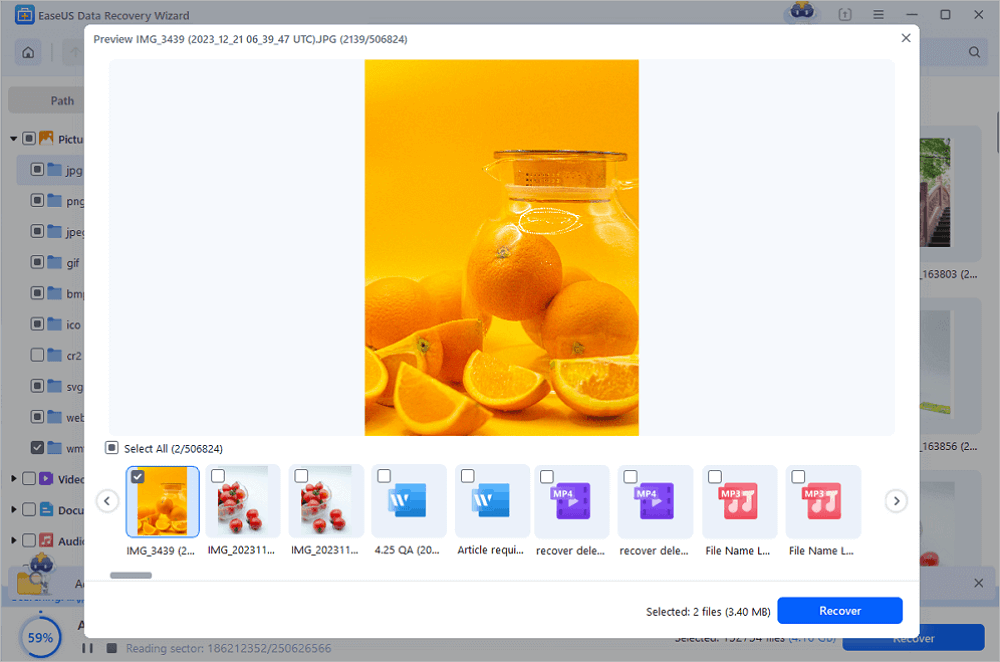
- Double-clicking a file from the scanned results to preview.
- Choose the files you want and click "Recover".
- Select a different drive to save the recovered files instead of the original one.
💡Tip: You can restore data on the local disks, external hard drives, and also the cloud storage.
Fix WD My Book Not Showing Up via Windows 11 Tools
Once your valuable files are safely backed up, or if your drive simply needs a configuration adjustment to appear in File Explorer, work through the following Windows 11 troubleshooting methods.
Method 1. Assign or Change the Drive Letter in Disk Management
Windows 11 often hides a healthy external hard drive simply because its drive letter conflicts with another connected USB device or network drive.
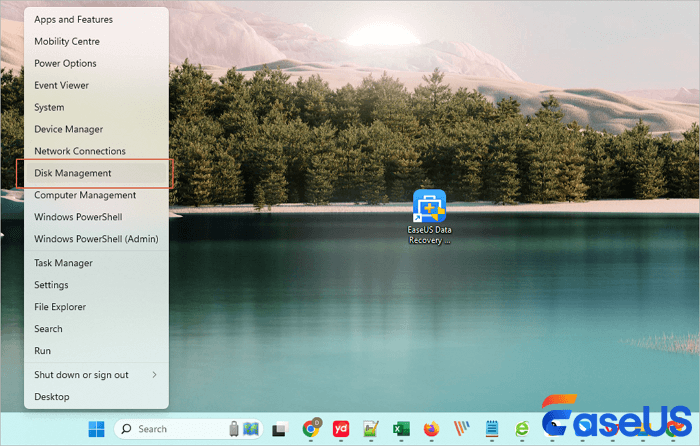
- Right-click the "Windows Start" button on your taskbar and select "Disk Management" from the power user menu.
- Scroll down the bottom panel to locate your WD My Book drive by matching its total storage capacity, such as 4TB or 8TB.
- Right-click the large primary partition box of the WD drive and select "Change Drive Letter and Paths".
- Click the "Add" button if no letter is listed, or click "Change" if an existing letter is stuck.
- Select an unused letter near the end of the alphabet, such as "W" or "Z", from the dropdown list and click "OK".
- Open "File Explorer" to confirm that your WD My Book drive icon now appears properly.
Method 2. Update or Reinstall WD USB Drivers in Device Manager
Corrupted USB controller drivers or missing Western Digital SES drivers prevent Windows 11 from communicating with the My Book hardware bridge.
- Right-click the "Windows Start" menu and choose "Device Manager".
- Expand the "Disk drives" section and look for your Western Digital My Book entry.
- Right-click the WD My Book device and select "Update driver", then choose "Search automatically for drivers".
- Next, expand the "Universal Serial Bus controllers" section at the bottom of Device Manager.
- Look for any entries showing a yellow exclamation mark or labeled "USB Mass Storage Device", right-click them, and choose "Uninstall device".
- Restart your Windows 11 computer. Windows will automatically reinstall fresh USB drivers during startup and detect your WD My Book.

How to Update Drivers on Windows 11
Are you wondering how to update drivers on Windows 11? This article will guide you on how to use and fix your drivers; keep reading to learn more!
Method 3. Initialize an Uninitialized WD My Book Disk
If Disk Management labels your WD My Book as "Unknown" and "Not Initialized", you must initialize the partition table so Windows 11 can access the drive.
- Open "Disk Management" by right-clicking the Start menu.
- Locate the disk labeled "Not Initialized" in the bottom left column.
- Right-click the disk label area and select "Initialize Disk".
- Choose "GPT GUID Partition Table" for modern Windows 11 systems and drives larger than 2TB, then click "OK".
- If the space remains black and unallocated, right-click the unallocated area, select "New Simple Volume", and follow the setup wizard to format the drive as NTFS or exFAT.
Conclusion
Dealing with a WD My Book not showing up in Windows 11 can be frustrating, especially when the drive holds years of personal memories or critical work backups. Fortunately, most detection failures stem from straightforward issues like loose power adapters, missing drive letters, or outdated USB drivers rather than permanent mechanical failure. By checking your wall power and USB cables first, securing your important files with EaseUS Data Recovery Wizard whenever partition errors occur, and applying native Windows 11 Disk Management or Device Manager fixes, you can restore smooth access to your Western Digital external hard drive quickly and safely.
FAQs: WD My Book Not Showing Up
Here are clear answers to the most common questions Windows 11 users ask when their Western Digital My Book external drive is not detected.
1. Why is my WD My Book light blinking but not showing up on Windows 11?
A blinking LED light on a WD My Book indicates that the drive is receiving power and trying to communicate, but Windows 11 cannot mount the file system. This usually happens due to a missing drive letter, a faulty USB cable, or a corrupted partition table that can be scanned using EaseUS Data Recovery Wizard.
2. Do I need to install WD Discovery or special drivers on Windows 11?
Windows 11 includes built-in plug-and-play drivers that automatically read WD My Book drives. However, if your drive uses hardware encryption or password protection, installing WD Discovery or updating the WD SES Device driver in Device Manager helps unlock and mount the drive properly.
3. Will initializing my WD My Book erase my files?
Initializing a disk rewrites its master partition table, and creating a new volume formats the drive, which removes normal access to existing files. Always run EaseUS Data Recovery Wizard to recover your files to another drive before initializing or formatting your WD My Book.
4. Can a damaged USB cable stop a WD My Book from appearing in File Explorer?
Yes. Even if the power adapter turns the drive on and makes it spin, a frayed or loose USB 3.0 cable prevents data signals from reaching your PC. Replacing the USB cable or switching to a rear motherboard USB port frequently solves the problem immediately.
Was this page helpful?




 Why Trust EaseUS
 Editor Reviews

20+
Years of experience

160+
Countries and regions

72 Million+
Downloads

4.9 +
Trustpilot Score