





-
![]()
-
![]() How to Recover Deleted Photos from Fujifilm Camera | Fujifilm Photo Recovery
How to Recover Deleted Photos from Fujifilm Camera | Fujifilm Photo Recovery October 14,2026
 6 min read
 -
![]() How to Solve Can't Format SD Card on Android Phone, Camera, and Windows PCOctober 14,20266 min read
How to Solve Can't Format SD Card on Android Phone, Camera, and Windows PCOctober 14,20266 min read -
![]()
-
![]() SD Card Video Recovery: Recover Videos from SD Card (Fixed)October 14,20266 min read
SD Card Video Recovery: Recover Videos from SD Card (Fixed)October 14,20266 min read -
![]()
-
![]()
-
![]()
-
![]()
-
![]()
Page Table of Contents
The Nintendo Switch's limited storage makes a microSD card essential for saving games, screenshots, and videos. But these cards can fail due to corruption or errors, risking the loss of valuable data. If you're facing the dreaded "corrupted data" message or have accidentally wiped your card and want to recover deleted screenshots from Nintendo Switch, don't panic.
This guide explores the most effective methods for Nintendo Switch micro SD card data recovery, helping you navigate the process and get back to your adventure.
How to recover data from your Nintendo Switch? Understanding different types of data using different data recovery solutions helps you find the suitable methods quickly:
- Nintendo Switch micro SD card data recovery: Use software to recover game downloads, screenshots, and video captures that are stored on the micro SD card...Check Full Steps>>
- Nintendo Switch game save data recovery: Restore game data from Nintendo Switch Online, cloud backups, and check out your socila media shares...Check Full Steps>>
Read on to learn the primary Nintendo Switch micro SD card recovery methods.
Method 1. Use Micro SD Card Data Recovery Software
Using professional memory card recovery software is often the most reliable solution to recover lost screenshots, videos, or other media files from your Nintendo Switch microSD card. This is particularly effective when files have been deleted or the card has been formatted, as the data isn't immediately destroyed, the space it occupied is simply marked as available for new information.
For this task, a powerful and user-friendly option is EaseUS Data Recovery Wizard. It is widely recognized for its effectiveness in recovering lost files from various storage media, including SD cards.
Why choose EaseUS Data Recovery Wizard? It is highly recommended for Nintendo Switch users because it effectively recovers lost screenshots and videos from SD cards. It offers a high success rate through deep scanning, supports all common Switch file formats, and lets you preview files before paying.
Here's how to perform Nintendo Switch data recovery from a micro SD card:
Step 1. Plug in your Switch micro SD card, choose it in the EaseUS software's Card Recovery tab, and click "Search for Lost Data".

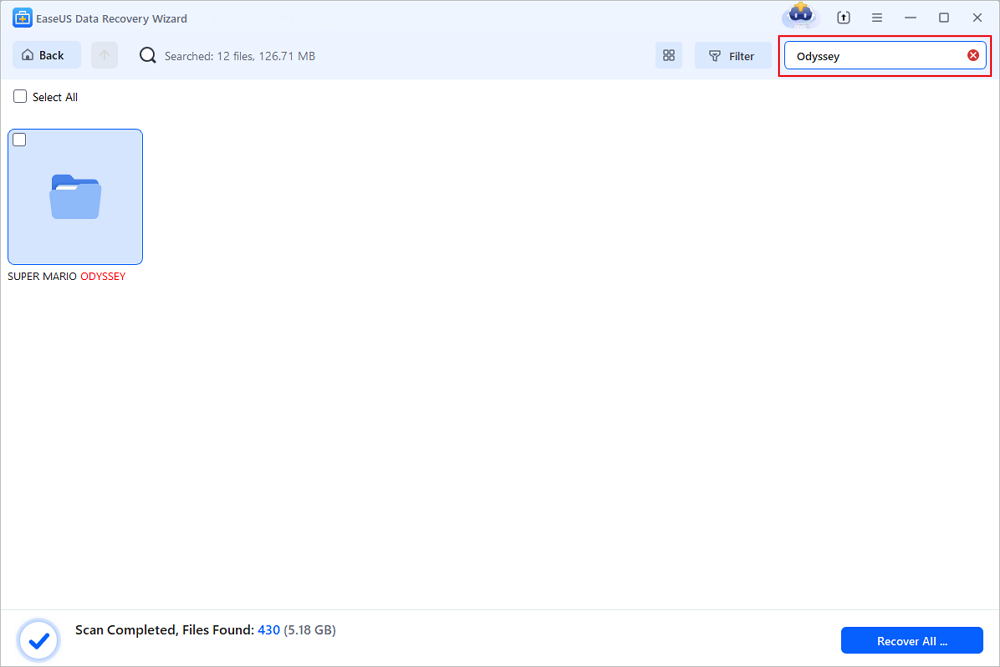
Step 2. Filter the file types you want through the left menu, or type the game name in the search box to find its game archive folder.

For example, type Odyssey in the search box, and the EaseUS software will locate the Super Mario Odyssey folder.
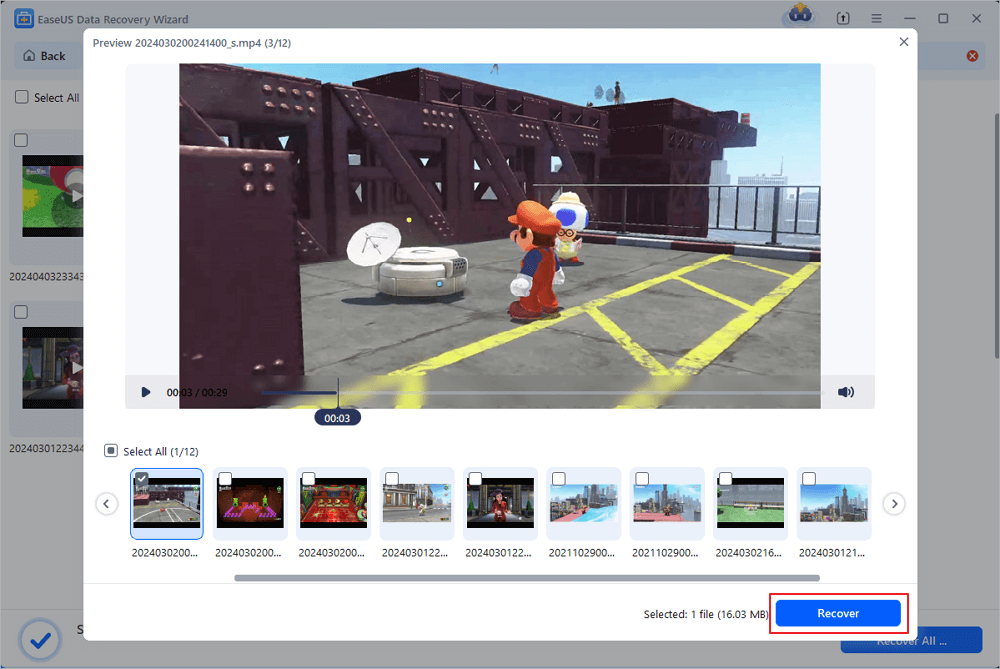
Step 3. Choose the recoverable game files you want, and click "Recover" to save them. Preview the selected files before recovering them.
- Tip
- When disaster strikes, your course of action depends on the type of data you've lost and where it was stored. A critical distinction for Nintendo Switch users is that actual game save files are stored on the console's internal memory and cannot be saved to the SD card.
Check out the following article to learn how to recover deleted or lost screenshots from Nintendo Switch 2:

Recover Deleted/Lost Screenshots from Nintendo Switch 2
Have you ever experienced this frustrating scenario and wondered how to recover deleted screenshots from Nintendo Switch 2? This post introduces effective methods and helps you recover deleted screenshots from NS with ease! Read more >>
Method 2. Restore Game Data from the Nintendo Switch Online
For players with an active Nintendo Switch Online membership, the service offers a crucial safety net for game save data. If enabled, the "Automatic Save-Data Backup" feature uploads your game progress to the cloud.
Therefore, you can download it from the cloud if you've lost save data (not the game software itself):
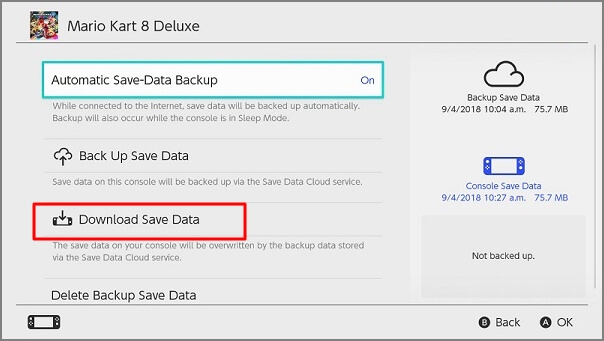
Step 1. From the HOME Menu, select "System Settings > Data Management > Save Data Cloud".
Step 2. Choose the user account and the game for which you want to download save data.
Step 3. Select "Download Save Data". The console will retrieve the most recent backup from Nintendo's servers.
Share this post on SNS to help more people learn how to perform Nintendo Switch micro SD card recovery and retrieve their lost game data and screenshots.

Method 3. Re-download Game Software from the Nintendo eShop
If you accidentally deleted a full game from your system or SD card, you don't need recovery software to get it back. Any game purchased from the Nintendo eShop is tied to your Nintendo Account. Simply navigate to the eShop, access your Account Information, and find the Redownload section. You can download the game again directly to your console or SD card.
Check out the Nintendo Switch official guide to redownload your games!

How to Redownload Nintendo eShop Content for Nintendo Switch 2 and Nintendo Switch
Steps to help recover games or DLC that have been deleted from the console. Read more >>
Method 4. Check Other Backup Locations for Screenshots
Before resorting to software, it's worth checking if your screenshots exist elsewhere:
- Linked Smart Device: You can wirelessly transfer screenshots from your Switch to a smartphone. Check your phone's gallery for any folders containing old captures.
- Social Media: If you've ever posted a screenshot directly to Twitter or Facebook from your Switch, it will still be available on those platforms.
Data Loss on a Micro SD Card - Possible Causes
Understanding the cause of data loss is the first step in prevention and recovery. Several common scenarios can lead to inaccessible or missing files on your Nintendo Switch SD card:
- Accidental Deletion: It's surprisingly easy to delete the wrong screenshot, video, or even game data while managing storage space.
- Card Corruption: Improper ejection (removing the card while the console is on), virus attacks, or file system errors can corrupt the card, making it unreadable.
- Accidental Formatting: In a moment of haste, you might format the SD card within the Switch settings, wiping all data.
- Physical Damage: Although less common, physical damage to the card or the console's card reader can cause read/write failures.
- Software Bugs: Occasionally, a system crash or bug during an update can lead to data becoming inaccessible.
Data loss due to most of the cases we mentioned above can be solved by a powerful and trusted micro SD card recovery tool - EaseUS Data Recovery Wizard.
However, if your card is physically damaged, don't hesitate to ask for help >> EaseUS 1-on-1 Remote Data Recovery Services.
Nintendo Switch Micro SD Card Data Recovery FAQs
1. Can I recover game save files from an SD card?
No. Nintendo Switch game save data is exclusively stored on the console's internal memory and cannot be moved to the SD card. Therefore, you cannot recover save files from an SD card. For safe data recovery, you must rely on a Nintendo Switch Online cloud backup.
2. What is the best SD card recovery software for a Nintendo Switch?
While several options exist, EaseUS Data Recovery Wizard is consistently rated as one of the top choices due to its high recovery rate, ease of use, and comprehensive feature set, including the ability to preview files before recovery.
3. Will formatting my SD card permanently delete everything?
Formatting an SD card erases the file system, making the data invisible and the space available for new use. However, the old data often remains on the card until it is overwritten. This means that after a format, recovery software like EaseUS can often restore the data if you act quickly. Nintendo's official support page warns that data cannot be restored after formatting, but specialized software can sometimes bypass this.
4. My Switch says the SD card is corrupted. What should I do?
First, do not format the card immediately. Remove it from the Switch, insert it into a computer using a card reader, and use a data recovery tool like EaseUS Data Recovery Wizard to attempt to retrieve any important screenshots or videos. Once you've secured your files, you can then try to reformat the card within the Switch to make it usable again.
5. Why can't I see my files when I put the SD card in my computer?
The Nintendo Switch uses a specific folder structure that may not be immediately recognizable to a computer. You may need to enable the option to view hidden files and folders. Alternatively, dedicated recovery software is designed to navigate these file structures and find your screenshots and videos regardless.
Was this page helpful?

 Why Trust EaseUS
 Editor Reviews

20+
Years of experience

160+
Countries and regions

72 Million+
Downloads

4.9 +
Trustpilot Score





