



| Workable Solutions | Step-by-step Troubleshooting |
|---|---|
|
Method 1. EaseUS Partition Master |
Step 1. Open EaseUS Partition Master and click "Partition Recovery" on the top menu. A new window will appear...Full steps |
|
Method 2. CMD |
Step 1. Boot PC with Windows 11/10/8/7 installation media > press SHFIT + F10 on the first screen to bring up...Full steps |
- Important
- Microsoft has officially announced that Windows 10 support will end on October 14, 2025. After this date, the system will no longer receive security updates, bug fixes, or technical support.
Windows boot partition missing
EFI boot partition missing or no EFI system partition was found error will cause your computer to have no boot partition to boot from, so you will need to create EFI partition in Windows 11/10, or recover missing EFI boot partition with third-party partition recovery software.
As we mentioned, the EFI partition is essential if you want to be able to boot up the operating system that you have installed on your internal hard drive. Unless you use an external hard drive to boot Windows OS rather than an internal one, you don't require an EFI partition to boot from the drive. Therefore, when the EFI boot partition in your computer accidentally gets deleted, feel no hesitate to follow the advice here to recover the deleted boot partition, or manually recreate the EFI boot partition by yourself.
EFI Related Searches
Method 1. Recover EFI partition with partition recovery software
If you prefer a simple method to restore deleted or lost EFI partition in Windows PC, EaseUS Partition Master supports you to restore lost EFI partitions with ease in Windows 11/10/8/7. You may directly download this partition recovery software and follow the simple steps to restore EFI boot partition.
First of all, on a working computer, create EaseUS Partition Master WinPE bootable disk so that you can boot your computer from a WinPE environment to be able to perform the EFI partition recovery.
Next, after you can boot the computer into a normal state, it's time to restore lost EFI boot partition now.
How to automatically restore EFI boot partition Windows 11/10
After all the process, now your boot EFI partition is restored. You can check or redownload boot files into the EFI partition, set the computer to boot from your restored EFI partition again in BIOS. Reboot your PC and then you can continue using your computer again.
Method 2. Create EFI partition Windows 11/10 using CMD
Most likely, users with some computer skills are able to recreate an EFI boot partition by themselves.
How to manually create EFI partition Windows 11/10
Step 1. Boot PC with Windows 11/10/8/7 installation media > press SHFIT + F10 on the first screen to bring up Command Prompt.
Step 2. Type the following commands and click Enter each time:
diskpart
list disk
select disk # Note: Select the disk where you deleted the EFI System partition.
list partition
create partition efi
format quick fs=fat32
list partition
list volume Note: Note the volume letter where the Windows OS is installed.
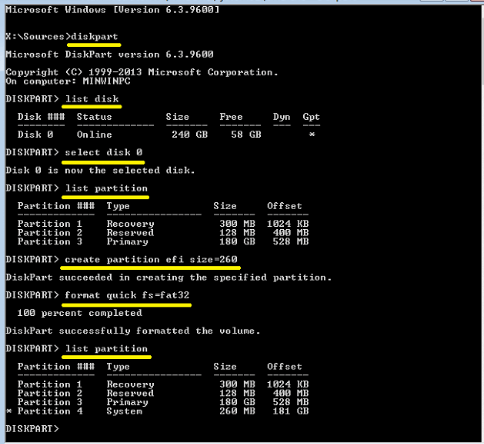
exit
bcdboot X:\windows Note: Replace "X" with the volume letter of the Windows OS partition.

BCDBoot copies the boot files from the Windows partition to the EFI System partition and creates the BCD store in the same partition.
Now you can remove the Windows installation media and restart the computer.
Was This Page Helpful?
Related Articles
-
Recover Formatted Hard Drive: How to Recover Data After Accidental Formatting
![author icon]() Jean/2026-11-19
-
Lost Partition Recovery Software | Recover Deleted Partitions Easily
![author icon]() Jean/2026-11-19
 Jean/2026-11-19
-
Recover Deleted Partition Using CMD: 3 Methods to Try
![author icon]() Dany/2026-11-19
-
How to Fix (GPT) Hard Disk Partition Not Recognized in Windows 11/10
![author icon]() Jean/2026-11-19
 Dany/2026-11-19


