





 About the Author
 Reviews and Awards
 Mac SD Card Recovery
The new DJI Osmo Pocket 4 is a marvel of stabilization and portability, ensuring you never miss a cinematic moment. But what happens when those precious 4K clips vanish from your device due to accidental deletion, formatting errors, or a corrupted SD card? For Mac users, the recovery process is specific. This guide provides the most effective solutions to recover Pocket 4 videos on Mac, ensuring your footage is safe once more.
If you have accidentally deleted or lost videos from your DJI Osmo Pocket 4, find the recommended methods below to recover your files on your macOS system.
Recover Pocket 4 Videos on Mac with Data Recovery Software
When your Pocket 4's microSD card gets corrupted, or files disappear without a backup, specialized recovery tools are your best bet. Many users don't realize that macOS handles deleted files differently from Windows, making dedicated DJI recovery software essential for scanning and reconstructing video data.
⚠️ Immediate Steps After Losing Pocket 4 Videos (Mac Users)
To maximize success on a Mac, follow these critical do's and don'ts:
✅ DO:
- Remove the SD card from the Osmo Pocket 4 immediately.
- Use a high-quality SD card reader (avoid the camera's USB cable).
- On your Mac, do not mount the card if prompted to initialize or reformat it.
- Start the recovery process as soon as possible.
❌ DON'T:
- Don't format the card with Disk Utility, even if macOS says it's unreadable.
- Don't save any recovered files back to the same SD card.
- Don't use the Pocket 4 to shoot new videos until recovery is complete.
Therefore, do not attempt any new recordings. Instead, remove the microSD card, connect it to your Mac via a card reader, and launch reliable data recovery software for Mac. Avoid saving new data to prevent overwriting.
🏆 EaseUS Data Recovery Wizard for Mac leverages patented video fragment reconstruction technology designed for cameras like the Osmo Pocket 4. It accurately restores complete, playable MP4/MOV files lost due to accidental deletion, formatting, or corruption.
Follow the steps here to recover deleted videos on Mac:
Step 1. Open EaseUS Data Recovery Wizard for Mac. Connect your SD card reader and select the external drive representing your Pocket 4's card. Click "Search for Lost Data".

Step 2. The software will perform a quick scan followed by a "Deep Scan" to find video fragments. Wait for the scan to complete.
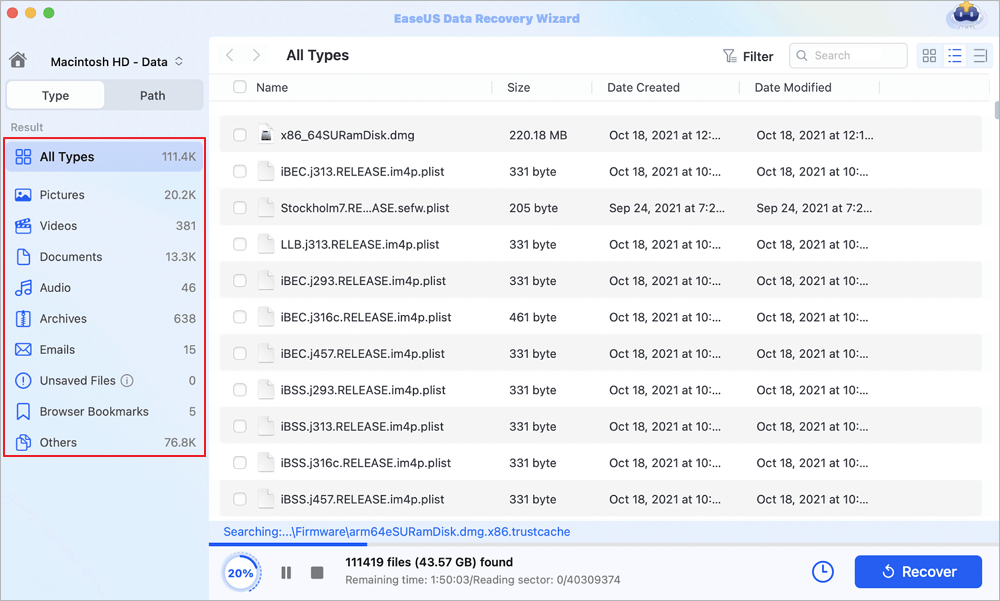
Step 3. After scanning, click "Videos" in the left panel to filter only video files. You can preview the recoverable clips.
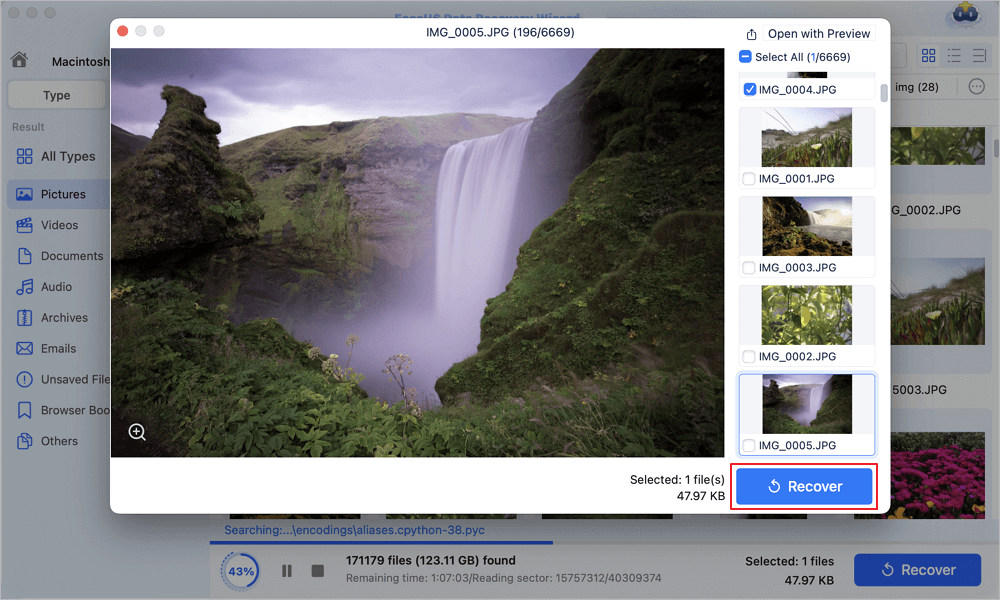
Step 4. Select the videos you want to recover from your Pocket 4. Click "Recover" and choose a save location on your Mac's internal hard drive or an external SSD. Never save back to the original SD card.
Recover Pocket 4 Videos on Mac with Backup (DJI Mimo & iCloud)
Proactive backup habits are your safest recovery strategy, especially for Mac users embedded in the Apple ecosystem. The Osmo Pocket 4 automatically saves to its microSD card, but leveraging DJI's and Apple's tools can prevent disasters.
-
DJI Mimo App Backup: Enable "Auto-Backup" in the DJI Mimo app to sync low-resolution proxies to your iPhone during filming. From there, they can sync to your Mac via iCloud Photos.
-
iCloud Drive / Mac Local Backups: If you previously imported footage to your Mac's Photos app or Finder, check the "Recently Deleted" album or your Time Machine backup drive.
-
External SSDs: If you follow a habit of offloading footage to an external SSD after each shoot, simply reconnect that drive.
If you've accidentally formatted the card in the Pocket 4, check these backups first. For Mac users, Time Machine often retains folder structures and version history, which can save you if the loss occurred after an initial import.
What Causes Osmo Pocket 4 Data Loss on Mac?
Understanding why files disappear helps you avoid future heartache. Recording with the Pocket 4 is seamless, but data loss can happen due to:
- Abrupt power loss or battery removal while saving a video.
- Removing the SD card while the Pocket 4 is still powered on.
- Accidental formatting via the camera menu or macOS Disk Utility.
- Using incompatible/fake SD cards – always use V30 or U3 rated cards from reputable brands.
- File system corruption from improperly ejecting the SD card from your Mac (always drag to Trash/Eject before unplugging).
- macOS background processes (like Spotlight indexing) that might interfere with the card's file structure if left connected for too long.
The Possibility to Recover Pocket 4 Videos on Mac
Can you recover videos from a formatted Osmo Pocket 4 using a Mac? Yes – if you act immediately. Recovery success depends on:
- Usage after deletion: New footage shot after deletion will overwrite old data permanently.
- Card health: Worn-out or counterfeit cards develop bad sectors, reducing success rates.
- Format type: Quick format on the Pocket 4 preserves data; a full format or Zero-fill on Mac erases it.
For logical failures (accidental deletion, quick format), professional tools like EaseUS Data Recovery Wizard for Mac boast a success rate of over 95% when used within 48 hours of data loss.
Pro tip: Enable the Osmo Pocket 4's "Auto-Sync to Album" feature (if available in a future firmware) or manually copy files to your Mac's internal SSD right after each shoot to avoid loss entirely.
Conclusion
That concludes our guide on how to recover Pocket 4 videos on Mac. Whether your footage was lost due to accidental deletion, formatting, or corruption, following the steps above gives you the best chance of restoring your cinematic memories.
EaseUS Data Recovery Wizard for Mac allows customers to recover various media assets, including high-bitrate 4K videos from the Osmo Pocket 4. It is a reliable resource whenever you need SD card data recovery software on macOS.
FAQs on Recover Pocket 4 Videos on Mac
Read the following questions you may be curious about:
1. Can I recover deleted videos from my DJI Osmo Pocket 4 directly on a Mac without software?
Only if you have a backup via DJI Mimo, iCloud, or Time Machine. Without a backup, you will need specialized Mac recovery software to scan the SD card's raw data.
2. Why doesn't my Pocket 4 video show up on my Mac?
It could be that the video file is corrupted, the SD card uses a file system not fully compatible (exFAT is best), or the file was deleted. Try using Disk Utility to repair the card, then run recovery software.
3. How do I avoid overwriting data on my Mac when recovering?
When EaseUS asks where to save recovered files, always choose your Mac's internal drive or a different external drive. Never choose the original SD card. Also, close any apps like Photos or FCP that might auto-import from connected drives.
Was This Page Helpful?

Finley is interested in reading and writing articles about technical knowledge. Her articles mainly focus on file repair and data recovery.
-
EaseUS Data Recovery Wizard is a powerful system recovery software, designed to enable you to recover files you’ve deleted accidentally, potentially lost to malware or an entire hard drive partition.
Read More -
EaseUS Data Recovery Wizard is the best we have seen. It's far from perfect, partly because today's advanced disk technology makes data-recovery more difficult than it was with the simpler technology of the past.
Read More -
EaseUS Data Recovery Wizard Pro has a reputation as one of the best data recovery software programs on the market. It comes with a selection of advanced features, including partition recovery, formatted drive restoration, and corrupted file repair.
Read More
Related Articles
-
MacBook Pro Keeps Restarting Loop: Causes & Fixes
![author icon]() Dany/Sep 20, 2026
Dany/Sep 20, 2026 -
How to Recover Previous Versions of Word Documents on Mac [Solved]
![author icon]() Tracy King/Sep 20, 2026
Tracy King/Sep 20, 2026 -
Recover Lost Data from xD-Picture Card on Mac
![author icon]() Jaden/Aug 14, 2026
Jaden/Aug 14, 2026 -
How to Recover Data from Another Mac in Target Disk Mode✅
![author icon]() Dany/Sep 20, 2026
Dany/Sep 20, 2026
 Dany/Sep 20, 2026
  Tracy King/Sep 20, 2026
  Jaden/Aug 14, 2026

