





 About the Author
 Reviews and Awards
 Mac SD Card Recovery
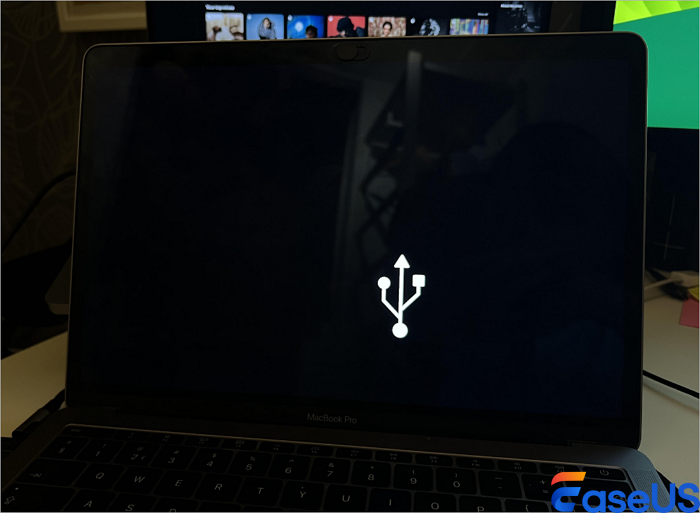
MacBook 2015-2016-ish. Bought brand new at time. Used daily. Never ever concerns. This morning won't start. As it was loading the screen went to the question mark. Can get to utility page but now saying no drive is there. Any chance you've run into this before? I would love to be able to recover the videos and photos. -from Reddit
Aging HDDs, corrupted file systems, failed macOS updates, and unplanned power outages are common causes of Mac crashes. An SSD may occasionally malfunction due to firmware errors or severe directory damage, rendering the disk unreadable.
Avoid frequent restarts, don't try to install macOS from scratch, and most definitely don't reformat the drive. The likelihood of overwriting the files you wish to recover increases with each write operation.
At this point, concentrate on protecting the current data. Get ready to apply safe recovery solutions to recover your files from the crashed Mac, and prepare an external drive or USB flash drive. Keep reading to find a detailed guide on recovering data from a crashed hard drive on a Mac.
How to Recover Data from a Crashed Hard Drive on a Mac
It's possible to recover all the data from the crashed Mac if you have backups. In most cases, you don't have backups and need to recover data from an unbootable Mac; the best option is to use professional unbootable Mac recovery software. We'll start with this method.
Method 1. Recover Data from a Crashed Mac with Data Recovery Software
Using specialized Mac hard drive recovery software is frequently the safest and easiest approach to recover your files when a Mac won't start or its internal drive won't mount.
It's especially helpful when the crash is caused by system corruption, a failed macOS update, or damaged APFS directories - issues that leave the Mac unbootable but still allow the drive to be scanned.
One practical option in this situation is EaseUS Data Recovery Wizard for Mac. It's designed to work even when the Mac can't load the operating system, because the software lets you create a bootable USB recovery drive on another working Mac.
With this data recovery software, you can easily recover data from an unbootable Mac using a bootable USB drive. Don't worry if you don't know how to create a bootable USB. This software also allows you to access the hard drive without a bootable USB. Check the following guide and recover data from the crashed Mac hard drive now:
Step 1. Launch EaseUS Software in Recovery Mode
Select "Utilities > Terminal" from the top menu, and enter the command sh <(curl https://d3.easeus.com/mac/boot.sh). Hit "Return". Wait for the application to open, and it will take several minutes.
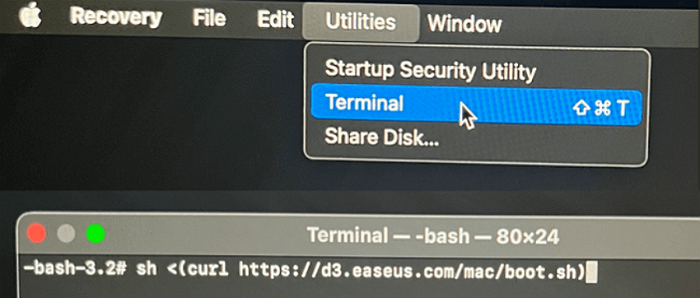
Note: If the Terminal displays either "No such file or directory" or "Could not resolve host," you should verify that the command line you entered is correctly spelled, ensure your Mac has a stable internet connection, and confirm that your macOS version is not lower than macOS 10.15.
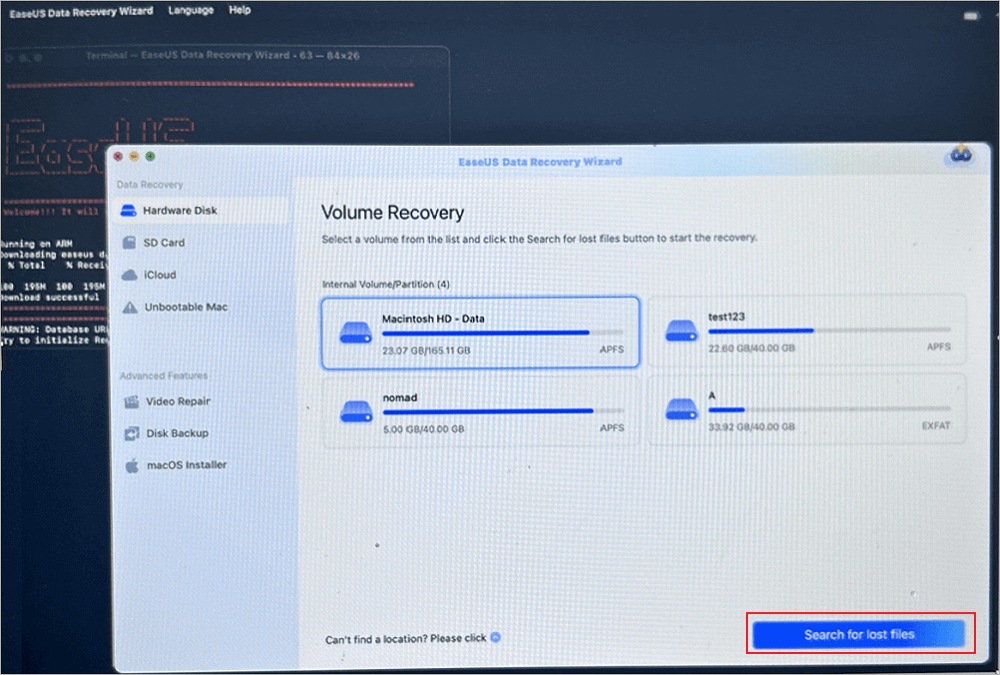
Step 2. Select the Volume on Your Mac Hard Drive
Select the volume where your lost data is stored, and click "Search for lost files". The EaseUS software will quickly locate all the recoverable data on the selected volume.
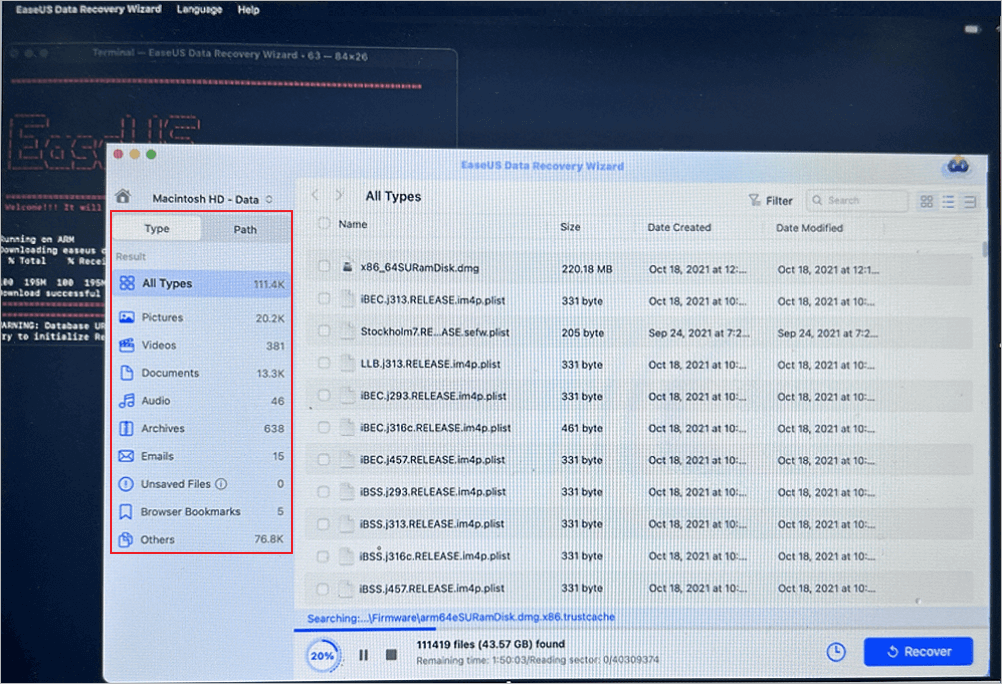
Step 3. Choose the Lost Data You Want
EaseUS software categorizes the scanned recoverable data by file type and storage path. Find the data you want by clicking "Type" or "Path" in the left panel. Then, check the boxes in front of the data you want to recover.
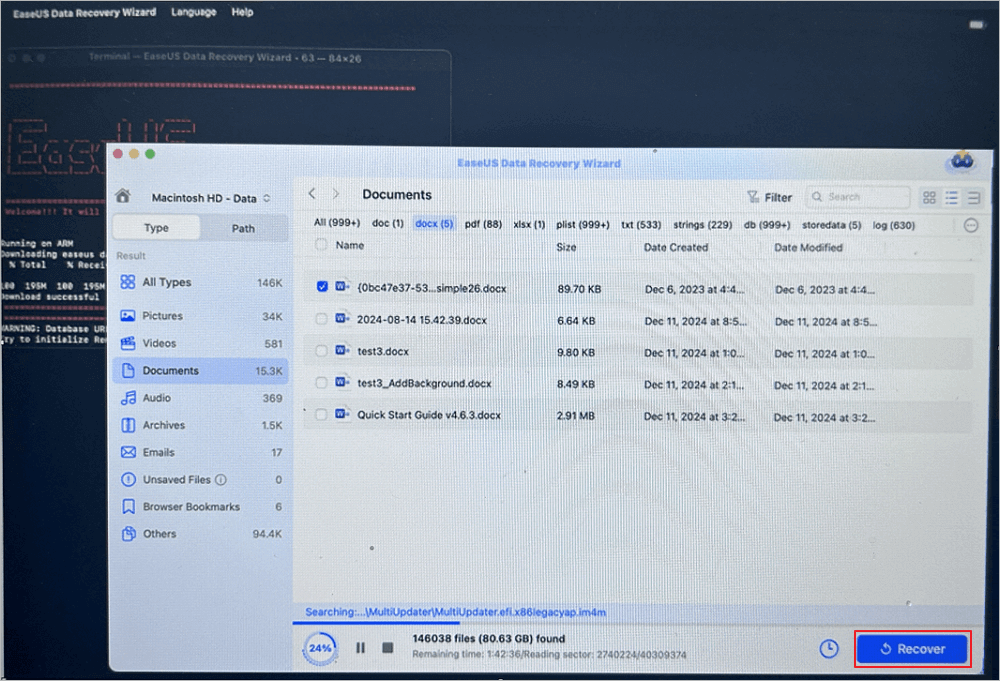
Step 4. Recover and Save Data on an External Disk
Click the "Recover" button, and a pop-up window will show up saying, "Please select a target location to save". Choose the external disk as the new storage location of your recovered data.
When the drive suffers logical damage instead of physical failure, this approach works well. You can share this guide on social media to help more users!

Method 2. Use Target Disk Mode to Access a Crashed Hard Drive
One Mac can serve as an external drive for another thanks to a built-in macOS feature called Target Disk Mode. This utility can make data access surprisingly simple when your system crashes, but the internal hard drive is still readable. When the problem is related to macOS startup issues, like being unable to verify the startup disk on a Mac, it is especially beneficial.
All you need to try this method is a second functional Mac and a USB-C or Thunderbolt cable. Once both
Step 1. Completely shut down the crashed Mac.
Step 2. Use a USB-C or Thunderbolt cable to connect it to the functional Mac.
Step 3. Hold down the T key to power on the crashed Mac.
Step 4. If the internal drive is still working, it should appear as an external disk on the other Mac's desktop.
Step 5. After opening the mounted drive, copy the files you wish to save to a secure external storage device.
How to Avoid a Mac Hard Drive Crash
Although no hard drive lasts forever, you may significantly lower the chance of another disaster and maintain the smooth operation of your Mac by adopting a few easy practices:
- Make sure you have enough storage space for your macOS operating system. The file system is constantly under pressure when you run your Mac with nearly no storage left.
- Your Mac may experience startup problems and corrupted system files if you interrupt it by forcing a restart of the Mac while it's writing data.
- Install macOS upgrades completely because incomplete installations can harm the drive structure.
- Maintaining regular backups guarantees that you can retrieve files in the event that the disk finally fails.
- Periodically check the disk's health. You can take action before a failure occurs by using tools like Disk Utility, which can alert you to early issues.
Share these valuable tips with more friends and help them avoid Mac hard drive crashing in the future!
Data Recovery from a Crashed Mac Hard Drive FAQs
1. How can I fix a corrupted hard drive on the Mac?
Disk Utility's First Aid tool can be used to try fixing a corrupted hard drive on the Mac. Creating a bootable recovery USB drive and using reliable data recovery software like EaseUS Data Recovery Wizard for Mac can help you safely recover your files if the drive remains inaccessible.
2. Can I recover data from a failed external hard drive on a Mac?
Yes, you can frequently restore data even if an external drive fails. To safely extract critical data and media, connect the drive to your Mac, refrain from creating new files, and use specialized recovery tools or Target Disk Mode.
3. Can I recover data from a dead MacBook?
If there is no physical damage to the internal disk, it is possible to recover data from a dead MacBook. You can safely access and retrieve your files by using professional recovery software, a bootable recovery drive, or Target Disk Mode.
Was This Page Helpful?

Finley is interested in reading and writing articles about technical knowledge. Her articles mainly focus on file repair and data recovery.

Dany is an editor of EaseUS who lives and works in Chengdu, China. She focuses on writing articles about data recovery on Mac devices and PCs. She is devoted to improving her writing skills and enriching her professional knowledge. Dany also enjoys reading detective novels in her spare time.
-
EaseUS Data Recovery Wizard is a powerful system recovery software, designed to enable you to recover files you’ve deleted accidentally, potentially lost to malware or an entire hard drive partition.
Read More -
EaseUS Data Recovery Wizard is the best we have seen. It's far from perfect, partly because today's advanced disk technology makes data-recovery more difficult than it was with the simpler technology of the past.
Read More -
EaseUS Data Recovery Wizard Pro has a reputation as one of the best data recovery software programs on the market. It comes with a selection of advanced features, including partition recovery, formatted drive restoration, and corrupted file repair.
Read More
Related Articles
-
Data Recovery Software Review Hub | Tests, VS & Top Picks
![author icon]() Dany/Sep 23, 2026
Dany/Sep 23, 2026 -
Fix No Macintosh HD in Disk Utility in Finder/Recovery Mode
![author icon]() Brithny/Sep 28, 2026
Brithny/Sep 28, 2026 -
Recover Formatted NTFS Partitions on Mac | 2026 Complete Guide
![author icon]() Brithny/Sep 20, 2026
Brithny/Sep 20, 2026 -
Recently Deleted Photos Missing: Why & How to Fix
![author icon]() Brithny/Sep 27, 2026
Brithny/Sep 27, 2026
 Brithny/Sep 28, 2026

