





 About the Author
 Reviews and Awards
 Mac SD Card Recovery
You open System Settings, click Software Update, and... nothing. No macOS 27 Golden Gate. Just that cheerful "Your Mac is up to date" message. Frustrating, right?
If you're dealing with the no macOS 27 update problem, you're not alone. This is one of the most common issues users face when a new macOS release rolls out. The good news? It's almost always fixable. Here's a complete walkthrough of why it happens and how to get the update to show up.
Why Is the macOS 27 Update Not Showing Up
Before you start panicking or assuming your Mac is broken, understand that there are several legitimate reasons the update might be hidden:
- Hardware support deprecation: Apple drops older Intel Macs from new macOS releases. If your device isn't on the supported list, the update simply won't appear.
- Staggered server distribution: Apple rolls out updates gradually over hours or even days to avoid overwhelming their servers. Your region might just be later in the queue.
- Corrupted software update caches: Local update files can become outdated or damaged, causing your Mac to incorrectly report that no updates are available.
- Beta profile mismatches: If you have an active Developer or Public Beta profile installed, your Mac may only check old beta channels instead of official release channels.
- Network and firewall restrictions: VPNs, security software, or strict router firewall rules can block your Mac from reaching Apple's update servers.
First Aid: Recover Lost Data Before Update Your Mac
Before running any of the fixes below, create a complete Time Machine backup to an external drive. System update troubleshooting can occasionally leave your drive unbootable or cause files to go missing. If something goes wrong, EaseUS Data Recovery Wizard for Mac provides a reliable recovery path.
Here is how you can recover deleted files with this data recovery tool for Mac from EaseUS:
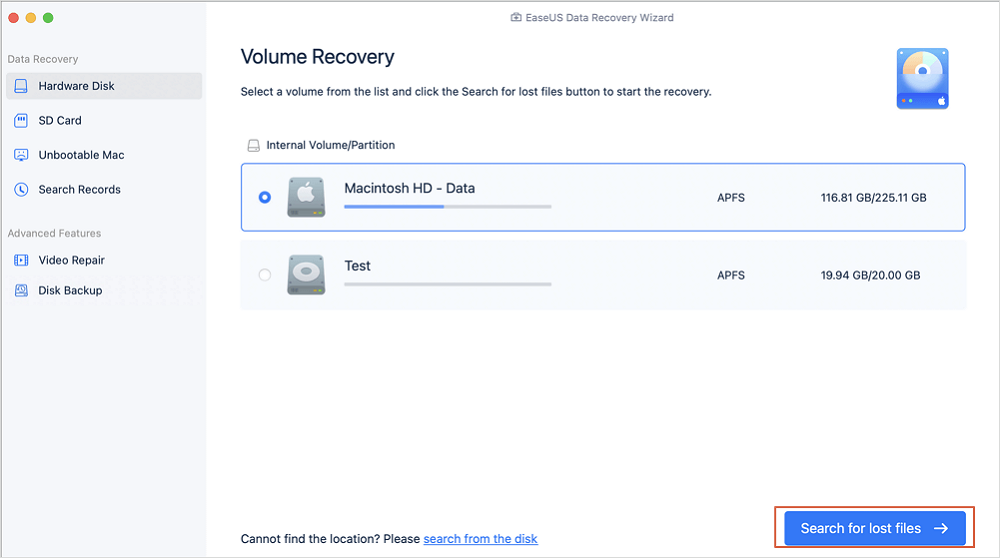
Step 1. Select the drive to be scanned
In the main EaseUS Data Recovery Wizard window, there will be a list of the drives connected to your Mac. Select the drive you need to recover lost/deleted files from, and click the "Search for lost files" button.
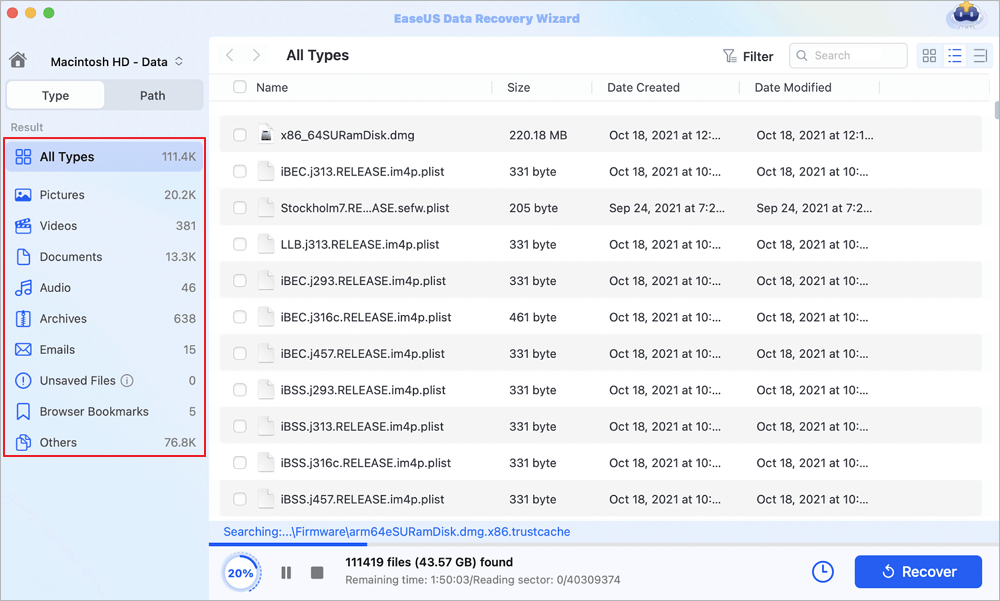
Step 2. Select your lost data/files
EaseUS Data Recovery Wizard for Mac will immediately scan your selected disk volume and display the scanning results on the left pane. You can sort the results to find the wanted files if you are looking for certain files.
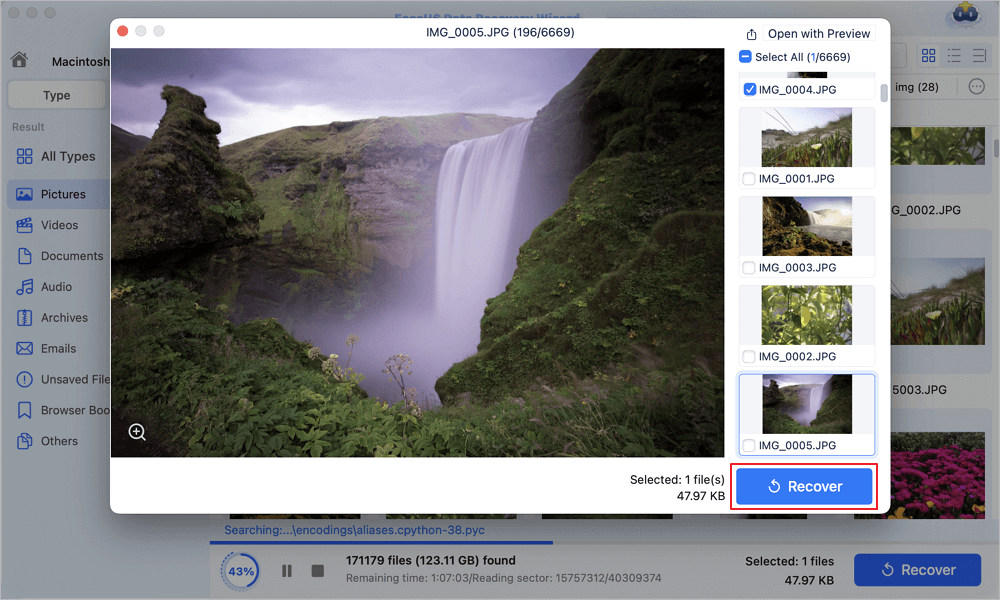
Step 3. Recover lost/deleted data
Once you have found the desired files, preview the files and then click "Recover" to begin the recovery of your deleted/lost Mac files.
You can share this post with users who are facing the same macOS error:

Method 1. Verify Hardware Compatibility to Fix No macOS 27 Update
The most common reason the macOS 27 update doesn't appear is that Apple has officially excluded your Mac model from the native support list. Modern macOS releases require specific hardware features like Metal 3 graphics and Apple Silicon or recent Intel processors.
Check this compatibility matrix to confirm whether your Mac natively supports macOS 27 Golden Gate:
| Mac Product Family | Natively Supported Models | Unsupported Legacy Models | Required Workaround |
|---|---|---|---|
| MacBook Pro | 2021 Apple Silicon and Select Recent Intel Models | 2017 and Older Touch Bar Models | Requires OpenCore Legacy Patcher to bypass native checks |
| MacBook Air | M1, M2, M3, and Modern Intel Models | 2017 and Older Ultraportable Models | Requires custom EFI bootloader patching for installation |
| iMac | 24-inch Apple Silicon and Late Intel Models | 2017 and Older Slim Unibody Models | Requires patcher utilities for legacy graphics acceleration |
| Mac Mini / Mac Studio | M1, M2, M3, and Late Intel Minis | 2014 and Older Desktop Units | Requires secondary storage upgrades and custom boot paths |
To check your exact model identifier, click the Apple icon in the top-left corner of your screen, select About This Mac, and note the model name and manufacturing year.
Method 2. Refresh Software Update via Terminal to Fix No macOS 27 Update
If your Mac is compatible but the update still won't appear, the background software update daemon may have stalled. Force macOS to flush its catalog cache and query Apple's servers directly:
Step 1. Open Finder → Applications → Utilities → launch Terminal.
Step 2. Type this command to reset the software update catalog flag:
Step 3. Press Enter, then enter your administrator password when prompted.
Step 4. Execute this command to force a fresh scan:
Check the terminal output. If macOS 27 Golden Gate appears in the list, open System Settings → General → Software Update to start the download.
Method 3. Remove Stale Software Update Preference Caches
Corrupted preference files can prevent System Settings from fetching updated system images. Deleting these cached files forces macOS to rebuild its software catalog from scratch.
-
Open System Settings → General → Software Update, and temporarily toggle off automatic update checks.
-
Open Finder, click Go in the menu bar, choose Go to Folder, and enter:
text/Library/Preferences/com.apple.SoftwareUpdate.plist
-
Move the target plist file to the Trash.
-
Open Go to Folder again and navigate to:
text~/Library/Caches/
-
Locate folders related to software updates (such as
com.apple.SoftwareUpdate) and move them to the Trash. -
Restart your Mac, return to System Settings, and check for the macOS 27 update again.
Method 4: Check Beta Profile Settings
If you previously enrolled in a beta program, your Mac may be stuck checking the wrong channel. Go to System Settings → General → Software Update → click the info icon next to "Beta updates" and either switch to the official release channel or turn off beta updates entirely. Then check for updates again.
Method 5: Rule Out Network Issues
VPNs and restrictive firewalls are silent update killers. Temporarily disable your VPN, turn off any third-party security software, and try a different Wi-Fi network if possible. Once you've confirmed the update appears, you can re-enable your normal network configuration.
Final Thoughts
The no macOS 27 update issue usually comes down to one of three things: hardware eligibility, network stability, or corrupted local cache files. Work through the methods above in order — verify compatibility first, then refresh the update daemon, then clear caches — and you'll almost always get the installer to appear.
Keep a tool like EaseUS Data Recovery Wizard on hand so your media libraries and project assets stay secure throughout your macOS 27 installation journey.
Frequently Asked Questions
1. Why is macOS 27 showing up on one of my Macs but missing on another?
Different Macs display updates at different times based on hardware compatibility, active beta profiles, and geographic server routing. If one Mac is an unsupported older model and the other is a supported Apple Silicon machine, the older one will automatically hide the upgrade until you use custom patcher tools.
2. Can I force my Mac to download macOS 27 if it's officially unsupported?
Yes. You can install macOS 27 Golden Gate on unsupported hardware using third-party utilities like OpenCore Legacy Patcher. These tools inject missing driver extensions and emulate supported board identifiers, allowing the installer to download and run on legacy systems.
3. Will clearing my software update cache delete personal files?
No. Clearing software update preference cache files only removes temporary system catalog logs and configuration plists. It does not affect your documents, photos, applications, or desktop files.
Was This Page Helpful?

Cedric Grantham is a senior editor and data recovery specialist of EaseUS. He mainly writes articles and how-to tips about data recovery on PC and Mac. He has handled 10,000+ data recovery cases and is good at data recovery of NTFS, FAT (FAT32 and ExFAT) file systems, and RAID structure reorganization.

Finley is interested in reading and writing articles about technical knowledge. Her articles mainly focus on file repair and data recovery.
-
EaseUS Data Recovery Wizard is a powerful system recovery software, designed to enable you to recover files you’ve deleted accidentally, potentially lost to malware or an entire hard drive partition.
Read More -
EaseUS Data Recovery Wizard is the best we have seen. It's far from perfect, partly because today's advanced disk technology makes data-recovery more difficult than it was with the simpler technology of the past.
Read More -
EaseUS Data Recovery Wizard Pro has a reputation as one of the best data recovery software programs on the market. It comes with a selection of advanced features, including partition recovery, formatted drive restoration, and corrupted file repair.
Read More
Related Articles
-
Where Do Deleted Photos Go on Mac [with Methos to Restore Deleted Photos]
![Brithny]() Brithny/Nov 02, 2026
Brithny/Nov 02, 2026 -
How to Recover Videos from a Nextbase Dashcam
![Brithny]() Brithny/Nov 02, 2026
Brithny/Nov 02, 2026 -
Mac Raw Recovery: How to Recover Data from Raw Hard Drive/Partition
![Daisy]() Daisy/Nov 02, 2026
Daisy/Nov 02, 2026 -
Seagate Backup Plus for Mac Not Recognized [Without Losing Data]
![Brithny]() Brithny/Nov 02, 2026
Brithny/Nov 02, 2026
 Brithny/Nov 02, 2026
  Daisy/Nov 02, 2026

