





 About the Author
 Reviews and Awards
 Mac SD Card Recovery
Are you excited to explore the new features of macOS 27 Golden Gate, but finding that the installation keeps failing? You're not alone. Many users have reported issues when trying to upgrade, with error messages like "An error occurred during installation" or "Installation failed" appearing on their screens. Don't worry—this is usually caused by a few common issues that can be resolved.
Why Won't macOS Golden Gate Install
Before diving into solutions, let's identify the potential culprits:
💾 Reason 1: Hardware Incompatibility (Most Common)
This is the most frequent reason. macOS 27 Golden Gate no longer supports Intel-based Macs. Only Macs with Apple Silicon chips (M1, M2, M3, M4, or M5) are compatible with this update. Double-check your Mac model before proceeding.
💾 Reason 2: Insufficient Storage Space
Installing a major system update requires plenty of free space. You'll typically need more than 20 GB of available storage for the installation package and its extraction process.
🌐 Reason 3: Unstable Internet Connection
The Golden Gate installer is a large file (around 15–20 GB). A slow or unstable internet connection can interrupt the download and cause installation failures.
❌ Reason 4: Software Conflicts
Some early testers have reported that installing Golden Gate directly within certain virtual machine environments (like UTM) can fail—this is a known issue with the current version. Additionally, some older Intel applications that rely on Rosetta 2 may not be supported in future updates. While this doesn't directly prevent installation, it's good to be aware of as you plan your app upgrades.
5 Ways to Fix macOS Golden Gate Installation Issues
Here are several solutions to help you resolve the installation problem. Before you start, it's crucial to back up your data to prevent loss.
Fix 1. Try Professional MacOS Downloader
Complete the installation by following the onscreen instructions. If you're looking to create a bootable installer for macOS 27 Golden Gate, EaseUS Data Recovery Wizard for Mac offers a free and easy solution.
It allows you to install the latest macOS on multiple Mac computers and, more importantly, helps you recover lost data if your macOS Golden Gate upgrade encounters issues.
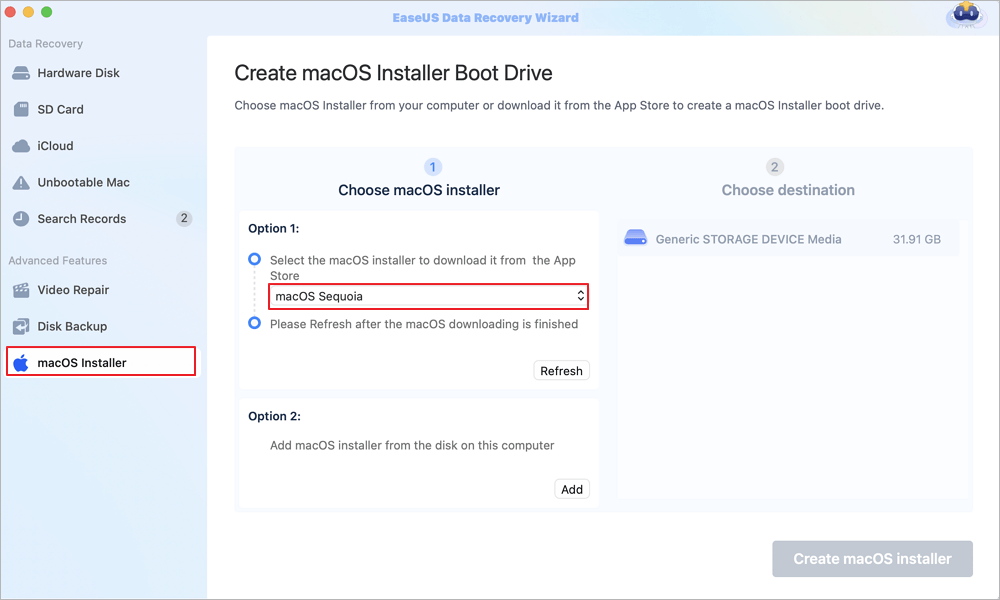
Step 1. Select a macOS version
Select a macOS version from the list, or click the "Refresh" option to get the downloaded macOS version. Or you can add a macOS installer from your disk by clicking the "Add" button. Insert a USB flash drive larger than 16 GB to save the macOS installer.
Step 2. Erase the USB flash drive
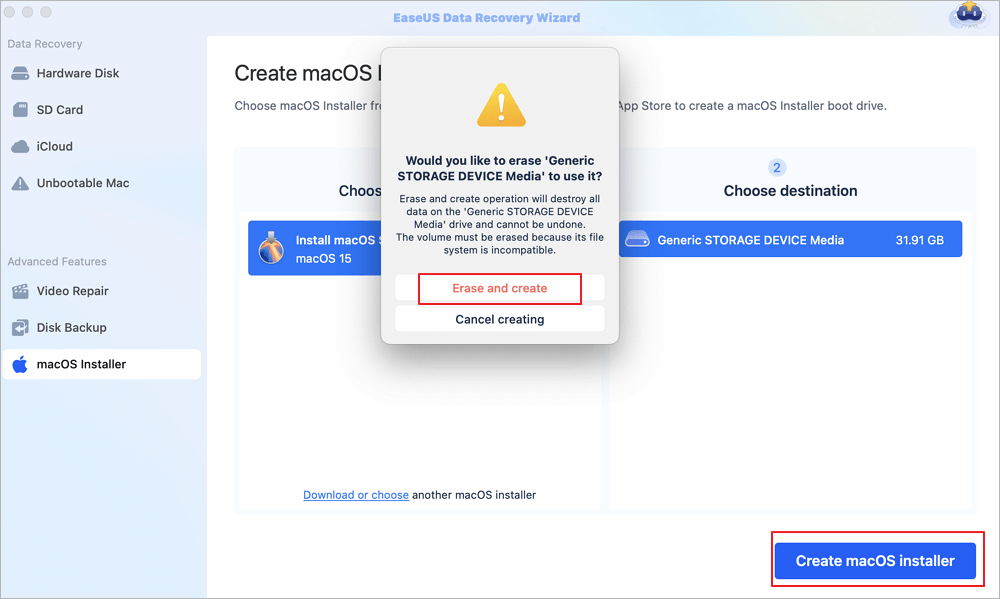
After choosing the USB flash drive, click the "Erase and create" option in the pop-up window to format your USB flash drive quickly, and then click the "Create macOS installer" button to continue.
- Note: This operation will delete all data on your USB flash drive, please back up important data in advance, or use EaseUS data recovery software to recover your data.
Step 3. Create the macOS installer boot drive
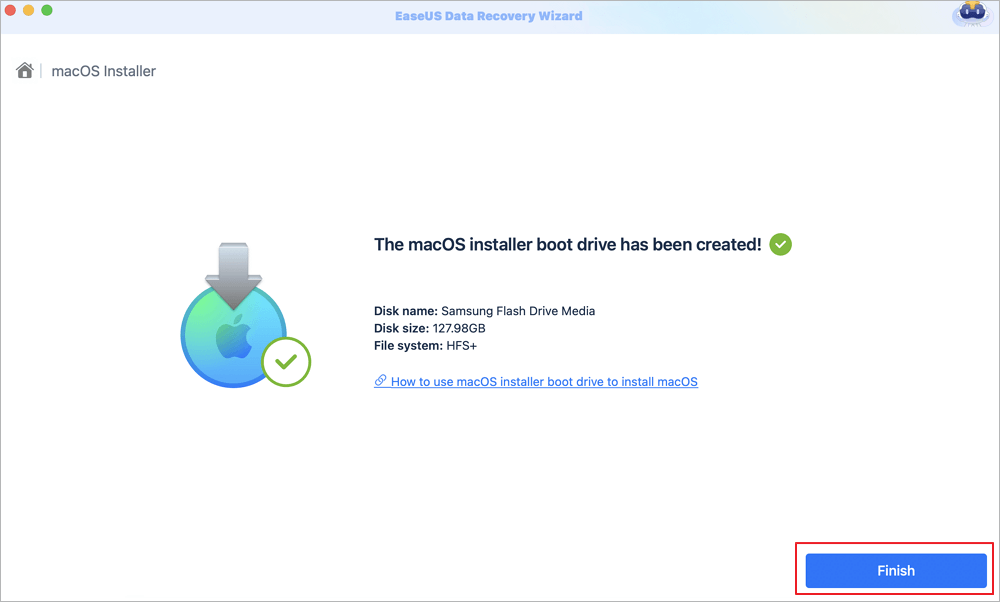
Wait for the process to complete, and click the "Finish" button. Your macOS installer boot drive has been successfully created!
Share this post with users who are facing the same
Fix 2. Check Your Internet Connection
The easiest fix is to verify your network connection. Make sure you have a strong, stable Wi-Fi or Ethernet connection. If your connection is spotty, restart your router or switch to a different network.
Fix 3. Verify Compatibility
As mentioned earlier, only Apple Silicon Macs are supported. Here's the list of compatible models:
- MacBook (2020 and later with M1 chip)
- MacBook Air (2020 and later)
- MacBook Pro (2020 and later)
- Mac mini (2020 and later)
- iMac (2021 and later)
- iMac Pro (2023 and later)
- Mac Studio (2022 and later)
- Mac Pro (2023 and later)
Fix 4. Free Up Storage Space
Lack of free space is a primary reason for installation failures. Here's how to check:
Step 1. Go to the Apple menu and select System Settings.
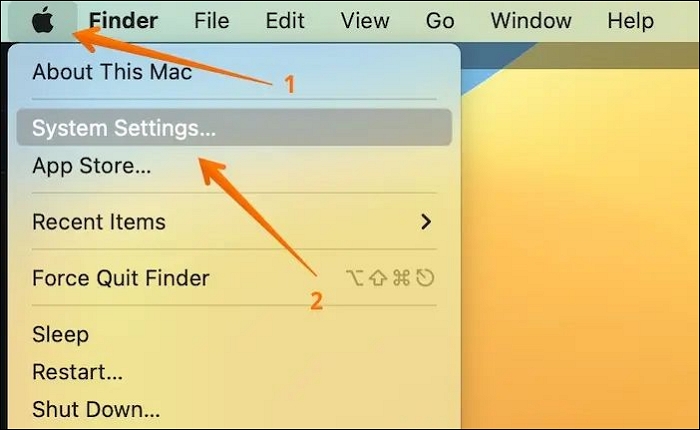
Step 2. Click General in the sidebar, then select Storage on the right.
Step 3. You'll see a bar at the top showing your available space. If you're low on storage, delete unnecessary files, empty the Trash, and consider moving large files to an external drive.
Fix 5. Run First Aid in Recovery Mode
Repairing disk errors can resolve installation issues:
Step 1. Restart your Mac and hold down Command + R (for Intel Macs) or press and hold the Power button (for Apple Silicon Macs) until you see startup options.
Step 2. Select "Disk Utility" and click "Continue".
Step 3. Choose your startup drive (usually "Macintosh HD").
Step 4. Click "First Aid" and then Run.
Step 5. Wait for the process to complete and restart your Mac.
What If Nothing Works? Downgrade to a Previous Version
If you're still stuck, you may need to downgrade to macOS 26 or an earlier version. Here's how to restore from a Time Machine backup:
- Connect your Time Machine drive to your Mac.
- Restart your Mac.
- Enter Recovery Mode (Command + R for Intel, or hold the Power button for Apple Silicon).
- From the macOS Utilities window, select "Restore from Time Machine Backup".
- Choose your backup drive and follow the on-screen instructions.
Final Thoughts
Frustrated that macOS Golden Gate won't install on your Mac? It's often due to compatibility issues, insufficient storage, or network problems. By following the steps outlined above—checking compatibility, freeing up space, running First Aid, and trying alternative installation methods—you can resolve most issues.
However, if you need to perform a clean install or encounter data loss during the process, EaseUS Data Recovery Wizard for Mac is your reliable safety net. Download it today to ensure your valuable files are always recoverable.
FAQs on macOS Golden Gate Installation
Here are some frequently asked questions about the macOS installation failure:
1. Why can't I install macOS Golden Gate on my Mac?
The most common reasons are hardware incompatibility (Intel Macs are not supported), insufficient storage space, network issues, or corrupted installer files.
2. How do I force my Mac to update to Golden Gate?
Go to Apple menu > System Settings > General > Software Update. If the update appears, click Upgrade Now. Alternatively, download the installer from the Mac App Store.
3. Can I downgrade from Golden Gate to a previous version?
Yes, you can downgrade using Time Machine backup or by creating a bootable installer of an earlier macOS version. Note that Apple Silicon Macs may have limitations depending on the version.
4. How much free space do I need for macOS Golden Gate?
You'll need at least 20 GB of free space, but more is recommended to ensure a smooth installation process.
Was This Page Helpful?

Finley is interested in reading and writing articles about technical knowledge. Her articles mainly focus on file repair and data recovery.
-
EaseUS Data Recovery Wizard is a powerful system recovery software, designed to enable you to recover files you’ve deleted accidentally, potentially lost to malware or an entire hard drive partition.
Read More -
EaseUS Data Recovery Wizard is the best we have seen. It's far from perfect, partly because today's advanced disk technology makes data-recovery more difficult than it was with the simpler technology of the past.
Read More -
EaseUS Data Recovery Wizard Pro has a reputation as one of the best data recovery software programs on the market. It comes with a selection of advanced features, including partition recovery, formatted drive restoration, and corrupted file repair.
Read More
Related Articles
-
iMessage Photos Not Showing on Mac, 4 Methods to Fix It
![author icon]() Brithny/Sep 28, 2026
Brithny/Sep 28, 2026 -
Repair Corrupted Excel File Mac [Straightforward Tips for Mac]
![author icon]() Dany/Sep 28, 2026
Dany/Sep 28, 2026 -
Fix com.apple.DiskManagement.disenter error 49244 on macOS [6 Proven Ways]
![author icon]() Brithny/Sep 28, 2026
Brithny/Sep 28, 2026 -
How to Use Ddrescue on a Mac: A Complete Data Recovery Guide
![author icon]() Finley/Sep 20, 2026
Finley/Sep 20, 2026
 Brithny/Sep 28, 2026
  Dany/Sep 28, 2026

