





 About the Author
 Reviews and Awards
 Mac SD Card Recovery
Why Does macOS Golden Gate Keep Crashing
If your Mac keeps crashing after the macOS Golden Gate update, that's a headache no one wants. Maybe it just freezes, restarts for no reason, apps suddenly quit, or you get that ominous message about your computer restarting because of a problem. Crashes like these usually point to trouble with software, not enough storage, a messed-up file system, apps that aren't playing nice, or glitches from a big macOS update.
Here's what usually causes these repeat crashes after installing or updating to macOS Golden Gate:
1. Software Bugs and Conflicts
Big macOS updates change a ton of things at once. If something in the new system doesn't play well with what you already have installed, crashes or freezes can happen fast.
If this all started right after an update, check for another available update before trying deeper troubleshooting.
2. Apps or Extensions That Don't Work Anymore
Some apps or add-ons that worked fine on your old macOS might not survive the upgrade. Stuff that often causes trouble includes: antivirus, VPNs, other plug-ins, etc.
Apple says third-party add-ons and tweaks often break when either macOS or the main app gets updated.
3. Not Enough Free Storage
Your Mac needs some room to work- temp files, caches, updates; all of it can cause there to be not enough storage for your Mac and cannot install macOS Golden Gate.
Storage isn't always the only cause, but it's an easy one to check.
4. Disk or File System Problems
If the file system is damaged or the disk has errors, maybe the directory structure is broken, or APFS is acting up; macOS might struggle just to access its own files.
Disk Utility's First Aid tool can fix some of these issues, but not all.
How to Fix macOS Golden Gate Keeps Crashing
Now that you know the usual suspects, let's walk through fixes: start simple, go deeper only if you have to. And always back up important stuff first. If your Mac is too unstable to do anything, focus on recovering your files before you mess with settings or operating systems.
Fix 1. Restart Your Mac and Check for macOS Updates
Sometimes, a quick restart is all you need. More importantly, check for system updates; Apple patches bugs as they go.
Step 1. Save your work and close everything.
Step 2. Restart your Mac. Use the Apple menu > Restart. If it's totally frozen, hold the power button until it shuts down. Wait a few seconds, then turn it back on.
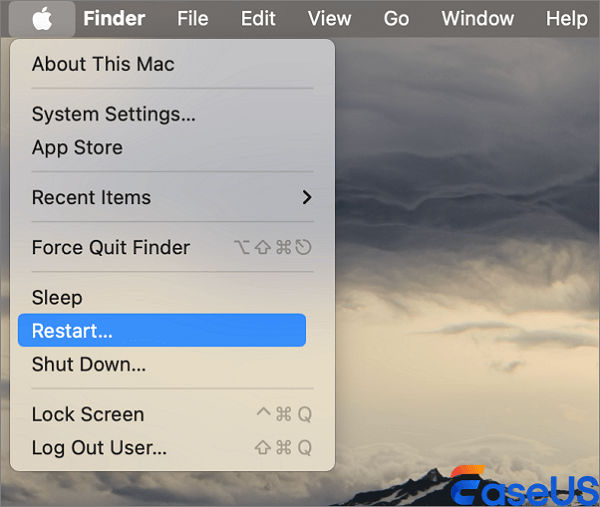
Step 3. Open System Settings from the Apple menu.
Step 4. Head to General > Software Update and let it check for updates.
Step 5. If there's something new, install it. Restart again when it's done.
Use your Mac like normal for a bit to see if the crashes come back. If you're still crashing after updating, go on to Safe Mode.
Fix 2. Start Your Mac in Safe Mode
Safe Mode helps you figure out if software that loads during startup is causing the problem. If your Mac is fine in Safe Mode (but crashes outside of it), third-party extras are probably to blame.
How you get into Safe Mode depends on your Mac's chip:
For Apple silicon:
- Shut down your Mac.
- Hold the power button until you see startup options.
- Pick your startup disk.
- Hold Shift, then click "Continue in Safe Mode."
- Let it boot up.
For Intel Macs:
- Shut down.
- Turn it back on and hold Shift immediately.
- Keep holding until you get to log in.
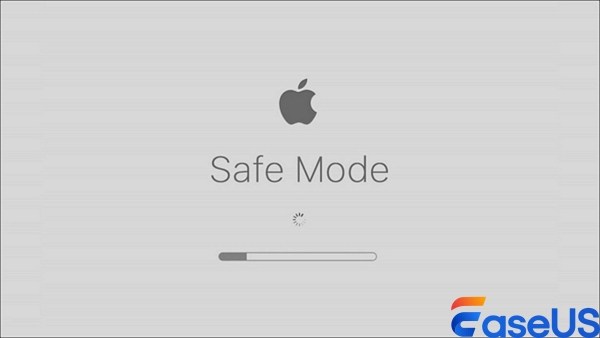
Now, use the Mac with apps and activities that might cause crashes. If Safe Mode is stable, take a look at apps, login items, plugins, VPNs, antivirus tools, anything added recently.
Fix 3. Check Your Mac's Storage and Free Up Space
Check your available space before you start running repairs or reinstalling macOS. Not having enough space can cause macOS updates to fail.
Step 1. Open System Settings (Apple menu).
Step 2. Click "General", then "Storage".
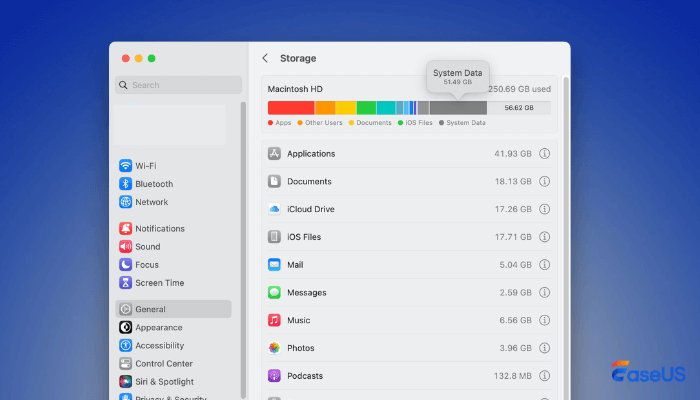
Step 3. See how much space is left.
Step 4. Delete or move big files: old downloads, large videos, unused apps, old disk images, temp files, duplicates, etc. If it's important, move it to an external drive.
Step 5. Don't forget to empty the Trash. After that, restart your Mac.
If crashes keep happening before you can get to files you need, focus on data recovery next, not deleting more files or repeated restarts.
You can share these methods on social media to help others who also have macOS Golden Gate crash issues.

Fix 4. Run First Aid in Disk Utility
If you suspect disk errors or file system corruption, it's time for Disk Utility.
Step 1. If you can, back up your stuff before repairs.
Step 2. Open Disk Utility (in Applications > Utilities) if your Mac starts up. If not, launch Disk Utility from macOS Recovery.
Step 3. Click "View"> "Show All Devices" so you can see everything.
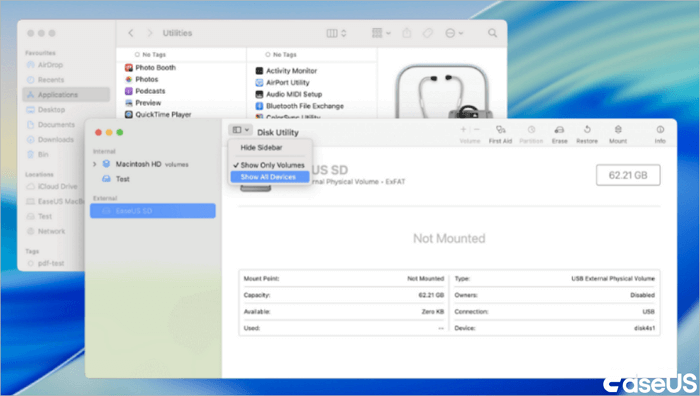
Step 4. Highlight your main volume (like "Macintosh HD - Data"), run First Aid, and wait.
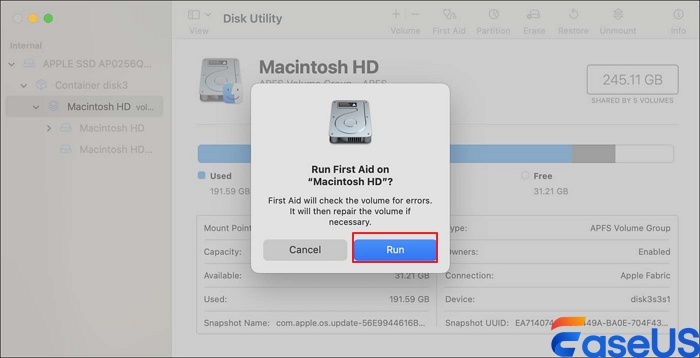
Step 5. Do the same for other volumes (you'll see them on the left).
Step 6. Next, select the APFS container above your volumes and run First Aid again.
Step 7. Finally, select the actual physical storage device and run First Aid there too.
Step 8. When it's done, check the results. If it says the disk is OK or repairs finished successfully, reboot and see if crashes continue.
If First Aid can't fix your disk, don't erase it yet if you still need files; try to recover your data before wiping anything. Sometimes disks just need to be replaced, but always try saving your files first.
Fix 5. Reinstall macOS Golden Gate Without Erasing Your Mac
If nothing else has worked, reinstalling macOS can restore broken or missing pieces of the system. This doesn't wipe your files if you do it right, just repairs macOS.
Make sure you've backed up important files if you can.
For Apple silicon Macs:
- Shut down.
- Hold the power button until startup options appear.
- Click Options > Continue.
For Intel Macs:
- Turn the Mac on and immediately hold Command (⌘) + R.
- Hold until you see Recovery.
Connect to Wi-Fi. Choose "Reinstall macOS" and click "Continue".
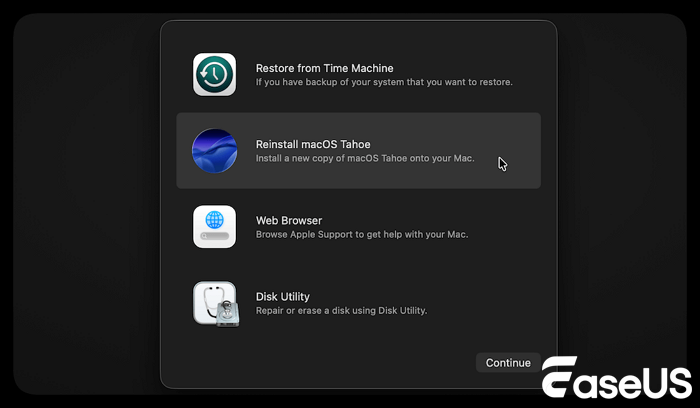
Pick the same startup disk ("Macintosh HD", usually), but don't pick erase or format; just reinstall.
If you're still crashing even after a clean reinstall, you might have a hardware problem or a really stubborn peripheral causing the issue.
Recover Lost Data After macOS Golden Gate Keeps Crashing
If the Mac has been crashing over and over, sometimes files just disappear. Before trying more risky solutions (like reformatting or erasing anything), try to recover your data.
EaseUS Data Recovery Wizard for Mac can scan your disk and restore files, just don't save anything new to the same drive, or you might overwrite what you're trying to recover!
If your files are accidentally removed because macOS 27 crashes unexpectedly, you can recover missing files after macOS Golden Gate with this Mac data recovery software.
Check the following tutorial and recover data from your Mac:
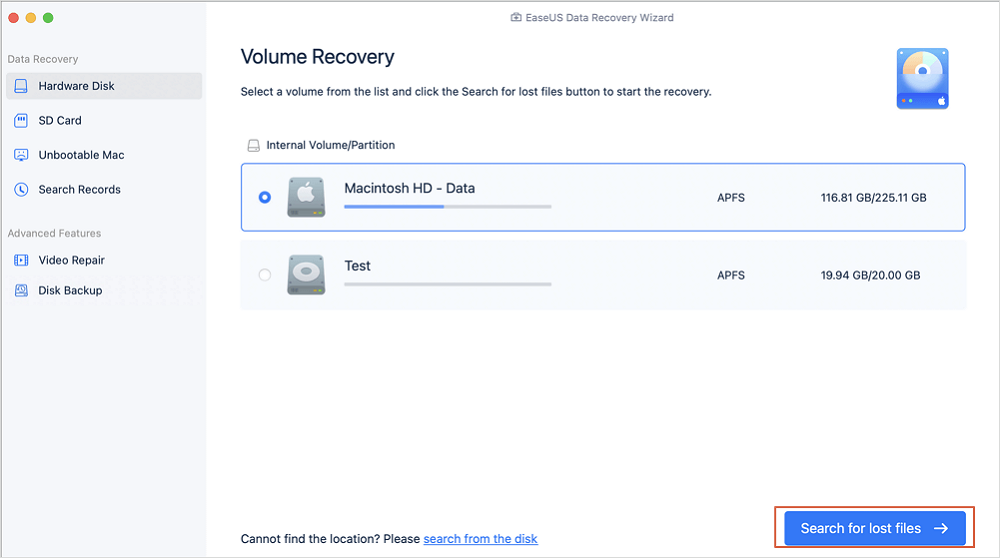
Step 1. Select the location to scan
Launch EaseUS Data Recovery Wizard for Mac and choose the hard drive, SSD, SD card, USB flash drive, or TF card where you lost data. Click "Search for lost files" to start scanning.
Step 2. Filter lost Mac data
The software will automatically scan for lost data on MacBook/iMac. When the scan completes, filter wanted data through the "Type" and "Path" buttons.
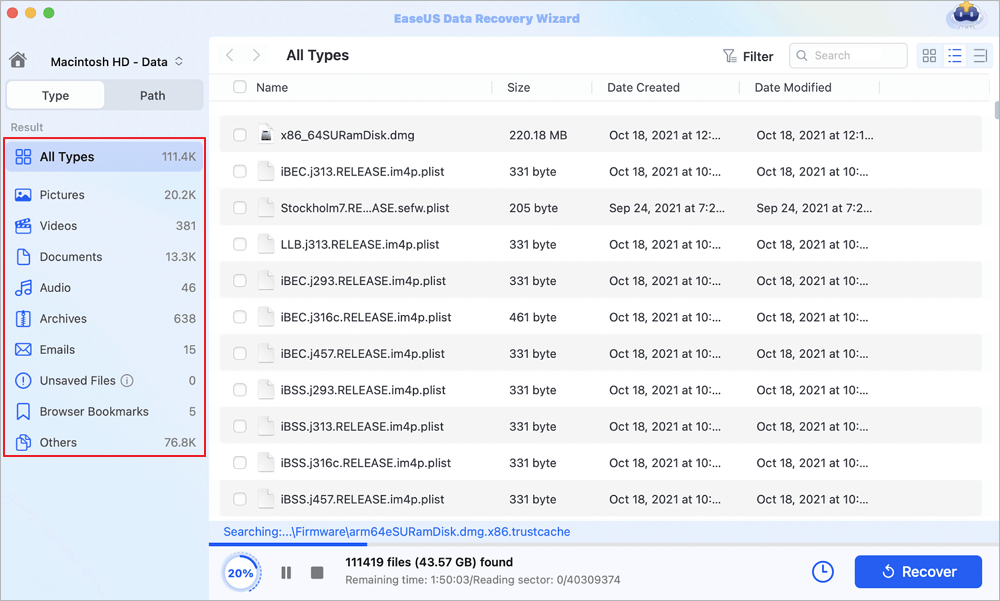
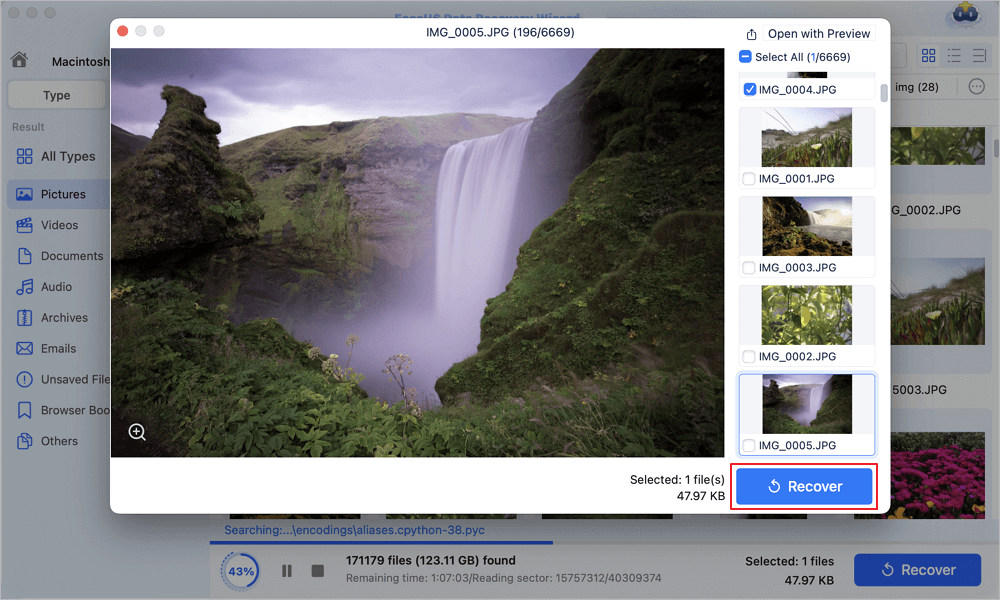
Step 3. Recover lost data or files
Double-click a file to preview it. Then, click the "Recover" button to restore the lost data to another place.
Summary
To fix macOS Golden Gate crashes, start with the basics: restart, update, and see if that fixes it. If not, use Safe Mode to check for dodgy apps or extensions. Still not working? Check your storage space and free up room if you can. Run Disk Utility's First Aid to tackle file system errors. As a last resort, reinstall macOS without erasing your files.
If something's already missing, use a tool like EaseUS Data Recovery Wizard for Mac to try to get your files back before you erase, reinstall, or reformat.
Crashes on macOS Golden Gate FAQs
1. Why does macOS Golden Gate keep crashing?
Usually, it's because of apps that aren't compatible, third-party extensions, running out of storage, a messed-up file system, weird external devices, or hardware failures. If it started right after an update, check if another update is available.
2. Should I erase everything if macOS keeps crashing?
Don't do that unless you've tried everything else—updates, Safe Mode, storage cleanup, Disk Utility, reinstalling macOS. Always recover or back up files before erasing.
3. Can Safe Mode really fix crashes?
Safe Mode doesn't always fix the root problem, but it helps show if a background app or startup item is to blame. If things work in Safe Mode, uninstall or update recently added apps and extras.
Was This Page Helpful?

Dany is an editor of EaseUS who lives and works in Chengdu, China. She focuses on writing articles about data recovery on Mac devices and PCs. She is devoted to improving her writing skills and enriching her professional knowledge. Dany also enjoys reading detective novels in her spare time.
-
EaseUS Data Recovery Wizard is a powerful system recovery software, designed to enable you to recover files you’ve deleted accidentally, potentially lost to malware or an entire hard drive partition.
Read More -
EaseUS Data Recovery Wizard is the best we have seen. It's far from perfect, partly because today's advanced disk technology makes data-recovery more difficult than it was with the simpler technology of the past.
Read More -
EaseUS Data Recovery Wizard Pro has a reputation as one of the best data recovery software programs on the market. It comes with a selection of advanced features, including partition recovery, formatted drive restoration, and corrupted file repair.
Read More
Related Articles
-
What to Do When Your MacBook Freezes or Is Frozen
![author icon]() Jaden/Sep 20, 2026
Jaden/Sep 20, 2026 -
R-Studio for Mac: Ultimate Guide to R-Studio on macOS
![author icon]() Brithny/Sep 20, 2026
Brithny/Sep 20, 2026 -
Cannot Update to macOS Tahoe? Try These Easy Solutions
![author icon]() Dany/Sep 20, 2026
Dany/Sep 20, 2026 -
Why Your Mac is Running Slow and How to Fix It
![author icon]() Jean/Sep 20, 2026
Jean/Sep 20, 2026
 Jaden/Sep 20, 2026
  Brithny/Sep 20, 2026
  Jean/Sep 20, 2026

