





 About the Author
 Reviews and Awards
 Mac SD Card Recovery
Why Is iMessage Not Showing Messages
I don't know why I am not getting all of my iMessages on my Mac. I'm definitely getting some of them, just not all of them. My Mac is almost always staying on the same WiFi connection: my house's. Is there a way to retrieve all the messages that I have ever received? - from Reddit
Before you start fixing things, it's worth figuring out why iMessages aren't showing up on your Mac. Usually, the problem comes down to either sync issues or data loss.
1. iMessage Sync Is Disabled
If you've turned off Messages in iCloud, your Mac just won't pick up messages from your iPhone or other Apple devices.
2. Apple ID Doesn't Match
When your Mac and iPhone use different Apple IDs, your message threads won't follow you from one device to the other.
3. Weak Network Connection
iMessage needs a solid internet connection. If your WiFi's spotty or keeps dropping, messages can get stuck or never make it to your Mac.
4. Messages Are Deleted or Gone
Sometimes, messages disappear because you deleted them by accident or your system crashed. Once they're gone, switching on sync won't bring them back. For this situation, you'll need professional iMessage recovery software to recover deleted iMessages on Mac.
How to Fix iMessage Not Showing Messages
If your iMessages aren't syncing on your Mac, the best fix is usually to turn on iCloud Messages. For most people, that gets things back in order right away.
Method 1. How to Fix iMessage Not Syncing
Turning on iMessage syncing with iCloud is your go-to move. Once that's set up, all your chats stay up to date on every Apple device you use. Here's how to sync iMessage on your Mac:
Step 1. Open the Messages app from the Dock.
Step 2. Click "Messages" up in the menu bar.
Step 3. Pick "Settings" or "Preferences."
Step 4. Go to the iMessage tab.
Step 5. Check the box for "Enable Messages in iCloud."
Step 6. Hit "Sync Now" to kick off syncing.
Step 7. Make sure your Mac's on a good WiFi connection.
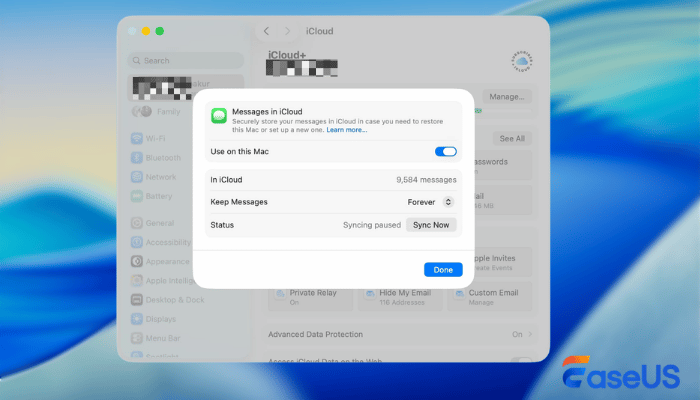
After adjusting your iMessage settings on your Mac, the not-syncing messages will be there. If you want to restore missing messages, keep reading the following part.
Method 2. How to Recover Missing or Deleted iMessages
If you cannot recover iMessages from iCloud, try applying data recovery software to scan local message files on your Mac. Deleted messages stick around on your device for a while; they aren't wiped out right away.
If you use solid data recovery software like EaseUS Data Recovery Wizard for Mac, you can scan your Mac and pull those messages back before your device overwrites them.
With this data recovery software, you can recover deleted iMessages even if you never backed them up to iCloud.
It grabs message attachments too, like your photos, videos, files, and other items you have saved on your Mac. EaseUS data recovery tool can help you recover messages lost to accidental deletion, sync mistakes, or even system crashes.
Follow the guide below and recover your lost messages on your Mac:
Step 1. Search for lost files
Select the disk location to search for lost files (it can be an internal HDD/SSD or an external hard drive) where you lost data and files. Click the "Search for lost files" button.

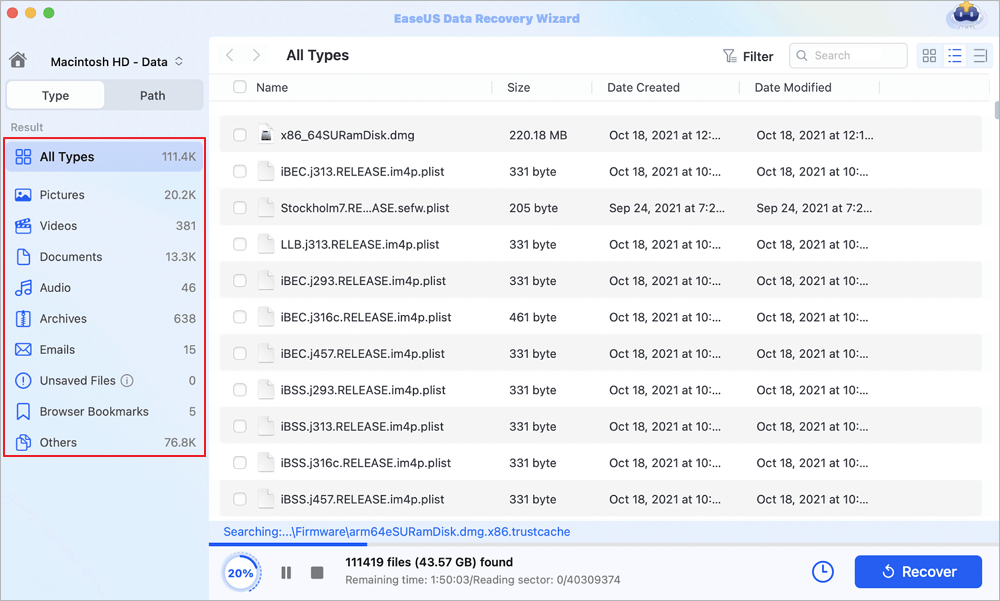
Step 2. Go through the scanning results
This software will immediately scan your selected disk volume and display pictures, documents, audio, videos, and emails on the left pane.
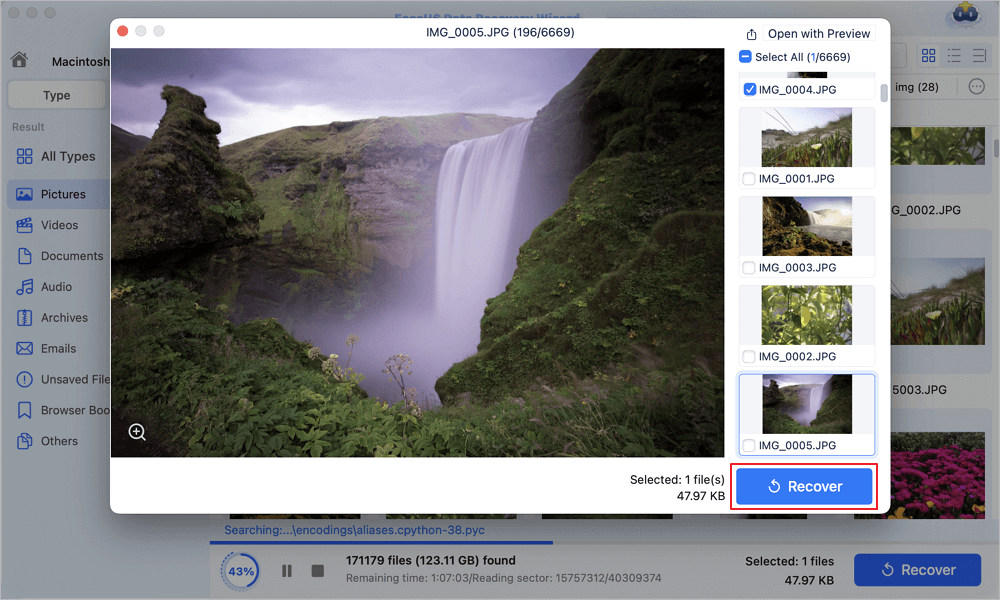
Step 3. Select the file(s) and recover
Click the data to preview, and click the "Recover" button to have them back.
Share this guide on social media and help more Mac users recover missing iMessages.

How to Prevent iMessage Messages from Disappearing
If you don't want to encounter this issue again, follow these tips:
- 1. Keep Messages in iCloud switched on. That way, your texts stay up to date across all your devices.
- 2. Back up your data often. Use iCloud or Finder to protect your conversations just in case.
- 3. Make sure your internet connection stays solid. A steady network keeps iMessage syncing smooth.
- 4. Update your macOS and iOS regularly. These updates usually fix glitches that mess with iMessage.
- 5. Stay away from risky "cleaning" apps. They sometimes delete your messages without warning.
Conclusion
If iMessages aren't showing up on your Mac, it's usually because iCloud syncing is turned off. Just turn on "Messages in iCloud", and make sure you have signed in with the correct Apple ID; that's the quickest way to get your conversations back and make sure everything stays in sync across your devices.
But if your messages are actually gone or deleted. Just syncing won't help in that case. You'll need something like EaseUS Data Recovery Wizard for Mac to recover deleted messages.
FAQs About iMessage Not Showing Messages
Check the following frequently asked questions to learn more about iMessage not showing messages on your Mac:
1. Why am I not seeing all my iMessages?
If you cannot see all your iMessages, you have to make sure that you have logged in to iMessage and turned on iCloud sync. Some of your messages may not be synced, so you cannot see them.
2. How to fix iMessages not showing on Mac but on iPhone?
In most situations, your iMessages won't appear on a Mac but will appear on an iPhone due to iCloud sync issues. You forgot to turn on iMessage sync in iCloud settings, which will cause this problem.
3. How to fix iMessages not working on Mac?
You can try the following methods to fix iMessages not working on a Mac:
- Method 1. Make Sure iMessage Is Enabled Correctly
- Method 2. Reset iMessage and Reboot Your Mac
- Method 3. Restart Message App in Activity Monitor
- Method 4. Sign in to iMessage Again on Your Mac
Was This Page Helpful?

Finley is interested in reading and writing articles about technical knowledge. Her articles mainly focus on file repair and data recovery.

Dany is an editor of EaseUS who lives and works in Chengdu, China. She focuses on writing articles about data recovery on Mac devices and PCs. She is devoted to improving her writing skills and enriching her professional knowledge. Dany also enjoys reading detective novels in her spare time.
-
EaseUS Data Recovery Wizard is a powerful system recovery software, designed to enable you to recover files you’ve deleted accidentally, potentially lost to malware or an entire hard drive partition.
Read More -
EaseUS Data Recovery Wizard is the best we have seen. It's far from perfect, partly because today's advanced disk technology makes data-recovery more difficult than it was with the simpler technology of the past.
Read More -
EaseUS Data Recovery Wizard Pro has a reputation as one of the best data recovery software programs on the market. It comes with a selection of advanced features, including partition recovery, formatted drive restoration, and corrupted file repair.
Read More
Related Articles
-
Why Easystore Hard Drive Not Showing Up on Mac? How to Fix?
![author icon]() Brithny/Sep 20, 2026
Brithny/Sep 20, 2026 -
Files Suddenly Disappeared Mac? Here's How to Fix
![author icon]() Jean/Sep 28, 2026
Jean/Sep 28, 2026 -
How to Recover Deleted Files from Mac Guest Account [macOS Ventura/Monterey/Big Sur]
![author icon]() Jaden/Sep 20, 2026
Jaden/Sep 20, 2026 -
How to Recover Deleted Files After 30 Days on Mac
![author icon]() Jaden/Sep 20, 2026
Jaden/Sep 20, 2026
 Brithny/Sep 20, 2026
  Jean/Sep 28, 2026
  Jaden/Sep 20, 2026

