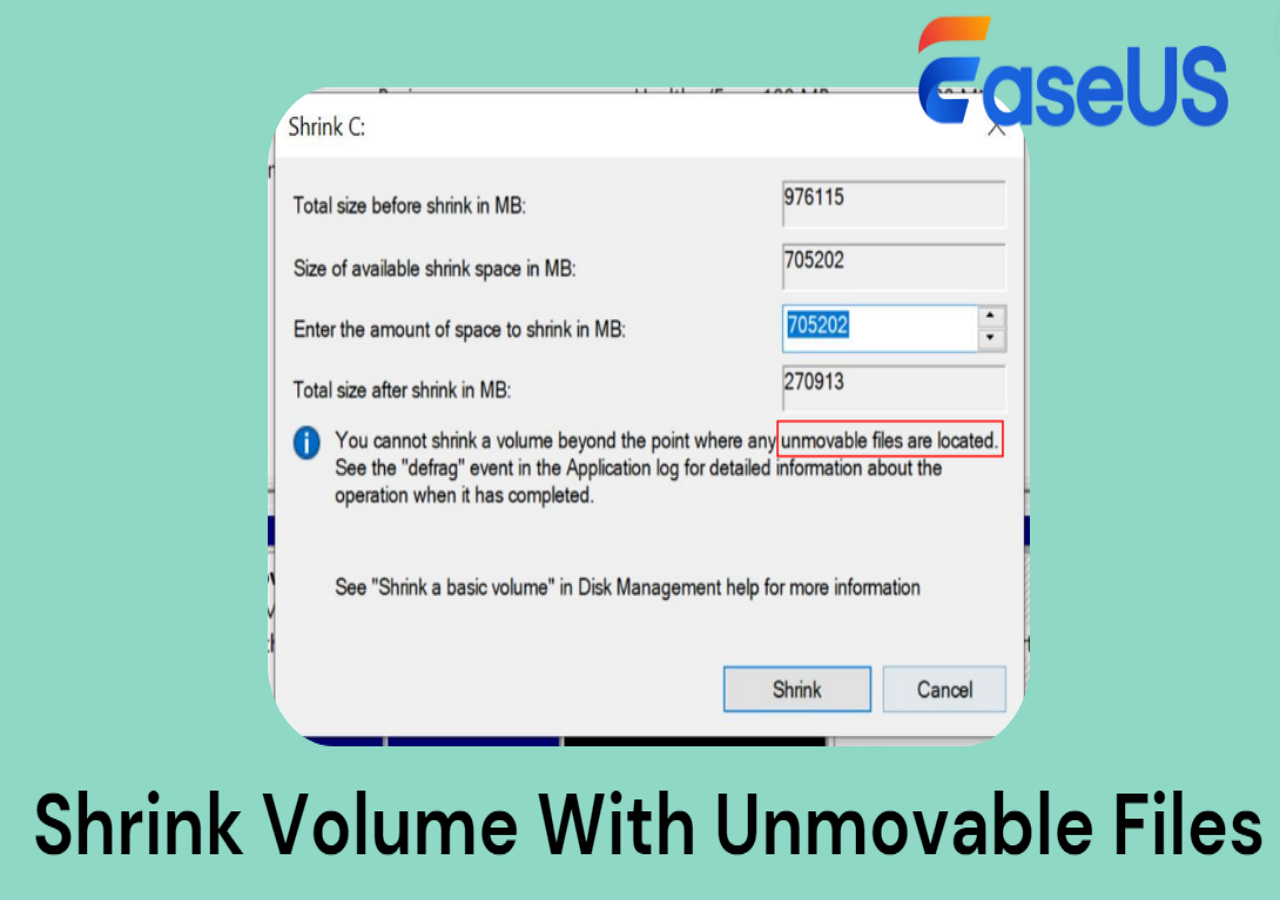
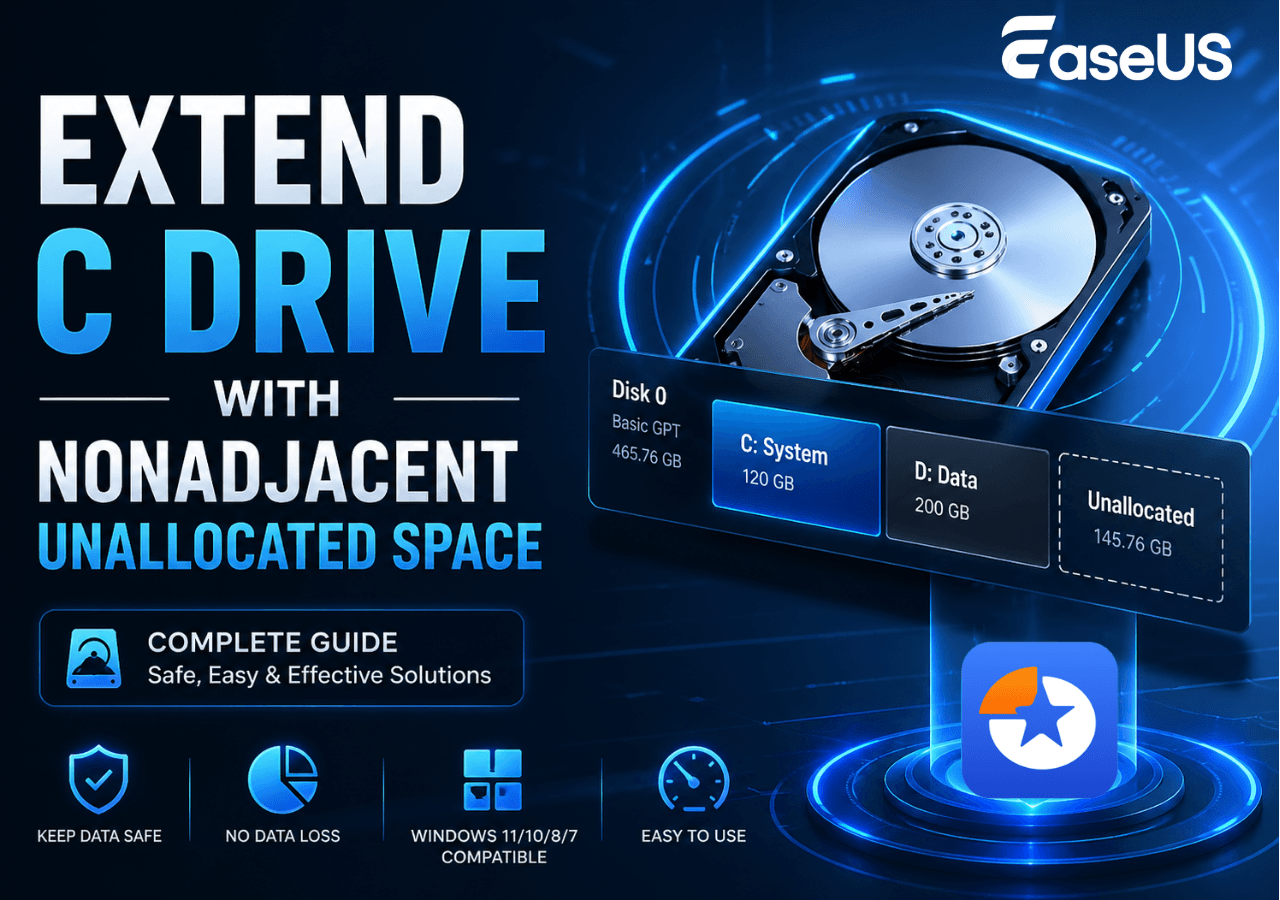
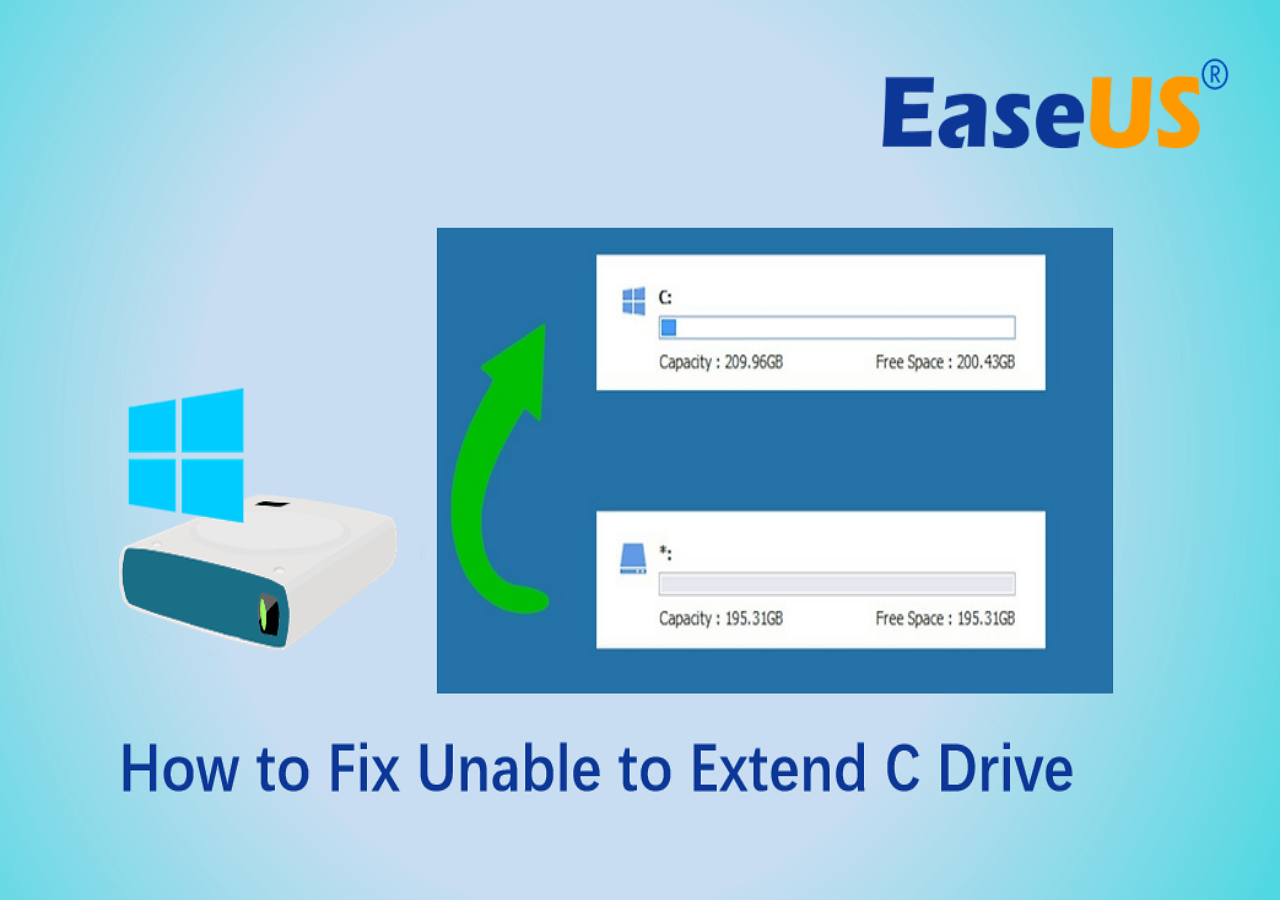
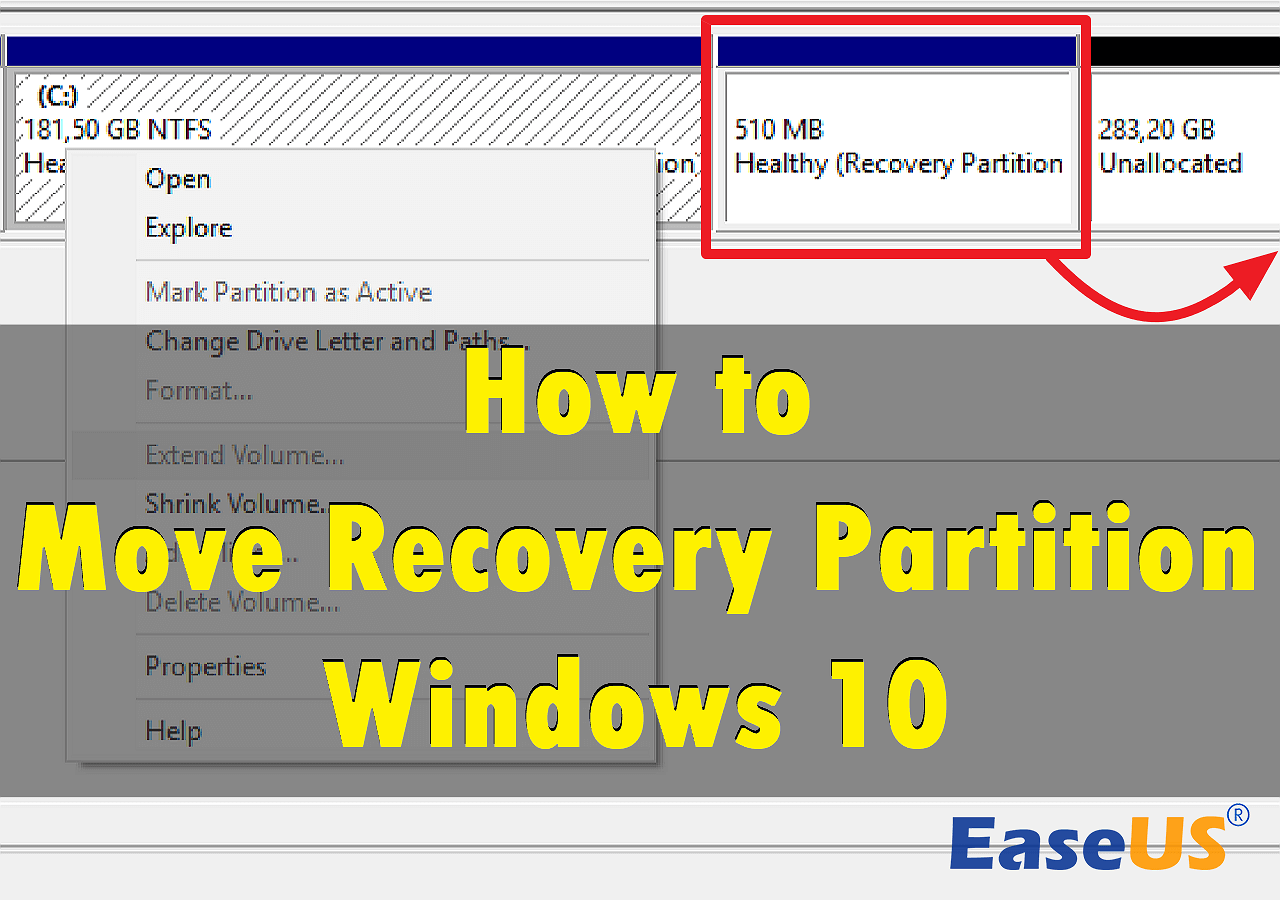
You may need to resize partitions when the system drive is running out of space, a Windows upgrade fails due to insufficient System Reserved space, or you need unallocated space to create a new partition. However, Extend Volume may be greyed out in Disk Management even when unallocated space is available, and some partitions cannot be shrunk as much as expected.
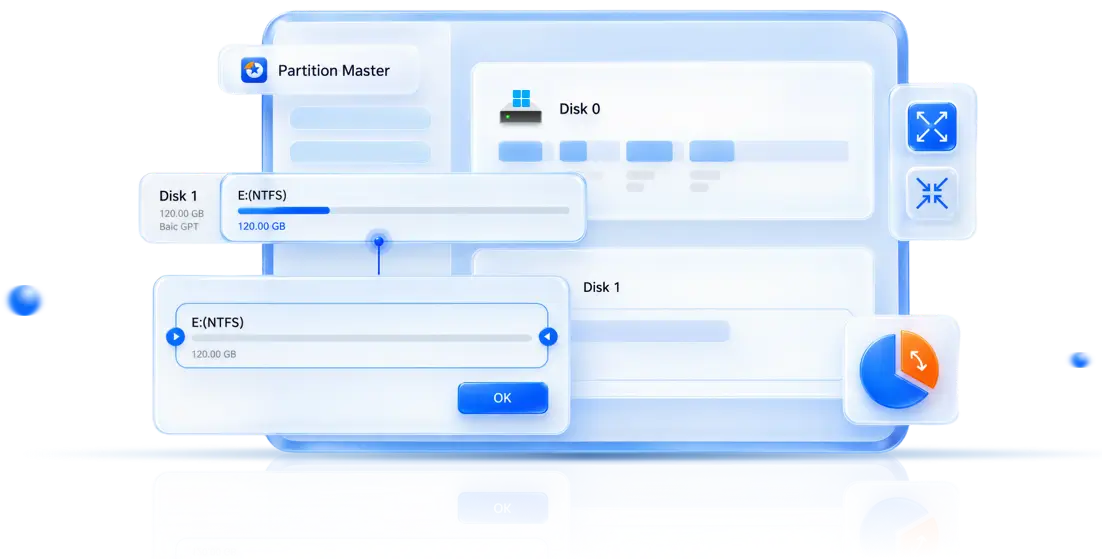
EaseUS Partition Master provides a more flexible way to resize and move partitions, manage unallocated space, and adjust disk layouts without deleting or reformatting partitions.
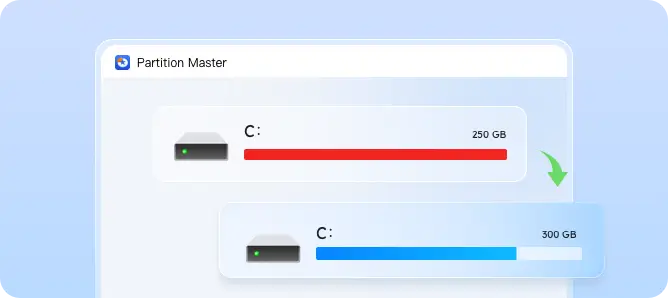
Expand the system partition when C: is running low on space, including reclaiming available space from another partition on the same disk. Adjust the partition layout without deleting or reformatting existing partitions.
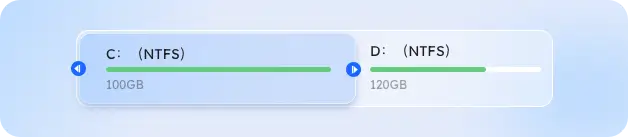
Easily increase or reduce partition size to better allocate disk space. Add available unallocated space to a partition or free up space for other uses.
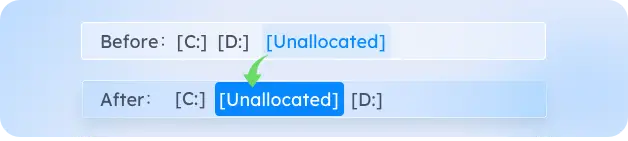
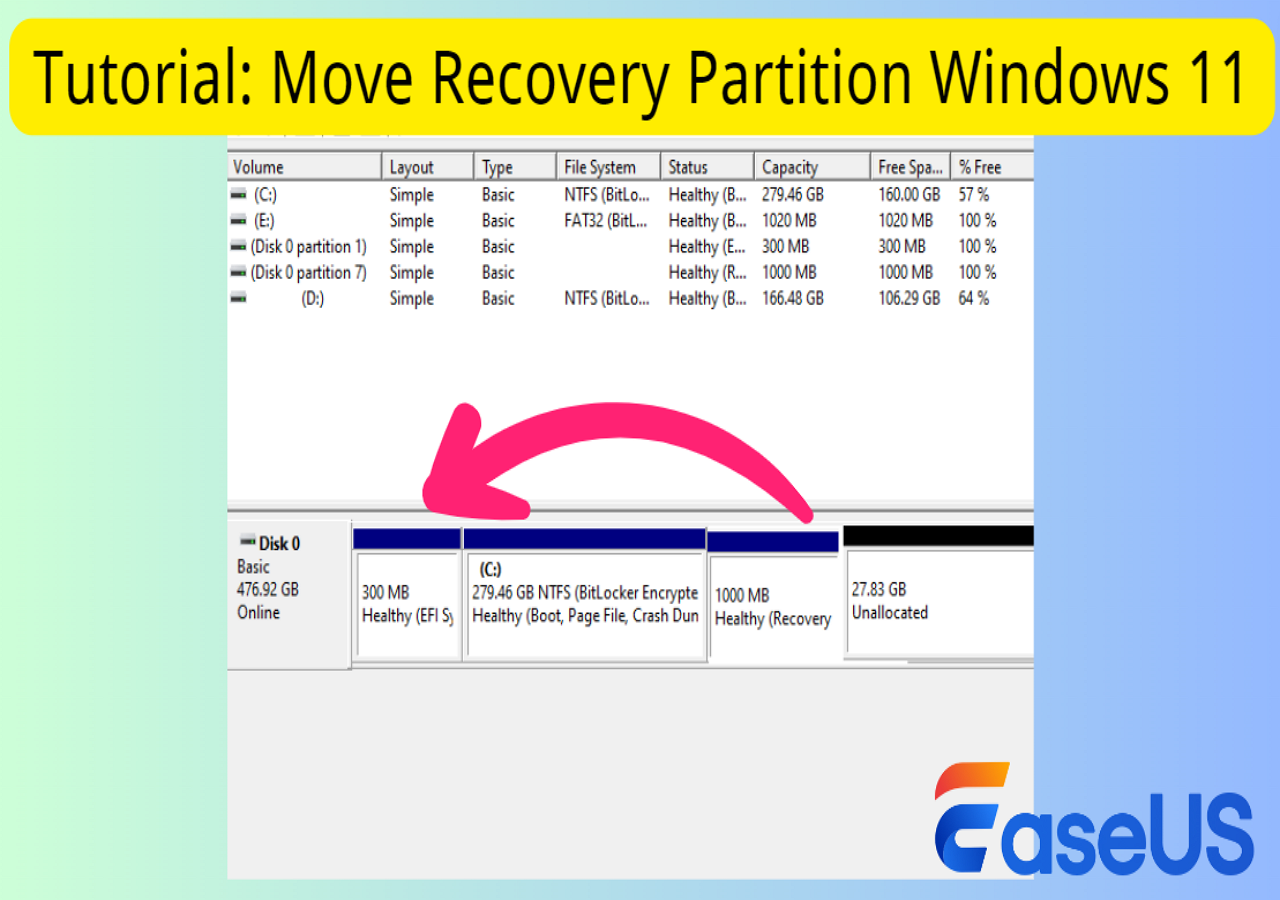
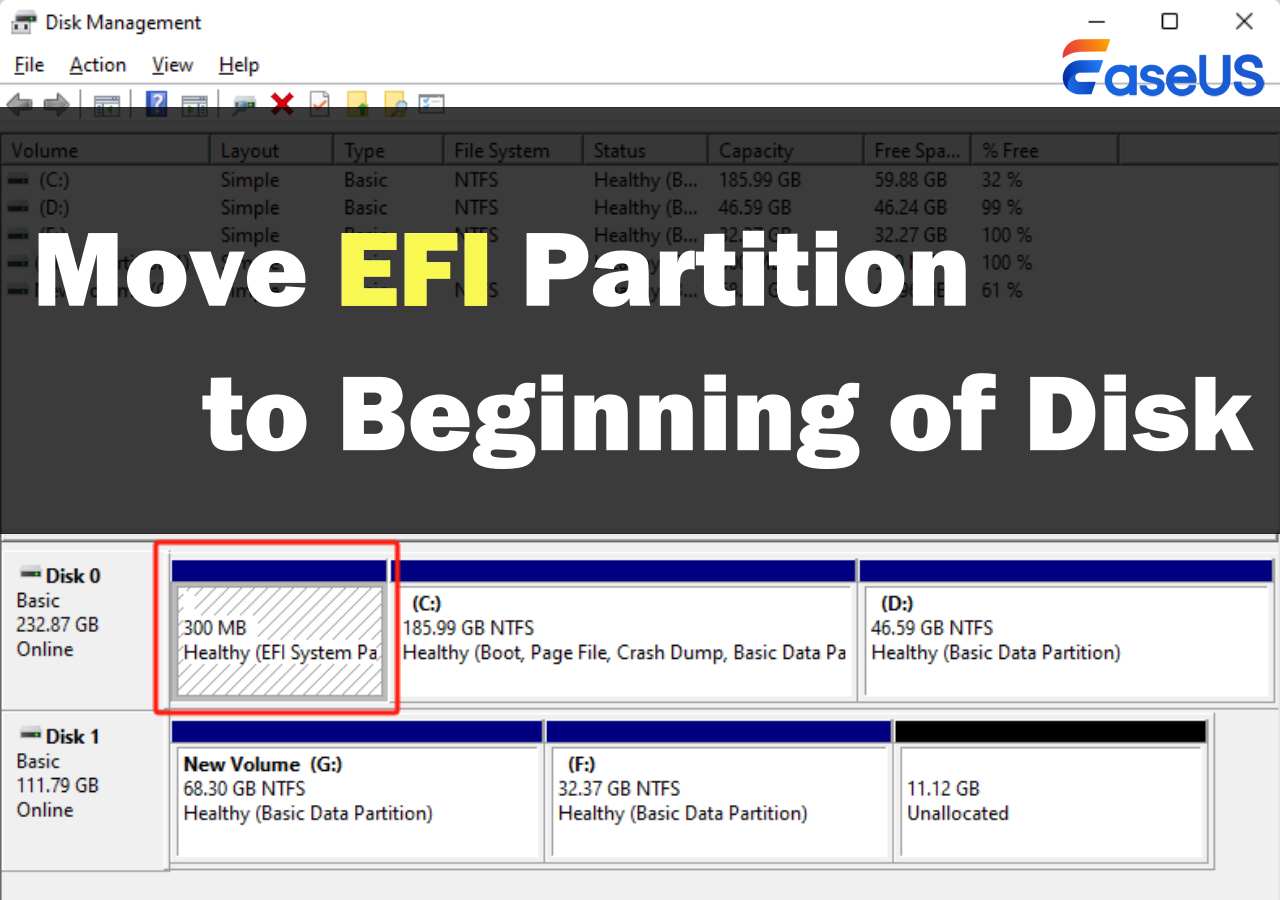
Move partitions to reposition unallocated space where you need it. This gives you more flexibility when Windows Disk Management can't extend C drive because the available space isn't adjacent.
Increase the size of the system partition when Windows, applications, or personal files are taking up too much space.
When available unallocated space isn't directly next to the partition you want to extend, moving partitions can help reorganize the disk layout.
Resize partitions to better distribute available storage when one partition is running low on space while another has unused capacity.
When Extend Volume is greyed out, the unallocated space may not be in the right position. EaseUS Partition Master can move partitions and extend partitions directly.
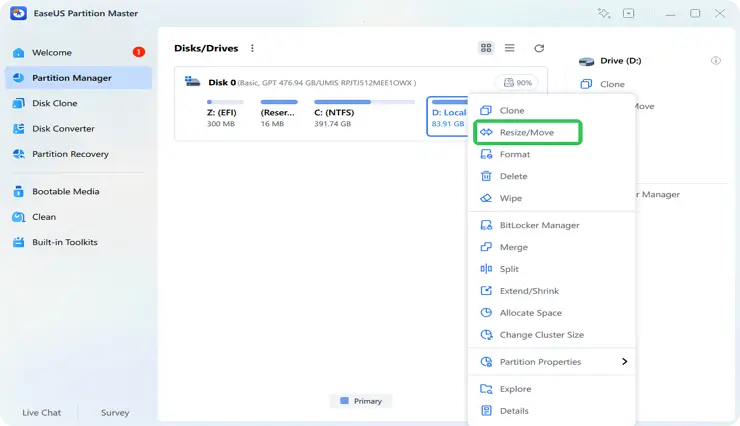
Step 1.
Launch EaseUS Partition Master and go to Partition Manager, select the target drive or partition you need to adjust the size of, right-click on it and choose "Resize/Move".
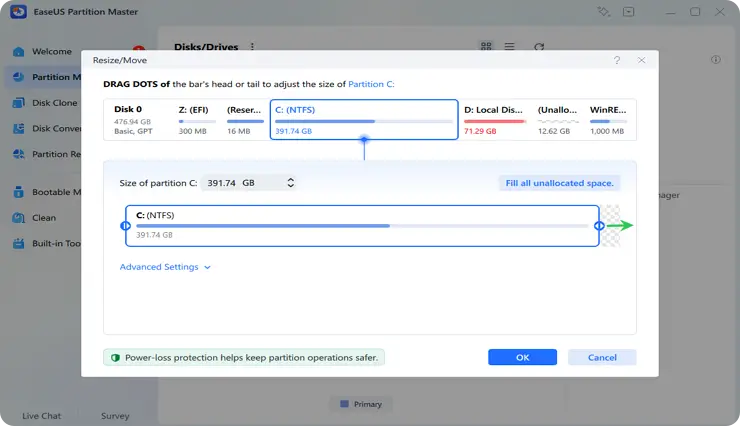
Step 2.
Shrink D drive first. Then, slect C drive and drag the slide right forward to extend C drive.
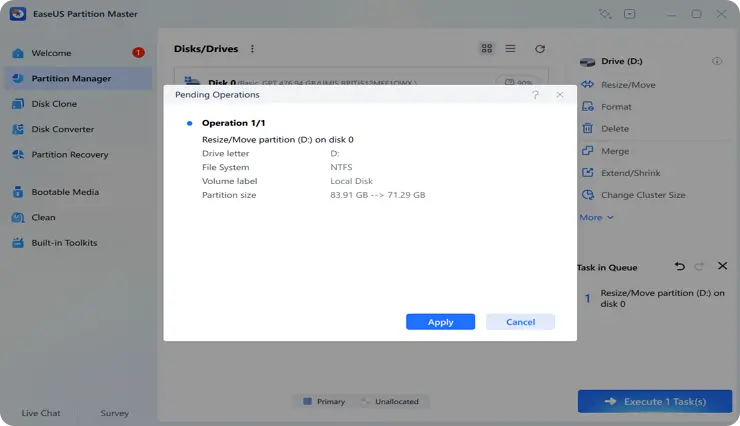
Step 3.
Click Execute 1 Task(s) and Apply to begin. Do not close the program or interrupt the operation. Wait for it to complete.
| Item | Details |
|---|---|
| Supported Operations | Extend, shrink, resize, move |
| Supported Partitions | System and data partitions |
| Supported Storage | HDD, SSD, USB 1.0/2.0/3.0, flash drive, memory card,memory, stick etc. |
| Partition Styles | MBR, GPT |
| File Systems | NTFS, EXT2/3/4, FAT12/16/32, ReFS, exFAT |
| Operating Systems | Windows 11/10/8/7/Vista |
| Data Preservation | Resize without losing data |
| Preview Changes | Supported |
| Apply Pending Operations | Supported |
| Bootable Environment | WinPE Supported |
What does partition resizing do?
Partition resizing changes the amount of storage space assigned to a partition without requiring you to create a new partition. You can extend a partition to use available unallocated space or shrink it to free space for other purposes.
Why can't I extend a partition in Windows Disk Management?
Windows Disk Management can only extend a basic partition when suitable unallocated space is available immediately to its right on the same disk. If another partition is between the target partition and the unallocated space, the Extend Volume option may be unavailable.
What's the difference between free space and unallocated space?
Free space is unused capacity inside an existing partition, while unallocated space is disk space that does not belong to any partition. To extend a partition in Disk Management, you generally need unallocated space rather than free space inside another volume.
How does EaseUS Partition Master resize a partition?
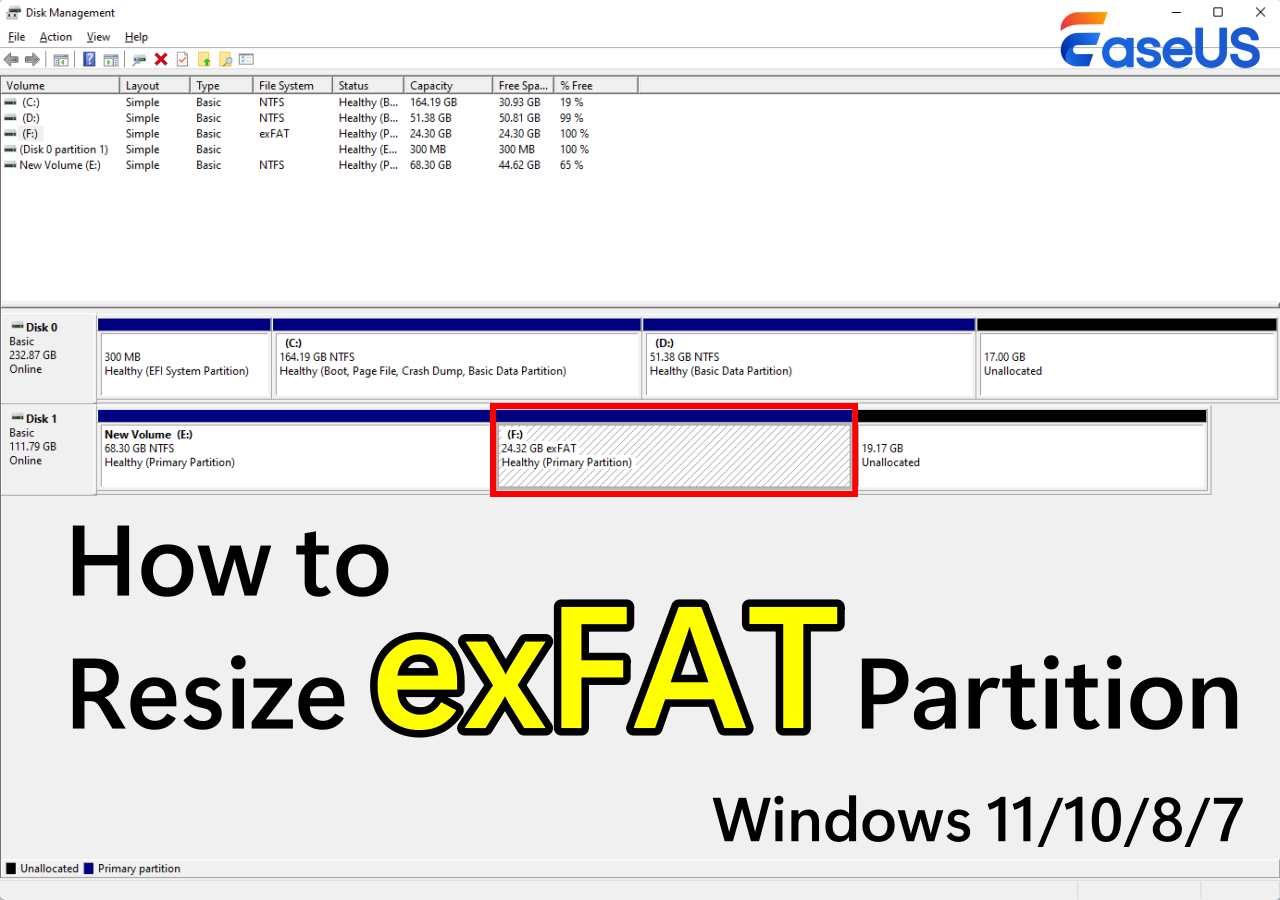
EaseUS Partition Master lets you drag partition boundaries to increase or reduce their size. It can also move partitions and unallocated space, making it easier to reorganize disk space when the available unallocated space is not in the right position.
What happens when I shrink a partition?
Shrinking reduces the size of an existing partition and creates unallocated space from the released capacity. The new unallocated space can then be used to create another partition or extend a supported partition.
What is the safest way to resize a partition?
Back up important files before resizing a partition, especially when modifying a system partition or moving partitions. Avoid interrupting the operation, and make sure the computer has a stable power supply throughout the process.
Does resizing a partition delete the existing files?
Normal partition resizing does not require formatting or deleting the partition. However, partition operations always carry some risk, so backing up important data before making changes is recommended.
Which partitions can be resized with EaseUS Partition Master?
EaseUS Partition Master supports resizing common Windows partitions, including system and data partitions. The available operations can vary depending on the partition type, file system, disk configuration, and Windows environment.