





-
![]()
-
![]() How to Fix Windows 11 Installation Stuck at 35%, 85%, 100% in 2026
How to Fix Windows 11 Installation Stuck at 35%, 85%, 100% in 2026 October 20,2026
 6 min read
 -
![]() How to Recover Files from a Deleted exFAT Partition Without Data LossOctober 20,20266 min read
How to Recover Files from a Deleted exFAT Partition Without Data LossOctober 20,20266 min read -
![]() Lost BitLocker Recovery Key? Here's How to Get It Back EasilyOctober 20,20266 min read
Lost BitLocker Recovery Key? Here's How to Get It Back EasilyOctober 20,20266 min read -
![]()
-
![]() Corrupt Master File Table | Windows Cannot Recover Master File Table [Fixed]October 20,20266 min read
Corrupt Master File Table | Windows Cannot Recover Master File Table [Fixed]October 20,20266 min read -
![]()
-
![]()
-
![]() Top 5 Large File Recovery Software | Recover Big Deleted FilesOctober 20,20266 min read
Top 5 Large File Recovery Software | Recover Big Deleted FilesOctober 20,20266 min read -
![]() Restarted My Computer and Everything Is Gone Windows 11/10/8/7October 20,20266 min read
Restarted My Computer and Everything Is Gone Windows 11/10/8/7October 20,20266 min read
Page Table of Contents
You lose an NVMe SSD partition when key drive information, such as the master boot record, GUID partition table, or file system data, is damaged, accidentally erased, or wiped during formatting. Tools such as EaseUS Data Recovery Wizard can scan empty, unallocated drive space, recover missing folders, and safely retrieve lost files. Finish file recovery before creating any new partitions on the drive.
PAGE CONTENT:
Fast NVMe solid‑state drives are the most common storage choice for modern computers. These M.2 drives connect straight to your computer's PCIe slot. They load files much faster than older SATA SSDs and spinning mechanical hard disks. Even with great speed, NVMe drives can still lose partitions due to logical errors. Your whole drive volume can disappear right away after a system crash, blue screen, unsafe drive removal, or accidental DiskPart delete commands.
This guide explains why partitions disappear, what you should do right away to protect your data, and walks you through NVMe SSD partition recovery steps with EaseUS Data Recovery Wizard and built‑in Windows tools.
Primary Causes of NVMe SSD Partition Loss
Knowing what caused your missing partition helps you tell if you are dealing with corrupted drive settings or actual hardware wear on the SSD.
- Accidental Volume Deletion: Running clean or delete partition commands in Disk Management or Diskpart will instantly erase the markers Windows uses to find your volume.
- Corrupted GUID Partition Tables: Damaged MBR or GPT partition headers stop Windows from reading your drive's volume layout.
- Interrupted Firmware Flashing: Power loss or program crashes during an NVMe firmware update can break the drive's internal data-mapping system.
- Sudden Power Loss: Unexpected power loss can stop file‑write operations mid‑process. This damages the master file table and turns your volume into unreadable RAW format.
- NAND Flash Memory Bad Sectors: Worn‑out flash memory cells in important drive areas can break the links that point to your folders and files.

SSD Partition Recovery Tips to Recover SSD Lost Partitions
When you can't find a partition on your SSD disk in a Windows PC, don't worry; it's possible to recover lost SSD partitions. Read more >>
Method 1. Recover NVMe SSD Partitions with Software
When your partition map gets lost, regular Windows file tools cannot find your folders. Professional recovery software reads raw data directly from the drive's memory cells, making it the most reliable way to rescue lost files.
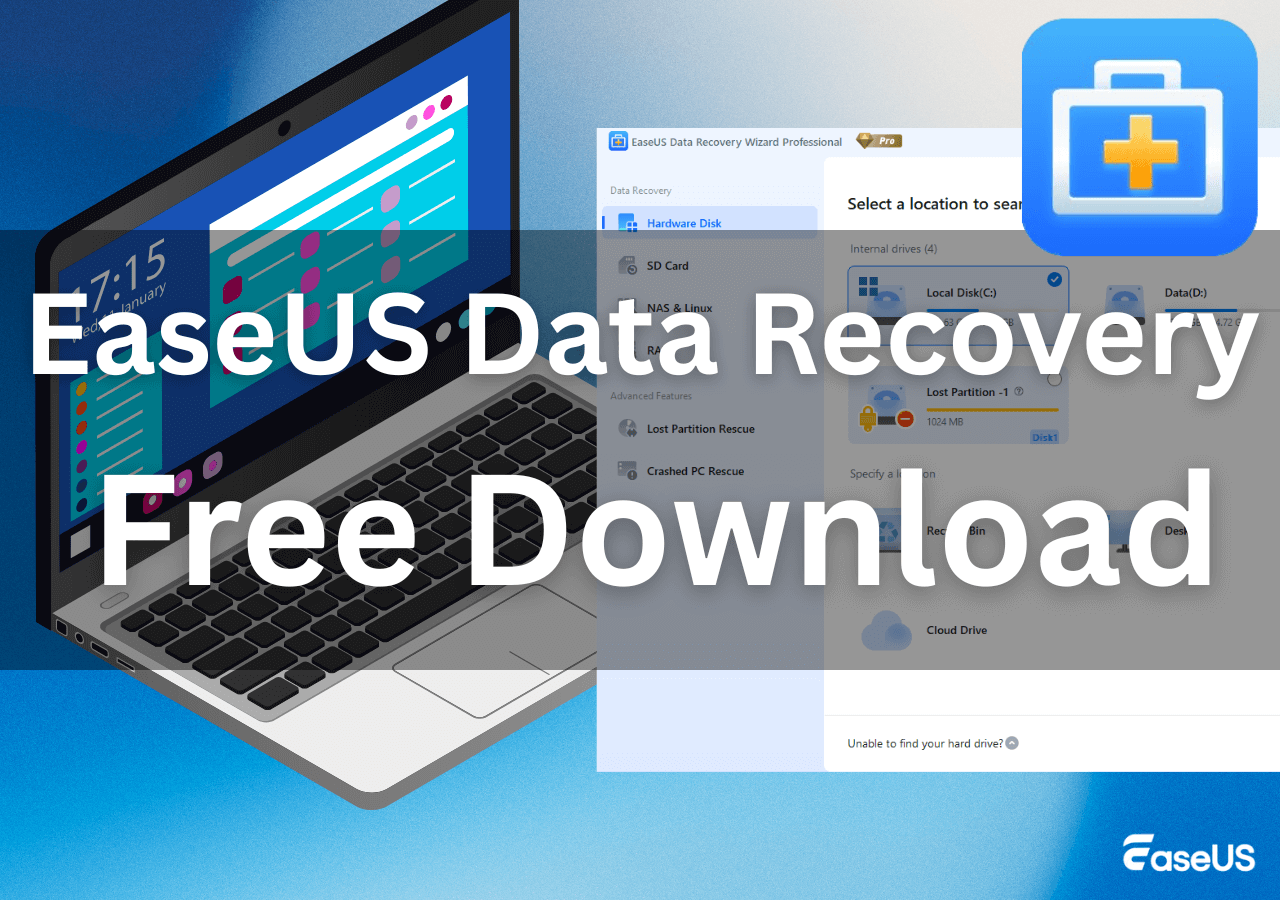
EaseUS Data Recovery Wizard is a trusted tool for recovering NVMe SSD partitions. Its deep‑scan technology works around broken GPT or MBR partition tables and reads raw flash memory data directly. It can restore missing volume borders, find traces of old files, and recover files from NTFS, exFAT, FAT32, and APFS-formatted drives.
EaseUS Data Recovery Wizard full version can restore lost partitions on HDD, SSD, external HDD, USB flash drive, memory card, RAID, virtual disk, dynamic disk, etc. Besides, it is powerful to recover lost data as well as the partition structure together.
Notice: It supports NTFS/exFAT/FAT32/BitLocker recovery of lost partitions, such as partition deletion, uninitialized disk, and unallocated space, as well as recovery of partitions that become RAW.
Step 1. Search for Lost Partitions
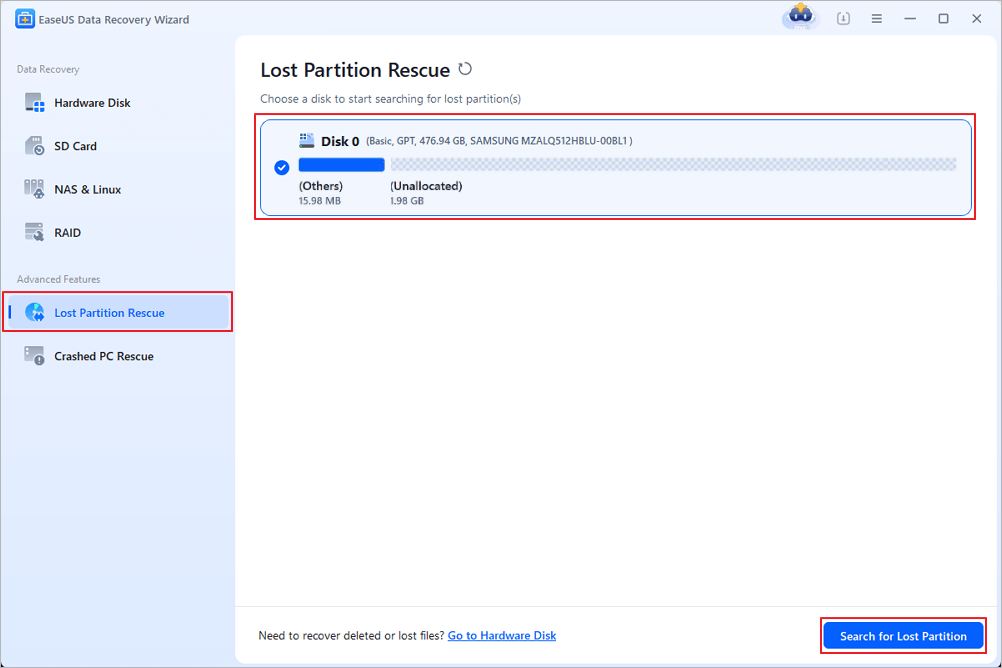
First, choose "Lost Partition Rescue" on the left and click "Start" to initiate the partition scan. Your disk will be displayed, including existing and lost partitions (marked as unallocated). Then click "Search for Lost Partition" to begin the scan.
Step 2. Check Files in the Partition
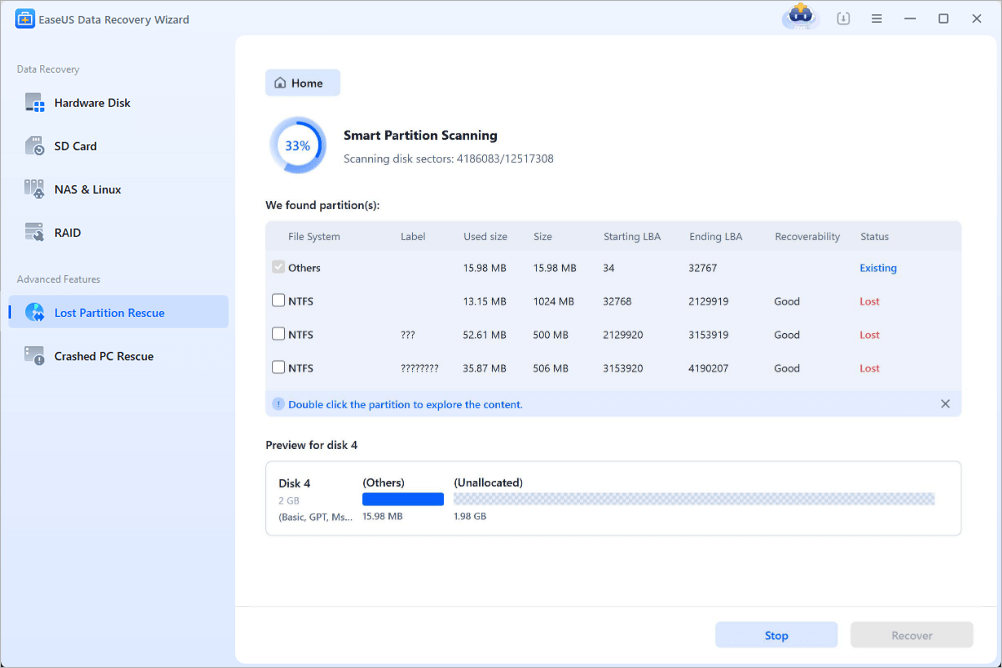
Wait for the smart partition scanning. This process may take several minutes, depending on the severity of the partition loss. While waiting, you can move the cursor to the partition you want to view the files and data in it.
Step 3. Select and Restore the Partition
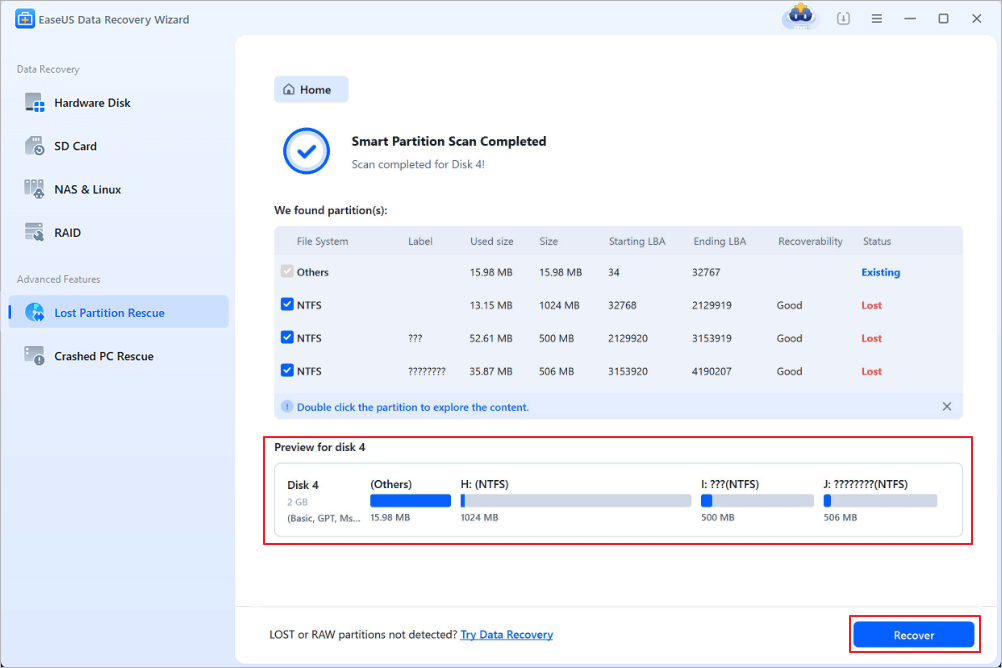
Select the partitions you want to recover from the list of lost partitions that have been scanned. Their corresponding information will also be displayed below. After selecting, click "Recover" to restore your disk partition settings.
Method 2. Reassign Drive Letters in Disk Management
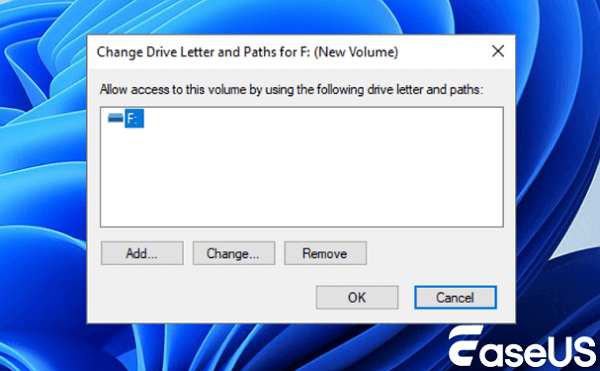
Sometimes a minor system error occurs. Your partition data stays intact, but Windows forgets its drive letter. Assigning the volume a new drive letter remounts it without needing to rescan files.
- Press Windows Key + X and choose "Disk Management" from the power menu.
- Find your NVMe drive in the volume list. Look for a volume with a valid file system (such as NTFS) but no drive letter.
- Right‑click the unassigned partition volume and select "Change Drive Letter and Paths".
![windows-disk-management-change-drive-letter2-01.png]()
- Click "Add", select an available drive letter from the list, and click "OK".
- Open "File Explorer" to verify if the partition volume opens normally.
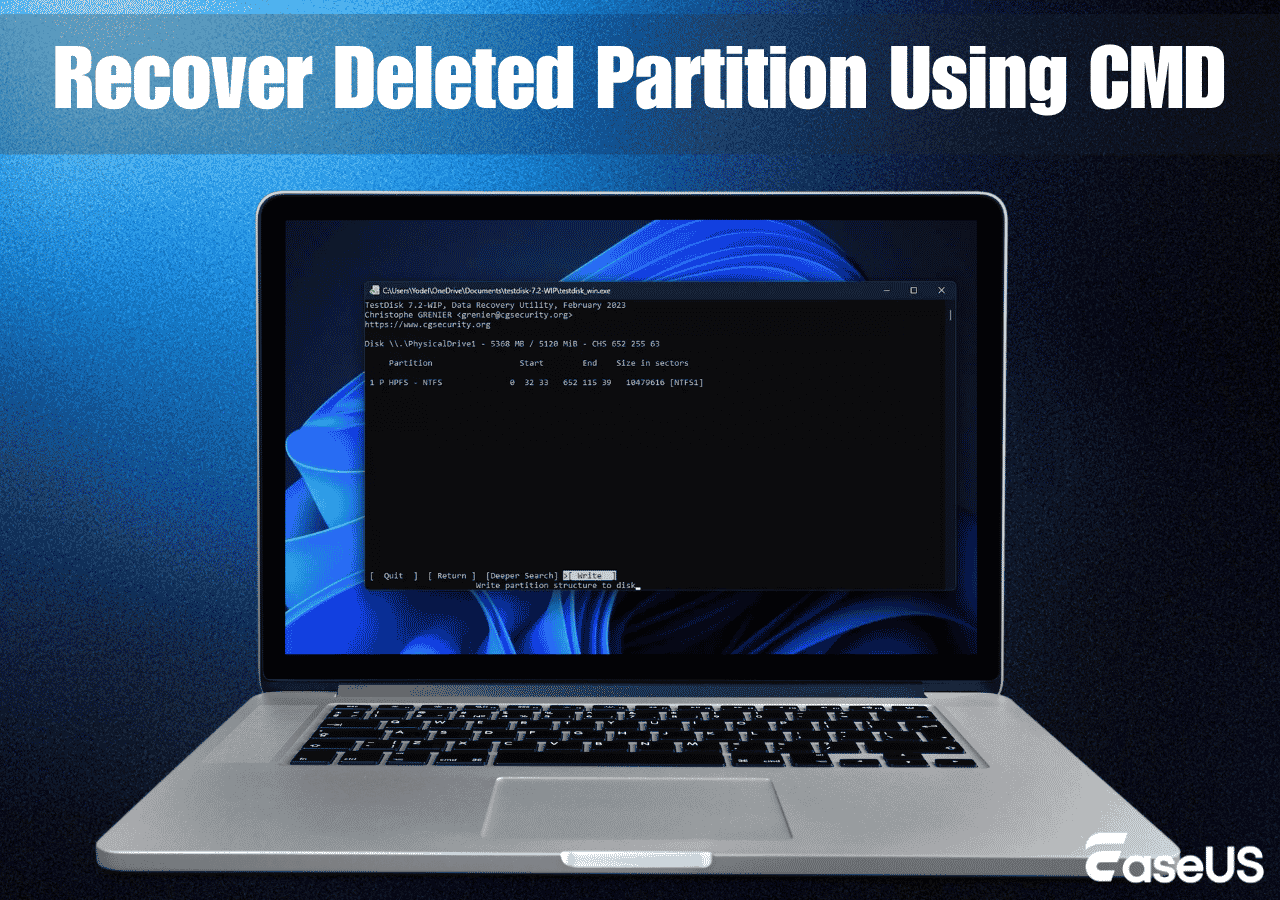
Method 3. Rebuild Partition Headers Using TestDisk
TestDisk is a free open‑source program. You can use it to write missing GPT or MBR partition table information back onto your NVMe drive.
- Download TestDisk, unpack its files onto a different drive, and launch testdisk_win with administrator permissions.
- Select Create to save a log file. Select your NVMe SSD from the device list, then click Proceed.
- Choose your partition table style. Most modern NVMe drives use EFI GPT; then press Enter.
- Click Analyze and start Quick Search. TestDisk scans drive blocks to find old copies of your partition layout.
- If your old deleted volume shows up, press P to view its files. Press Q to go back to the partition list screen.
- Select Write and hit Enter to save the recovered partition table to your drive, then restart your computer.
Comparison of NVMe SSD Partition Recovery Solutions
The reference table below compares primary metrics across different NVMe volume recovery methods.
| Solution Method | Safety Level | Technical Difficulty | Best Suited Scenario |
| EaseUS Data Recovery Wizard | Highest | Low | Safely extract files from deleted, unallocated, formatted, or RAW NVMe partitions. |
| Drive Letter Reassignment | High | Low | Mount healthy partition volumes that lost their assigned drive letter. |
| TestDisk Table Rebuild | Moderate | High | Writing missing GPT or MBR partition map headers directly back to the disk. |
| Disable TRIM via CMD | Low | Moderate | Pause automatic OS deallocation commands immediately after partition loss. |
Conclusion
It can feel very stressful when an NVMe SSD partition disappears. Once you understand how the drive controller, partition tables, and NVMe Deallocate function work, you know exactly what steps to take. The drive's automatic cleanup process can fully erase old data over time, so stop all write activity right away. EaseUS Data Recovery Wizard skips broken mount settings and reads raw drive sectors. You can safely recover your lost files and get your fast NVMe storage working normally again.
Frequently Asked Questions
People have many practical questions about NVMe partition recovery, around hardware functions and what recovery software can do. Below are clear answers to these frequent questions.
1. Can you recover data from an NVMe SSD if TRIM was enabled?
Yes, in certain situations. TRIM and NVMe Deallocate only mark blocks for later cleanup. The drive does not erase flash memory instantly. If you power off the PC right after partition loss, or you connect the SSD via a USB adapter that blocks TRIM signals, EaseUS Data Recovery Wizard may still pull your lost files successfully.
2. What is the difference between SATA and NVMe SSD partition recovery?
SATA SSDs use older AHCI rules and the ATA TRIM command. NVMe SSDs plug directly into PCIe slots and use the NVMe Deallocate command. NVMe drives run background cleanup much faster. This means you need to start recovery work sooner before your data gets wiped.
3. Why does my deleted NVMe partition show as Unallocated Space in Disk Management?
When your GPT or MBR partition table gets damaged or deleted, Windows loses the markers that show where your volume starts and ends. Your storage hardware still exists, but Windows labels that area as Unallocated Space until you create new partition information.
4. Is it safe to rebuild partition tables directly on a corrupted NVMe drive?
Rebuilding partition tables directly changes your drive's header data. If the original table is heavily damaged, writing new wrong information can make recovery harder. The safest workflow is to use EaseUS Data Recovery Wizard to save your important files to another drive before you try to fix the partition tables.
Was this page helpful?
 Why Trust EaseUS
 Editor Reviews

20+
Years of experience

160+
Countries and regions

72 Million+
Downloads

4.9 +
Trustpilot Score





