







- New Discovery
- Worldwide Users' Concerns in HDDs, SSDs, and Windows Storage Management Are Shifting from "Is My Disk Healthy" to "What's The Next Step?"
As SSDs become increasingly common as system drives in Windows PCs, disk health management is evolving beyond a simple question: "Is the disk drive healthy and is it still working?" Users and support teams also need to consider health status, warning signs, power-on hours, C drive storage capacity pressure, and system drive configuration to better understand drive conditions and decide the next step.
EaseUS Lab, with its EaseUS Partition Master R&D team and tech support team, connected over 440K+ disk samples from February to July 2026 and spent over 3 months creating this report. This insight report mainly examines the health status of HDDs and SSDs among sampled Windows users. It also analyzes data on Disk Capacity, Power-On Hours (POH), MBR/GPT Partition Styles, C Drive Space Pressure, and System Drive Types to explore how disk health conditions vary across different usage scenarios.
This study includes 444,828 disk-level HDD and SSD samples in the primary dataset. These samples are not statistically representative of all Windows users and should not be interpreted as reflecting the global hard drive or SSD market.
Accordingly, the percentages presented in this report describe health status distributions, the frequency of detected warning signs, and patterns associated with different storage usage scenarios within the sampled dataset. They should not be used to estimate industry-wide HDD or SSD failure rates or average drive lifespan. Nor should any individual indicator be interpreted as establishing a direct causal relationship with drive failure.
Key Findings of Windows Disk Health Report 2026
Here is a quick brief of this report:
01 | HDD and SSD Health Status Differ Significantly
Among the 440K+ high-confidence samples, 24.83% of HDDs were rated Caution or Bad, compared with just 1.22% of SSDs. Overall, 98.26% of SSDs were rated Good, indicating a more favorable health status distribution in the sampled data. HDDs require closer attention to potential health issues.
02 | Reallocated Sectors and Read Errors Are Key HDD Warning Signs
Among HDDs with detected issues, S.M.A.R.T. attribute 05 (Reallocated Sectors) accounted for 5.06% of reported occurrences and 70.00% of warning indicators in Bad HDDs. S.M.A.R.T. attribute 01 (Read Error Rate) accounted for 22.47%. These findings highlight the importance of reviewing specific S.M.A.R.T indicators alongside the overall health status.
03 | Smaller Capacity, Longer Operating Hours, and MBR HDDs Show Higher Caution/Bad Shares
The share of HDDs rated Caution or Bad was 35.89% for drives under 500 GB, 28.10% for drives with more than 5,000 Power-On Hours (POH), and 34.14% for MBR-partitioned drives. These are associations observed in the dataset; they do not establish that drive capacity, operating hours, or MBR partition style directly cause declining drive health.
04 | C Drive Space Pressure Shows Little Difference in HDD Health Status
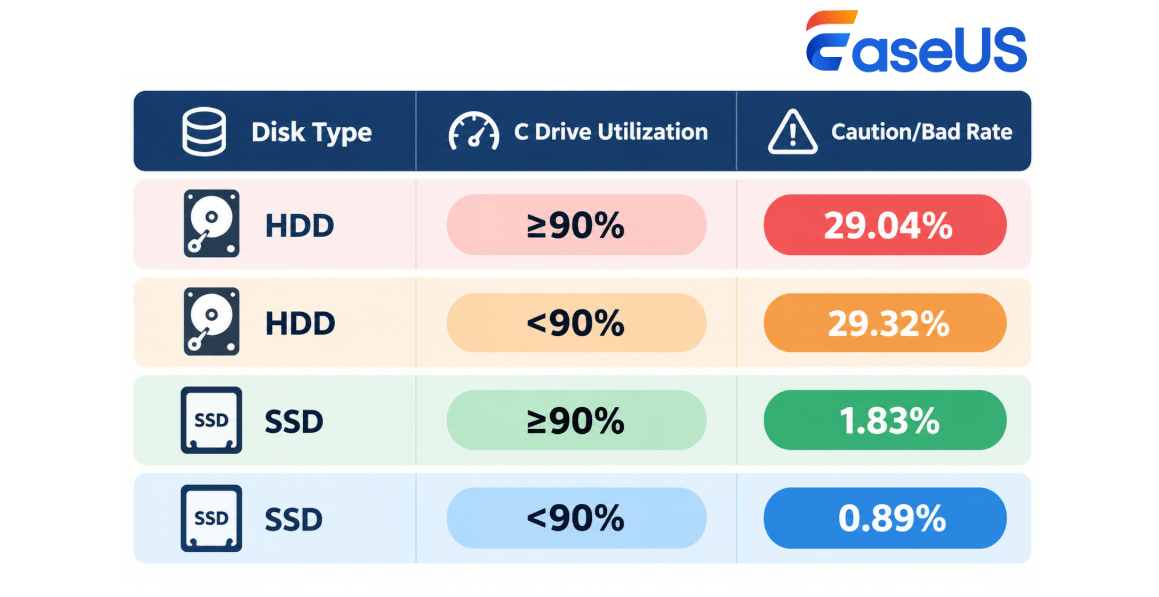
Among HDDs, 29.04% of those with C drive usage at or above 90% were rated Caution or Bad, compared with 29.32% of those below that threshold. The figures are nearly identical and do not support a direct link between low C drive free space and poor HDD health in this dataset.
05 | HDDs Still Account for 17.79% of Windows System Drives
HDDs represented 17.79% of Windows system drives in the dataset. For these users, regular disk health checks, data protection, and migration from HDD to SSD can form a connected approach to storage management.
1. Disk Health Insights Report 2026 H1 - Study Scope and Dataset
This disk health assessment was not only created to determine whether a drive is still working. For Windows users, S.M.A.R.T. attributes, reported health status, power-on hours, drive capacity, and available system drive space can all matter when deciding what to do next, such as whether to back up data, migrate a system, or replace a drive.
This report examines disk health status, disk drive characteristics, and Windows storage configurations. It mainly focuses on three questions:
- How does health status differ between HDDs and SSDs?
- Which warning indicators and usage conditions need closer attention?
- What steps can users take when a disk health issue is identified?
1.1 Data Scope
| Data Items | Details |
|---|---|
| HDD and SSD samples | 444,828 disk samples |
| Data collection period | February 1-July 31, 2026 |
All cross-sectional analyses of health status, drive capacity, Power-On Hours (POH), partition table type, and C drive space pressure are based on disk-level samples that could be matched with a high degree of confidence.
Notice Of Data Scope:
This report identifies patterns in disk health status and storage usage observed among sampled disks with disk health diagnostics from EaseUS Lab. Also, this cannot be used to predict what percentage of worldwide hard drives will fail.
2. HDD vs. SSD Health: Why HDDs May Need Closer Monitoring
HDDs and SSDs differ in their storage technologies, operating mechanisms, and patterns of reported issues. Their health status should therefore be assessed in the context of the specific indicators available, rather than assuming that the same patterns apply to both drive types.
In this dataset, HDDs were more likely than SSDs to receive a Caution rating, while SSD health ratings were more concentrated in the Good category. When a drive is rated Bad, regardless of type, users should promptly review their data protection needs and prepare for possible migration or replacement.
This section begins with the overall health status distribution for HDDs and SSDs, then examines what the results mean for disk health monitoring.
2.1 HDD Health: Nearly One in Four Drives Rated Caution or Bad
The health status distribution for HDDs in the dataset was as follows:
| Health Status | Share of HDD Samples |
|---|---|
| Good | 74.73% |
| Caution | 23.04% |
| Bad | 1.78% |
| Unknown | 0.44% |
| Caution + Bad | 24.83% |
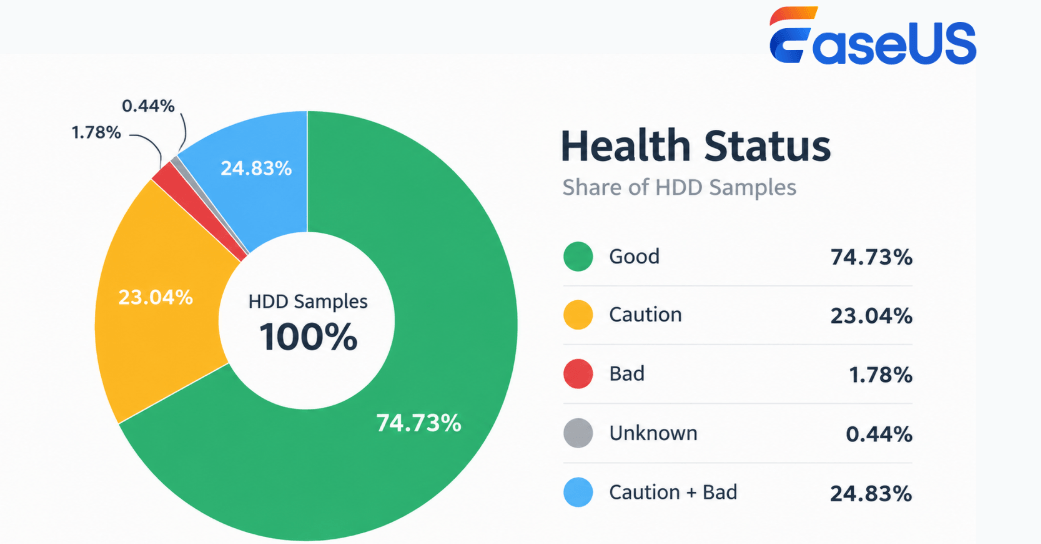
One notable finding is that the share of HDDs rated Caution was much higher than the share rated Bad. In other words, potential concerns were more commonly reflected in the Caution category than in the Bad category.
For HDD users, this means disk health checks should not be limited to identifying drives that have already received a S.M.A.R.T. Status Bad rating. A Caution rating is also a reason to review the reported indicators and consider appropriate precautions.
A practical response may include the following steps:
Caution rating → Review warning indicators → Back up important data → Monitor changes → Prepare for migration or replacement if needed
Key Takeaway
For HDDs, a Caution rating needs attention even when the drive remains operational. Reviewing the reported indicators and backing up important data can help users make more informed decisions about ongoing use, migration, or replacement.
2.2 SSD Health: Most Drives Are Rated Good, but Bad Ratings Require Prompt Attention
Among the SSD samples, the overall health status distribution was as follows:
| Health Status | Share of SSD Samples |
|---|---|
| Good | 98.26% |
| Caution | 0.21% |
| Bad | 1.01% |
| Unknown | 0.52% |
| Caution + Bad | 1.22% |
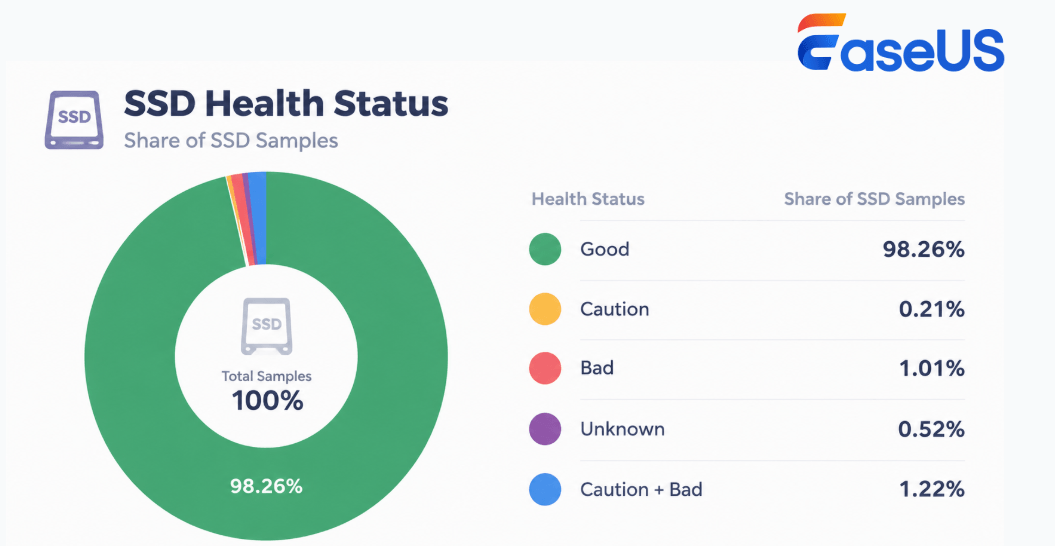
SSD health ratings were heavily concentrated in the Good category. However, the share of SSDs with S.M.A.R.T. Status Bad (1.01%) was higher than the share rated Caution (0.21%).
This finding is a reminder that a generally favorable health status distribution does not eliminate the need for regular checks. When an SSD receives a Bad rating, users should review the reported issues and take steps to protect their data.
Depending on the diagnostic findings and the importance of the data involved, the next steps may include confirming the issue, backing up or cloning the drive, preparing a replacement drive, and planning migration.
How to Interpret Disk Health Ratings
| Status | What It Means | Recommended Action |
|---|---|---|
| Good | The current diagnostic check detected no significant health warnings. | Continue normal use and maintain regular backups. |
| Caution | One or more indicators require further attention. | Back up important data, run another check, and review the detailed indicators. |
| Bad | The diagnostic has detected significant or potentially serious issues. | Prioritize data protection, determine whether cloning is appropriate, and prepare for possible migration or replacement. |
| Unknown | Insufficient information exists to determine the drive's health status. | Run the diagnostic again, check connectivity and compatibility, and seek further assessment if needed. |
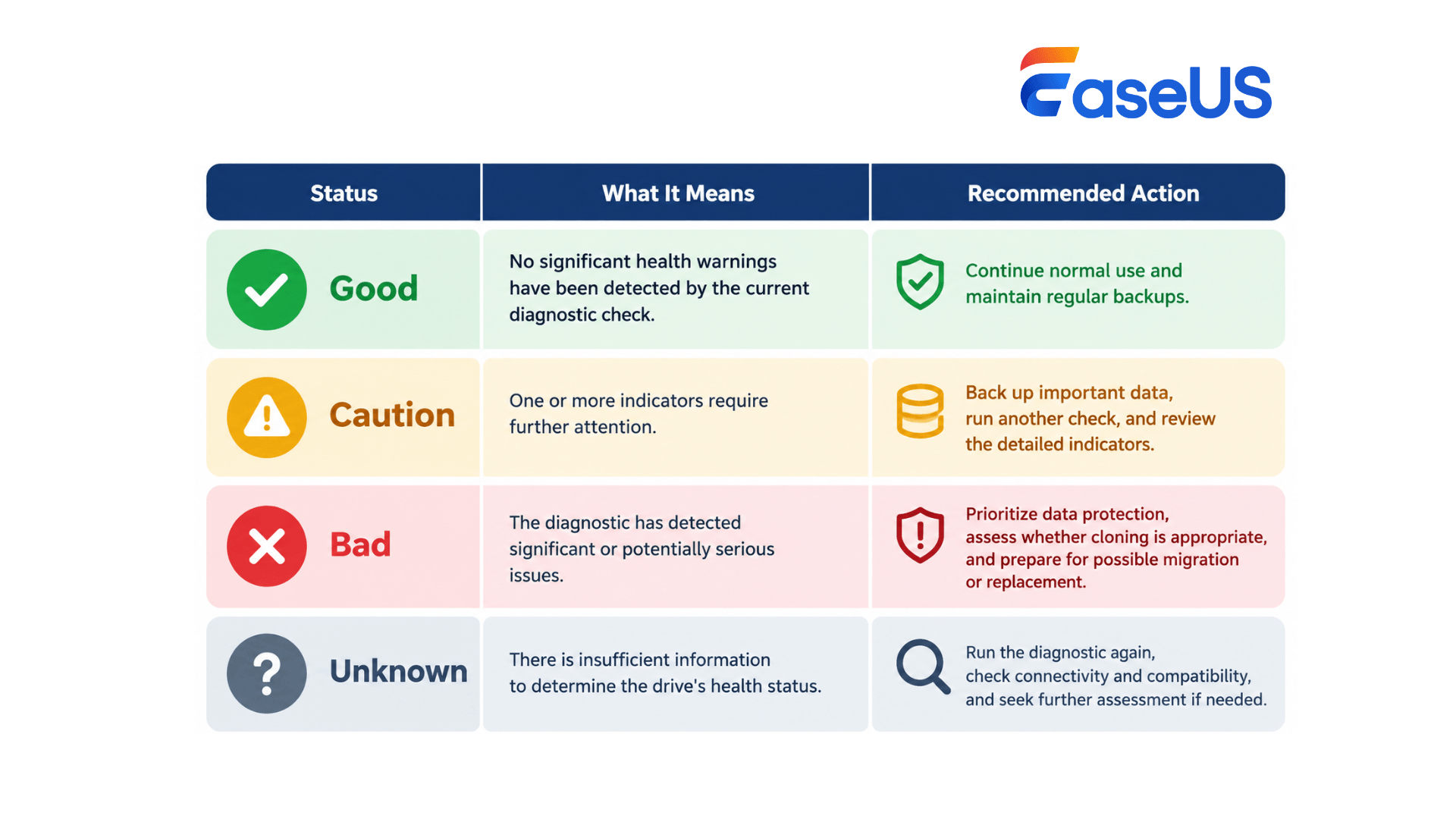
Note that a Good rating does not guarantee the drive will remain healthy without problems, while a Caution rating does not automatically mean disk replacement or upgrade is highly necessary. The appropriate response depends on the reported indicators, changes over time, and the user's data protection demands.
3. From Health Ratings to Warning Signs: What S.M.A.R.T. Data Shows About HDD and SSD Risks
A health rating indicates the current reported condition of a drive, but it does not fully explain why a particular rating was assigned or which issues were detected.
S.M.A.R.T. (Self-Monitoring, Analysis and Reporting Technology) attributes provide additional information about potential drive problems. Reviewing these indicators alongside the overall health rating can help users better understand diagnostic results and decide what to do next.
In this dataset, HDDs and SSDs showed different patterns of reported health issues. The following sections examine the indicators found in the HDD samples and explain their relevance to disk health assessment.
3.1 HDDs: Reallocated Sectors and Read Errors Require Attention
The following table summarizes the main S.M.A.R.T. indicators identified in the HDD samples.
| S.M.A.R.T. Attribute | HDDs with the Reported Indicator | Share of Warning Indicators in Bad HDDs |
|---|---|---|
| 05 – Reallocated Sectors Count | 5.06% | 70.00% |
| 01 – Read Error Rate | 1.62% | 22.47% |
| 184 – End-to-End Error | 1.60% | 1.57% |
| 02 – Throughput Performance | 0.27% | 3.71% |
| 07 – Seek Error Rate | 0.15% | 2.13% |
| 190 – Airflow Temperature | 0.15% | 0.22% |
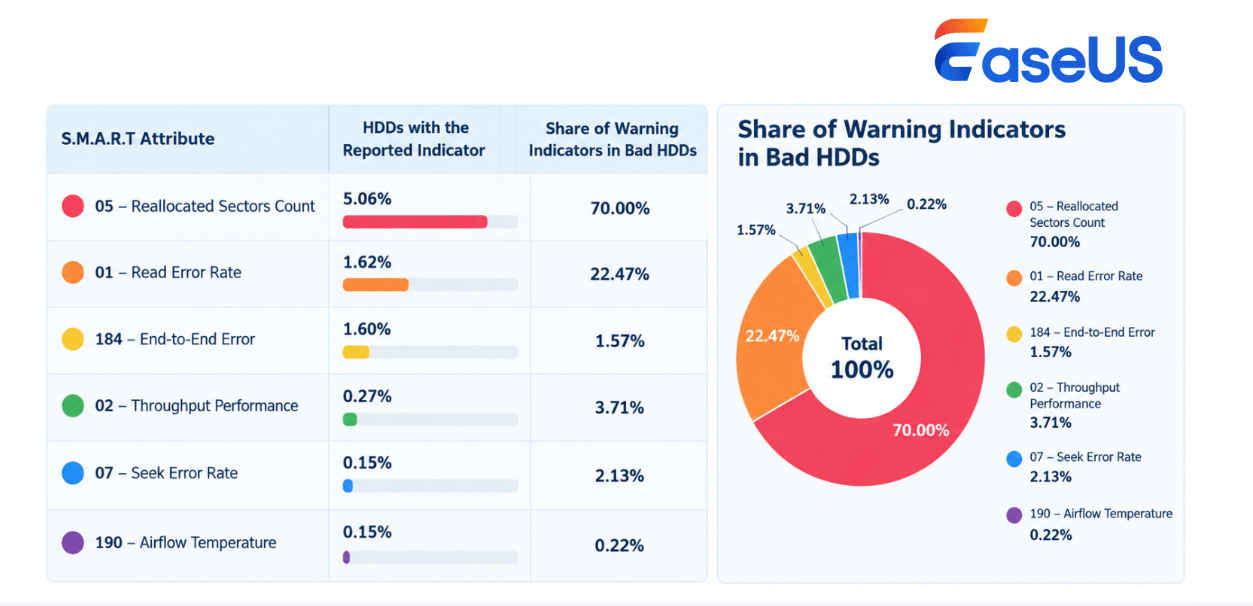
Among these indicators, the 05 S.M.A.R.T. attribute - Reallocated Sectors Count stands out in the Bad HDD samples. Reallocated sectors indicate that the drive has identified sectors that can no longer be reliably used and has reassigned their logical addresses to spare sectors.
For HDDs showing this or other significant warning indicators, a practical response is to review the S.M.A.R.T. data -> back up important files - > determine whether cloning or migration is appropriate -> prepare to replace or upgrade the disk if necessary.
3.2 SSDs: Interpreting Wear and Remaining-Life Indicators by Drive Model
SSD S.M.A.R.T. attributes differ from those commonly used for HDDs. Depending on the manufacturer and model, an SSD may report information about endurance, wear leveling, media wear, and estimated remaining life through different attributes.
The most frequently reported SSD indicators in this dataset included the following:
| S.M.A.R.T. Attribute | SSDs with the Reported Indicator | Share of Warning Indicators in Bad SSDs |
|---|---|---|
| 202 – Percent Lifetime Used | 4.24% | 4.61% |
| 173 – Wear Leveling Count | 3.58% | 4.21% |
| 231 – SSD Life Left | 2.50% | 2.91% |
| 233 – Media Wearout Indicator | 1.91% | 2.30% |
| 177 – Wear Leveling Count | 1.66% | 2.00% |
| 01 – Read Error Rate | 1.58% | 1.90% |
| 05 – Reallocated Sectors Count | 1.58% | 1.90% |
| 184 – End-to-End Error | 1.33% | 1.60% |
| 175 – Program Fail Count | 1.25% | 1.50% |
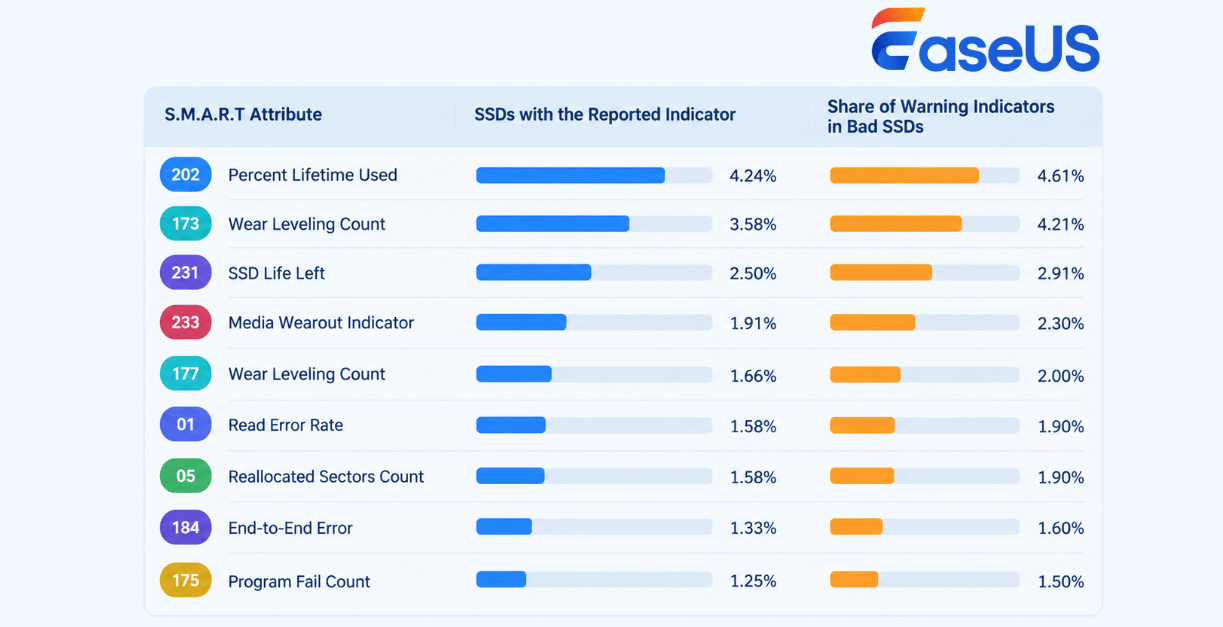
Note: The results include several attributes related to SSD wear and estimated remaining life. However, these indicators should not be interpreted in the same way across all SSDs. Manufacturers may use different definitions, raw values, and thresholds for similar attributes.
A single remaining-life percentage is not enough to determine whether an SSD needs to be replaced.
A more reliable assessment considers the overall health rating, the type and severity of reported S.M.A.R.T. warnings, the specific SSD model and manufacturer attributes, power-on hours, and the importance of the data stored on the drive.
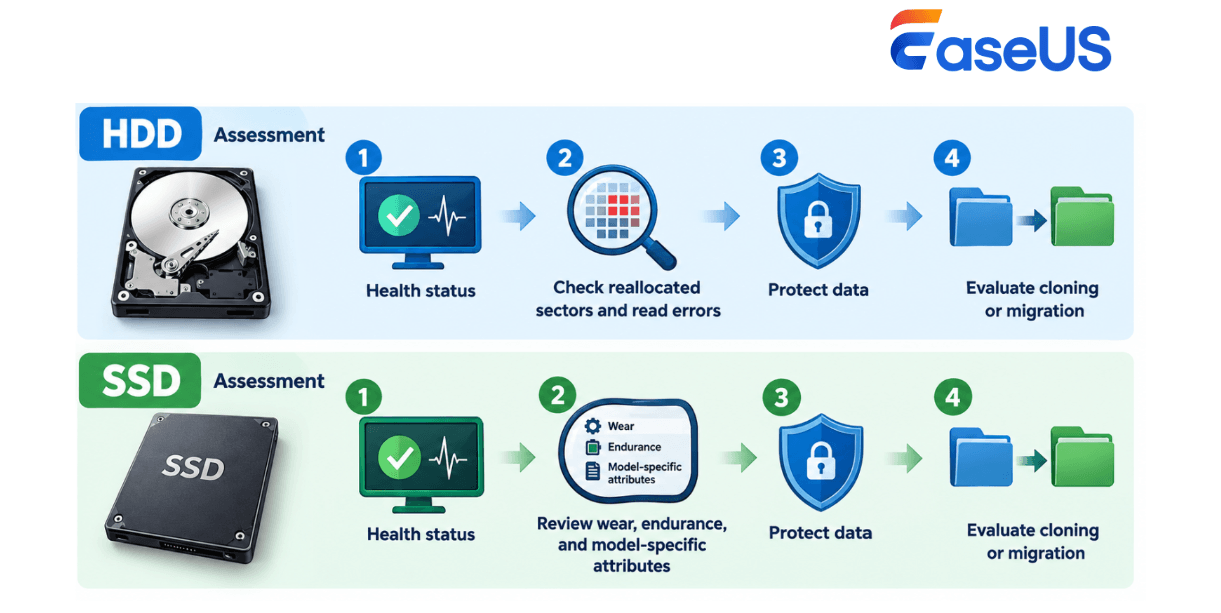
How HDD and SSD Diagnostics Differ
- HDD assessment: Health status → Check reallocated sectors and read errors → Protect data → Evaluate cloning or migration
- SSD assessment: Health status → Review wear, endurance, and model-specific attributes → Protect data → Evaluate cloning or migration
Summary:
The goal of disk health assessment is not simply to assign a score, but to understand the reported warning signs and determine the appropriate next steps.
4. Which Drives Need Closer Attention? Higher Caution/Bad Shares Among Smaller, Older, and MBR-Partitioned HDDs
Beyond overall health ratings and S.M.A.R.T. indicators, drive capacity, power-on hours, and partition table type differed across the sampled HDD data.
Examining these characteristics can help identify user scenarios where proactive health checks, data protection, or migration planning may be worth considering.
One important limitation applies throughout this section: the results show associations within the dataset can help identify areas for closer monitoring and user education, but they should not be used to predict an individual drive's remaining lifespan.
4.1 Smaller HDDs: Drives Under 500 GB Show Higher Caution/Bad Shares
| HDD Capacity | Caution/Bad Share |
|---|---|
| Under 250 GB | 39.90% |
| 250 GB to under 500 GB | 35.26% |
| 500 GB to under 1 TB | 22.14% |
| Under 500 GB, combined | 35.89% |
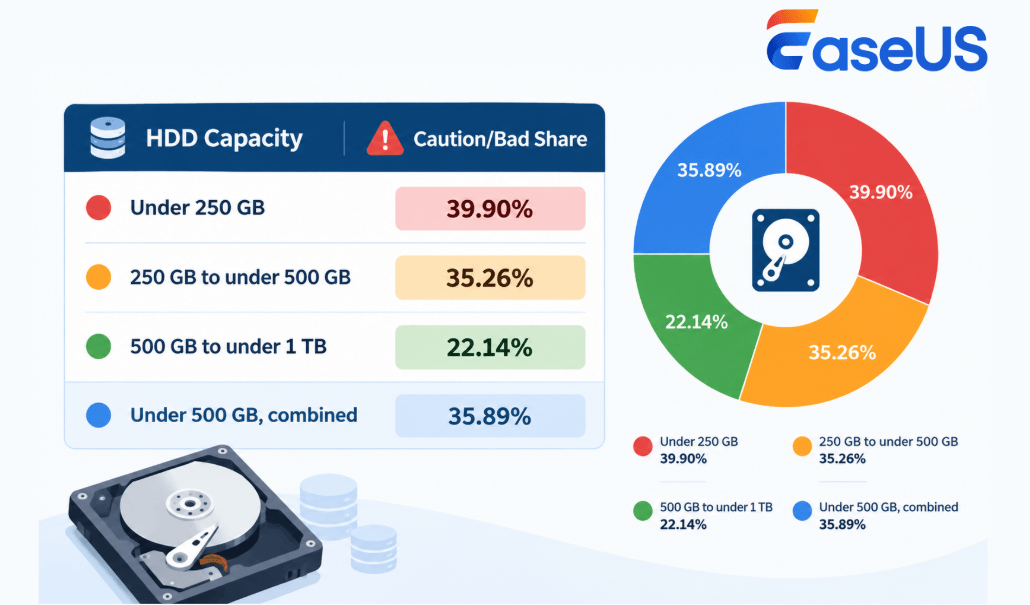
Among HDDs with a capacity below 500 GB, 35.89% were rated Caution or Bad. This was higher than the 22.14% observed among drives with capacities from 500 GB to under 1 TB.
Several factors may contribute to this pattern, including device age, usage patterns, workload, and storage configuration. However, the available data does not establish that smaller-capacity HDDs are inherently more likely to fail.
When managing smaller HDDs, consider proactive health checks and upgrade planning, rather than treating them as a group with a higher failure risk solely because of capacity.
Recommended Actions:
For users who still rely on smaller-capacity HDDs, a practical approach is to combine: Disk health check → Data backup → Storage cleanup → SSD capacity assessment → Upgrade or migration planning
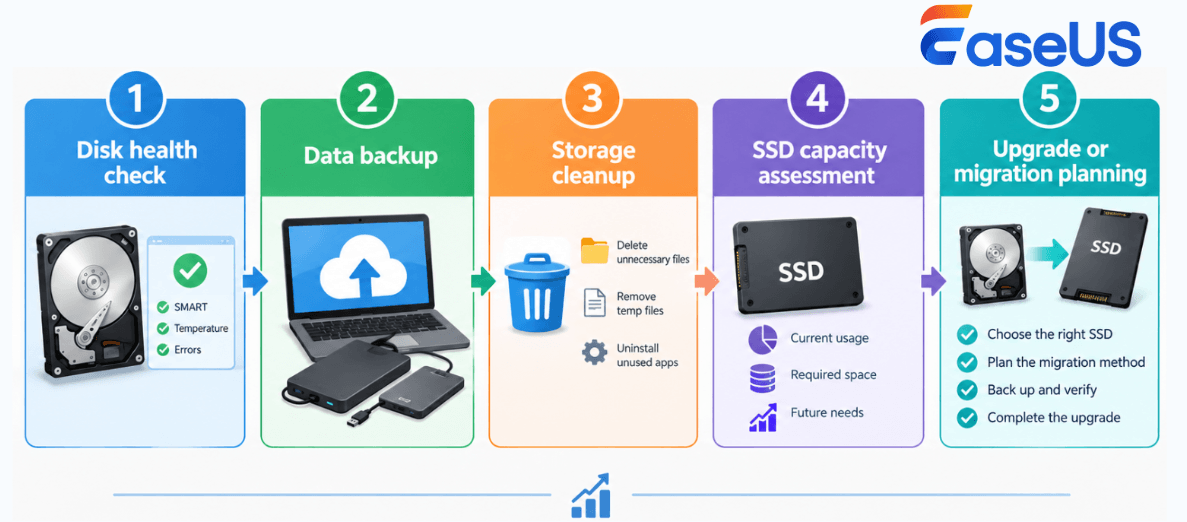
4.2 HDDs with Longer Operating Hours: Drives Above 5,000 POH Require Regular Checks
Power-On Hours (POH) records the cumulative time a drive has been powered on. It provides useful context when reviewing disk health, although it does not measure the drive's physical age or remaining lifespan.
In this dataset, 28.10% of HDDs with more than 5,000 POH were rated Caution or Bad.
For HDDs with longer operating hours, regular disk health checks and attention to performance changes can help users identify issues that may require further investigation. However, the available data does not establish a specific POH threshold at which a drive becomes likely to fail.
Note: POH reflects cumulative operating time, not actual physical age. Exceeding 5,000 hours does not mean a drive has reached the end of its useful life.
Recommended Actions:
For HDDs with longer operating hours, users should consider the following steps: Regular health checks → Back up important data → Recheck reported warnings → Prepare a replacement drive if needed
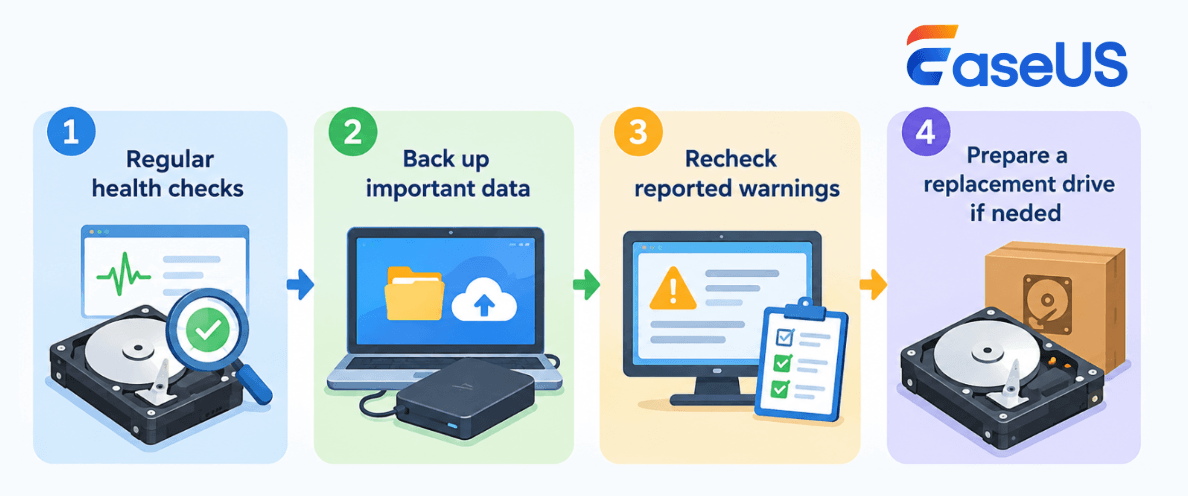
Taking these precautions can help users respond to emerging issues before they develop into more serious disruptions.
4.3 MBR HDDs: A Higher Rate of Abnormal Health Status Highlights the Need to Check Migration Compatibility
| Partition Table Type | HDDs Rated Caution/Bad |
|---|---|
| MBR | 34.14% |
| GPT | 19.29% |
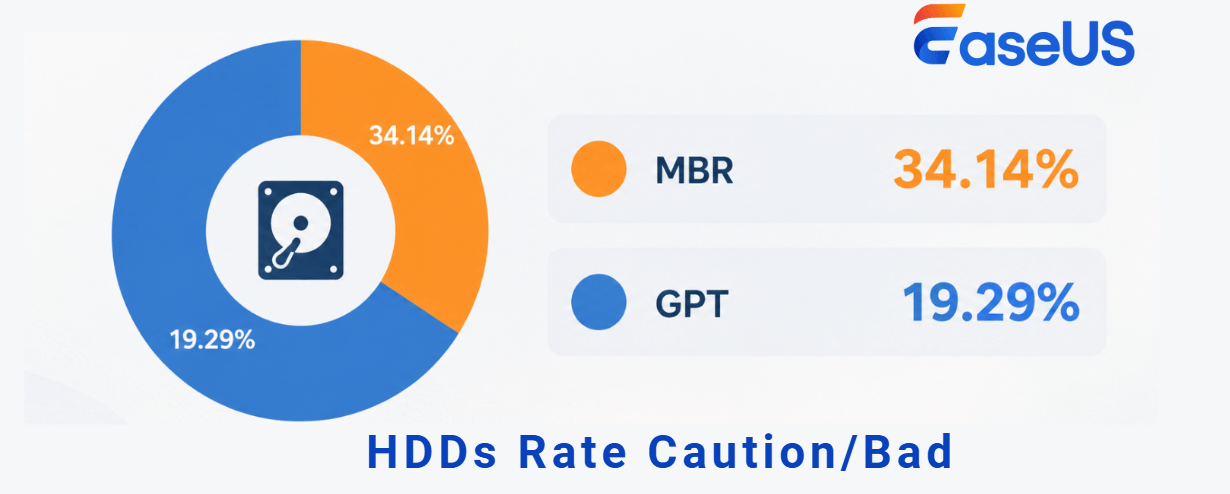
HDDs using MBR had a notably higher share of Caution/Bad health ratings than those using GPT.
However, this finding does not mean that MBR causes a decline in disk health. MBR is more commonly found on older devices, legacy boot configurations, and systems with older setups. These factors may also be associated with the differences observed.
What This Means for Windows Users
When planning a system migration, upgrading from HDD to SSD, reinstalling Windows, switching between BIOS and UEFI, or modifying partitions, check the following together:
- Partition style: Confirm whether the disk uses MBR or GPT.
- Boot mode: Verify that the system's BIOS or UEFI configuration is compatible with the target setup.
- System partitions: Check for the required EFI System Partition and Windows Recovery partition, where applicable.
- Target disk compatibility: Make sure the destination disk supports the intended Windows installation and boot configuration.
Key Takeaway:
Do not treat MBR itself as a disk health problem. Regular disk health checks, combined with compatibility checks before major system changes, can help users identify potential issues early and plan upgrades with greater confidence.
5. Does Low C: Drive Space Affect Disk Health? What the Data Reveals
For Windows users, disk health and storage management often go hand in hand.
Common scenarios include:
- C: drive gets full or shows a low disk space error and needs to extend the partition.
- The disk contains health issues and requires a disk migration.
- The system drive is running out of space and needs to upgrade the SSD.
- Reorganizing partitions while managing existing data.
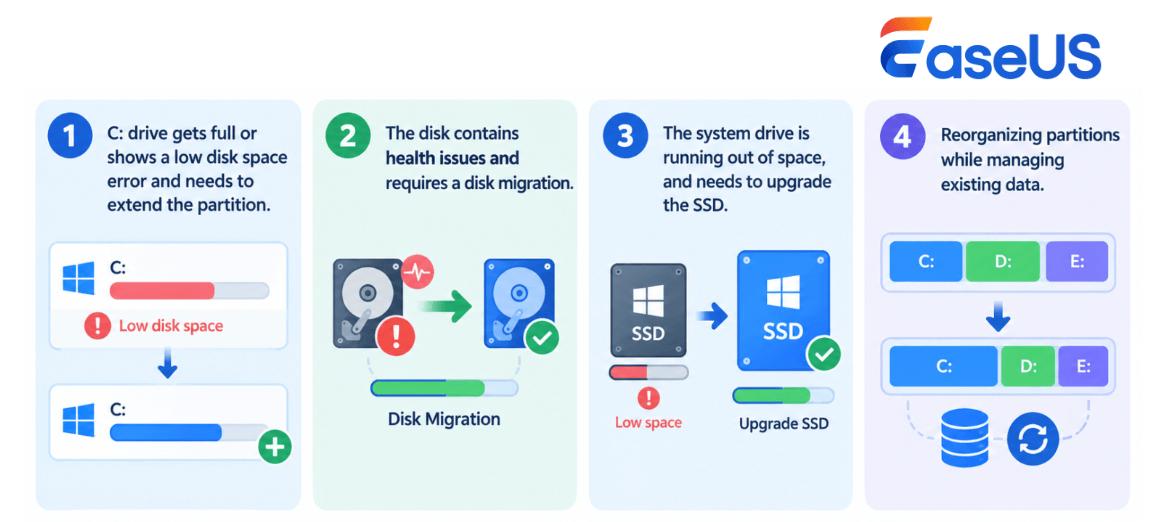
This report examines the relationship between C: drive space pressure and disk health status.
The goal is not to establish a direct cause-and-effect relationship, but to determine whether storage space management and disk health monitoring should be part of the same maintenance routine.
Note: For this analysis, C: drive utilization of 90% or higher is defined as high storage pressure, referred to as a "red" C: drive.
C: Drive Utilization vs. Disk Health
| Disk Type | C: Drive Utilization | Caution/Bad Rate |
|---|---|---|
| HDD | ≥90% | 29.04% |
| HDD | <90% | 29.32% |
| SSD | ≥90% | 1.83% |
| SSD | <90% | 0.89% |
5.1 HDDs: Disk Health Issues Are Nearly Identical Across C: Drive Utilization Groups
The HDD data is particularly noteworthy:
- High C: drive utilization: 29.04%
- C: drive utilization below 90%: 29.32%
The Caution/Bad rates are nearly identical in the two groups.
Therefore, the current data does not support the claim that low C: drive space directly causes HDD health issues.
A "red" C: drive should be considered a storage management issue, rather than a direct indicator of disk health problems.
5.2 SSDs: The High-Utilization Group Shows a Higher Rate of Abnormal Health Status, but Causation Remains Unproven
Among SSDs:
- High C: drive utilization (≥90%): 1.83%
- C: drive utilization below 90%: 0.89%
The high-utilization group had a higher share of drives rated Caution or Bad.
However, this difference may also be influenced by factors such as:
- Drive capacity
- Time in use
- User usage patterns
- Sample selection
- Drive model
Therefore, the data does not justify the conclusion that low C: drive space causes SSD failure.
A More Practical Approach to Disk Management
When users encounter both low C: drive space and disk health issues, these should be treated as related but distinct problems.
Recommended steps include: Check disk health + Back up data + Manage storage space + Adjust partitions + Migrate or upgrade when necessary
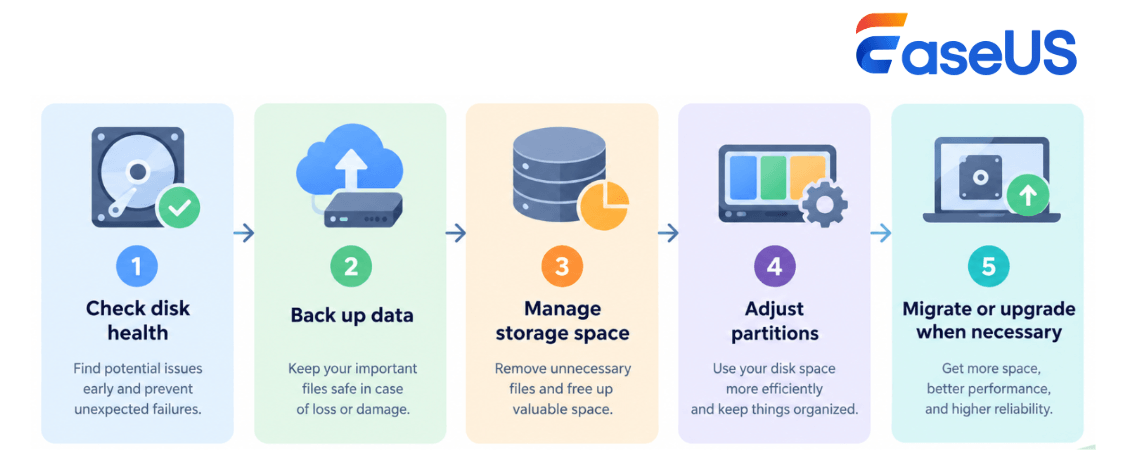
Rather than attributing all issues to insufficient C: drive space, users should separate disk health from storage capacity and take appropriate action based on the findings.
6. How Is Windows Disk Usage Changing? From Storage Capacity and C: Drive Pressure to HDD-to-SSD Migration
Disk health is only part of the picture. Storage capacity and partition configuration matter, too.
Our data reveals an important point: disk maintenance involves more than monitoring S.M.A.R.T. warnings. Low free space on the C: drive, declining system performance, and partition configurations that complicate migration are also practical challenges for Windows users.
Based on millions of real-world user diagnostic samples, we identified four key trends:
- Storage capacity remains limited on many devices. More than 80% of devices have less than 1 TB of storage, while over 17% have high C: drive utilization. Limited storage space remains a common day-to-day challenge.
- HDDs remain in use as system drives. 17.79% of users still run their operating systems on HDDs. These users need more than a recommendation to upgrade to an SSD; they need a clear path covering data backup and system migration.
- MBR remains a compatibility consideration. Although GPT is the dominant partition style, 24.54% of system drives still use MBR. System migration therefore requires careful checks of partition style and boot compatibility.
- Disk health, partition configuration, and migration are closely connected. Telling users that a disk is healthy is not enough. They also need to understand whether storage capacity is sufficient, whether the partition layout is suitable, and whether migration is necessary and how to carry it out.
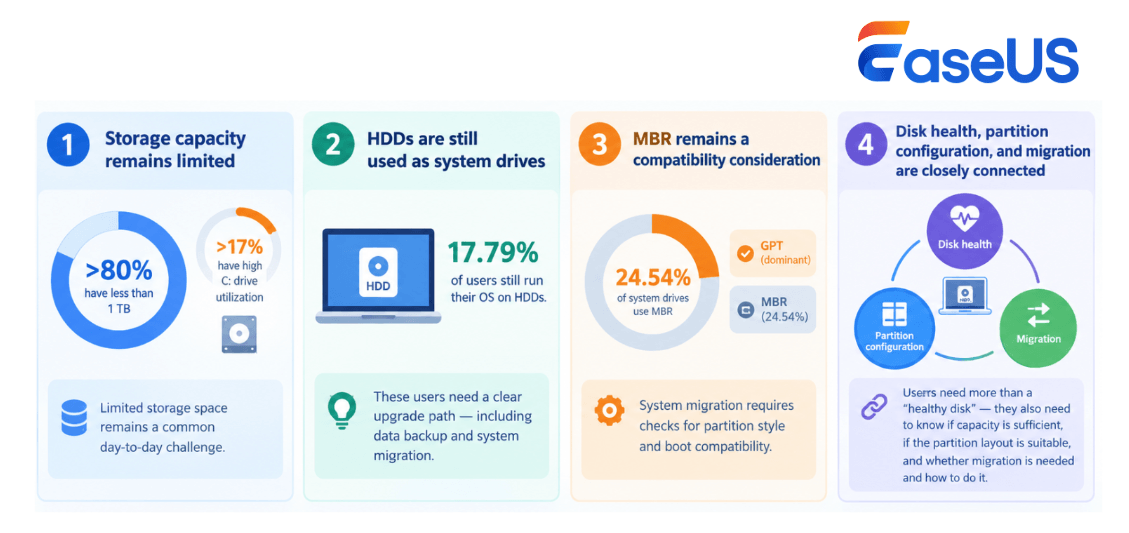
The following four sections examine the data behind these trends and the key decisions Windows users need to make at each stage.
6.1 Windows Devices Still Rely Heavily on Small-and-Mid Capacity Drives
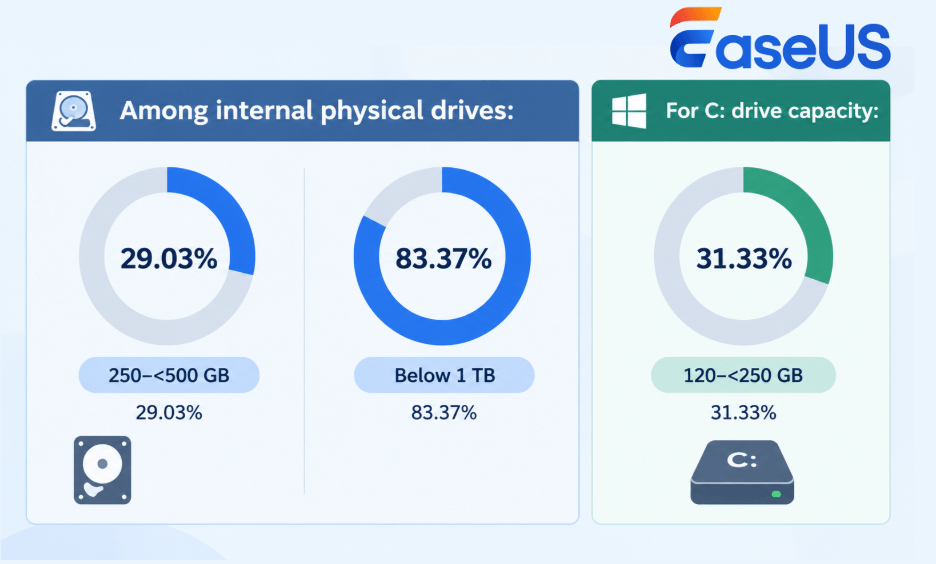
Among internal physical drives:
- 250–<500 GB: 29.03%
- Below 1 TB: 83.37%
For C: drive capacity:
- 120–<250 GB: 31.33%
These figures show that storage capacity remains a practical concern for Windows users.
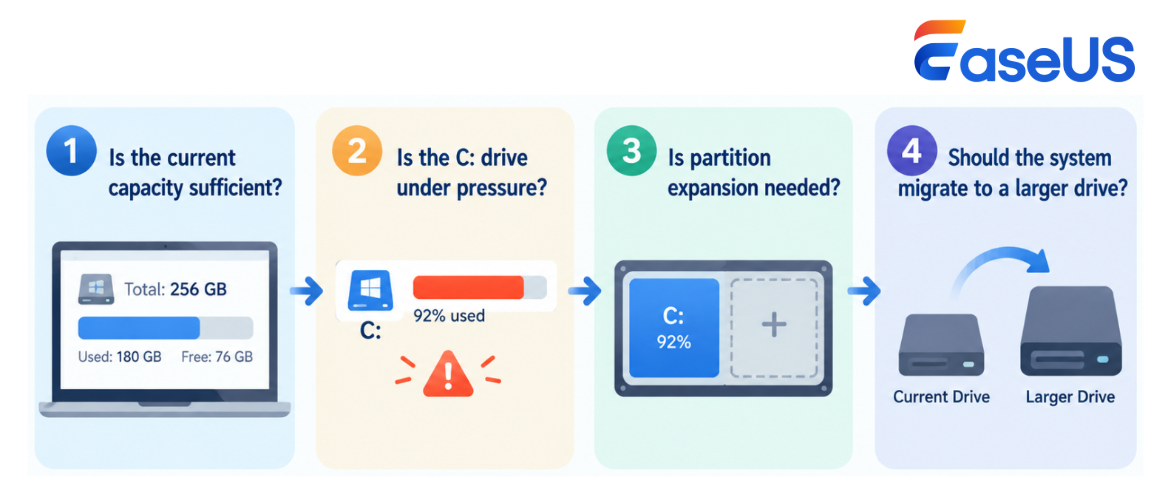
Disk health checks alone do not provide a complete picture. For devices with limited storage capacity, users also need to consider:
Is the current capacity sufficient? → Is the C: drive under pressure? → Is partition expansion needed? → Should the system migrate to a larger drive?
6.2 C: Drive Space Pressure: More Than 17% of Devices Have High Utilization
Among devices with valid C: drive data:
- Devices with high C: drive utilization: 641,955
- Total devices: 3,774,246
- Share of devices with high C: drive utilization: 17.01%
Among devices with a C: drive capacity below 120 GB, the share with high utilization reached 31.91%. These figures show that C: drive capacity and storage management remain practical concerns for Windows users.
However, as the health data discussed earlier shows, insufficient free space does not necessarily indicate a disk health problem.
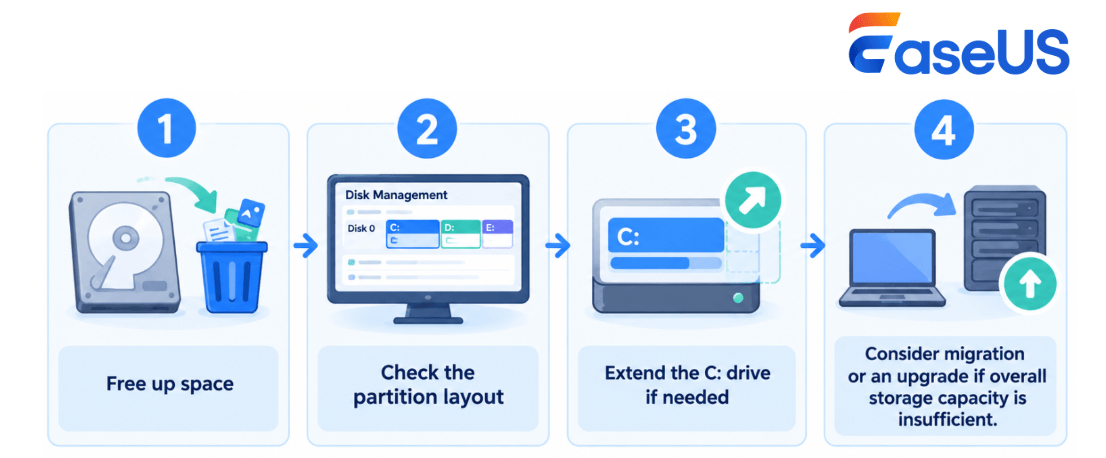
A more practical approach to storage management is:
Free up space → Check the partition layout → Extend the C: drive if needed → Consider migration or an upgrade if overall storage capacity is insufficient.
6.3 HDDs Still Account for 17.79% of System Drives, Highlighting the Continued Need for HDD-to-SSD Migration
Among system drives:
- HDD system drives: 671,433
- Share of system drives: 17.79%
Although SSDs have become the mainstream choice for system drives, a considerable share of Windows users still run their operating systems on HDDs.
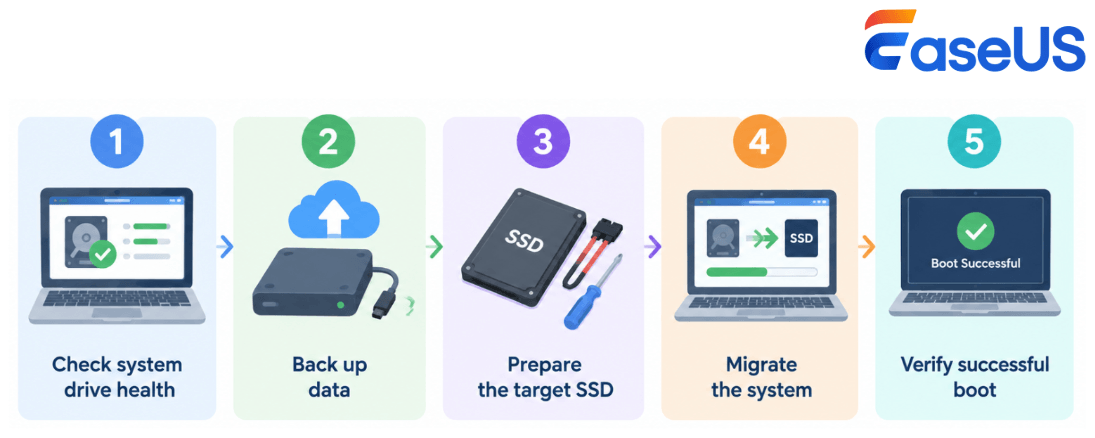
These users may need to follow several steps when upgrading to an SSD:
Check system drive health → Back up data → Prepare the target SSD → Migrate the system → Verify successful boot
Migrating from HDD to SSD is therefore more than a hardware upgrade. It can also form part of a broader disk management process.
6.4 GPT Is the Dominant Partition Style, but MBR Still Accounts for About One-Quarter of System Drives
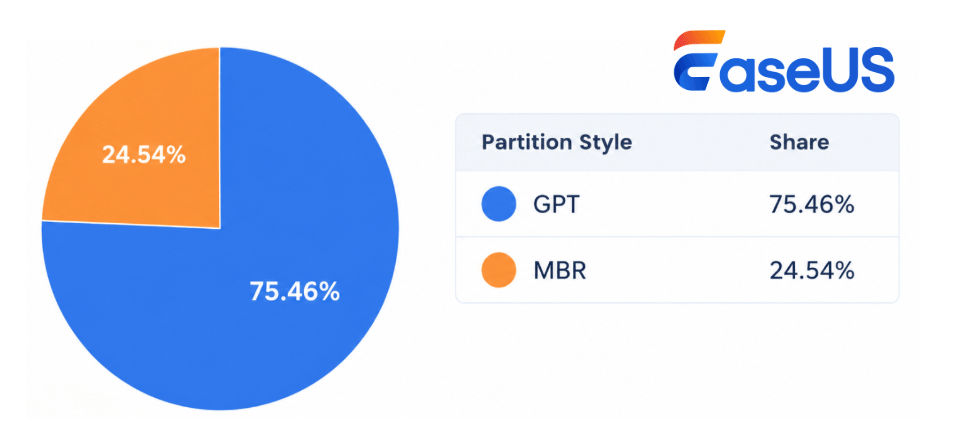
System drive partition styles:
| Partition Style | Share |
|---|---|
| GPT | 75.46% |
| MBR | 24.54% |
The most common system drive layout contains four partitions, accounting for 42.86%.
This means system migration and partition management require more than checking the target disk's capacity.
The following factors also need to be considered during migration:
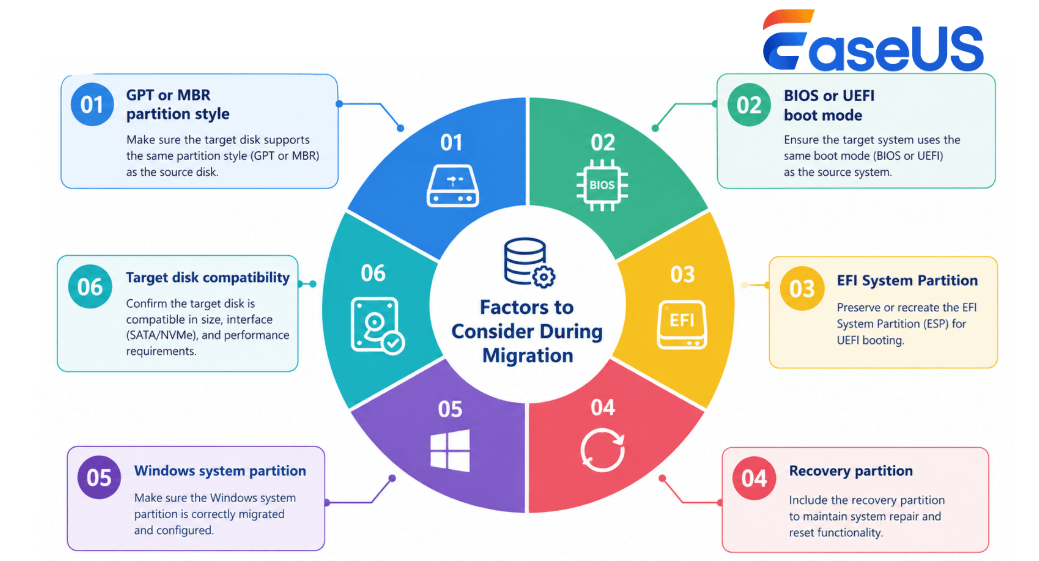
- GPT or MBR partition style
- BIOS or UEFI boot mode
- EFI System Partition
- Recovery partition
- Windows system partition
- Target disk compatibility
Key Note: Disk health, partition layout, and system migration are interconnected parts of Windows storage management.
7. From Detecting Issues to Completing Migration: A Practical Approach to Disk Health Management
The data presented earlier shows clear differences between HDDs and SSDs in health status, S.M.A.R.T. indicators, and typical usage scenarios.
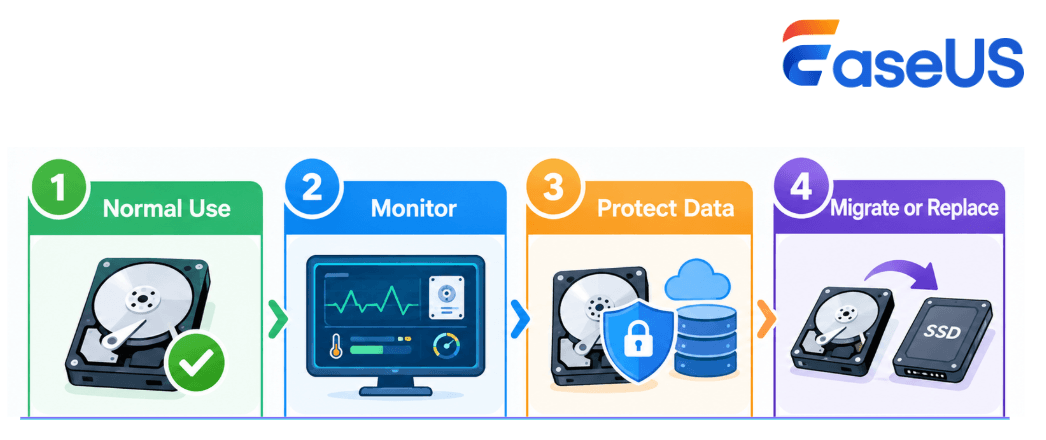
Disk health management should therefore go beyond a simple approach of: Detect an issue → Replace the drive immediately
A more practical approach is to establish a tiered management process based on disk health status and usage scenarios: Normal Use → Monitor → Protect Data → Migrate or Replace
7.1 Good Health Status: Continue Using the Drive and Maintain Regular Backups
Tips for HDDs and SSDs rated in Good status:
- Continue normal use.
- Maintain regular backups.
- Recheck disk health periodically.
- Do not replace the drive prematurely based solely on its current health status.
Management Principle:
The "Good" state does not mean failure is impossible, but it does not justify premature replacement either.
The value of disk health checks lies in ongoing monitoring, rather than treating a single assessment as a permanent guarantee.
7.2 Caution Status: Confirm the Issue and Protect Important Data
Among the HDD samples, 23.04% were rated Caution.
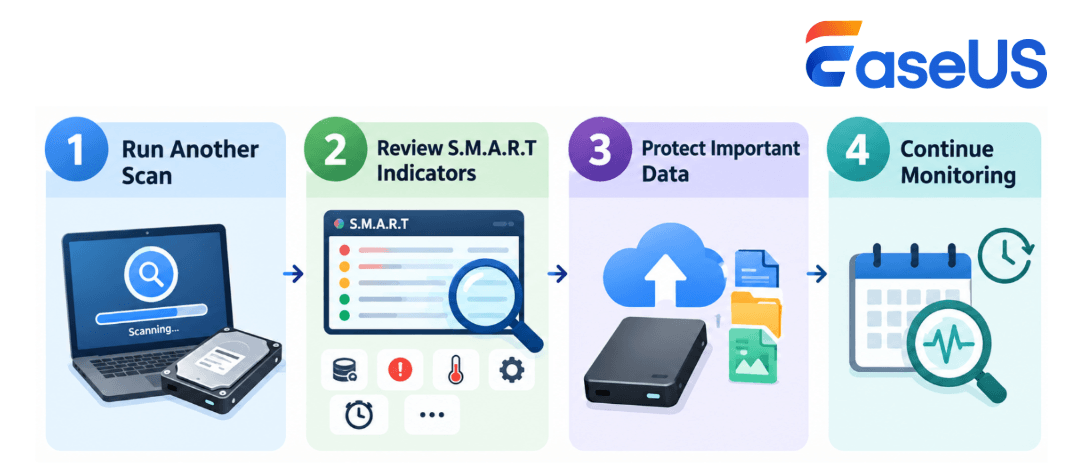
When a drive is rated Caution:
Step 1: Run Another Scan
Check whether the abnormal readings persist.
Step 2: Review S.M.A.R.T. Indicators
Identify the specific indicators involved, such as:
- Reallocated sectors
- Read errors
- Temperature
- Wear
- Remaining lifespan
- Other vendor-specific attributes
Step 3: Protect Important Data
Prioritize backing up important files.
Step 4: Continue Monitoring
If the abnormal readings persist or worsen, consider migrating or replacing the drive.
Management Principle:
The "Caution" state does not mean a drive must be retired immediately, but it does mean moving from normal use to closer risk monitoring.
7.3 Bad Status: Shift from Continued Use to Backup, Migration, and Replacement
Among the sampled drives:
- HDDs rated Bad: 1.78%
- SSDs rated Bad: 1.01%
When a drive is rated Bad, the priority shifts from assessing how much longer it might last to protecting data as soon as possible.
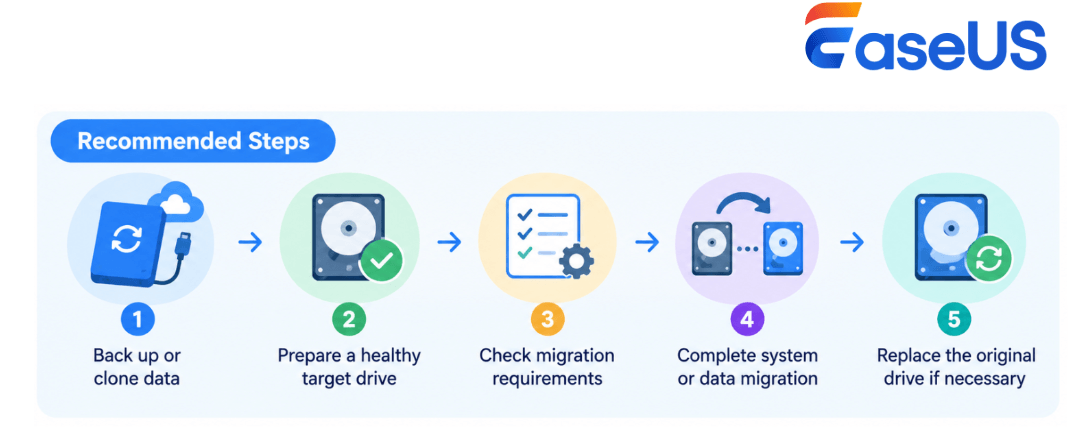
Recommended Steps:
Back up or clone data → Prepare a healthy target drive → Check migration requirements → Complete system or data migration → Replace the original drive if necessary
Before migration, check the following:
- Target drive capacity
- GPT or MBR partition style
- BIOS or UEFI boot mode
- EFI System and Recovery partitions
- Data backup status
- System boot requirements
- Any required encryption and access settings
Management Principle
When a drive is rated Bad, the priority should shift from continued use to data protection and migration.
7.4 Scenarios That Deserve Closer Attention: Small-Capacity HDDs, Long Operating Hours, and MBR HDDs
Based on the findings, the following scenarios can serve as starting points for proactive disk health management.
| Scenario | Observed Caution/Bad Rate or Share | Recommended Action |
|---|---|---|
| Small-capacity HDDs (<500 GB) | Caution/Bad: 35.89% | Check disk health, manage storage space, and prepare for an upgrade |
| HDDs with POH >5,000 hours | Caution/Bad: 28.10% | Check health regularly, back up data, and prepare for potential replacement |
| MBR HDDs | Caution/Bad: 34.14% | Check partition style, boot mode, and migration compatibility |
| High C: drive utilization | 31.91% of devices with a C: drive below 120 GB had high utilization | Free up space, extend the partition if needed, and plan storage capacity |
| HDD system drives | 17.79% of system drives | Check disk health and consider HDD-to-SSD migration |
These findings are best understood as starting points for proactive disk health management, rather than proof that these conditions will cause disk failure.
7.5 Low C: Drive Space: Address Storage Issues First Rather Than Attributing Them to Disk Health
When the C: drive is running low on space, users can start by:
- 1. Removing unnecessary files.
- 2. Checking the location of large applications and data.
- 3. Checking whether space can be reclaimed or adjusted between the C: drive and other partitions.
- 4. Extending the C: drive if needed.
- 5. Considering migration to a larger drive if overall storage capacity is insufficient.
If disk health issues are also present, add disk health checks and data backups to the process.
Do not assume that a "red" C: drive means the disk is about to fail.
7.6 HDD System Drives: Combining Health Checks with SSD Migration
For Windows users who still run their operating systems on HDDs, disk health checks and SSD migration can form a continuous management process:
Check disk health → Assess HDD condition → Back up important data → Prepare the SSD → Check GPT/MBR and boot requirements → Migrate Windows → Verify successful boot
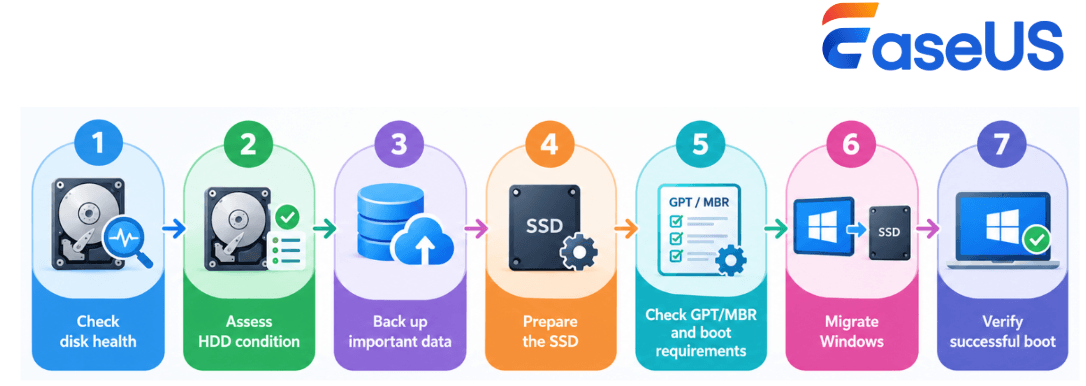
This scenario is particularly well suited to combining disk health diagnostics with system migration.
A health check answers: "What condition is my disk in now?"
Migration addresses a different question: "How can I reduce the risks of continuing to rely on an older drive?"
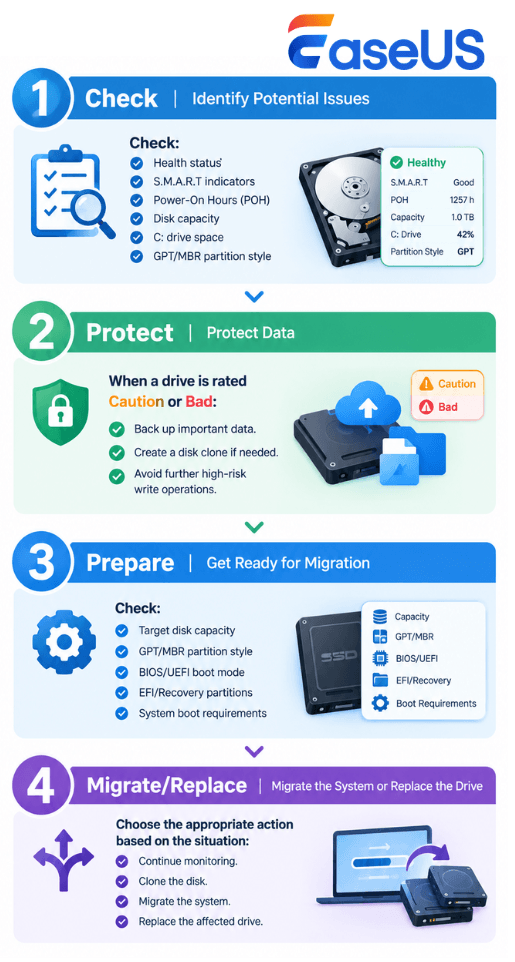
7.7 A Complete Disk Health Management Process: Check → Protect → Prepare → Migrate/Replace
Based on the findings in this report, Windows disk health management can be organized into four stages.
1. Check | Identify Potential Issues
Check:
- Health status
- S.M.A.R.T. indicators
- Power-On Hours (POH)
- Disk capacity
- C: drive space
- GPT/MBR partition style
2. Protect | Protect Data
When a drive is rated Caution or Bad:
- Back up important data.
- Create a disk clone if needed.
- Avoid further high-risk write operations.
3. Prepare | Get Ready for Migration
Check:
- Target disk capacity
- GPT/MBR partition style
- BIOS/UEFI boot mode
- EFI/Recovery partitions
- System boot requirements
4. Migrate/Replace | Migrate the System or Replace the Drive
Choose the appropriate action based on the situation:
- Continue monitoring.
- Clone the disk.
- Migrate the system.
- Replace the affected drive.
The result is a practical workflow: Check → Protect → Prepare → Migrate/Replace
This approach better reflects the real-world needs of Windows disk management than simply telling users whether their disk health status is Good or Bad.
Keynotes Of Windows Disk Health Report 2026 H1
Brief Conclusion: Disk Health Management Is Shifting from Detecting Failure to Preparing for What Comes Next
EaseUS Lab's H1 2026 disk health diagnostic data reveals a clear trend: HDDs and SSDs require different approaches to health management.
Among the HDD samples, 24.83% were rated Caution or Bad, highlighting the importance of regular health checks, data backups, and migration planning for HDD users.
By comparison, 98.26% of SSD samples were rated Good, indicating a more concentrated distribution of health status. However, when an SSD is rated Bad, prompt data protection and migration remain important.
Small-capacity HDDs, HDDs with long operating hours, and MBR HDDs also showed higher Caution/Bad rates. These findings are best treated as priority scenarios for proactive health management, rather than definitive causes of disk failure.
C: drive space pressure provides another important finding:
Low free space and disk health may be related, but one should not automatically be treated as the cause of the other.
Among HDDs, the Caution/Bad rates were nearly identical between the high-utilization and lower-utilization groups. Users should therefore address storage management and disk health together, without assuming that insufficient C: drive space directly leads to declining disk health.
Looking at the broader Windows storage landscape, 17.79% of system drives were still HDDs. GPT was the dominant partition style, but MBR continued to account for 24.54% of system drives.
This points to a broader role for disk management. Rather than simply asking: "Is the disk failing?"
Users need a more complete process: Assess disk health → Understand warning signs → Protect important data → Prepare for migration → Migrate or replace when necessary
Ultimately, disk health management can be summarized as a practical user journey: Assess Health → Understand Issues → Protect Data → Prepare for Migration → Replace When Necessary
This is the key practical takeaway from the H1 2026 disk health data:
The value of disk health checks lies not only in telling users whether a drive is healthy, but also in helping them prepare for the next step before data is put at risk.
Was This Page Helpful?
More from EaseUS
-
EaseUS Disk Drives Stats 2 (Disk Number/Disk Types/C Drive Size) for 2023
![author icon]() Cici/2026-10-10
Cici/2026-10-10 -
Why Your SD Cards Are Failing & Why Old Recovery Methods Are Obsolete
![author icon]() Finley/2026-06-16
Finley/2026-06-16 -
Consumer Data Storage Device Market Reports in Q3 2025
![author icon]() Larissa/2026-07-03
Larissa/2026-07-03 -
The New Era of Personal Data Protection: From Local Backup to Integrated Cloud Management
![author icon]() Larissa/2026-06-18
Larissa/2026-06-18
 Cici/2026-10-10
  Finley/2026-06-16
  Larissa/2026-07-03

