





Table of Contents
 About the Author
 Related Posts
The MPG format relies on multiplexed MPEG-1 or MPEG-2 system streams to combine raw video and audio codecs like MP2 or AC3. When an MPG video fails to open, plays without sound, or suffers from severe stuttering, the root cause is almost always broken video header data, index table corruption, or damaged multiplexed packets. For severe file corruption, automated desktop repair software such as EaseUS Fixo Video Repair provides advanced structural reconstruction algorithms to repair damaged MPG containers seamlessly.
- Causes: Why Is My MPG Video Corrupted
- Solutions: How to Repair Corrupted MPG Files
- Tips to Prevent MPG Video Corruption
MPG is one of the oldest and most widely used video formats. It follows the MPEG-1 and MPEG-2 industry standards. This format packs compressed video together with audio tracks such as MP2 or AC3 audio into one single file. This format works smoothly with old video players, DVD creation tools, and digital broadcast equipment. That is why millions of archived videos, personal home recordings, and professional media files are still saved as MPG files today.
However, despite its historical reliability, the architectural structure of the MPG system stream makes it uniquely vulnerable to data corruption. Understanding how to repair MPG file corruption requires analyzing system stream integrity, employing specialized video repair tools, and utilizing command-line stream rebuilding procedures.
Causes: Why Is My MPG Video Corrupted
Identifying the exact symptoms of a damaged MPG clip helps determine whether the issue stems from simple player software incompatibility or true byte-level structural corruption within the file container.
| ❌Unplayable File Error | Media players display errors such as invalid file format or cannot open video stream upon launch. |
| 🔇Audio and Video Sync Issues | The video track lags behind the audio codec or the sound cuts out entirely while visual frames continue playing. |
| 🖥️Intermittent Freezing and Pixelation | The playback stops on a specific frame while audio continues, or large grey blocks obscure visual details. |
| 🔎Broken Seeking Bar | Moving the media player progress slider causes the application to crash or jump instantly to the end of the video. |
Knowing what causes broken MPG videos helps you fix unplayable videos easily.
- Broken Video Header: All MPG videos store basic playback rules at the start of the file. If this front section gets damaged, media players cannot load or open the video at all.
- Damaged Progress Markers: Every MPG file has hidden markers to support fast forward and rewind. Once these markers break, you cannot drag the playback bar, and the video will freeze during viewing.
- Unfinished File Transfers: If you pull out USB drives or disconnect network storage while MPG files are copying, the file will not save completely and cannot play smoothly.
- Faulty Storage Blocks: Aging hard drives or memory cards develop broken storage areas. These damaged spots mess up the audio and video data saved inside your MPG files.
- Power Cut During Recording: When your camera runs out of battery, or your computer shuts down suddenly while recording, the MPG file cannot finish saving. It will miss key ending data needed for normal playback.
Solutions: How to Repair Corrupted MPG Files
Fixing damaged MPG video files requires structured techniques depending on whether the issue is simple stream desynchronization or severe structural file corruption. Below are the primary methods to restore corrupted videos.
1. Repair Corrupted MPG Files using EaseUS Fixo Video Repair
Considering you are in urgent need of this video file, we will provide you with the most effective and easiest way to get your MPG files fixed. You can use some reliable and powerful video repair tools like EaseUS Fixo Video Repair.
EaseUS Fixo Video Repair is a user-friendly video repair tool that can perfectly handle a variety of video corruption cases. It can fix corrupted video files without any technical help. Read the steps below to see how easy it is:
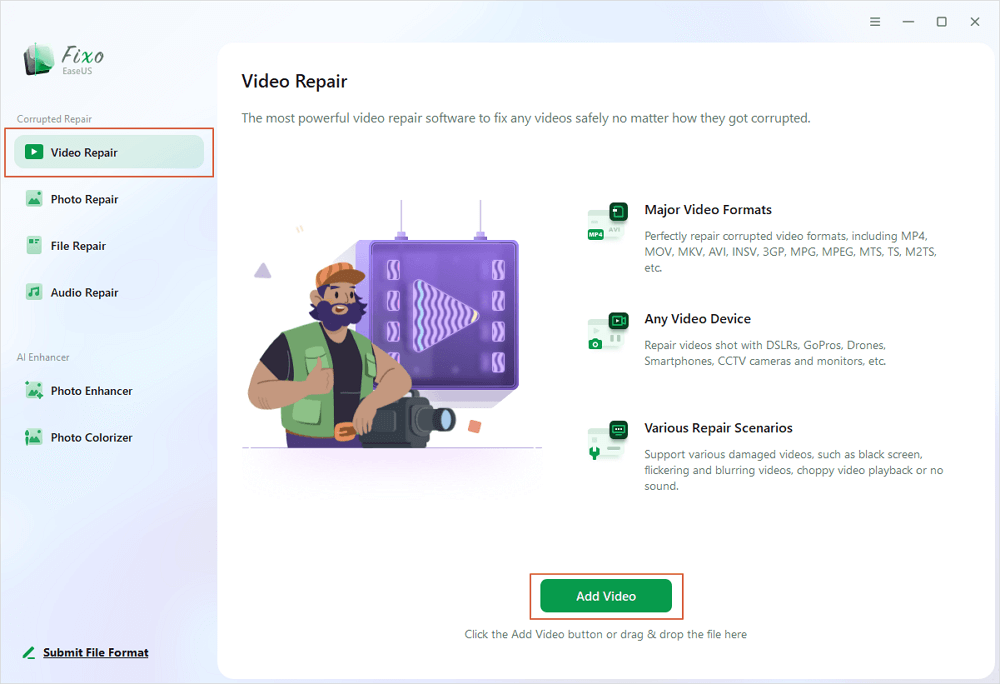
Step 1. Open Fixo on your local PC. Click "Video Repair" and add the corrupted MP4/MOV/AVI/MKV/3GP/FLV/MKV/WMV video files by clicking "Add Videos".
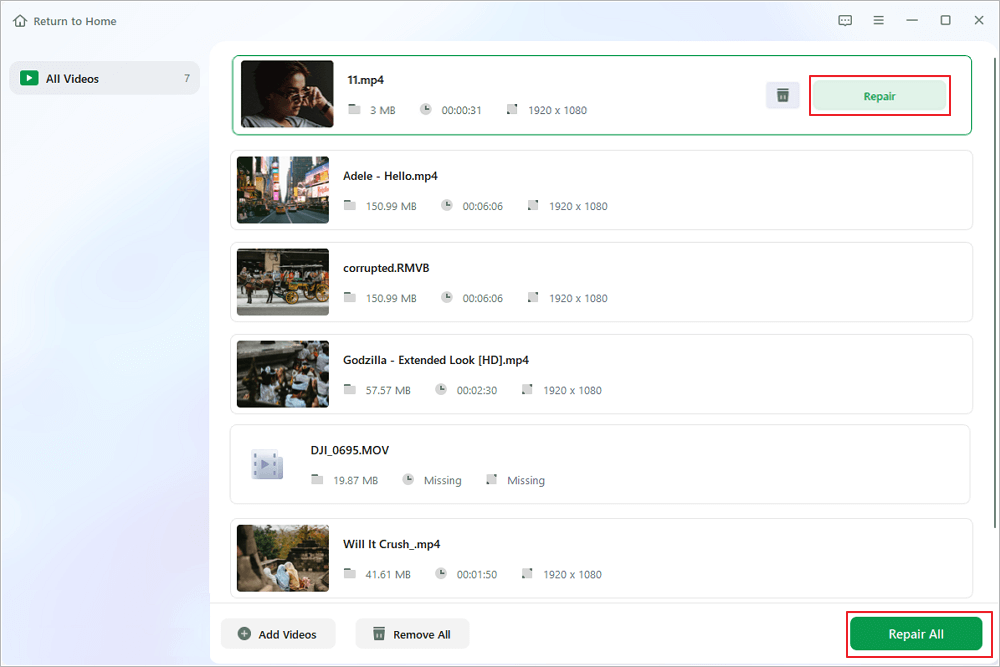
Step 2. Move the pointer to a video and click the "Repair" button to start the single video repairing process. If you want to repair all the videos, click "Repair All".
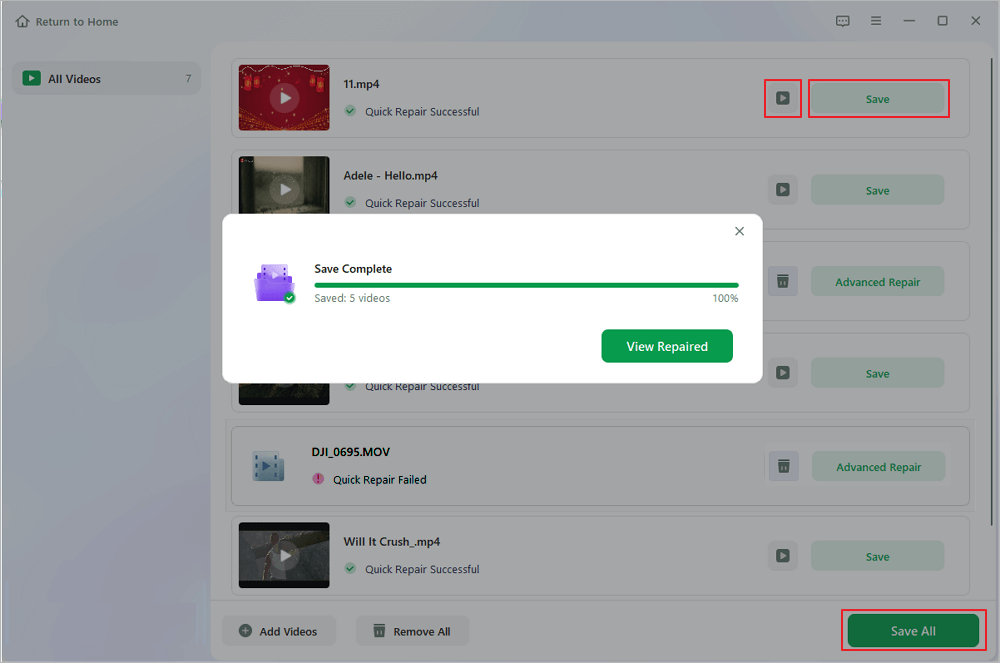
Step 3. Wait a few minutes, and the corrupted videos will be repaired. Click the play icon to preview the videos. You can save a single video by clicking the "Save" button next to the play icon. If you want to save all the repaired videos, choose "Save All".
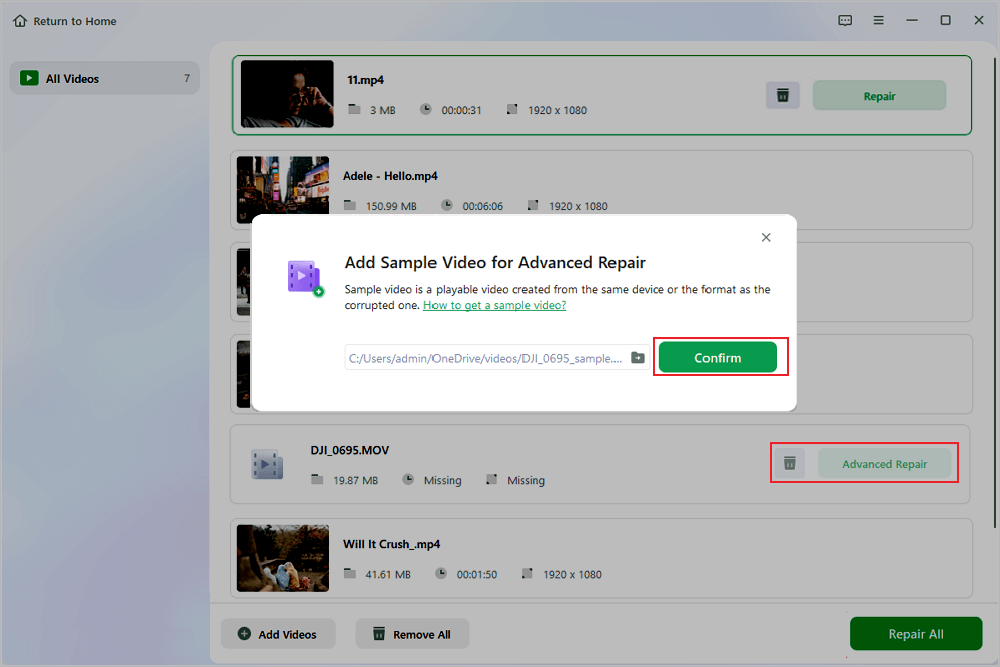
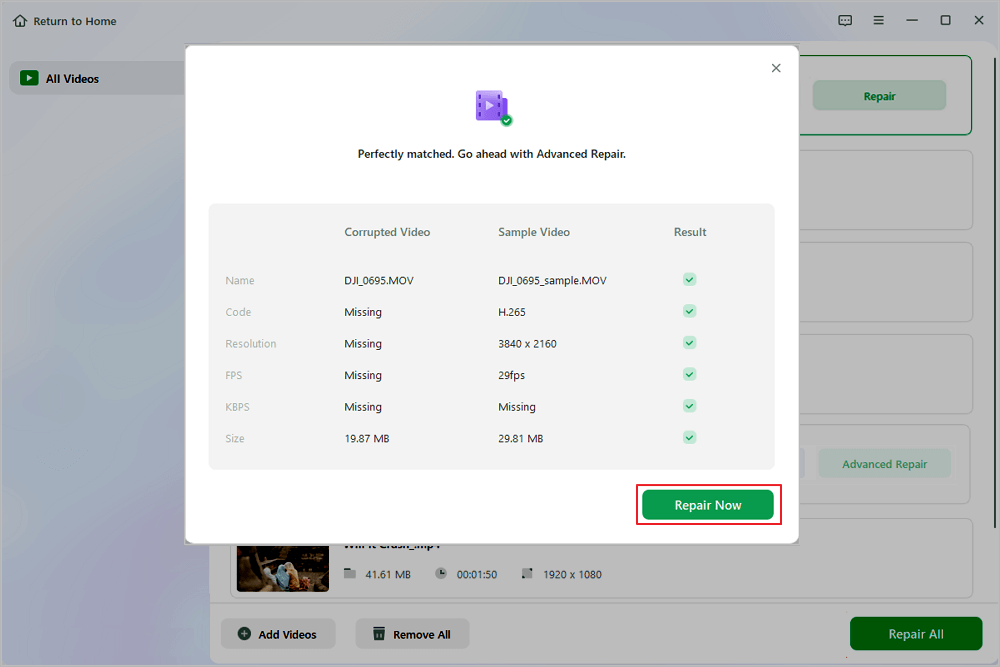
Step 4. If the quick repair fails, you should utilize the advanced repair mode. Click "Advanced Repair" and add a sample video. Choose "Confirm" to ensure.
Step 5. A list of detailed information on corrupted and sample videos will show up. Click "Repair Now" to start the advanced video repair process. When the repair is complete, you can view the videos and click the "Save" button to save the repaired video files to an appropriate destination.
If you find this information helpful, please share it with others on social media to assist them in overcoming this common challenge.
2. Repair MPG File Using VLC Media Player
Users searching for how to fix corrupted MPG video files free can leverage built-in features within VLC Media Player. While primarily a media player, VLC contains automated container conversion utilities and temporary AVI index rebuilding tools that can bypass minor MPG stream errors.
Step 1. Open VLC Media Player on your computer.
Step 2. Click the "Media" tab on the top menu bar and select "Convert and Save".
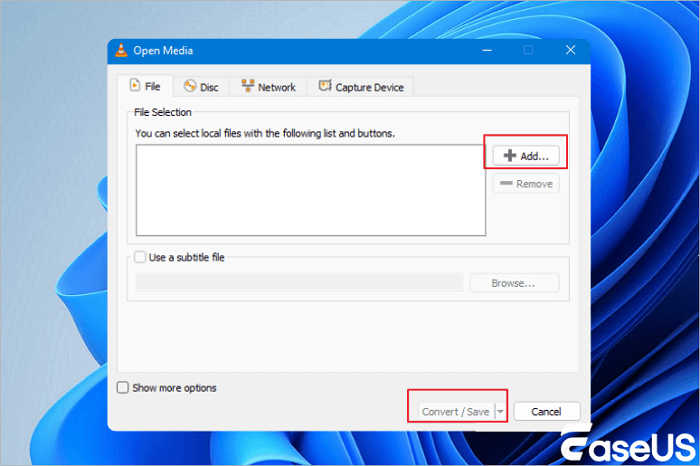
Step 3. Click "Add" and browse to import your damaged MPG video file.
Step 4. Click "Convert and Save" at the bottom of the window.
Step 5. In the Profile dropdown menu, select a standard video output format such as H.264 video plus MP3 audio, or keep the original MPEG streams.
Step 6. Choose a destination path and filename, then click "Start" to force VLC to re-multiplex the damaged system stream into a clean file.
Tips to Prevent MPG Video Corruption
While software solutions like EaseUS Fixo restore damaged clips reliably, implementing best practices during recording, storage, and file handling minimizes future data corruption risks.
- Save multiple backup copies. Keep several copies of your saved MPG videos. Store these copies on different physical storage devices or online cloud storage space.
- Eject storage drives properly. Before you pull USB flash drives or memory cards out of your computer, use the system-built-in safe remove function. This avoids damaging video files from sudden disconnection.
- Stop power cuts during video recording. Frequently check the battery level of your camera or recording gear. If the power runs out while you are recording, your MPG video files will get corrupted.
- Scan storage drives for damage regularly. Use free tools that come with your computer to check hard drives and memory cards. These scans find broken storage areas ahead of time, so you will not save videos on faulty spaces.
- Never cut off file transfer tasks early. When copying or moving folders full of large MPG videos, let the whole process complete fully. Canceling the transfer halfway will break your video files.
Conclusion
Legacy container formats like MPG present unique technical challenges when corrupted due to their complex multiplexed MPEG-1 and MPEG-2 system stream architecture. Broken video header details, index table degradation, and out of sync audio codecs can easily render archival media unplayable. Fortunately, leveraging powerful repair solutions ensures your content is not lost permanently.
While free utilities like VLC Media Player and dedicated desktop repair tools like EaseUS Fixo Video Repair provide the most reliable, complete solution to repair MPG file corruption safely and preserve your digital media legacy.
Frequently Asked Questions
Fixing legacy media files frequently raises technical questions about container specifications, repair tools, and playback errors. The following expert answers address common questions regarding MPG file restoration.
1. Why does my MPG video play audio but no visual display?
This issue typically occurs when the media player lacks the appropriate MPEG-1 or MPEG-2 video codec required to decode the visual stream, or when the video stream header inside the MPG file is corrupted. Installing updated system codecs or running EaseUS Fixo Video Repair fixes the underlying video header structures.
2. Can VLC Media Player repair damaged MPG files for free?
Yes, VLC Media Player can fix minor MPG playback issues for free by using its built in convert and stream features to re-multiplex the audio and video streams into a clean container, or by forcing index reconstruction when saving the file under alternative container extensions.
3. Is an MPG file identical to an MP4 video file?
No, MPG and MP4 are structurally different formats. MPG relies on older MPEG-1 or MPEG-2 compression standards with multiplexed system streams, whereas MP4 uses modern H.264 or H.265 video codecs within an ISO base media file format container, offering much higher compression efficiency.
4. How long does it take EaseUS Fixo to repair a corrupted MPG video?
The repair duration depends primarily on the size of the MPG file and the severity of structural damage. In most standard scenarios, EaseUS Fixo processes and reconstructs a typical video clip within a few minutes using its fast scanning engine.
Was This Page Helpful?
About the Author

Jaden is one of the editors of EaseUS, who focuses on topics concerning PCs and Mac data recovery. Jaden is committed to enhancing professional IT knowledge and writing abilities. She is always keen on new and intelligent products.


