





Table of Contents
 About the Author
 Related Posts
The DJI Pocket 4 is a powerful handheld gimbal camera, but like any device, it can sometimes produce corrupted, unplayable, or glitchy footage. Whether your video won't open, freezes mid-playback, shows pixelation, or has no sound, this guide will show you how to fix Pocket 4 footage quickly and effectively.
What Causes Pocket 4 Footage Corruption
Before jumping into the repair process, it helps to understand what went wrong. Common causes include:
- 🔴Sudden power loss – The camera shuts off while recording, leaving an incomplete video file.
- 🟣Improper SD card ejection – Removing the card during writing can corrupt the file structure.
- 🔵SD card file system errors – A damaged card can produce unreadable or glitchy videos.
- 🟡Firmware bugs – Outdated Pocket 4 firmware may cause recording errors.
- 🟢File transfer interruptions – Interrupting a copy operation can corrupt the video.
How to Fix Pocket 4 Footage with EaseUS Fixo Video Repair
When your Pocket 4 footage is on the line, you need a dedicated repair tool. EaseUS Fixo Video Repair is designed to repair corrupted videos from action cameras, drones, and gimbals, such as the Pocket 4. It supports common formats (MP4, MOV, etc.) and codecs (H.264, H.265).
This video repair tool from EaseUS can also repair corrupted MP4, MOV, and other common video formats within 3 steps. Now follow these steps to fix your Pocket 4 footage:
Step 1. Download and Install EaseUS Fixo Video Repair
Visit the official EaseUS website, download Fixo Video Repair, and install it on your computer (not on the SD card). Launch the software.
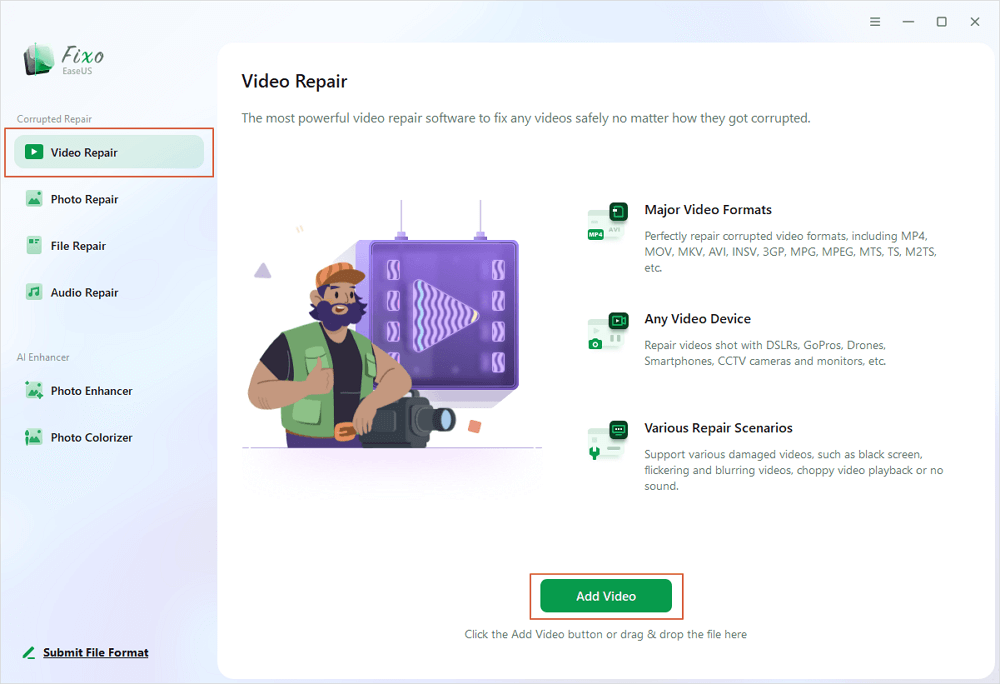
Step 2. Add Your Corrupted Pocket 4 Videos
In the main interface, click "Video Repair" > "Add Videos" . Browse and select the corrupted Pocket 4 footage files (e.g., .mp4 or .mov files) from your SD card or computer. Tap on "Repair" to start repairing.
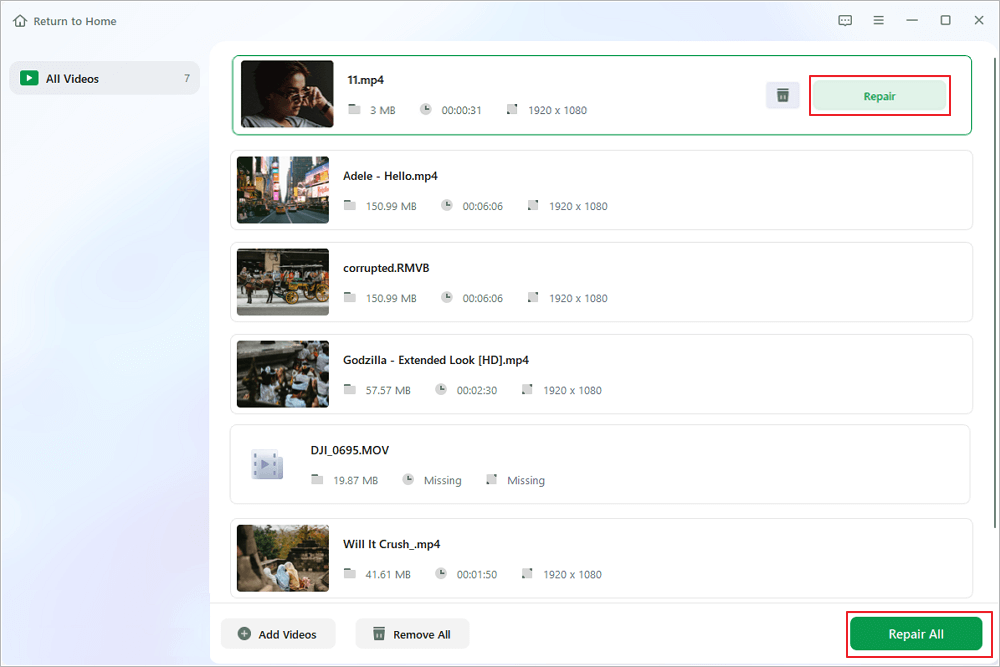
Step 3. Preview and Save Repaired Footage
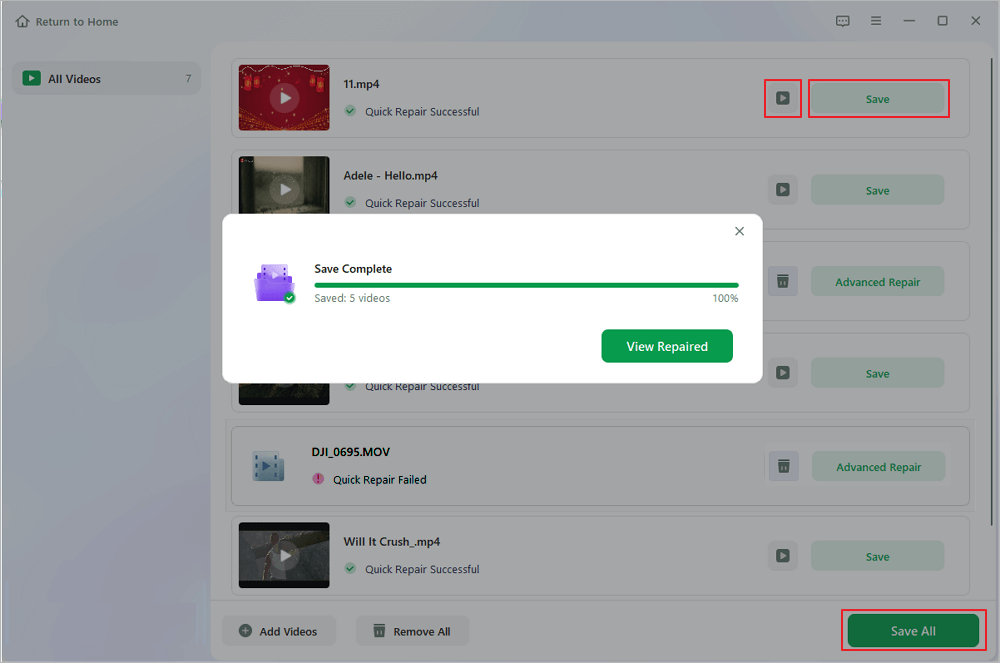
Once the repair is complete, click the play icon to preview each video. If everything looks good, click "Save All" to export the fixed footage to a safe location on your hard drive.
How to Avoid Pocket 4 Footage Corruption
Prevention is always better than repair. Follow these tips to protect your Pocket 4 footage:
- Always use the "Safely Remove Hardware" option before unplugging your SD card.
- Format your SD card inside the Pocket 4 camera before each important shoot.
- Keep your Pocket 4 firmware up to date with the latest version.
- Use high-quality, fast SD cards (U3 or V30 rated) to avoid write errors.
- Avoid sudden power loss – carry spare batteries and don't let the camera die mid-recording.
FAQs on Pocket 4 Footage Repair
Here are some frequently asked questions you may be curious about:
1. Can corrupted Pocket 4 footage be repaired?
Yes, in most cases. Tools like EaseUS Fixo Video Repair specialize in fixing glitchy, frozen, or unplayable videos from action cameras and gimbals.
2. Why does my Pocket 4 footage play but show green or pixelated frames?
This is usually a codec or data corruption issue. EaseUS Fixo Video Repair can often fix this by rebuilding the damaged frames.
3. Can I fix Pocket 4 footage by changing the file extension?
No. Renaming or converting a corrupted file usually makes it worse. Always repair the original file first with proper software, then convert if needed.
4. What if the SD card itself is corrupted?
First, recover your video files from the SD card using a data recovery tool. Then use EaseUS Fixo Video Repair to fix the recovered footage.
Conclusion
Learning how to fix Pocket 4 footage is essential for any creator. With EaseUS Fixo Video Repair, you can rescue corrupted videos in just a few clicks. Remember: stop using the problematic file, repair with dedicated software, and always save fixed footage to a different drive.
Was This Page Helpful?
About the Author

Finley is interested in reading and writing articles about technical knowledge. Her articles mainly focus on file repair and data recovery.


