





-
![]() How to Recover Photos from a Sony Alpha 7 IV [Deleted/Lost/Formatted Photo Recovery]
How to Recover Photos from a Sony Alpha 7 IV [Deleted/Lost/Formatted Photo Recovery] October 14,2026
 6 min read
 -
![]() How to Solve Can't Format SD Card on Android Phone, Camera, and Windows PCOctober 14,20266 min read
How to Solve Can't Format SD Card on Android Phone, Camera, and Windows PCOctober 14,20266 min read -
![]()
-
![]()
-
![]()
-
![]()
-
![]()
-
![]()
-
![]()
-
![]()
Page Table of Contents
PAGE CONTENT:
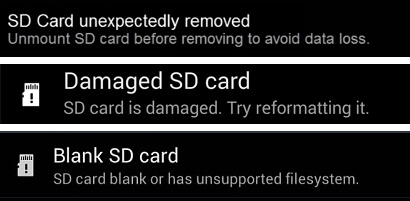
A file system error on your SD card usually means the card has become RAW (unreadable) or prompts you to format it before use. This often happens due to improper ejection, virus attacks, or bad sectors. When that occurs, do not format the card immediately, and you can still recover your files. How to recover files from SD card with file system errors? Follow this guide to safely recover files from an SD card with a corrupted file system.
How to Recover Files from SD Card with File System Errors
As soon as you see an error like "You need to format the disk" or "The file system is corrupted," stop using the card. Do not add, delete, or modify any files. Any new data could overwrite the files you want to recover.
Step 1. Connect the SD Card to Your Computer
Insert the SD card into a card reader and connect it to your Windows PC or Mac. Make sure the drive letter appears in File Explorer (even if it shows as RAW or 0 bytes).
Step 2. Download and Install EaseUS Data Recovery Wizard
Download EaseUS Data Recovery Wizard from the official website and install it on your computer — not on the SD card. This tool is designed to handle file system errors and RAW drives effectively.
This SD card data recovery tool is a dependable solution for recovering data from memory cards, SD cards, microSD cards, USB drives, and other storage devices that have been damaged, erased, or formatted.
Step 3. Scan the SD Card
-
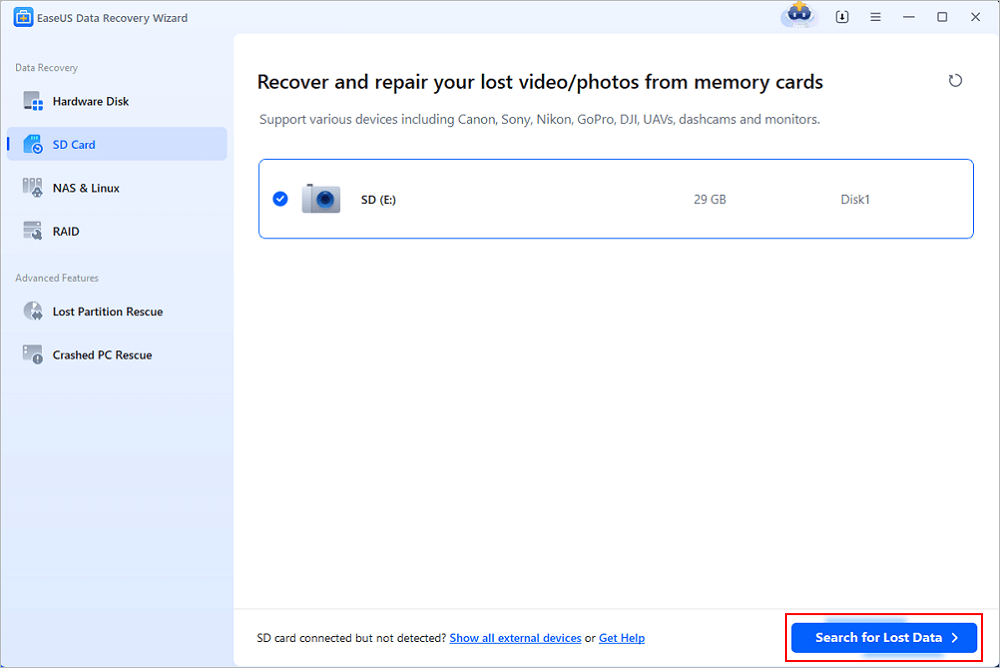
Launch EaseUS Data Recovery Wizard.
-
Select your SD card from the list of drives. Even if the card shows the wrong capacity or a file system error, it will still appear here.
-
Click "Search for Lost Files". The software will perform a deep scan, searching for lost files by ignoring the damaged file system.
Step 4. Preview and Recover Your Files
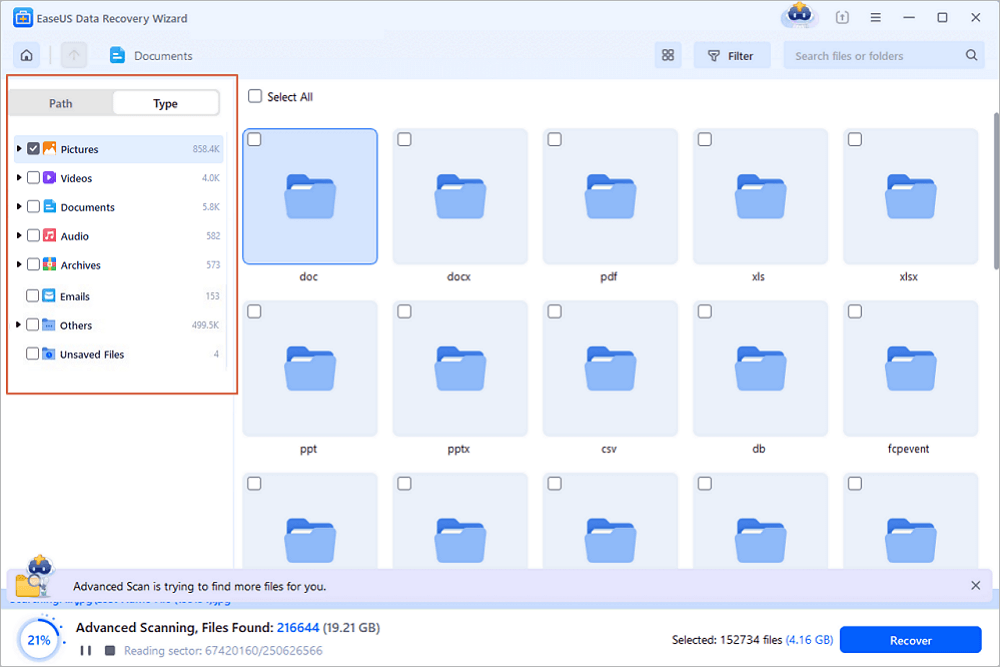
After scanning, you can preview many file types (photos, documents, videos, etc.). Select the files you need and click "Recover" . Save them to a different location — such as your computer's hard drive or another external drive. Do not save them back to the same SD card.
Step 5 (Optional). Fix the File System Error
Once your data is safely recovered, you can repair the SD card by formatting it. Right-click the SD card in File Explorer, choose Format, and set the file system to FAT32 or exFAT. After formatting, the card will work normally again.
Remember to share this post with users who are facing the same SD card data loss:

Tips to Avoid File System Errors on SD Cards
Here are some tips that help you avoid this file system error on your SD card and better protect your critical data. Read and do as follows:
- Always use "Safely Remove Hardware" before unplugging the card.
- Avoid using the same SD card across multiple devices with different operating systems.
- Regularly back up important files from your SD card.
Conclusion
How to recover files from SD card with file system errors? File system errors on an SD card do not mean permanent data loss. By acting quickly and using EaseUS Data Recovery Wizard, you can recover your files in just a few clicks. Remember: stop using the card, scan with reliable recovery software, and save recovered files to a safe location.
FAQs on How to Recover Files from an SD Card with File System Errors
Read the following questions that may better help you understand this SD card loss error:
1. Can I recover files from an SD card with a corrupted file system without formatting?
Yes. As long as you don't format the card, the original data remains on the storage sectors. You can recover files using data recovery software that reads raw data directly, bypassing the damaged file system.
2. What causes file system errors on an SD card?
Common causes include improper ejection, sudden power loss during file transfer, virus or malware infection, physical damage, bad sectors, or using the same card across multiple devices with different operating systems.
3. Should I run CHKDSK to fix file system errors before recovering files?
No. Running CHKDSK can sometimes make data recovery harder or overwrite lost files. Always recover your files first using recovery software, then run CHKDSK or format the card afterward to fix the file system.
Was this page helpful?
-
Dany is an editor of EaseUS who lives and works in Chengdu, China. She focuses on writing articles about data recovery on Mac devices and PCs. She is devoted to improving her writing skills and enriching her professional knowledge. Dany also enjoys reading detective novels in her spare time. …
 Why Trust EaseUS
 Editor Reviews

20+
Years of experience

160+
Countries and regions

72 Million+
Downloads

4.9 +
Trustpilot Score





