





-
![]()
-
![]() xD-Picture Card Recovery: How to Recover Lost Files (Photos/Videos)
xD-Picture Card Recovery: How to Recover Lost Files (Photos/Videos) October 14,2026
 6 min read
 -
![]() How to Recover Deleted Photos & Videos from Android Without RootOctober 14,20266 min read
How to Recover Deleted Photos & Videos from Android Without RootOctober 14,20266 min read -
![]()
-
![]()
-
![]() How to Recover Deleted/Lost Screenshots from Nintendo Switch 2October 14,20266 min read
How to Recover Deleted/Lost Screenshots from Nintendo Switch 2October 14,20266 min read -
![]()
-
![]()
-
![]()
-
![]()
Page Table of Contents
PAGE CONTENT:
A sudden power outage can be more than just an inconvenience—it can corrupt your SD card, making files inaccessible. When the power cuts out while your SD card is being read or written to, the file system can become damaged, and your photos, videos, or documents may seem lost. Fortunately, in most cases, the data itself remains intact and can be recovered with the right approach.
This guide explains how to recover files from an SD card after a power outage, using reliable methods and tools to restore your data safely.
Is It Possible to Recover Data from an SD Card After a Power Outage
"My camera shut off during a power failure while it was saving a video. Now the SD card shows 'Please format' on my computer. Can I get my files back?"
Yes, in many cases, recovery is possible.
When a power outage interrupts a write operation, the file system's structure—the "table of contents" that tells your device where files are located—can become corrupted. However, the actual data (photos, videos, documents) often remains untouched in storage. The operating system may see the card as RAW or unreadable, or prompt you to format it, but your files may still be recoverable.
Preparation Before Recovering Files from a Power-Affected SD Card
Your immediate actions after a power outage are critical to maximize recovery success.
-
Stop using the SD card immediately. Remove it from your camera, phone, or computer. Do not format it, even if the device asks. Formatting writes new file system data and can overwrite the very files you want to recover.
-
Insert the card into a computer using a dedicated card reader. Avoid connecting via a camera or phone, as those interfaces may not provide the low-level access recovery software needs. Use a reliable USB card reader directly attached to your PC or Mac.
-
Prepare a safe save location. Ensure your computer's internal hard drive (or another external drive) has enough free space to hold the recovered files. Never save recovered files back to the same SD card.
How to Recover Files from SD Card After Power Outage in 3 Steps
A dedicated SD card data recovery tool, such as EaseUS Data Recovery Wizard, can handle SD card corruption caused by a power failure. It is designed to scan RAW or corrupted drives and recover files based on their underlying data signatures.
-
Ideal for power outage scenarios: It can read SD cards that appear as "RAW," "Unallocated," or "No Media" due to sudden power loss.
-
Broad file support: Recovers photos, videos, audio, documents, and more from FAT32, exFAT, and NTFS file systems.
-
Non-destructive: The scanning process does not write to the original card, keeping your data safe.
Follow these three steps to recover your files from the SD card:
🏆EaseUS SD card recovery leverages patented video fragment reconstruction technology to deeply repair video files lost due to accidental deletion, formatting, or corruption. Explicitly designed for cameras, action cameras, drones, and dashcams, it accurately restores complete and playable precious footage.
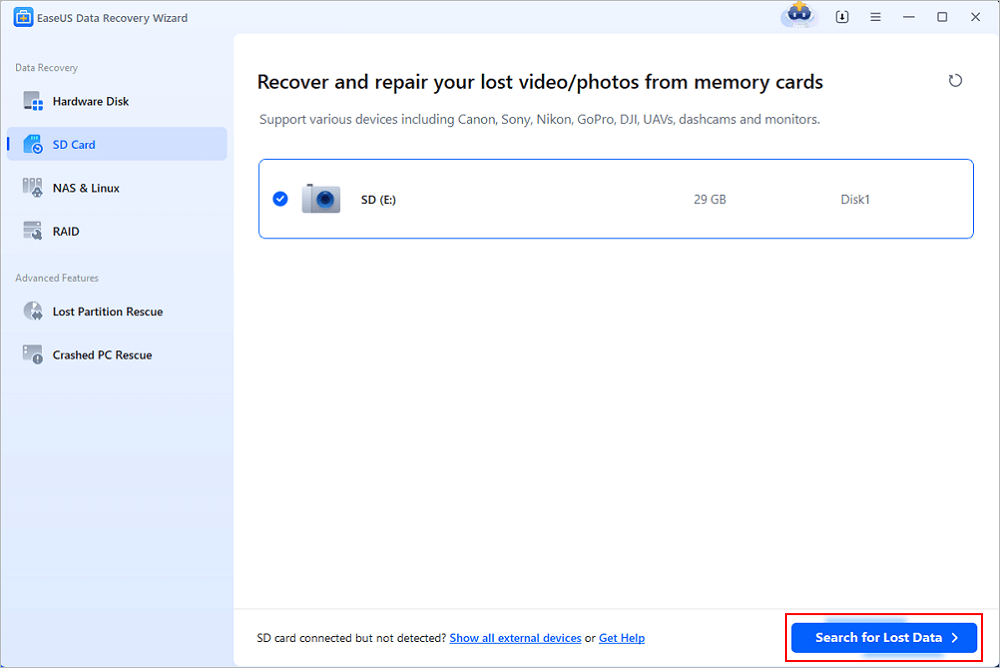
Step 1. Select the SD card to scan
- Download and install EaseUS Data Recovery Wizard on your Windows PC.
- Use the proper way to connect your SanDisk/Lexar/Transcend SD card to the computer.
- Open EaseUS SD card recovery software and choose SD Card Recovery on the left panel. All connected drives will display here. Select your SD card and click "Scan for lost data".
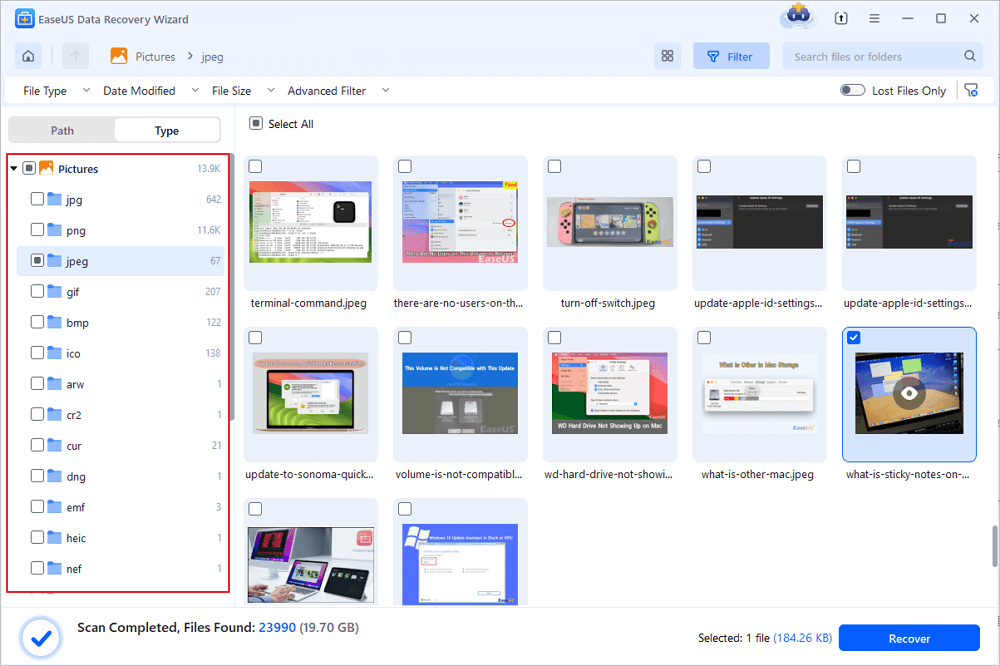
Step 2. Check for scan results
- Wait for the scanning process to complete.
- Specify one or several file types to show up, like Pictures or Videos.
- Click "Preview" to check if they are the wanted files.
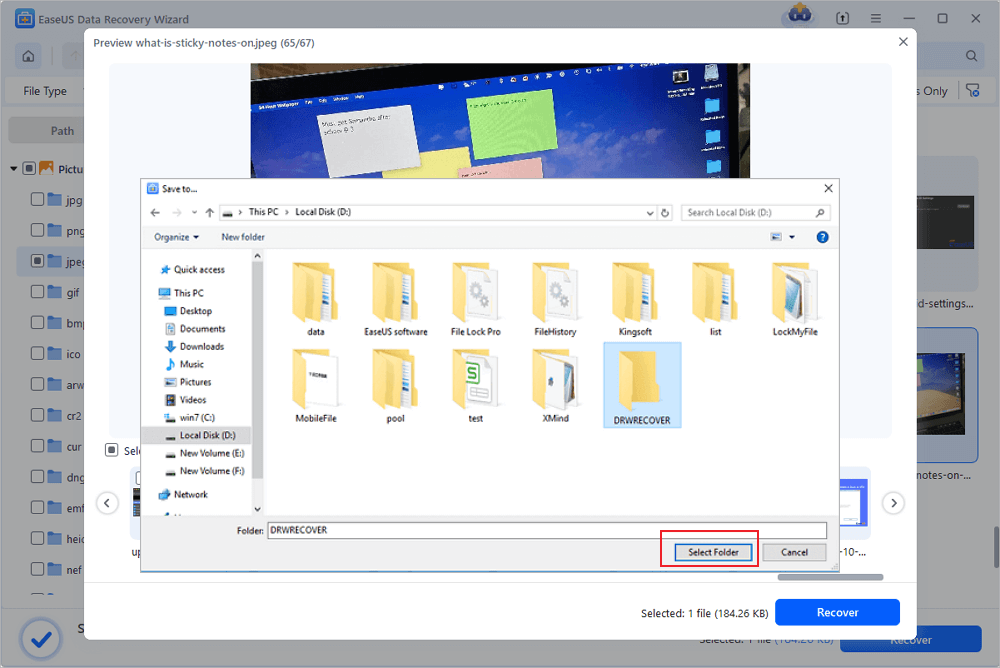
Step 3. Recover SD card data
- Preview the recovered files and click "Recover".
- Choose a different location to save the recovered files instead of the original SD card.
💡Want to know more about SD card data recovery? For example, what is the best SD card data recovery software? How to recover a damaged SD card? How to recover data from an unreadable SD card...Go for SD Card Data Recovery FAQs and restore your precious lost files.
Important: Choose a destination on your computer's internal hard drive or another external drive. Do not save the files back to the same SD card. Click "OK" to complete the recovery.
How to Prevent File Loss from SD Cards During Power Outages
While recovery is effective, prevention is better. Here are practical tips to protect your SD card from power-related corruption:
✅ Tip 1. Use a Battery-Powered or UPS-Protected Device
When possible, use devices with internal batteries (like laptops or cameras with full batteries) during critical writes. For desktop computers, connect your card reader via a USB port that is backed by an uninterruptible power supply (UPS).
✅ Tip 2. Avoid Writing During Unstable Power
If you know a power outage is likely (e.g., during a storm), avoid transferring files to or from the SD card. Wait until power is stable or switch to battery-powered devices.
✅ Tip 3. Eject the Card Properly After Use
Always use the "Safely Remove Hardware" feature on Windows or "Eject" on macOS before unplugging the card reader. This ensures all pending writes are completed and the file system is closed cleanly.
✅ Tip 4. Maintain Regular Backups
Do not wait for an outage to strike. Periodically copy the entire contents of your SD card to your computer, external drive, or cloud storage. Automated backup tools can help schedule this task.
✅ Tip 5. Use High-Quality SD Cards
Cheap or counterfeit cards are more prone to corruption after a sudden power loss. Purchase cards from reputable brands (SanDisk, Samsung, Lexar, etc.) and replace them every few years if used heavily.
The Bottom Line
A power outage can corrupt your SD card and make your files inaccessible, but the data itself is often still recoverable. The key is to act immediately: stop using the card, avoid formatting, and use a reliable data recovery tool to scan for and restore your files.
After recovering your data, format the SD card in your camera or computer to restore a healthy file system before reuse. More importantly, adopt regular backup habits to ensure that even if an outage strikes, you have a secure copy of your important memories and documents.
FAQs on How to Recover Files from SD Card After Power Outage
1. Why does a power outage corrupt my SD card?
If the power fails while data is being written or the file system is being updated, the file system structure can become incomplete or corrupted. The card may then appear as RAW, unreadable, or ask to be formatted.
2. Can I recover files if the SD card asks me to format it after a power outage?
Yes. In most cases, this message indicates file system corruption, not that the data is gone. A recovery tool that performs deep scanning can extract your photos, videos, and documents before you format.
3. Is it safe to use the SD card again after power loss?
Only after you have recovered your important files and reformatted the card. Reformatting rebuilds the file system and clears any corruption. Use the device's own format function (e.g., in-camera formatting) for best compatibility.
4. What if my computer doesn't detect the SD card at all after a power outage?
Try the card in a different computer or card reader. If it still isn't detected, the card may have suffered a physical controller failure triggered by the power event. In such cases, professional recovery services may be needed.
Was this page helpful?
-
Dany is an editor of EaseUS who lives and works in Chengdu, China. She focuses on writing articles about data recovery on Mac devices and PCs. She is devoted to improving her writing skills and enriching her professional knowledge. Dany also enjoys reading detective novels in her spare time. …






 Why Trust EaseUS
 Editor Reviews

20+
Years of experience

160+
Countries and regions

72 Million+
Downloads

4.9 +
Trustpilot Score





