





 About the Author
 Reviews and Awards
 Mac SD Card Recovery
Many Mac users rely on the native Disk Utility application to repair external storage drives. When you insert a corrupted memory card and run the diagnostic tool, you might receive a frustrating notification stating that your SD card cannot be fixed by First Aid.
This SD card issue on Mac is more common than many people think because First Aid is built to work well with native macOS formats.
This error typically implies that the underlying file system corruption is too severe for the basic repair protocols of macOS, or the card is formatted in a file system like exFAT or FAT32, which macOS cannot repair natively as efficiently as its own Apple File System.
Why First Aid Fails to Repair an SD Card on Mac
First Aid works reliably with drives formatted for macOS. It does not have full access to repair deep errors in non native file systems that most SD cards use. The limited repair capability leads to failed repair messages even when the card is not physically damaged.
File system corruption is another major cause. Corruption occurs when users remove the card without safely ejecting it, interrupt file transfers, or power off a device while reading or writing. These actions disrupt the file structure, making the card unrepairable with basic tools.
Aging storage chips or weak connections can also stop First Aid from completing its task. No matter the cause, the most important first step is to stop using the card immediately. Continuing to use the card will overwrite data, making SD card recovery impossible.

Recover Deleted Files on Mac [Full Guide]
This guide covers how to recover deleted files from Mac devices - including HDDs, cards, and USBs - in various scenarios.
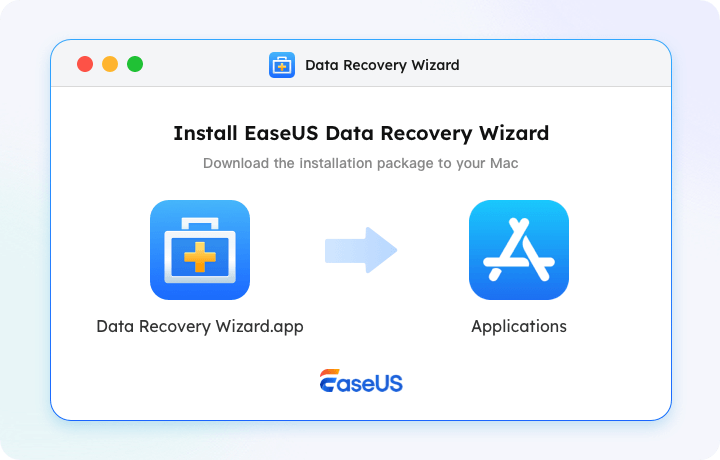
Fix 1. Recover Data First with Data Recovery on Mac
Before attempting any advanced system repairs or formatting, you must prioritize data preservation. Any further repair attempts can overwrite your existing files or cause permanent data loss.
Since Disk Utility cannot fix the file system layout, you need professional software that can bypass the broken directory structure and read the raw data sectors directly. EaseUS Data Recovery Wizard for Mac is highly recommended for this scenario. It can detect severely corrupted SD cards even when the Mac operating system refuses to mount them properly.
Download and install EaseUS Data Recovery Wizard for Mac on your computer and follow the steps below:
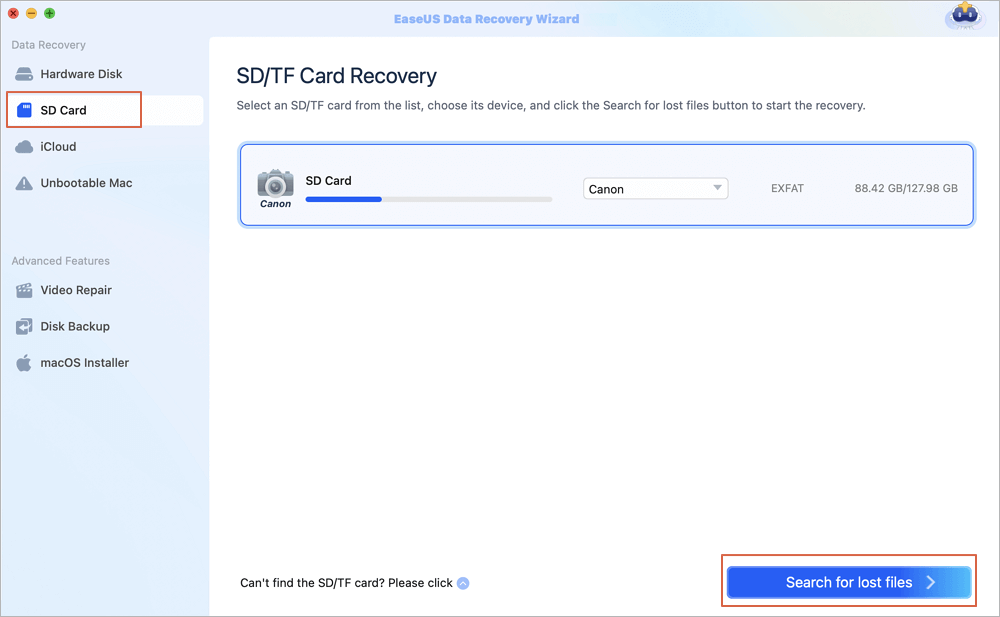
Step 1. Select the SD card
- Correctly connect your memory card to your Mac. Launch EaseUS Data Recovery Wizard for Mac.
- Go to "SD Card Recovery", find your Canon/Nikon/Go Pro/DJI/Sony SD card, and click "Search for lost files".
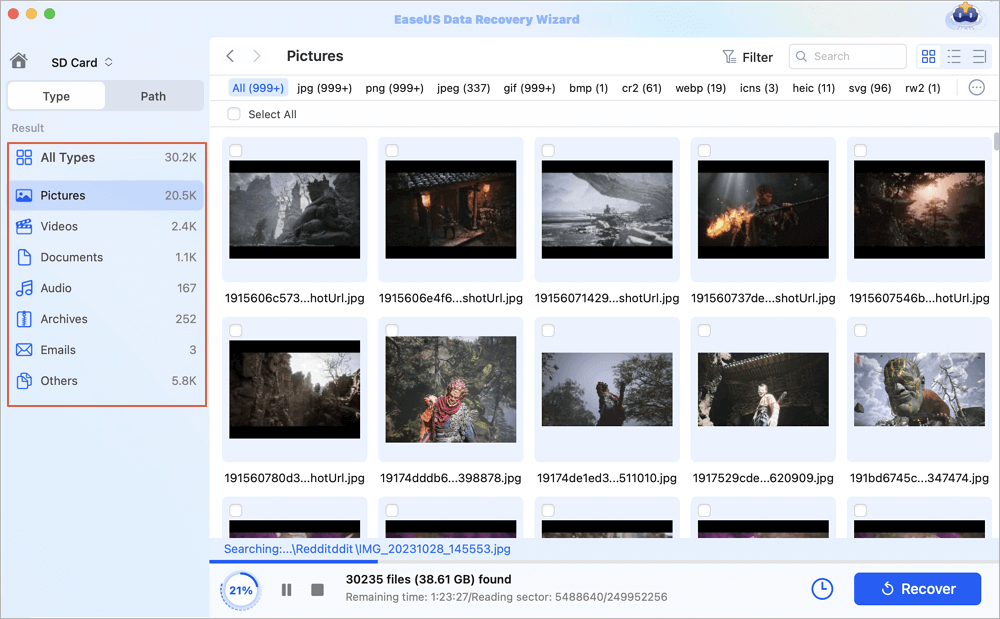
Step 2. Filter lost SD card data
After the scan, all files will be presented in the left panel in the scan results. Find wanted photos, videos, and other files.
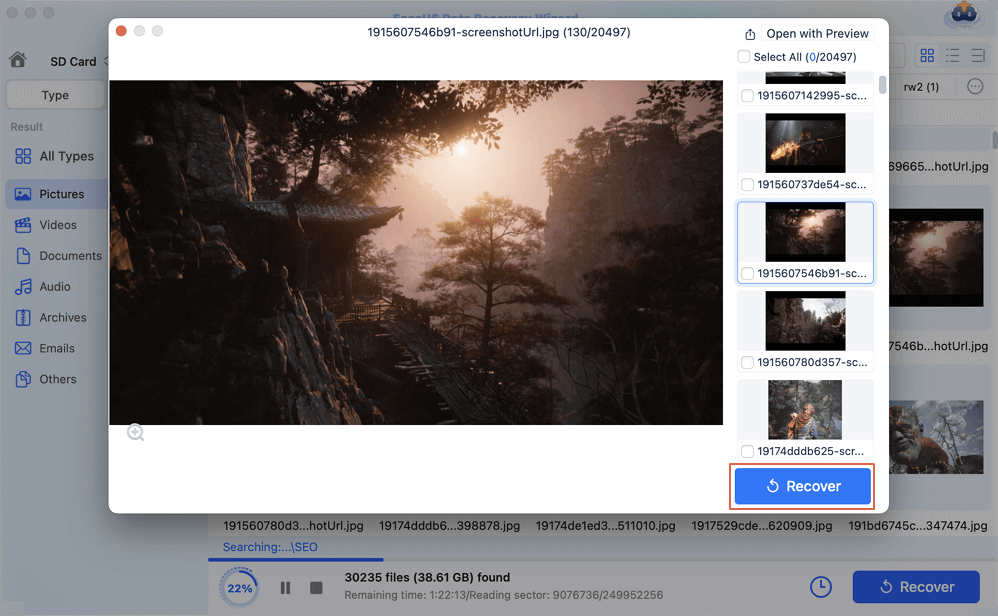
Step 3. Preview and recover data
Preview the SD card data and select the wanted files. Then, click the "Recover" button. Don't save the recoverable files to the SD card itself in case of data overwriting.
If you find this information helpful, please share it on social media to help others overcome this common challenge.
EaseUS Data Recovery Wizard for Mac is a trusted solution that can recover files without further damaging the card. It supports all SD card formats and file systems used by cameras and portable devices. It works even when the card does not appear in Finder or cannot be mounted. The read-only scanning structure ensures no new data is written to the card during recovery.
Fix 2. Clear Connections and Check the Lock Switch
Sometimes simple hardware hitches mimic severe system errors. You must rule these out before moving to technical command lines.
- Toggle the Write Protection Switch: Inspect the physical casing of your SD card. Ensure the tiny plastic lock slider on the left side is pushed upward toward the metal contacts. If the card is locked, macOS will block any repair or write operations, triggering a First Aid failure.
- Clean the Interface: Dust and debris inside the Mac SD card slot or your USB hub can disrupt data transmission. Gently clean the gold contacts on the card with a microfiber cloth, then reinsert it.
- Try a Different Port or Computer: Connect the card reader to another port, or try reading the card on a Windows PC. Windows uses various system tools, such as Chkdsk, that might successfully read a card that macOS rejects.
Fix 3. Repair the SD Card via Mac Terminal
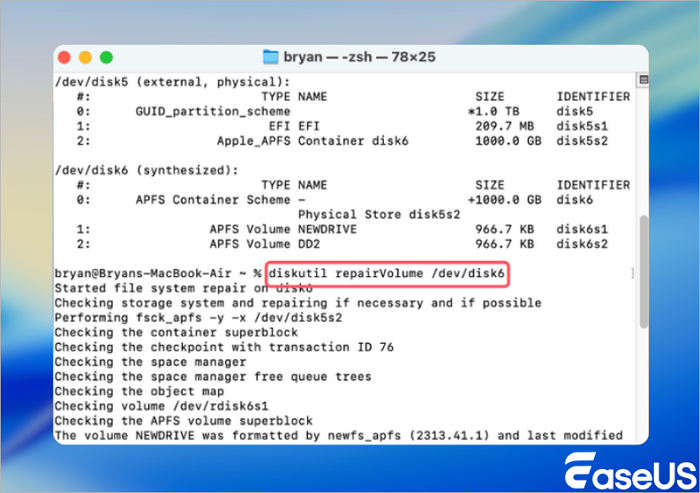
When the graphical user interface of Disk Utility fails, the macOS command line interface provides deeper control over disk management. You can use Terminal to force a verification and repair.
- Open Finder, navigate to "Applications" > "Utilities", and launch "Terminal".
- Type diskutil list and press Enter to view all connected storage drives.
- Locate your SD card in the list and note its identifier, which usually appears as something like disk2 or disk3s1.
- Type diskutil verifyVolume disk2, replacing disk2 with your actual SD card identifier, and press Enter.
- If the system flags errors, type diskutil repairVolume disk2 and press Enter to force a command-line repair.
Conclusion
When an SD card cannot be repaired with First Aid on Mac, users do not need to replace it right away. Most failures are due to limited repair support in Disk Utility rather than physical damage. The correct order of action is to recover data first, attempt basic connection fixes, and use Terminal for advanced repair.
EaseUS Data Recovery Wizard for Mac keeps precious photos and documents safe throughout the process. By following the steps in this guide, users can rescue their data and restore their SD card to full working order without unnecessary cost or stress.
SD Cards Cannot Be Fixed by First Aid FAQs
If you still have some questions about MacBook data recovery, check the quick answers below to help yourself out:
1. Why does First Aid keep failing to fix my SD card?
First Aid is designed for native macOS file systems. Most SD cards use FAT32 or exFAT. First Aid has a limited ability to repair these formats, leading to repeated failures.
2. Can I still recover data if First Aid fails?
Yes. You can recover data using professional data recovery software, such as EaseUS Data Recovery Wizard for Mac, before attempting any repair or formatting.
3. How can I avoid SD card corruption in the future?
Always eject the card safely, back up files regularly, use high-quality cards, and format the card in the device it will be used with most often.
Was This Page Helpful?

Jaden is one of the editors of EaseUS, who focuses on topics concerning PCs and Mac data recovery. Jaden is committed to enhancing professional IT knowledge and writing abilities. She is always keen on new and intelligent products.
-
EaseUS Data Recovery Wizard is a powerful system recovery software, designed to enable you to recover files you’ve deleted accidentally, potentially lost to malware or an entire hard drive partition.
Read More -
EaseUS Data Recovery Wizard is the best we have seen. It's far from perfect, partly because today's advanced disk technology makes data-recovery more difficult than it was with the simpler technology of the past.
Read More -
EaseUS Data Recovery Wizard Pro has a reputation as one of the best data recovery software programs on the market. It comes with a selection of advanced features, including partition recovery, formatted drive restoration, and corrupted file repair.
Read More
Related Articles
-
SD Card Not Readable Mac | 7 Fixes for macOS
![author icon]() Dany/Sep 20, 2026
Dany/Sep 20, 2026 -
Best Mac SD Card Recovery Free Download in 2026
![author icon]() Brithny/Sep 20, 2026
Brithny/Sep 20, 2026 -
How to Fix NTFS Drive Not Mounting Mac [Step-by-Step]
![author icon]() Dany/Sep 20, 2026
Dany/Sep 20, 2026 -
SD Card Keeps Disconnecting Mac? Fix It & Recover Lost Files Easily
![author icon]() Dany/Sep 20, 2026
Dany/Sep 20, 2026
 Dany/Sep 20, 2026
  Brithny/Sep 20, 2026

