





 About the Author
 Reviews and Awards
 Mac SD Card Recovery
Many Mac users face a stressful situation when they realize important files were deleted more than 30 days ago. The macOS trash can automatically removes items after one month, and manually emptying it leaves files seemingly gone forever. Normal recovery methods no longer work, and most people believe the data is lost permanently.
About 30 Day File Deletion on Mac
Understanding how macOS handles deleted files helps set realistic expectations for recovery.
- Files deleted more than 30 days ago are not always completely erased. The system revokes access to the files, but the actual data may remain on the drive until it is overwritten.
- Normal trash recovery does not work after the 30-day auto delete period. The system hides the files, and they no longer appear in the trash folder.
- The biggest risk to recovery is new data. Saving new files, installing apps, or downloading content can overwrite the old deleted data and make recovery impossible.
- External drives and cloud storage follow different rules. Files deleted from external drives or iCloud may have separate retention periods beyond 30 days.
Why Files Disappear After 30 Days on Mac
Files become unreachable through normal methods for several common reasons. Automatic trash deletion is the most common cause. macOS includes an option to automatically remove items from the Trash after 30 days. When enabled, files vanish automatically after one month.
- Manual trash emptying leaves no visible trace. Users who manually empty the trash lose access to files immediately. After 30 days, standard tools cannot find them.
- Permanent keyboard deletion skips the trash entirely. Using the permanent delete shortcut removes files without sending them to the trash.
- External drive deletion works differently. Files deleted from external drives often do not go to the main Mac trash and disappear quickly.
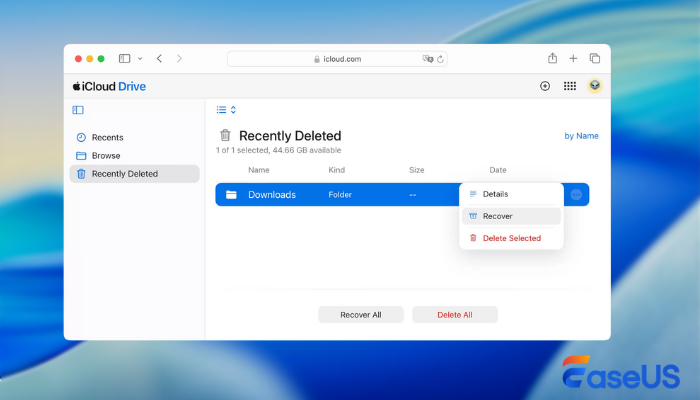
- iCloud file retention expires after one month. Files deleted from iCloud Drive remain in a recently deleted folder for 30 days before being automatically removed.
LEARN MORE
Still curious? Click here to learn about How to Undo Trash Delete on a Mac to Recover Deleted Files.
How to Recover Files Deleted After 30 Days on Mac
Methods are ordered from the simplest, free solutions to the more advanced ones. Beginners should start at the beginning and only move forward if earlier steps fail.
1. Recover Files Using Time Machine
Time Machine is the built-in Mac backup tool and the most reliable way to recover older deleted files.
- Connect your Time Machine backup drive to your Mac.
- Open Time Machine from the menu bar or Launchpad.
- Use the timeline on the right side to select a date before the files were deleted.
- Browse through folders to locate the missing files.
- Select the files and click the restore button. The files return to their original location.
This method works if you enabled Time Machine backups before deleting the file.
2. Restore Files from iCloud Drive
Files synced to iCloud can often be recovered shortly after the 30 day window.
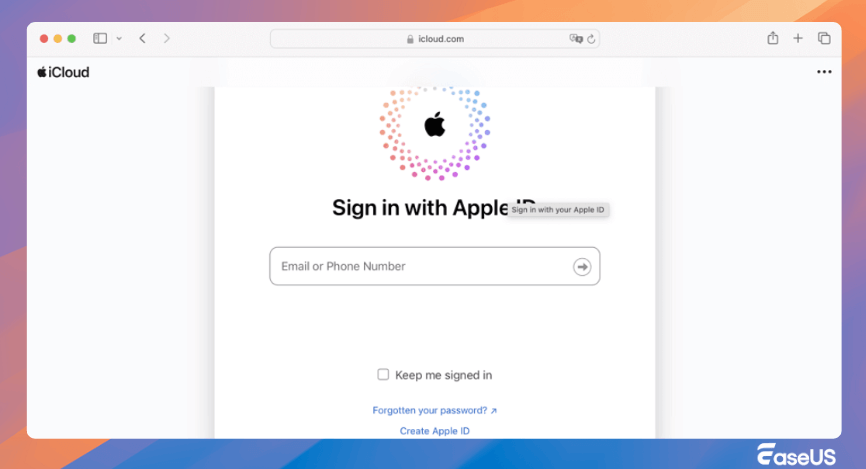
- Open a browser and go to the official iCloud website.
- Sign in with your Apple ID connected to the Mac.
- Open iCloud Drive and look for the recently deleted section.
- Check for any remaining files that may not have been fully removed.
- Select the files you want and restore them to your drive.
- Restored files will sync back to your Mac if iCloud Drive is enabled.
3. Use Professional Mac Data Recovery Software
When no backups exist, professional recovery software such as EaseUS Data Recovery Wizard for Mac offers the best chance of recovering old deleted files.
Professional tools scan deep into the drive and recover data that system tools cannot find.
Step 1. Search for lost files
Select the disk location to search for lost files (it can be an internal HDD/SSD or an external hard drive) where you lost data and files. Click the "Search for lost files" button.

Step 2. Go through the scanning results
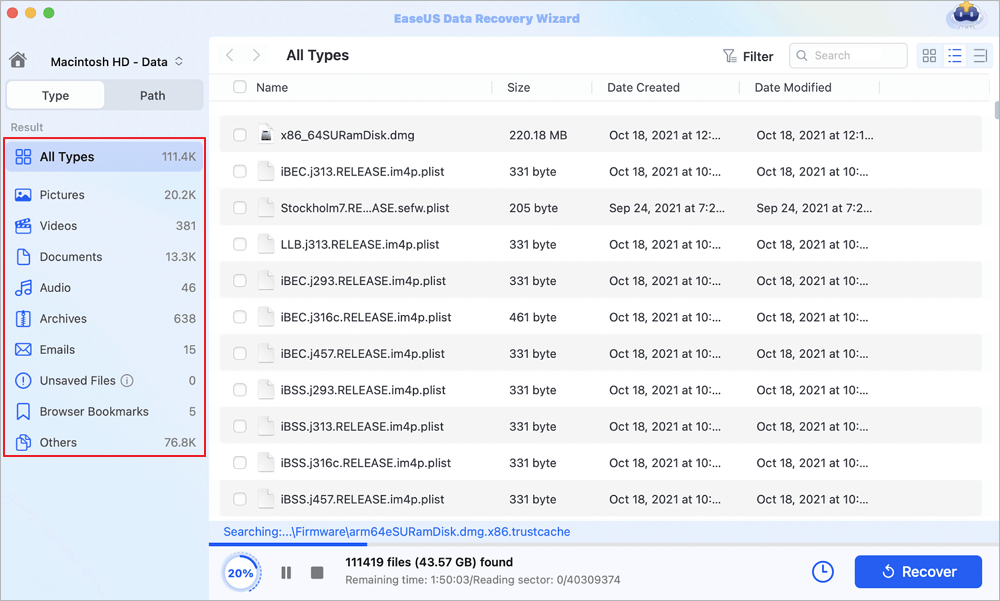
This software will immediately scan your selected disk volume and display pictures, documents, audio, videos, and emails on the left pane.
Step 3. Select the file(s) and recover
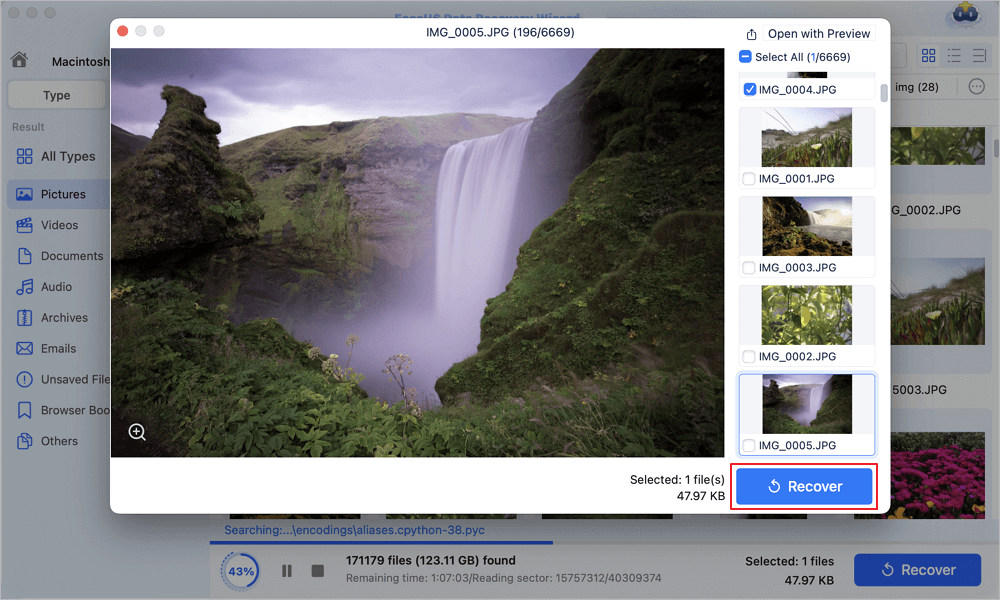
Click the data to preview, and click the "Recover" button to have them back.
Conclusion
Files deleted on a Mac after 30 days are not always permanently lost. The system removes access but the actual data often remains on the drive. Start recovery with Time Machine or iCloud backups for the highest success rate. For difficult cases, professional recovery software can rescue data that standard methods miss.
Recover Deleted Files After 30 Days on Mac FAQs
If you still have some questions about MacBook data recovery, check the quick answers below to help yourself out:
1. Can I recover files after 30 days without Time Machine?
Yes. Built-in system tools and professional recovery software can find files if they have not been overwritten by new data.
2. Are there completely free ways to recover old deleted files on Mac?
Time Machine and iCloud recovery are free for users who have already enabled backups. System utilities are also free but have lower success rates.
Was This Page Helpful?

Jaden is one of the editors of EaseUS, who focuses on topics concerning PCs and Mac data recovery. Jaden is committed to enhancing professional IT knowledge and writing abilities. She is always keen on new and intelligent products.
-
EaseUS Data Recovery Wizard is a powerful system recovery software, designed to enable you to recover files you’ve deleted accidentally, potentially lost to malware or an entire hard drive partition.
Read More -
EaseUS Data Recovery Wizard is the best we have seen. It's far from perfect, partly because today's advanced disk technology makes data-recovery more difficult than it was with the simpler technology of the past.
Read More -
EaseUS Data Recovery Wizard Pro has a reputation as one of the best data recovery software programs on the market. It comes with a selection of advanced features, including partition recovery, formatted drive restoration, and corrupted file repair.
Read More
Related Articles
-
How to Recover Deleted Files from Mac Guest Account [macOS Ventura/Monterey/Big Sur]
![author icon]() Jaden/Sep 20, 2026
Jaden/Sep 20, 2026 -
How to Recover Deleted or Disappeared Notes on Mac (2026 Guide)
![author icon]() Tracy King/Sep 20, 2026
Tracy King/Sep 20, 2026 -
How to Recover Deleted/Lost TurboTax Files on Mac
![author icon]() Jaden/Sep 20, 2026
Jaden/Sep 20, 2026 -
Recover Deleted Folders on Mac - Even If Trash is Emptied
![author icon]() Dany/Sep 20, 2026
Dany/Sep 20, 2026
 Tracy King/Sep 20, 2026
  Dany/Sep 20, 2026

