






 About the Author
 Reviews and Awards
 Mac SD Card Recovery
Losing files on a LaCie external hard drive on a Mac often happens due to accidental deletion, formatting, improper disconnection, file system corruption, or macOS update glitches. When important files go missing and the drive won't mount properly, stop writing new data to the LaCie drive right away.
LaCie external hard drives are popular choices among photographers, video editors, designers, and everyday Mac users who store large media libraries and project backups. Whether you use a LaCie d2 desktop drive, a LaCie Rugged USB-C drive, or a portable hard disk, losing files on that device can feel overwhelming. One moment your folders are right where you left them; the next, key files are missing, a folder is empty, or your Mac won't open the drive.
When you need to recover data from a LaCie hard drive on Mac systems, acting calmly makes a big difference. In most situations, deleted files still sit on the storage sectors until new data overwrites them.
First Steps to Protect Your Data Before Hard Drive Recovery
Before you run disk repairs on the drive itself, take a few simple precautions so you do not overwrite recoverable files.
- Stop Saving New Files to the LaCie Drive: Do not copy new photos, videos, backups, and documents onto the affected LaCie drive until recovery is finished.
- Do Not Format the Drive: If macOS prompts you to initialize the drive, cancel the prompt until you recover your important files.
- Save Recovered Files Elsewhere: Always save recovered files to your internal Mac drive rather than back onto the source LaCie drive.
Method 1. Recover Data from LaCie Hard Drive Using Software
When files are deleted and trapped on a troubled external volume, standard Finder searches often cannot bring them back. Dedicated Mac recovery software scans the drive thoroughly and helps you recover your files safely.
EaseUS Data Recovery Wizard for Mac is built for users who want a dependable way to recover data from hard drive on Mac setups without complex command-line steps. It supports APFS, HFS Plus, exFAT, and FAT32 storage drives, works with MacBook, iMac, Mac mini, and Mac Studio models, and lets you preview files before saving.
Step-by-Step Guide to Recover LaCie Files with EaseUS:
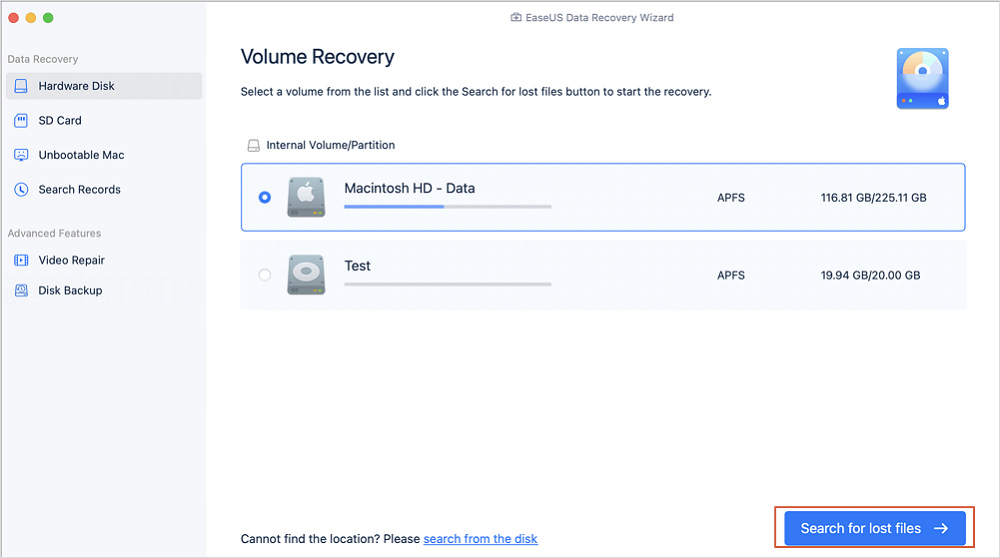
Step 1. Search for lost files
Correctly connect your external hard drive to your Mac. Launch EaseUS Data Recovery Wizard for Mac, and select the external hard drive. Then, click "Search for lost files" to find lost/deleted files on your external devices.
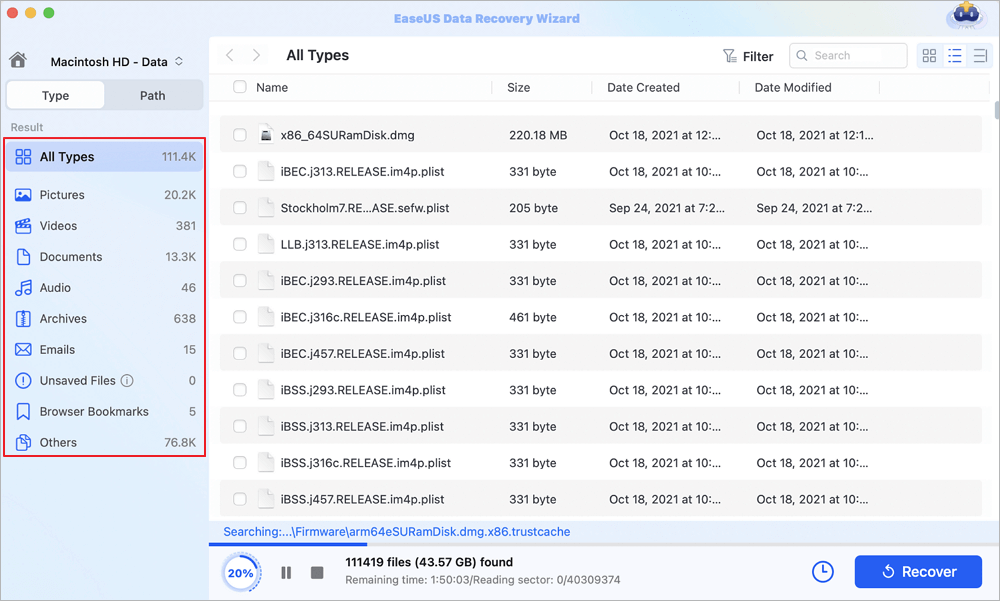
Step 2. Filter and find lost files
After the scan, all file types will be presented in the left panel. Select the file type to find wanted files on your external devices.
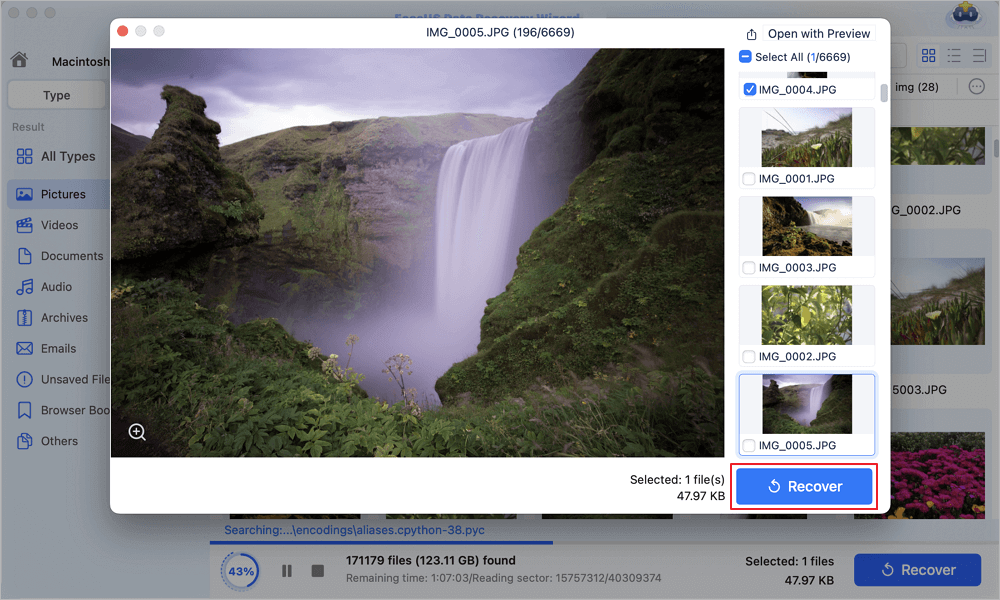
Step 3. Preview and recover
Click the file and preview it. Then, select the files you want to recover and click the "Recover" button. You can save your data to local and cloud drives.
If you find this information helpful, please share it on social media to help others overcome this common challenge.
Method 2. Check Trash and Mount the Drive in Disk Utility
Along with a deeper scan, it is also good practice to check whether deleted items are in the Trash and whether the LaCie volume needs to be mounted in Disk Utility.
Step 1. Open the "Trash" in your Mac Dock and check whether your deleted files are still there. If you do, right-click and choose "Put Back".
Step 2. If the LaCie drive is connected but not opening cleanly in Finder, open "Finder", go to "Applications", open "Utilities", and launch "Disk Utility".
Step 3. In Disk Utility, click "View" in the top-left corner and select "Show All Devices".

Step 4. Select your LaCie drive and its volume in the left sidebar, then click "Mount" in the top toolbar if the volume is unmounted.
Step 5. Avoid running destructive erase actions while your files are still unbacked up, and use EaseUS Data Recovery Wizard for Mac first if the volume shows errors.
Tips to Prevent Future Data Loss on LaCie Drives
Simple daily habits can keep your LaCie hard drive reliable and protect your important files over time.
- Eject Safely Before Unplugging: Always eject the LaCie drive in Finder before unplugging the cable.
- Keep Backups in More Than One Place: Store important photos, videos, and work files in at least two separate locations, not just on one external drive.
- Use Reliable Cables: Avoid damaged cables that can interrupt file transfers and backups.
- Watch for Early Warning Signs: If a drive disconnects randomly, runs unusually slowly, or makes strange noises, back up your files right away.
Conclusion
Learning how to recover data from a LaCie hard drive on Mac systems can prevent a major setback when important files go missing. In many cases, your data is still recoverable as long as you stop writing new files to the drive right away. Check the Trash, verify the volume status in Disk Utility, and use Mac data recovery software to scan the drive and save your files to a separate location to recover your data safely.
Recover Data from LaCie Hard Drive on Mac FAQs
Here are straightforward answers to common questions Mac users ask when recovering files from a LaCie hard drive.
1. Can I recover deleted files from a LaCie hard drive on Mac?
Yes. If the files were deleted recently and haven't been overwritten by new data, check the Mac Trash first, or scan the LaCie drive with EaseUS Data Recovery Wizard for Mac and save recovered files to a different drive.
2. Can I recover files if I accidentally formatted my LaCie hard drive on Mac?
Yes, recovery is often possible after formatting if new data has not overwritten the old file blocks. Stop using the formatted LaCie drive right away, and scan it with EaseUS Data Recovery Wizard for Mac to find recoverable files.
3. What file systems on LaCie drives does EaseUS Data Recovery Wizard for Mac support?
EaseUS Data Recovery Wizard for Mac supports common external storage file systems including APFS, HFS Plus, exFAT, and FAT32 across LaCie external hard drives.
4. Where should I save recovered files from my LaCie drive?
Always save recovered files to your Mac's internal drive rather than back onto the source LaCie drive you are scanning. Saving to the same drive can overwrite remaining recoverable data.
Was This Page Helpful?

Jaden is one of the editors of EaseUS, who focuses on topics concerning PCs and Mac data recovery. Jaden is committed to enhancing professional IT knowledge and writing abilities. She is always keen on new and intelligent products.
-
EaseUS Data Recovery Wizard is a powerful system recovery software, designed to enable you to recover files you’ve deleted accidentally, potentially lost to malware or an entire hard drive partition.
Read More -
EaseUS Data Recovery Wizard is the best we have seen. It's far from perfect, partly because today's advanced disk technology makes data-recovery more difficult than it was with the simpler technology of the past.
Read More -
EaseUS Data Recovery Wizard Pro has a reputation as one of the best data recovery software programs on the market. It comes with a selection of advanced features, including partition recovery, formatted drive restoration, and corrupted file repair.
Read More
Related Articles
-
Recover Data from Seagate External Hard Drive [3 Methods]
![Dany]() Dany/Nov 19, 2026
-
G-Technology Data Recovery on Mac: Recover Data from G-Drive
![Jaden]() Jaden/Jun 16, 2026
-
LaCie External Hard Drive Not Showing Up on Mac
![Jaden]() Jaden/Nov 24, 2026
-
How to Fix 'com.apple.DiskManagement.disenter' Error on an External Hard Drive
![Brithny]() Brithny/Nov 18, 2026
 Dany/Nov 19, 2026
 Brithny/Nov 18, 2026


