





 About the Author
 Reviews and Awards
 Mac SD Card Recovery
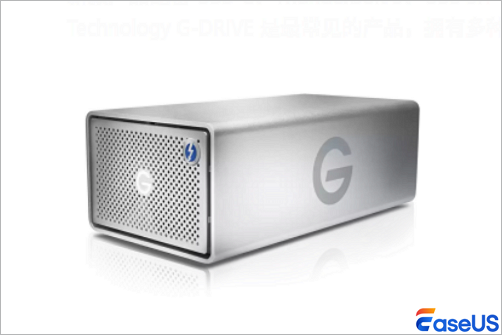
Developed by Western Digital, the G-Technology G-DRIVE lineup includes a range of high-performance external hard drives and storage devices. They adopt a design style similar to Apple products, mostly with an all-aluminum body, and work perfectly with macOS and support Time Machine.
If the G-Drive Mobile USB-C is connected to your Mac and contains important files, it may become unusable. It might happen as a result of connection failures, which could appear like a significant loss, or because it was inadvertently erased, formatted, or corrupted. This article describes how to recover data from G-Drive mobile USB-C on Mac.
Causes of Data Loss on G-Drive Mobile USB-C (Mac)
Understanding why data loss happens helps you quickly choose the right recovery method. These are the most frequent scenarios Mac users face with their G-Drive Mobile USB-C drives:
- Accidental deletion and Trash emptying: The most common cause, where users delete files by mistake and empty the Mac Trash without backing up data first.
- G-Drive not showing up on Mac: The G-Drive is connected via USB-C, but it does not appear on the Mac desktop or in Finder, leaving files completely inaccessible.
- Accidental formatting: A Mac system prompt requests formatting of the drive, and users confirm the action without realizing it will erase all stored data.
- Abrupt disconnection during transfer: Unplugging the USB-C drive while copying or moving files interrupts the data-writing process, corrupting files or damaging the disk's structure.
- Disk errors or file system corruption: Minor system glitches, macOS updates, or drive wear can corrupt the file system, making the G-Drive unreadable on Mac.
Methods for Recover Data from G-Drive Mobile USB-C on Mac
We organize solutions from the simplest to the most advanced, starting with free built-in Mac tools before moving to trusted professional software. All steps are tailored for beginners, with no advanced technical skills required.
- 1. Restore Files Data from G-Drive via Time Machine
- 2. Fix G-Drive Mobile USB-C Not Showing Up on Mac First
- 3. Recover Data from G-Drive Mobile USB-C with Professional Tool
1. Restore Files Data from G-Drive via Time Machine
The G-Drive Mobile USB-C is fully optimized for Time Machine, Apple's built-in backup tool for Mac. If you enabled Time Machine backups for the drive, this is the fastest way to recover lost Mac files.
- Connect the G-Drive Mobile USB-C to your Mac using the certified USB-C cable.
- Open Time Machine from the Launchpad or the menu bar icon.
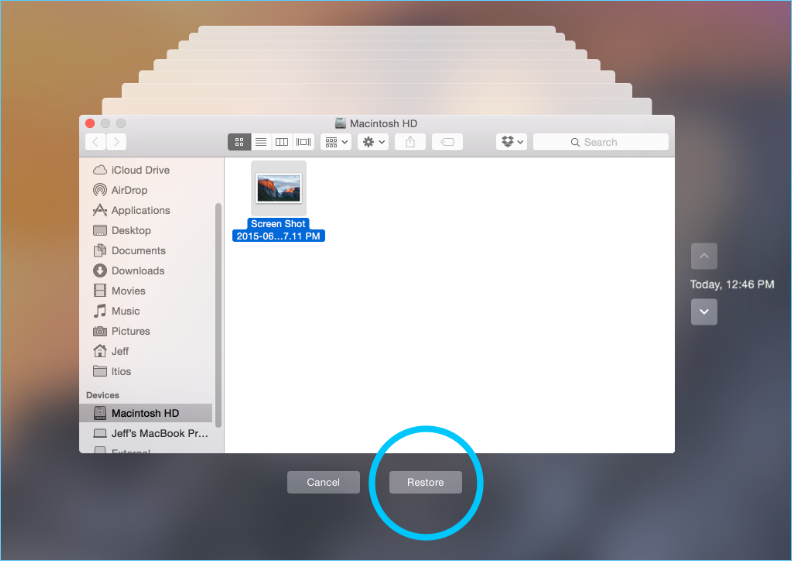
- Use the timeline on the right to browse backup versions from before the data loss.
- Select the lost files or folders and click "Restore" to save them to your Mac or a separate storage device.
2. Fix G-Drive Mobile USB-C Not Showing Up on Mac First
Most users struggle with the G-Drive not appearing on Mac, which makes data recovery impossible until the drive mounts properly. Use Mac's built-in Disk Utility to resolve this issue without data loss.
- Connect the G-Drive Mobile USB-C to your Mac's USB-C port. Avoid using USB adapters if possible, as they can cause connection issues.
- Open "Disk Utility" by going to "Launchpad" > "Other" > "Disk Utility".
- Look for the G-Drive Mobile USB-C in the left sidebar under the External section. It may appear grayed out or labeled as unmounted.
- Select the drive and click the "Mount" button at the top of the Disk Utility window.
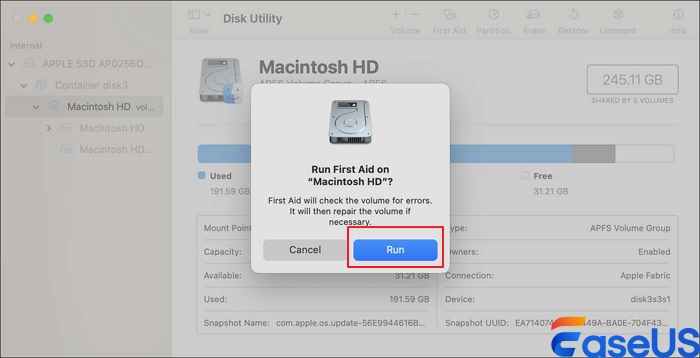
- If mounting fails, click the "First Aid" button to repair disk permissions and file system errors. Follow the on-screen prompts to complete the repair.
3. Recover Data from G-Drive Mobile USB-C with Professional Tool
For severe data loss scenarios such as accidental formatting, permanent deletion, or persistent disk errors that First Aid cannot fix, a trusted Mac hard drive data recovery tool is the most reliable solution. The recommended tool supports G-Drive Mobile USB-C, all macOS versions, and recovers all common file types without damaging the original drive.
EaseUS Data Recovery Wizard for Mac can help recover data from G-Drive mobile USB-C on Mac, including the portable models, RAID drives and SSD rugged external hard drives.
Download and install the reputable data recovery software on your Mac and follow the guide:
Step 1. Search for lost files
Correctly connect your external hard drive to your Mac. Launch EaseUS Data Recovery Wizard for Mac, and select the external hard drive. Then, click "Search for lost files" to find lost/deleted files on your external devices.

Step 2. Filter and find lost files
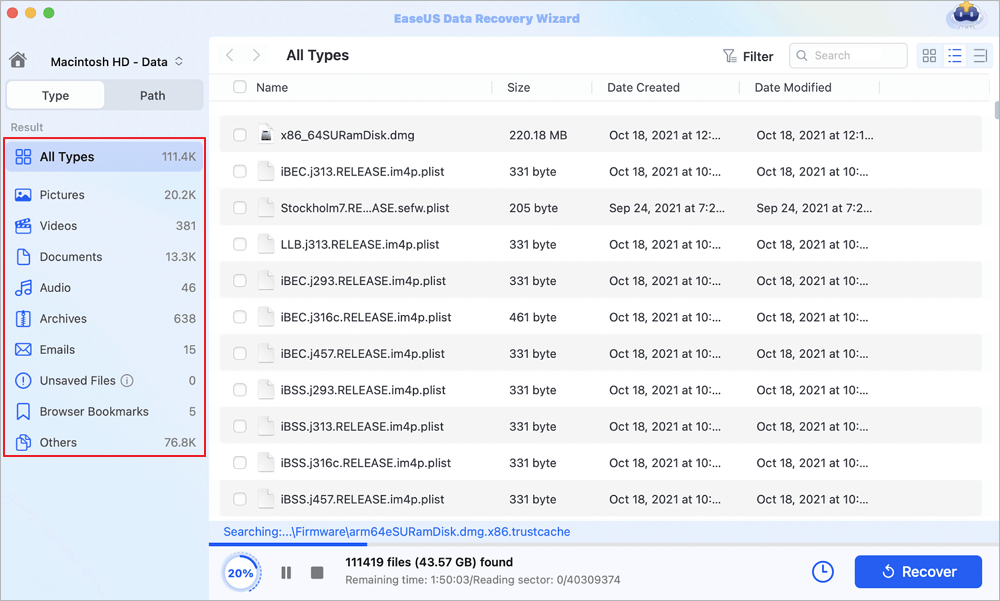
After the scan, all file types will be presented in the left panel. Select the file type to find wanted files on your external devices.
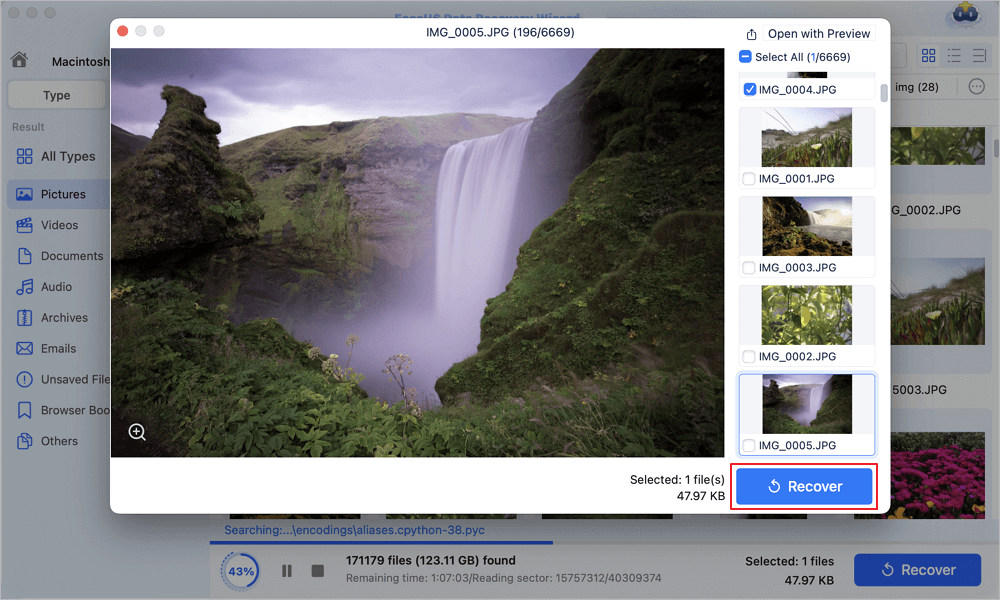
Step 3. Preview and recover
Click the file and preview it. Then, select the files you want to recover and click the "Recover" button. You can save your data to local and cloud drives.
If you find this information helpful, please share it with others on social media to assist them in overcoming this common challenge.
Prevent Data Loss on G-Drive Mobile USB-C for Mac
After recovering your data, take these simple steps to protect your G-Drive and avoid future data loss, leveraging the drive's Mac-optimized design:
- Enable Time Machine backups regularly, as the G-Drive Mobile USB-C is fully compatible with this native Mac backup feature.
- Always eject the drive properly from the Mac before unplugging the USB-C cable. Click the Eject icon next to the drive in Finder and wait for the safe removal prompt.
- Store the drive in a dry, safe place to protect the aluminum body and internal components from drops, scratches, and moisture damage.
- Run Disk Utility First Aid on the drive every few months to fix minor disk errors before they escalate into major issues.
Conclusion
Recovering data from a G-Technology G-Drive Mobile USB-C on Mac does not require advanced technical skills, even for complete beginners. Start with built-in tools like Mac Trash and Time Machine for minor data loss, fix mounting issues with Disk Utility, and use trusted professional software for severe cases, such as formatting or permanent deletion.
G-Drive Mobile USB-C for Mac Recovery FAQs
If you still have some questions about Mac data recovery, check the quick answers below to help yourself out:
1. Is the G-Drive Mobile USB-C fully compatible with all Mac models?
Yes, the G-Drive Mobile USB-C is designed for macOS and works with all modern Macs with USB-C ports, including MacBook Air, MacBook Pro, iMac, Mac Mini, and Mac Pro.
2. Can I recover formatted G-Drive Mobile USB-C data without paid software on Mac?
Only if you have a prior Time Machine backup of the drive. Without a backup, you need a professional data-recovery tool to retrieve files from a formatted drive.
Was This Page Helpful?

Jaden is one of the editors of EaseUS, who focuses on topics concerning PCs and Mac data recovery. Jaden is committed to enhancing professional IT knowledge and writing abilities. She is always keen on new and intelligent products.
-
EaseUS Data Recovery Wizard is a powerful system recovery software, designed to enable you to recover files you’ve deleted accidentally, potentially lost to malware or an entire hard drive partition.
Read More -
EaseUS Data Recovery Wizard is the best we have seen. It's far from perfect, partly because today's advanced disk technology makes data-recovery more difficult than it was with the simpler technology of the past.
Read More -
EaseUS Data Recovery Wizard Pro has a reputation as one of the best data recovery software programs on the market. It comes with a selection of advanced features, including partition recovery, formatted drive restoration, and corrupted file repair.
Read More
Related Articles
-
Recently Deleted Photos Missing: Why & How to Fix
![author icon]() Brithny/Sep 20, 2026
Brithny/Sep 20, 2026 -
Toshiba External Hard Drive not Showing Up on Mac? How to Fix
![author icon]() Jaden/Sep 20, 2026
Jaden/Sep 20, 2026 -
Safari Bookmarks Disappeared? Recover with 3 Easy Methods
![author icon]() Dany/Sep 20, 2026
Dany/Sep 20, 2026 -
How to Recover Deleted Files on Mac Without Software
![author icon]() Dany/Sep 20, 2026
Dany/Sep 20, 2026
 Brithny/Sep 20, 2026
  Dany/Sep 20, 2026

