





 About the Author
 Reviews and Awards
 Mac SD Card Recovery
If you have deleted your BMP files on Mac, it is important to know that you have the chance to recover the deleted files. Whether you are a digital artist, graphic designer, or just a Mac user working with high-quality images, the BMP file, also known as a bitmap image, is extremely important because it stores image data uncompressed, ensuring the image quality is maintained and no information is lost. Just like the TIFF file, which is also a raster graphic file and is extremely important because it stores the image quality uncompressed, the BMP file is extremely important and thus needs to be recovered using any of the reliable methods available, regardless of the reason behind the deletion, loss, or unavailability of the file.
Read the following methods to recover BMP files on Mac:
What Is a BMP File
BMP, or Bitmap Image File, is a simple raster image file format created and supported by Microsoft that stores pixel data without compression in its native format. Unlike most popular image file formats, such as JPG, BMP files retain full image quality because they are either uncompressed or losslessly compressed.
These image file formats are useful when image quality is of utmost importance, such as in digital art, medical imaging, and certain printing applications. On Mac computers, BMP files can be opened with the default image viewer, Preview, and are supported by most professional image-editing applications, including Adobe Photoshop, GIMP, and Affinity Photo.
How to Open BMP File on Mac
MacOS makes it easy to open BMP files with its built-in applications:
- Using Preview (Default Method): The BMP file can be found in the Finder, and double-clicking it will open it in Preview.
- Using Apple Photos: Import the BMP file into Photos, then add it to the collection.
- Professional Applications: For photo editing, there are many applications, such as Adobe Photoshop, Affinity Photo, and GIMP, that offer advanced tools for editing BMP files while preserving their original quality.
How to Recover Deleted BMP Files on Mac
When you have deleted BMP files, it is important to start the recovery process as soon as possible; the sooner you start, the higher the chances of a successful recovery. It is recommended that you avoid saving new files to the disk where the deleted BMP files were located.
Method 1. Recover BMP Files on Mac Using Data Recovery Software
For files that have been permanently deleted using Command + Delete or emptied from the Trash, or for files that have been deleted from external storage devices, data recovery software offers the most flexible option. Like data recovery software for recovering TIFF files, which was also recommended for use with EaseUS Data Recovery Wizard for Mac in the given article, data recovery software for Mac can scan your device for recoverable BMP files.
This is how you can use data recovery software to recover deleted files on Mac:
Step 1. Select the drive to be scanned
In the main EaseUS Data Recovery Wizard window, there will be a list of the drives connected to your Mac. Select the drive you need to recover lost/deleted files from, and click the "Search for lost files" button.

Step 2. Select your lost data/files
EaseUS Data Recovery Wizard for Mac will immediately scan your selected disk volume and display the scanning results on the left pane. You can sort the results to find the wanted files if you are looking for certain files.
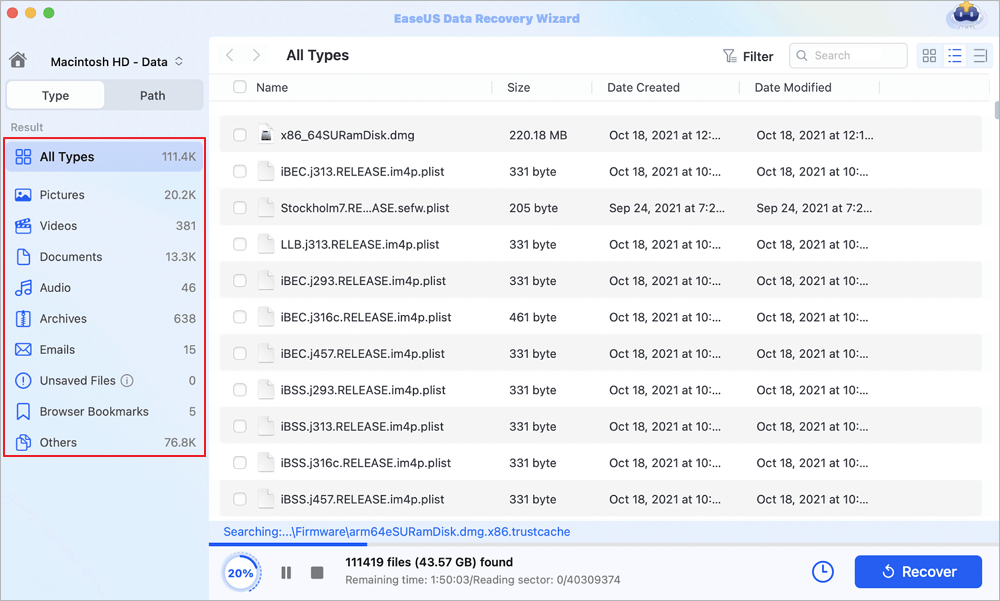
Step 3. Recover lost/deleted data
Once you have found the desired files, preview the files and then click "Recover" to begin the recovery of your deleted/lost Mac files.
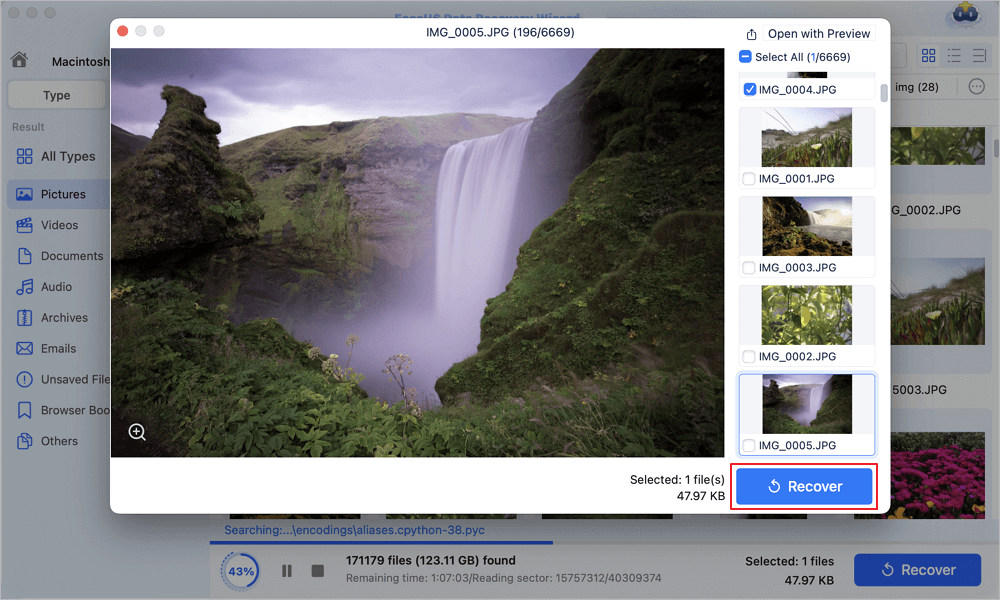
Select the BMP files to recover, then choose a new recovery location that is different from where the files were lost. Quality data recovery programs can recover files in a matter of minutes. You can share this post with users who are facing the same BMF file loss error:

Method 2. Recover Deleted BMP Files on Mac from Mac Trash
For files that are not yet deleted (using Command+Option+Delete), the Trash is the first place to look for recovery:
Step 1. Click the Trash icon in your Dock.
Step 2. Find your BMP files (you can sort by date or search).
Step 3. Right-click your selected BMP files and select "Put Back".
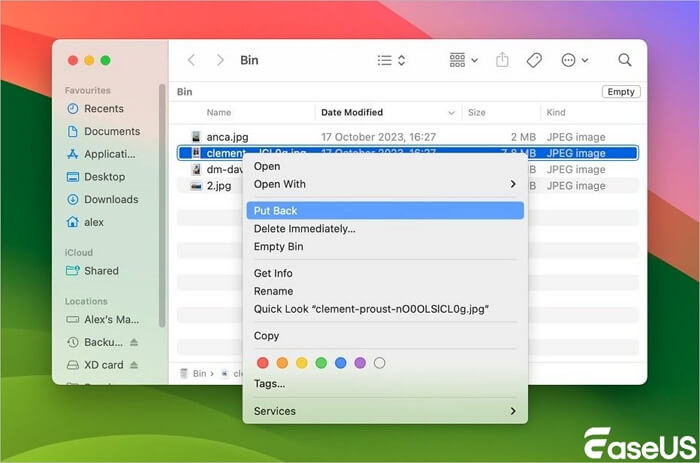
Step 4. The files will go back to their original spot.
Method 3. Recover Deleted BMP Files on Macfrom Time Machine Backups
If you have been using Time Machine to back up your Mac, then you can easily recover your BMP files by following these steps:
Step 1. Open the folder where your BMP files were stored.
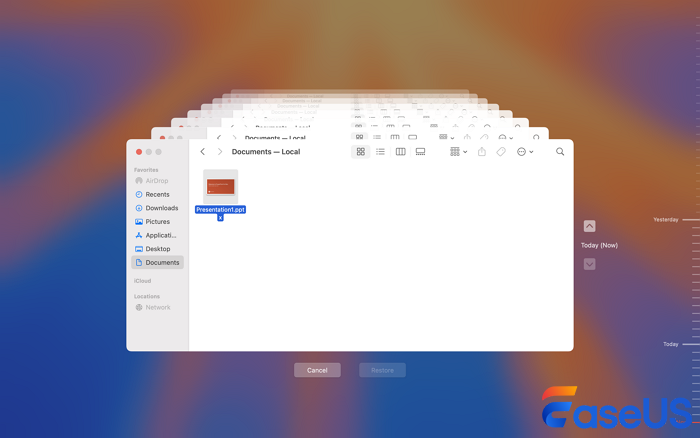
Step 2. Enter Time Machine by clicking on its icon in the menu bar or by opening the application.
Step 3. Go back in time to when your files were still there.
Step 4. Choose your BMP files and click on "Restore".
Conclusion
BMP file recovery for Mac users has different solutions depending on your circumstances. For deleted files, first check your Trash, as it's the quickest option. For permanently deleted files, data recovery software is your most effective option, as it allows you to scan your drive sectors for recoverable data. For those who have used Time Machine for regular backups, this will also be a viable option for recovering files deleted from a particular area.
To ensure effective recovery of your BMP files, try this as soon as possible, as deleted files will eventually be overwritten by other files. With your knowledge of these methods and your understanding of BMP files, you can now work with confidence, knowing that accidental deletion will not necessarily mean you have lost your valuable bitmap files forever.
FAQs on How to Recover Deleted BMP Files on Mac
Here are some frequently asked questions you may be curious about:
1. Can I recover corrupted BMP files on Mac?
- Yes, corrupted BMP files can sometimes be repaired or recovered. Try:
- Recovering the original file using data recovery software.
- Opening the BMP in an image editor like Adobe Photoshop or GIMP, which may automatically repair minor corruption.
- Using dedicated file repair tools like Stellar Repair for Photo or DiskWarrior (for broader system issues).
2. How can I prevent BMP file loss in the future?
To avoid losing BMP files:
- Regularly back up your Mac using Time Machine or cloud services like iCloud, Google Drive, or Dropbox.
- Use version control in apps like Adobe Photoshop or Affinity Photo.
- Avoid storing files only on external drives without backups.
- Eject external drives safely to prevent corruption.
Was This Page Helpful?

Finley is interested in reading and writing articles about technical knowledge. Her articles mainly focus on file repair and data recovery.
-
EaseUS Data Recovery Wizard is a powerful system recovery software, designed to enable you to recover files you’ve deleted accidentally, potentially lost to malware or an entire hard drive partition.
Read More -
EaseUS Data Recovery Wizard is the best we have seen. It's far from perfect, partly because today's advanced disk technology makes data-recovery more difficult than it was with the simpler technology of the past.
Read More -
EaseUS Data Recovery Wizard Pro has a reputation as one of the best data recovery software programs on the market. It comes with a selection of advanced features, including partition recovery, formatted drive restoration, and corrupted file repair.
Read More
Related Articles
-
Can I Delete HFS+ Private Data? HFS+ Data Recovery Guide
![author icon]() Brithny/Sep 20, 2026
Brithny/Sep 20, 2026 -
AutoRecovery Word Mac: How to Turn on AutoRecovery on MacBook Air/Pro
![author icon]() Brithny/Sep 20, 2026
Brithny/Sep 20, 2026 -
Recover Previous Version of Excel Files on Mac [with Step-by-Step Tutorial]
![author icon]() Brithny/Sep 20, 2026
Brithny/Sep 20, 2026 -
How to Recover Deleted Files on Mac Without Software
![author icon]() Dany/Sep 20, 2026
Dany/Sep 20, 2026
 Brithny/Sep 20, 2026
  Dany/Sep 20, 2026

