





 About the Author
 Reviews and Awards
 Mac SD Card Recovery
- Method 1. Use Data Recovery Software to Fix The File Can't Be Found on Mac Startup
- Method 2. Fix The File Can't Be Found on Mac Startup with Finder
- Method 3. Use Spotlight Search to Fix The File Can't Be Found on Mac Startup
- Method 4. Show Hidden Files to Fix The File Can't Be Found on Mac Startup
- Why Does "The File Can't Be Found" Happen on Startup Specifically
It can be alarming when you boot up your Mac, only to be greeted by an error message saying "the file can't be found" Mac startup, or when you find that a crucial file—perhaps a startup document, a project, or a system file—has seemingly vanished. While the linked article from EaseUS covers general file-finding issues, this guide focuses specifically on the frustration of missing files during or just after a Mac startup.
Why does this happen? The reasons range from simple misplacement to deeper system issues:
- Too many files: Over time, your Mac fills up, making it hard to locate a specific startup file.
- Hidden files: The file you need may exist, but is hidden from view.
- Accidental deletion: You might have unknowingly deleted an important file.
- Moving errors: Interrupted file transfers or system crashes during a move can make files disappear.
- Startup conflicts: Some files (like login items or launch agents) fail to load correctly during boot.
Below are four effective methods to resolve the "the file can't be found" error on your Mac, ranging from simple searches to data recovery.
Method 1. Use Data Recovery Software to Fix The File Can't Be Found on Mac Startup
If you suspect the missing file was accidentally deleted and it's not in your Trash, a dedicated Mac data recovery tool is your best bet. The reference article highlights EaseUS Data Recovery Wizard for Mac as a powerful solution. This is especially useful if the file was lost due to a startup crash or disk error.
Here is how you can recover deleted files on Mac and fix the file that can't be found on the Mac startup error:
Step 1. Scan for deleted files
Select the hard drive, external drive, or SSD where your important data & files were deleted and click "Search for lost files".

Step 2. Filter the lost files
The software will run quick and deep scans and work hard to find as many deleted files as possible on the selected volume. Filter wanted files through the "Type" and "Path" options.
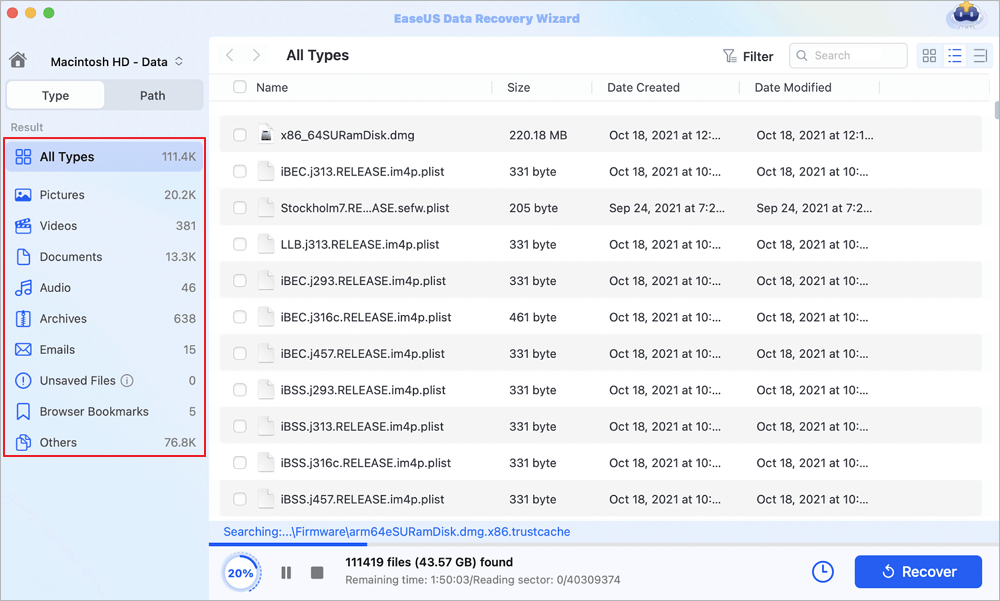
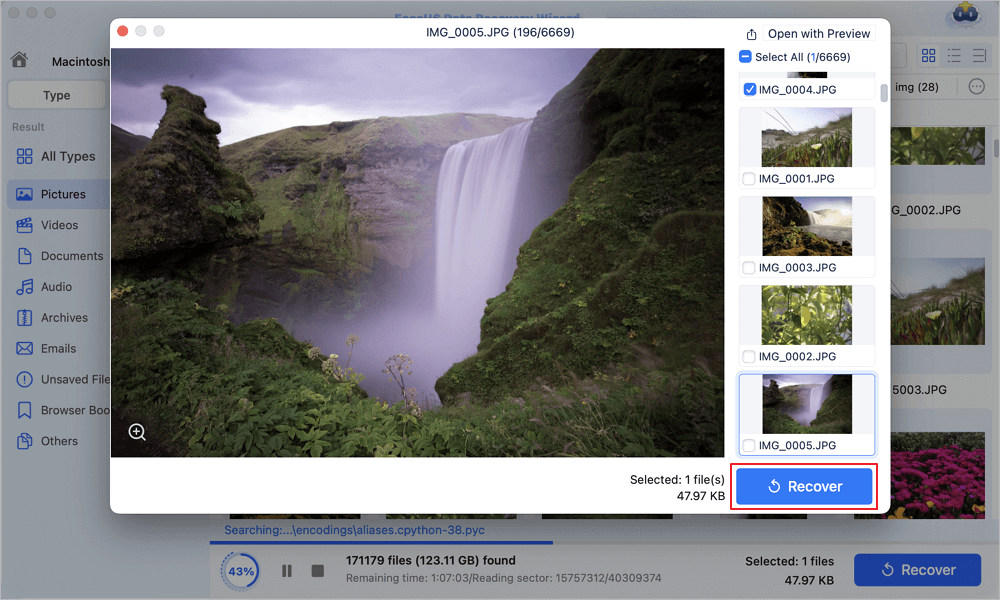
Step 3. Recover deleted files
Double-click the deleted files to preview. Then, click the "Recover" button to get them back.
Share this data recovery software for Mac with users who are facing the same file-missing issue:

Method 2. Fix The File Can't Be Found on Mac Startup with Finder
The Finder is the heart of your Mac's file management. If the missing file is not deleted but simply misplaced, Finder's search capabilities can pinpoint it quickly.
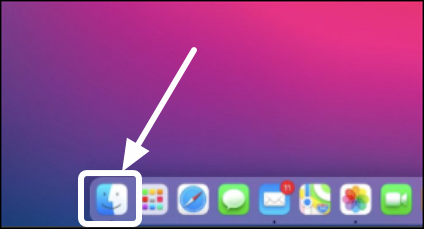
Step 1. Click the Finder icon in your Dock (the blue smiling face).
Step 2. In the top-right corner, use the search box. Type the exact or partial file name.
Step 3. If you know which folder the file should be in (e.g., Documents, Desktop), select that folder first, then search.
You can also search by "Date Modified" or "Kind" (e.g., PDF, Image) to narrow results.
Method 3. Use Spotlight Search to Fix The File Can't Be Found on Mac Startup
Spotlight is faster than Finder and can locate files, apps, and emails instantly. It's particularly helpful when you don't remember the exact folder location. Follow the detailed instructions here:
Step 1. Press Command (⌘) + Spacebar to open Spotlight, or click the magnifying glass in the menu bar.
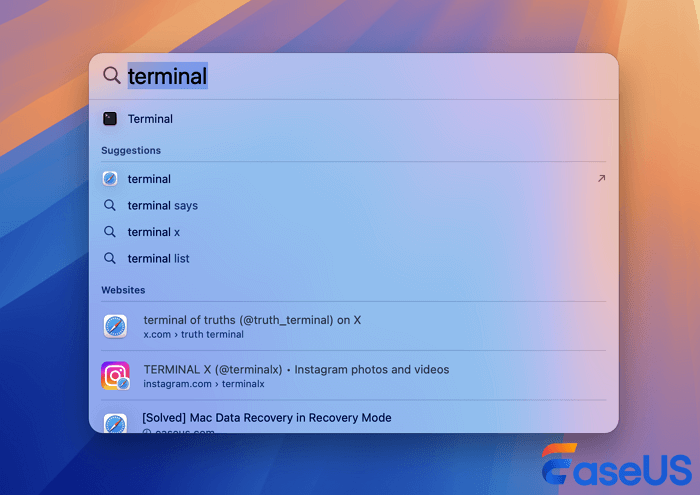
Step 2. Type the file name, a keyword, or a date associated with the file.
Step 3. Spotlight will display matching results. If the file appears, press Command + Enter to reveal its location in Finder.
Method 4. Show Hidden Files to Fix The File Can't Be Found on Mac Startup
Sometimes files are not missing—they're just hidden. macOS hides certain system files by default, and occasionally, a user file can become hidden due to a glitch or manual action.
Step 1. Open a Finder window and click your Mac's name under "Devices" in the sidebar.
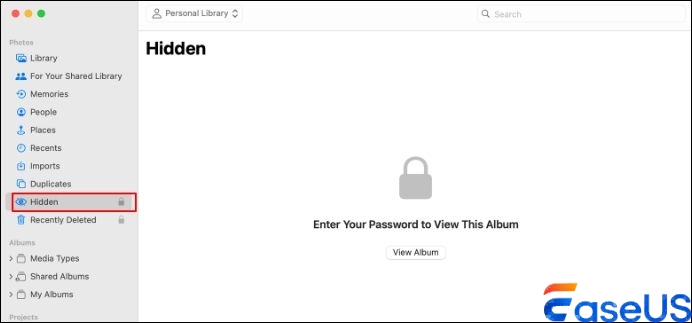
Step 2. Navigate to the folder where you suspect the file might be (e.g., your User folder or System).
Step 3. Press Command + Shift +. (period). This keyboard shortcut toggles hidden files on and off.
Step 4. The missing file should now appear greyed-out or translucent. You can then move it or copy it.
Why Does "The File Can't Be Found" Happen on Startup Specifically
Unlike general file loss, startup-related file errors often point to:
- Missing login items: An app or document set to open at login has been moved or deleted.
- Corrupt launch services database: The system loses track of which app opens which file type.
- Disk errors: A failing hard drive or SSD can corrupt files, making them unreadable at boot.
If the error persists after trying the methods above, consider restarting in Safe Mode (hold Shift during boot) to clear system caches and check your disk with Disk Utility's First Aid.
Final Thoughts
Don't panic if you see "the file can't be found" Mac startup. In most cases, either the file is hidden, misplaced, or recoverable. Start by using Finder or Spotlight for quick searches. If the file is truly gone, EaseUS Data Recovery Wizard for Mac offers a reliable safety net. And always maintain a backup via Time Machine to prevent future heartache.
FAQs on Missing Files on Mac Startup
1. How do I find hidden files on Mac?
Press Command + Shift + . in Finder, or use Terminal: defaults write com.apple.finder AppleShowAllFiles -bool true Then relaunch Finder.
2. Can I recover a file I can't find on my startup drive?
Yes. Stop using the drive immediately to avoid overwriting data. Then use a recovery tool like EaseUS Data Recovery Wizard for Mac to scan and restore it.
3. Why do my files disappear after a macOS update or restart?
Possible causes include a failed update, permission errors, or a user account glitch. Try restarting again, checking your Trash, or using Spotlight to search the whole drive.
4. How do I locate a file's full path on Mac?
In Finder, right-click (or Control-click) the file (if found) and select "Get Info." The "Where:" field shows the path. Alternatively, use Spotlight and press Command + Enter.
By following these solutions, you should be able to resolve the "file can't be found" error on your Mac startup and retrieve your valuable data.
Was This Page Helpful?

Finley is interested in reading and writing articles about technical knowledge. Her articles mainly focus on file repair and data recovery.
-
EaseUS Data Recovery Wizard is a powerful system recovery software, designed to enable you to recover files you’ve deleted accidentally, potentially lost to malware or an entire hard drive partition.
Read More -
EaseUS Data Recovery Wizard is the best we have seen. It's far from perfect, partly because today's advanced disk technology makes data-recovery more difficult than it was with the simpler technology of the past.
Read More -
EaseUS Data Recovery Wizard Pro has a reputation as one of the best data recovery software programs on the market. It comes with a selection of advanced features, including partition recovery, formatted drive restoration, and corrupted file repair.
Read More
Related Articles
-
iMessage Not Showing Messages on Mac: Fix Sync & Recover
![author icon]() Dany/Sep 20, 2026
Dany/Sep 20, 2026 -
How to Recover an Unsaved Word Document on Mac (2026 Guide)
![author icon]() Tracy King/Sep 20, 2026
Tracy King/Sep 20, 2026 -
Where Is Trash Folder on Mac [Beginner's Guide]
![author icon]() Dany/Sep 28, 2026
Dany/Sep 28, 2026 -
Recover Unsaved/Deleted QuickTime Recordings [2026 Update]
![author icon]() Jean/Sep 24, 2026
Jean/Sep 24, 2026
 Dany/Sep 20, 2026
  Tracy King/Sep 20, 2026
  Jean/Sep 24, 2026

