





 About the Author
 Reviews and Awards
 Mac SD Card Recovery
Why Is My CFexpress Card Not Showing Up on Mac
Sometimes you plug in your CFexpress card and Finder just ignores it. First, figure out whether the problem is the reader, the cable, macOS itself, or the card's file system. Pinning down what's wrong makes the fix easier, and it lowers your chances of losing irreplaceable photos or videos.
Here's what usually causes this mess:
- Reader doesn't support your card: CFexpress Type A and Type B aren't interchangeable. If you stick a Type B into a Type A reader, nothing's going to happen. And most SD card readers aren't going to work unless they say they do.
- Connection issues: Faulty USB cables, dodgy adapters, or even a flaky USB hub can kill the connection.
- SD card not mounting on Mac: Sometimes macOS sees your card in Disk Utility but just refuses to mount it, so Finder never sees it.
- File system corruption: Unplugging your card mid-transfer, camera malfunctions, or power blips can leave the file system in tatters. Sometimes it shows up as RAW or says it needs to be "initialized."
- Wrong format or partition: If the card's formatted in a strange way, macOS might ignore it or say the SD card is unreadable on your Mac.
- macOS glitches: Temporary bugs or compatibility issues can mess up your Mac's ability to see external storage.
- Physical damage: If the card's contacts are bent, the controller's fried, or the memory's failing, nothing will read it.
Look, if your card has important files, don't format, erase, or initialize it, even if macOS prompts you to. That makes it way harder to get your files back. Start with quick, gentle checks before you do anything drastic.
How to Fix a CFexpress Card Not Showing Up on Mac
Let's start simple and work our way up. First, rule out the dumb stuff: readers and cables. Next, dig into Disk Utility or System Information and see what your Mac actually detects.
If your Mac sees the card but won't open it, look for mounting or file system issues. And if there are files you still need, try SD card recovery on Mac before you repair or reformat.
Fix 1. Reconnect the CFexpress Card and Check the Card Reader
If your Mac ignores your card, check the basics:
- First, check the card type: Make sure your card reader supports it. Don't assume every CFexpress reader is universal.
- Pull the card out and put it back: Remove the card, check for dirt or damage, and gently clean it if needed (just don't use water or abrasive stuff). Put it back in, making sure you're using the right slot.
- Don't use the hub: Plug the reader straight into your Mac. Hubs, multiport adapters, or docking stations can be sketchy sometimes.
- Try a different cable or port: Swap the USB cable or use another port. Sometimes power gets through, but not data.
- Swap readers if you can: Use another reader that supports your card, or try reading the card on a different computer or camera.
If your card works somewhere else, your original reader is probably toast. If it fails everywhere, the card itself is likely corrupt or damaged. If the card heats up, disconnects over and over, or looks physically busted, stop testing and start thinking about SD card recovery.
Fix 2. Check Whether the CFexpress Card Appears in Disk Utility
Disk Utility can show you cards Finder won't. Here's how to use it:
Step 1. Find it via Applications > Utilities or use Spotlight.
Step 2. In the top menu, click View > Show All Devices so you see everything, not just mounted volumes.
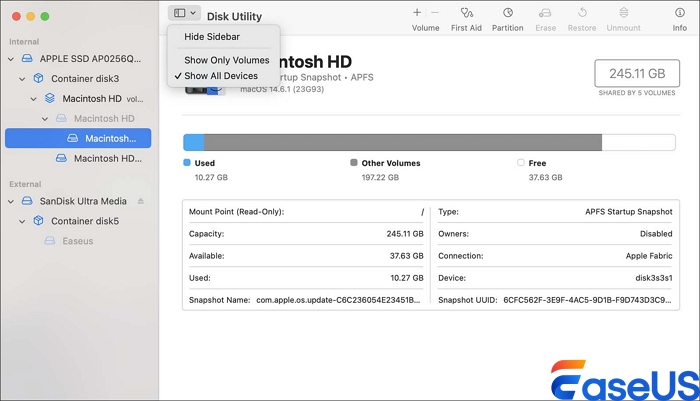
Step 3. Look for your card: Check the sidebar for your card's name, manufacturer, or capacity. Compare what's listed with the card's label.
You'll see one of these:
- Card and volume both appear: Mac sees your card. Maybe it's a Finder issue or mounting problem.
- Card appears, but volume's greyed out: Mac detects the card but isn't mounting it.
- Card shows up as RAW or uninitialized: File system's probably toast.
- Card doesn't appear: Could be your reader, cable, port, or card hardware.
- Try mounting the volume: If the volume's there but unmounted, select it and click Mount. If Mac throws an error, jot it down; it helps figure out if it's a file system or something else.
- Check Finder again: If the card pops up, grab your files. If it says RAW or wants to initialize, don't do it if you still need the data. Try recovery first.
Fix 3. Check the CFexpress Card Using System Information
System Information lets you see if your Mac's even "talking" to the card reader.
Step 1. Hold Option, click the Apple logo, and select System Information. Or find it in Applications > Utilities.
Step 2. Select USB or Thunderbolt/USB4 in the sidebar, depending on how the reader's connected.
Step 3. Find the manufacturer, model, or device name. Sometimes it's generic.
Step 4. Click on the reader and check its info. If the reader shows up, Mac detects the hardware, but that doesn't mean the card itself is working.
Step 5. Unplug the reader, wait a sec, and reconnect. If it disappears and reappears here but not in Disk Utility, something's up with the card or reader interface.
If System Information sees your reader but Disk Utility can't see the card, keep troubleshooting the card itself.
Fix 4. Use First Aid to Check the CFexpress Card
If Disk Utility sees the card but can't mount it, First Aid might fix minor errors. Don't expect miracles, though; if your files are precious, recover them first!
Step 1. Open Disk Utility.
Step 2. Select your card or its volume.
Step 3. Click First Aid, then Run, and follow the prompts. Don't disconnect.
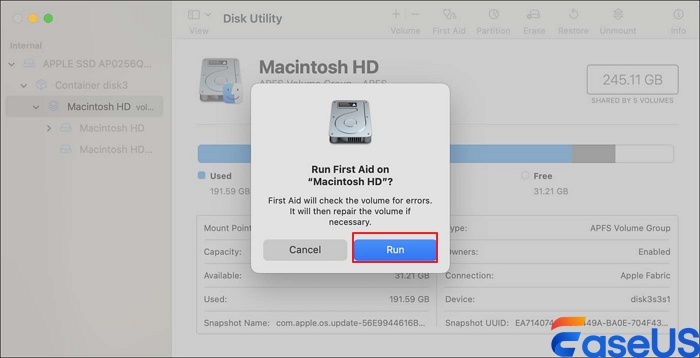
Step 4. Check the results: If errors are fixed and you can open the card, copy your files off right away.
Step 5. Try the parent device if needed: If multiple levels show (volumes, containers, physical device), check them all, but Apple suggests starting at the volume.
If First Aid can't fix it, don't keep running it over and over. And don't erase the card unless recovery's not an option.
Fix 5. Restart Your Mac and Update macOS
Sometimes it's just Mac acting up. You can restart your Mac and update macOS to the latest version to fix this issue.
Step 1. Safely disconnect your card.
Step 2. Restart your Mac via the Apple menu.
Step 3. Reconnect the reader directly; skip hubs/adapters.
Step 4. Check for macOS updates: Go to System Settings > General > Software Update. If there's a compatible update, install it after backing up.
Check your reader manufacturer's support docs: Look for firmware updates, compatibility notes, or known issues. Avoid sketchy drivers from random sites.
If the card's invisible across multiple devices, you're probably dealing with physical damage, not something an update can fix.
How to Recover Data from a CFexpress Card That Is Not Showing Up on Mac
If your CFexpress card contains important photos, RAW images, or video recordings, recover the data before formatting the card or attempting repairs that may modify its file system. When a card becomes RAW or unreadable, macOS may be unable to recognize its file system even though some of the original data remains recoverable.
You can try EaseUS Data Recovery Wizard for Mac to scan a recognized CFexpress card for recoverable files. The software may help recover deleted or inaccessible photos and videos, depending on the card's condition and whether the underlying data has been overwritten. If the card is physically damaged or completely undetected by macOS, recovery software may not be able to access it.
Step 1. Select the SD card
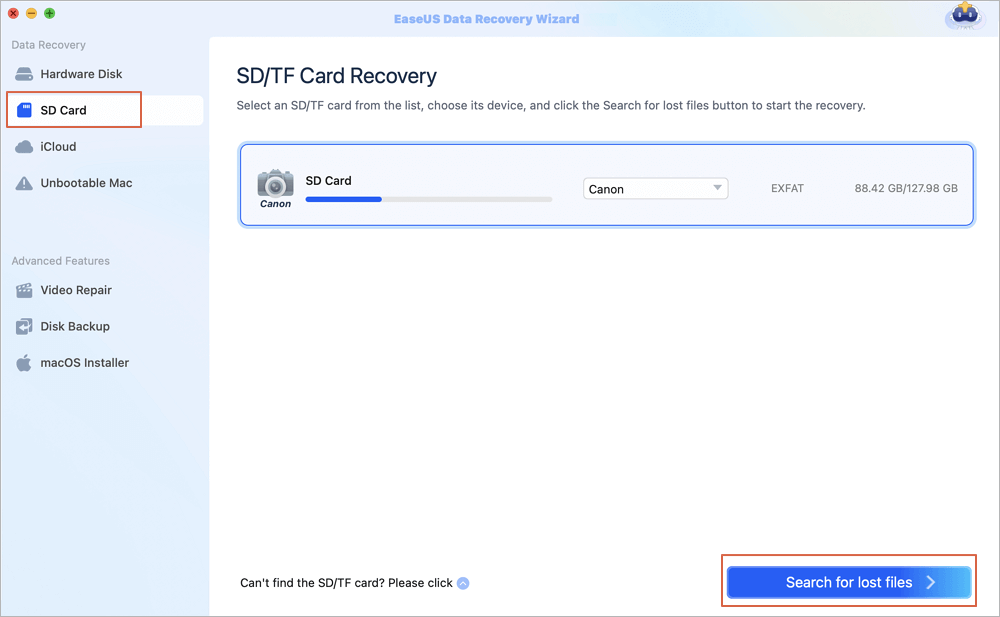
- Correctly connect your memory card to your Mac. Launch EaseUS Data Recovery Wizard for Mac.
- Go to "SD Card Recovery", find your Canon/Nikon/Go Pro/DJI/Sony SD card, and click "Search for lost files".
Step 2. Filter lost SD card data
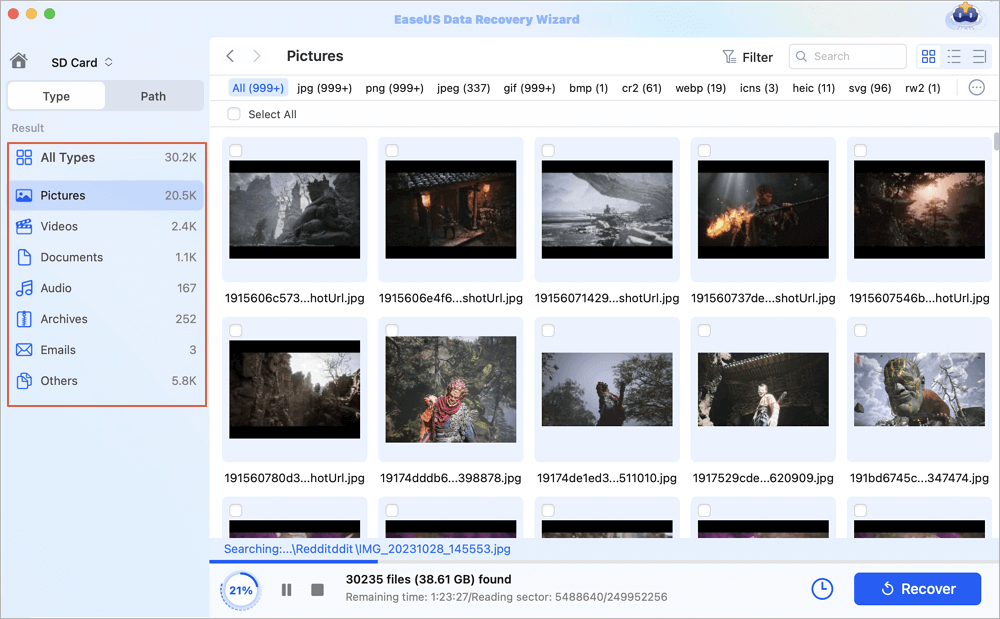
After the scan, all files will be presented in the left panel in the scan results. Find wanted photos, videos, and other files.
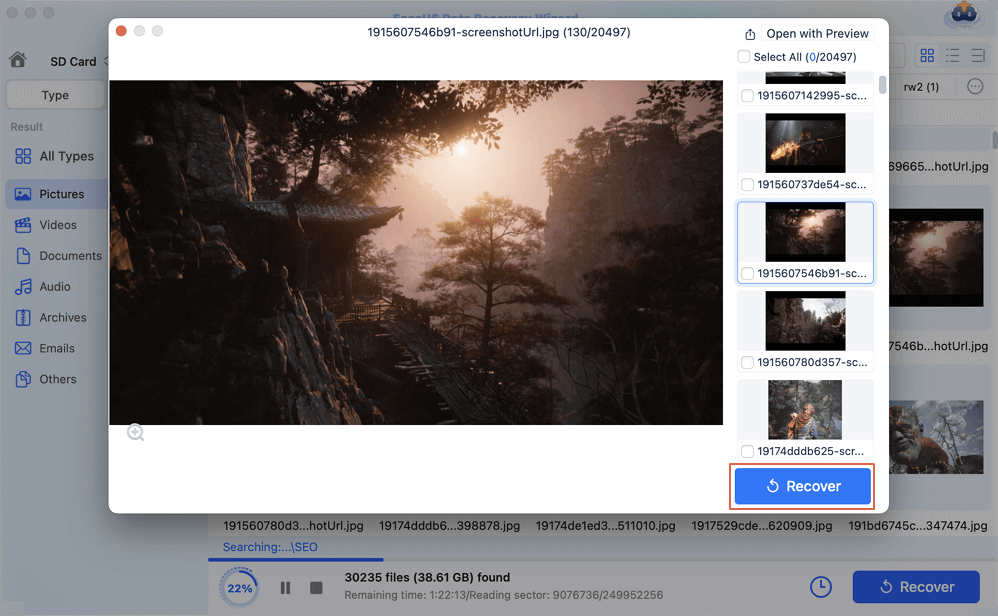
Step 3. Preview and recover data
Preview the SD card data and select the wanted files. Then, click the "Recover" button. Don't save the recoverable files to the SD card itself in case of data overwriting.
Share this guide on social media and help others solve CFexpress card issues.

Summary
If your CFexpress card isn't showing up on your Mac, start simple. Double-check the card type and make sure your reader matches. Give the USB cable and ports a look, too; sometimes the fix is as easy as swapping cables. Open Disk Utility and System Information to see if your Mac recognizes the card and if the volume's mounted. If it shows up but doesn't work right, try running First Aid to fix minor errors. Restarting your Mac and updating macOS can also solve glitches.
If your card looks RAW or you can't access your photos and videos, don't format it yet. Use data recovery software, like EaseUS Data Recovery Wizard for Mac, to scan the card and recover files. Always save recovered files to another drive, check that they open, and only format the card once your data's safe and backed up. If the card is physically broken or your Mac just won't detect it at all, it's time to call in professionals for recovery help.
CFexpress Not Showing FAQs
1. Why is my CFexpress card not showing up on my Mac?
Your CFexpress card may not show up because of an incompatible reader, a faulty cable or USB port, a mounting error, file system corruption, or physical damage. Check System Information and Disk Utility to determine whether macOS detects the reader and the card.
2. Why does my CFexpress card show up in Disk Utility but not Finder?
Your Mac may recognize the physical card but fail to mount its volume. This can happen because of file system corruption, an unsupported format, or a mounting error. Open Disk Utility and check whether the volume can be mounted. If the card appears as RAW or contains important inaccessible files, recover the data before formatting it.
3. How do I fix a RAW CFexpress card on Mac?
A RAW status may indicate that macOS cannot recognize the card's file system. Stop writing new data to the card and avoid erasing or initializing it. If the physical card is detected, try EaseUS Data Recovery Wizard for Mac to scan for recoverable files. Save recovered files to another storage device before considering reformatting the card.
Was This Page Helpful?

Dany is an editor of EaseUS who lives and works in Chengdu, China. She focuses on writing articles about data recovery on Mac devices and PCs. She is devoted to improving her writing skills and enriching her professional knowledge. Dany also enjoys reading detective novels in her spare time.
-
EaseUS Data Recovery Wizard is a powerful system recovery software, designed to enable you to recover files you’ve deleted accidentally, potentially lost to malware or an entire hard drive partition.
Read More -
EaseUS Data Recovery Wizard is the best we have seen. It's far from perfect, partly because today's advanced disk technology makes data-recovery more difficult than it was with the simpler technology of the past.
Read More -
EaseUS Data Recovery Wizard Pro has a reputation as one of the best data recovery software programs on the market. It comes with a selection of advanced features, including partition recovery, formatted drive restoration, and corrupted file repair.
Read More
Related Articles
-
USB Flash Drive Not Showing Up on Mac, Why and How to Fix
![Brithny]() Brithny/Nov 02, 2026
Brithny/Nov 02, 2026 -
(Solved!) SD Card Files Not Showing in File Manager/Explorer
![Tracy King]() Tracy King/Oct 30, 2026
Tracy King/Oct 30, 2026 -
How Can I Recover Formatted SD Card? Possible or Not?
![Dany]() Dany/Nov 02, 2026
Dany/Nov 02, 2026 -
[Fixed] The Disk You Attached Was Not Readable by This Computer
![Tracy King]() Tracy King/Nov 02, 2026
Tracy King/Nov 02, 2026
 Brithny/Nov 02, 2026
  Tracy King/Oct 30, 2026

