





-
![]()
-
![]()
-
![]() Recover Lost Files with EaseUS Portable Data Recovery Software | 2026 Method
Recover Lost Files with EaseUS Portable Data Recovery Software | 2026 Method October 14,2026
 6 min read
 -
![]() How to Restore Lost Data with Easy Recovery Essentials Free AlternativeOctober 14,20266 min read
How to Restore Lost Data with Easy Recovery Essentials Free AlternativeOctober 14,20266 min read -
![]() How to Find Older Restore Points Windows 11 | Tried-And-True MethodsOctober 14,20266 min read
How to Find Older Restore Points Windows 11 | Tried-And-True MethodsOctober 14,20266 min read -
![]()
-
![]()
-
![]() Recover Lost Save Data in the Legend of Zelda: Tears of the Kingdom [4 Methods]October 14,20266 min read
Recover Lost Save Data in the Legend of Zelda: Tears of the Kingdom [4 Methods]October 14,20266 min read -
![]()
-
![]() Restarted My Computer and Everything Is Gone Windows 11/10/8/7October 14,20266 min read
Restarted My Computer and Everything Is Gone Windows 11/10/8/7October 14,20266 min read
Page Table of Contents
A Windows 10 factory reset has a dual nature: it can refresh system files while preserving data, or perform a destructive wipe. If you just realized your files are missing, the golden rule is to stop using the computer immediately to prevent data from being overwritten. Unless a full, multi-pass sector overwrite occurred, your data remains physically present.
PAGE CONTENT:
Before initiating a recovery protocol, we should diagnose what occurred at the file system level during the reinstallation phase.
| 1️⃣Option 1. "Keep My Files" Breakdown | If you selected this option, Windows reinstalled the operating system but preserved your user profile data. In many cases, your files are not actually lost; they have been temporarily displaced due to user profile corruption, hidden directory changes, or shifted pathing profiles. The data still resides on your NTFS partition, but may not appear in your standard libraries. |
| 2️⃣Option 2. "Remove Everything" Breakdown |
This option performs a clean system format. The viability of data recovery here depends heavily on your hardware architecture:
|
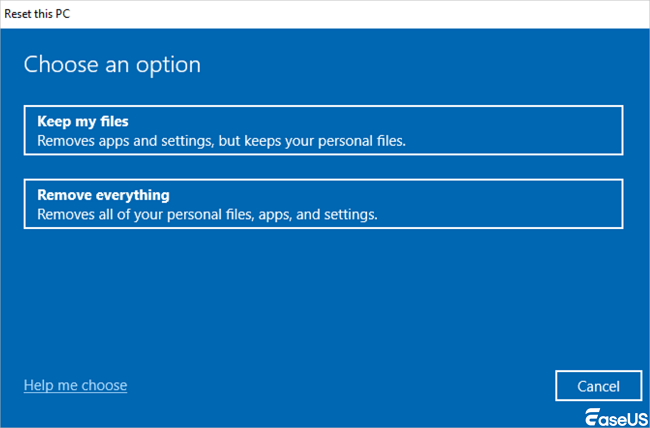
We will provide you with some solutions, and based on the test results, we have evaluated each method. You can compare and choose the one that best suits your needs.
Method 1. Recover Files from Windows.old Folder
If you performed an upgrade or a standard reset, Windows often creates a safety net archive of your previous system environment. The Windows.old directory is a temporary archive folder generated on your root drive. It acts as a snapshot of your pre-reset user profiles, program data, and system settings.
Crucial note: Windows 10 automatically deletes this folder 10 days after the reset to reclaim disk space.
Step 1. Open "File Explorer" by pressing the Win + E shortcut.
Step 2. Navigate to your system root drive (typically C:\).
Step 3. Look for a folder named Windows.old. If present, double-click to open it.
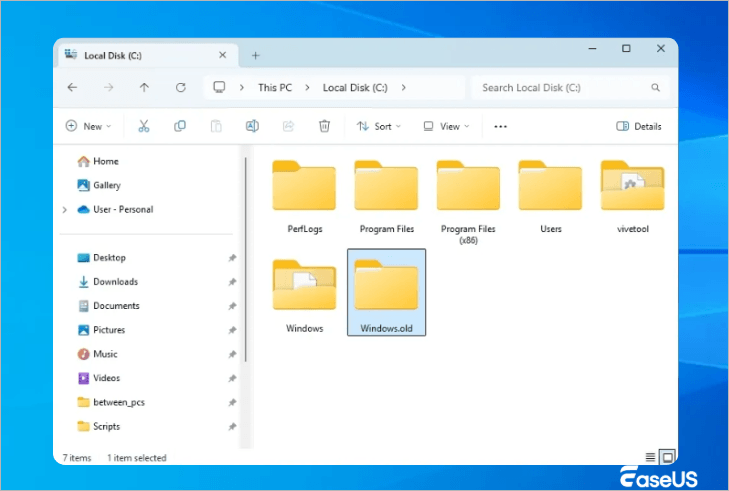
Step 4. Enter the "Users" folder, then double-click your previous username profile folder.
Step 5. Locate your vital libraries.
Copy the files from this directory and paste them safely into your current active user profile or an external storage drive.
Method 2. Restore Files After Factory Reset with Data Recovery Tool
When files are missing from the system directory structure entirely, you should use an advanced tool that can bypass standard OS partition tables.
EaseUS Data Recovery Wizard is engineered to scan unallocated storage sectors directly. It looks past corrupted or reset NTFS file tables to identify individual file headers and read deep logical data signatures, then assembles them back into structured files, even for RAW drive recovery.
Always install the software on a separate partition, an external hard drive, or a USB flash drive.
Note: To guarantee a high data recovery chance, install EaseUS data recovery software on another disk instead of the original disk where you lost files.
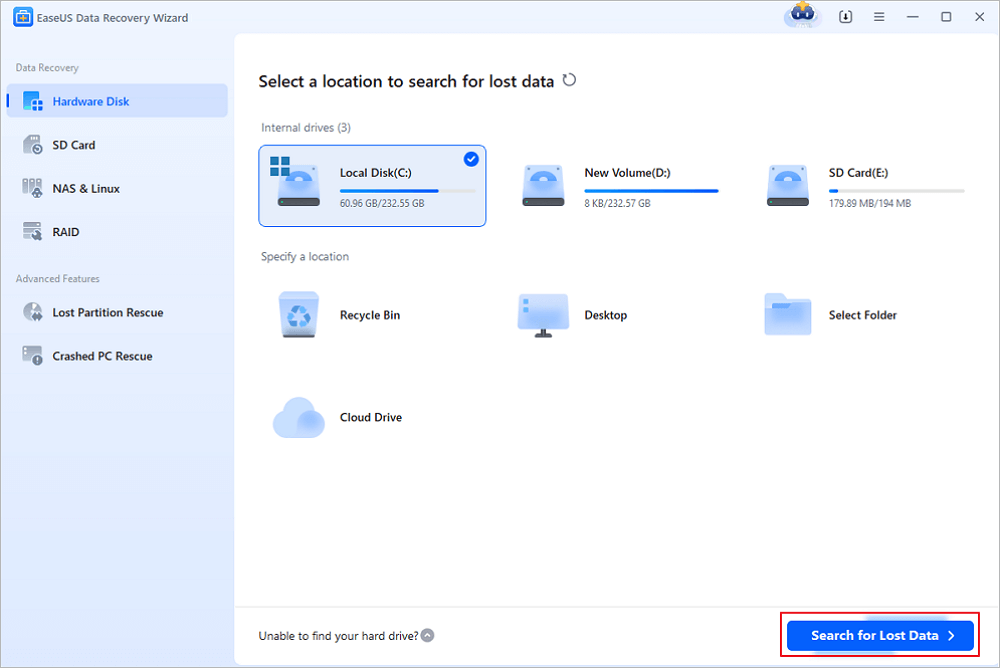
Step 1. Launch EaseUS Data Recovery Wizard on your Windows 11, Windows 10, Windows 8, or Windows 7 computer. Select the disk partition or storage location where you lost data and click "Search for Lost Data".
Step 2. This recovery software will start scanning the disk to find all lost and deleted files. When the scan process completes, click "Filter" > "Type" to specify lost file types. If you remember the file name, you can also search in the search box, which is the fastest way to find the target file.
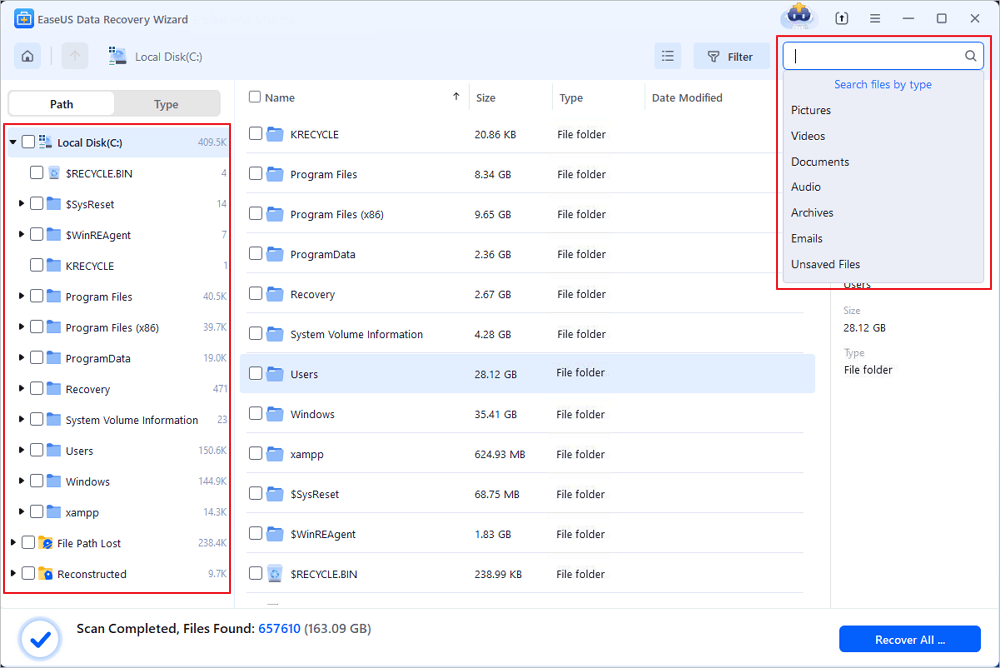
Step 3. Preview and restore lost Windows files. You can double-click to preview the scanned files. Then, select the target data and click the "Recover" button to save them to another safe spot in the PC or Cloud drive.

If you find this information helpful, please share it with others on social media to assist them in overcoming this common challenge.
Method 3. Get Files Back with Windows File Recovery After Factory Reset
For users comfortable with text-based utilities, Microsoft provides an official command-line tool.
Windows File Recovery is Microsoft's official text-based utility available via the Microsoft Store. If your master file tables are corrupted or wiped after a reset, standard scanning modes will fail. You should invoke the Extensive Mode, which searches for raw file signatures across the disk sectors when the master file tables are corrupted.
- Download Windows File Recovery from the Microsoft Store.
- Type cmd in your Windows search bar, right-click "Command Prompt", and select "Run" as administrator.
- Use explicit Command Prompt strong examples to execute a recovery command.
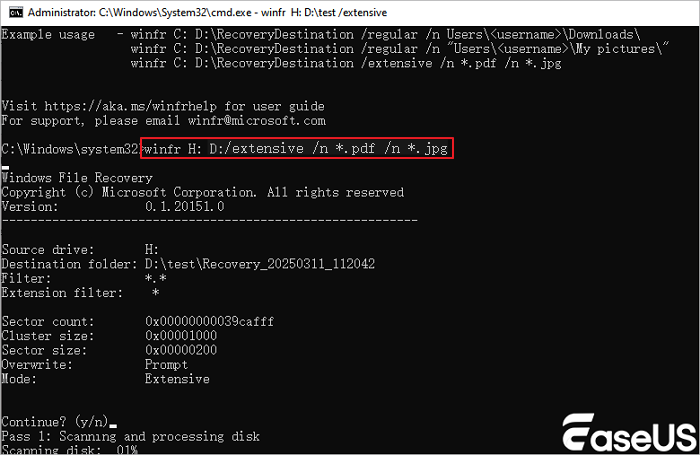
Example command to search for raw file signatures and recover your Pictures directory from a formatted H: drive to an external recovery drive assigned as D:
winfr H: D: /extensive /n *.
Taking the image below as an example, suppose you deleted the "pdf" and "jpg" files on drive H, and now you want to restore them to drive D. You can enter:
Method 4. Recover Files from Cloud Backup Integrations
Sometimes, default automated safety features save your data without your explicit knowledge.
Default Windows 10 setups deeply integrate with "OneDrive". Even if a factory reset cleared your physical hard drive, your default profile folder paths might have been constantly auto-syncing to the cloud dashboard.
- Open a web browser and navigate to the OneDrive web dashboard.
- Log in with the same Microsoft Account that was bound to your Windows 10 PC before the reset.
- Check the Files directory or look inside the cloud Recycle bin for your missing data assets.
LEARN MORE
Still curious? Click here to learn about 5 Ways to Recover Lost Files After Windows 10 Update.
Recover Windows 10 After Factory Reset Method Comparison
You can use the following table for a visual comparison to evaluate the method that best suits you from different perspectives.
| Recovery Method | Execution Difficulty | Restoration Probability | Cost |
| 1️⃣Windows.old Folder | Very Low | High (Within 10 Days) | Free |
| 2️⃣ EaseUS Data Recovery Wizard | Low | Very High | Paid / Free Trial |
| 3️⃣Windows File Recovery | High (CLI-based) | High | Free |
| 4️⃣OneDrive | Low | Guaranteed (If previously enabled) | Free |
Conclusion
Discovering that your critical personal files, photos, or documents have vanished after a system reset can be incredibly stressful. However, as this guide demonstrates, a Windows 10 factory reset does not necessarily result in permanent data loss.
Whether you quickly extract your profile folders from the temporary Windows.old directory, deploy a deep sector-by-sector scan via EaseUS Data Recovery Wizard, or roll back your files using cloud and local backup integrations. The most critical factor remains speed. Minimize system idling, avoid installing software on the target drive, and secure your files immediately to ensure a successful recovery.
Recover Files After Factory Reset Windows 10 FAQs
If you still have some questions about Windows recovery, check the quick answers below to help yourself out:
1. Does a factory reset wipe all drives on Windows 10 or just the C: drive?
By default, the Windows 10 factory reset architecture targets only the primary OS partition. Secondary internal data drives and external peripherals remain intact unless you explicitly select the "All Drives" configuration toggle during the reset confirmation setup.
2. Can I recover files if my Windows 10 PC has an SSD instead of an HDD?
Yes, but timing is critical. Delivering a realistic breakdown of mechanics, because of the TRIM command on modern SSDs, deleted blocks are queued for electronic zeroing during system idle cycles.
3. How can I prevent data loss before performing a Windows 10 system reset in the future?
Prior to executing a factory reset, you should implement a dual-factor backup strategy: advise on setting up automatic daily "File History" backups under "Settings > Update & Security > Backup" to maintain hourly file alterations on an external flash drive, or create a full system image snapshot via "Control Panel > System and Security > Backup and Restore (Windows 7)" to save a complete image snapshot of your partition configuration.
Was this page helpful?




 Why Trust EaseUS
 Editor Reviews

20+
Years of experience

160+
Countries and regions

72 Million+
Downloads

4.9 +
Trustpilot Score





