





-
![]()
-
![]() Recycle Bin Recovery: How to Recover Deleted Files in Windows
Recycle Bin Recovery: How to Recover Deleted Files in Windows October 29,2026
 6 min read
 -
![]()
-
![]()
-
![]()
-
![]() How to Recover Data from a Wiped Hard Drive [Safest Methods]October 29,20266 min read
How to Recover Data from a Wiped Hard Drive [Safest Methods]October 29,20266 min read -
![]()
-
![]()
-
![]()
-
![]()
Page Table of Contents
Losing important files from a USB drive is a stressful experience that happens to millions of users every year. Whether you accidentally deleted files, formatted your drive, or encountered a file system error, the good news is that recovery is often possible with the right tools. This guide covers how exFAT USB recovery works, the best free software options available in 2026, and step-by-step instructions for recovering lost data.
What Is exFAT and Why Is Recovery Different?
exFAT (Extended File Allocation Table) is a file system optimized for flash drives and external storage. Unlike its older counterpart FAT32, exFAT supports larger files (over 4GB) and higher storage capacities, making it the default choice for modern USB drives and SD cards.
When you delete a file from an exFAT-formatted USB drive, the file isn't immediately erased. Instead, the system marks the space as "available" for new data. The actual file remains intact until overwritten. Data recovery software works by scanning these unused sectors and locating file signatures to reconstruct deleted files .
How USB Data Recovery Works
Data recovery software uses advanced scanning techniques to find and restore lost files. Understanding the process helps you make better decisions and avoid common mistakes.
The Two-Stage Scan Process
Most professional recovery tools use a two-phase approach:
-
Quick Scan: Fast surface-level scan that finds recently deleted files by checking the file system's directory structures. Takes seconds to minutes.
-
Deep Scan: Comprehensive sector-by-sector scan that searches the entire storage space for file signatures (JPEG, MP4, DOCX, etc.). Slower but much more powerful—essential for formatted or corrupted drives .
Files That Can Be Recovered
Modern recovery tools support over 1000 file types including:
-
Photos (JPG, PNG, RAW, GIF)
-
Videos (MP4, MOV, AVI, MKV)
-
Documents (DOCX, PDF, XLSX, PPTX)
-
Audio (MP3, WAV, FLAC)
-
Archives (ZIP, RAR, 7Z)
Is "Free exFAT Recovery Software" Really Free?
This is where many users get confused. Most tools labeled as "free" come with limitations. Understanding these restrictions helps you choose the right tool for your needs.
Common Limitations of Free Versions
| Feature | Free Version | Paid Version |
|---|---|---|
| Recovery limit | 500MB–2GB | Unlimited |
| Deep scan capability | Often limited | Full |
| File preview | Usually yes | Yes |
| Technical support | Limited or none | Priority support |
When the Free Version Is Enough
You can successfully recover files with a free tool when:
-
You only need to recover a few small files (documents, photos)
-
Your data loss happened recently
-
The USB drive isn't severely damaged or corrupted
Top Free exFAT Data Recovery Software (2026 Tested)
Based on real-world testing, here are the most reliable free options for recovering files from exFAT USB drives.
1. EaseUS Data Recovery Wizard – Best Overall
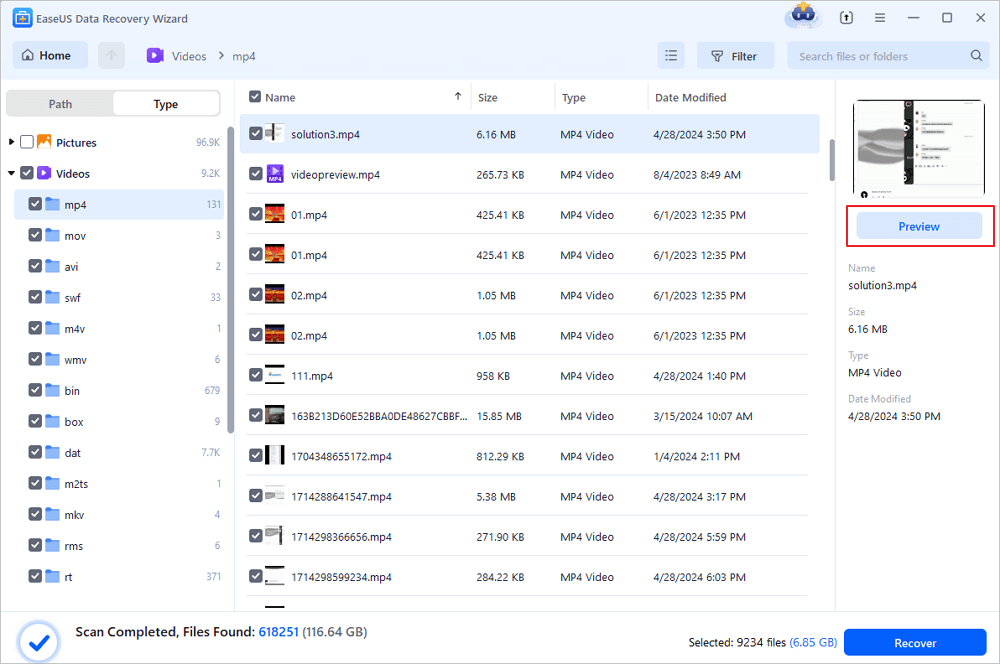
EaseUS Data Recovery Wizard stands out as the most beginner-friendly option with excellent recovery performance across all test scenarios. It offers a clean interface, fast scanning, and strong support for formatted and corrupted exFAT drives .
Free version: Up to 2GB of free data recovery (500MB by default + 1.5GB extra after sharing on social media) .
Key Features:
-
High recovery rate for deleted and formatted files
-
Supports 1000+ file types including all major formats
-
Quick + Deep scan modes
-
Preview files before recovery
-
Works with FAT32, exFAT, and NTFS
Best for: Beginners and users who want a balance between simplicity and power.
2. Recuva – Best Completely Free Option
Recuva is a lightweight, genuinely free data recovery tool that works well for basic file recovery tasks. It remains one of the few tools offering unlimited recovery at no cost .
Free version: Truly unlimited—no recovery cap.
Key Features:
-
100% free to use with no recovery limit
-
Quick scan for recently deleted files
-
Portable version available (runs without installation)
-
Easy-to-use recovery wizard
Limitations:
-
Weaker deep scan performance compared to premium tools
-
Windows only (not available for macOS)
-
Struggles with severely corrupted drives
Best for: Quick recovery of recently deleted files on USB drives.
3. Disk Drill – Best for Advanced Users
Disk Drill offers a modern interface and solid recovery capabilities along with additional disk management features .
Key Features:
-
Supports multiple file systems including exFAT
-
Includes data protection features
-
Clean, modern interface
-
Available for both Windows and Mac
Best for: Users who want extra disk tools alongside recovery features.
Step-by-Step Recovery Guide
Follow these steps carefully to maximize your chances of successful recovery.
Before You Begin – Critical Rules
-
Stop using the USB immediately. Do not copy new files to it, and avoid formatting again.
-
Install recovery software on your computer, NOT the USB drive. This prevents overwriting recoverable data .
Step 1: Download and Install Recovery Software
Choose one of the recommended tools and install it on your computer's internal hard drive or another safe location.
Step 2: Connect Your USB Drive
Plug in your USB drive and verify it's recognized by the system. If the drive isn't showing up:
-
Try a different USB port
-
Check Disk Management (Windows) or Disk Utility (Mac)
-
Restart your computer
Step 3: Select the USB Drive for Scanning
Open the software and choose your USB drive from the list. Most tools display:
-
Drive name
-
Storage capacity
-
File system type (FAT32, exFAT, or NTFS)
Step 4: Run the Scan
Quick Scan First: Starts with a fast scan to find recently deleted files. Takes seconds to minutes.
Deep Scan If Needed: If Quick Scan doesn't find everything, run a Deep Scan. This searches the entire storage sector by sector and takes longer but finds more files—especially important for formatted or corrupted drives .
Step 5: Preview and Select Files
Preview is crucial:
-
Confirms file integrity before recovery
-
Prevents restoring corrupted files
-
Helps you select exactly what you need
Step 6: Recover Files
-
Select the files you want to recover
-
Choose a different save location (NOT the original USB drive)
-
Click "Recover"
Common Mistakes to Avoid
-
❌ Saving recovered files back to the same USB drive
-
❌ Interrupting the scan process
-
❌ Using unreliable or cracked software (may contain malware)
Factors Affecting Recovery Success
Understanding what impacts your recovery chances helps set realistic expectations.
Time Since Deletion
-
Immediate recovery → High success rate
-
Days or weeks later → Lower success rate
-
Old data may be partially overwritten by new files
Overwritten Data
When you copy new files to the drive:
-
Old data gets replaced permanently
-
Recovery becomes impossible for overwritten files
USB Damage Type
| Scenario | Recovery Chance |
|---|---|
| Accidental deletion | Very High |
| Quick format | High |
| Virus attack | Medium |
| Physical damage | Low |
Prevention Tips: Avoid Future Data Loss
Data recovery tools can rescue your files, but prevention is always better than cure. Most USB data loss comes from simple habits that you can change today.
Safely eject your USB drive. Taking a few extra seconds to properly disconnect ensures all data writes finish correctly and prevents file system corruption.
Maintain regular backups. If your USB fails or you delete something by accident, backups let you restore everything without relying on recovery tools. Back up to a local hard drive or cloud storage.
Avoid connecting to unknown PCs. These devices may contain malware or viruses that can hide, encrypt, or delete files permanently.
Run regular antivirus protection. A solid antivirus catches threats before they spread to your USB drive .
Frequently Asked Questions
Can I recover deleted files from exFAT USB for free?
Yes. Tools like Recuva offer completely free recovery with no file size limits. Most paid tools also offer free versions with limited recovery capacity (e.g., 2GB with EaseUS) .
Are permanently deleted files recoverable from a USB?
Files you think are permanently deleted may still be recoverable as long as they haven't been overwritten. Stop using the drive immediately and run recovery software. The most important factor is not writing new data to the drive .
Is free USB recovery software safe?
Most reputable tools from official websites are safe. Avoid downloading from untrusted or cracked software sites, as these packages can contain malware or viruses .
What if my USB drive isn't recognized?
If the drive shows as RAW or inaccessible, professional tools like EaseUS Data Recovery Wizard can still scan and recover files from corrupted or damaged partitions. Don't format the drive before attempting recovery .
Conclusion
Free exFAT data recovery software can successfully restore lost files from USB drives in most cases. While free versions have limitations, tools like Recuva offer genuinely unlimited recovery for basic needs, while EaseUS Data Recovery Wizard provides the best balance of power and ease of use with a 2GB free recovery limit . Remember: stop using the USB immediately after data loss, choose the right tool for your situation, and follow the step-by-step recovery process carefully to maximize your success.
Was this page helpful?



 Why Trust EaseUS
 Editor Reviews








